
Topic
This article explains how to map custom fields so they appear on the corresponding NinjaOne dashboard.
Environment
NinjaOne Endpoint Management
Description
Before proceeding, you must create the custom field. To learn how to do so, refer to NinjaOne Custom Fields: Setup.
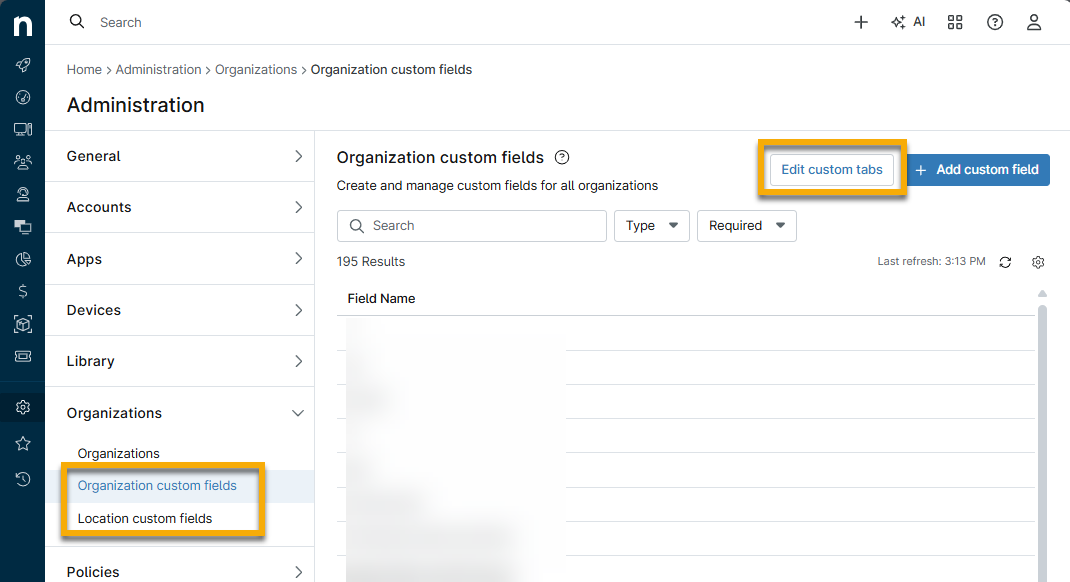
Unlike device custom fields, you do not need to add organization and location custom fields to a device role. Instead, you will use the Edit custom tabs button on either the Organization custom fields page or the Location custom fields page.
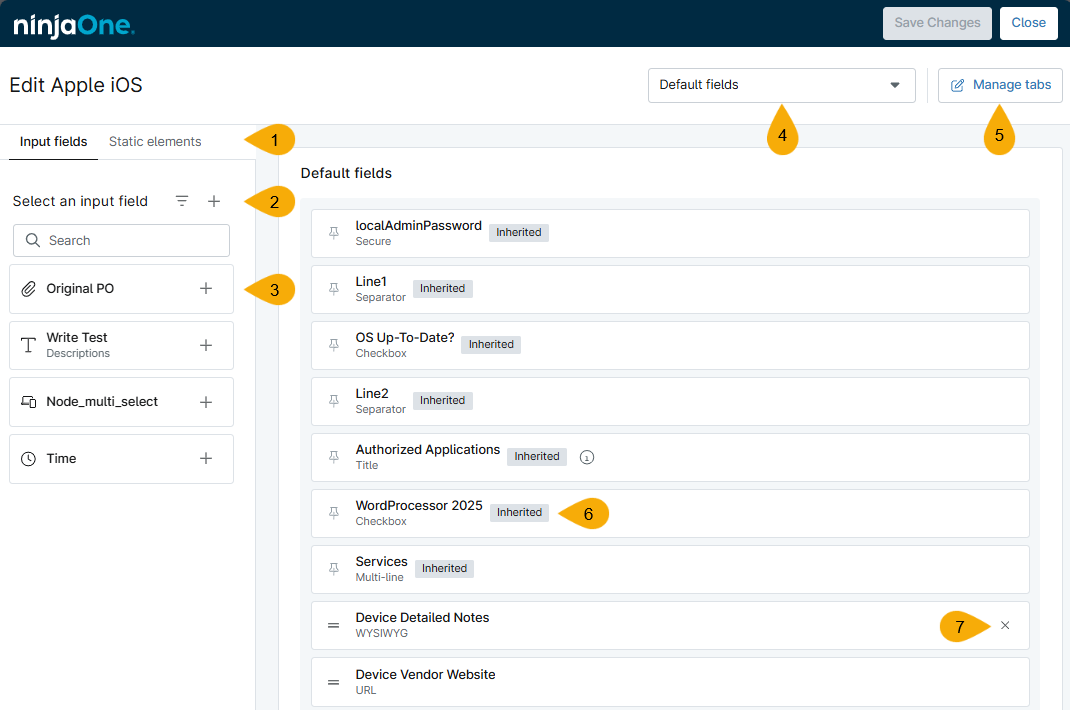
To learn how to assign custom fields to the device role, refer to the following table and Figure 2.
| Figure 2 Key | Description or Purpose |
|---|---|
| 1 | The Input fields tab is open by default and allows you to add custom fields to the device role. The Static elements tab allows you to add a description, separator, or title to format the custom fields. |
| 2 | The Filters icon helps you find specific custom field types. The Create input field icon (+) lets you create a new custom field. |
| 3 | Click the plus sign (+) next to the custom field that you want to assign to the device role. The custom fields will display in the order you selected them. |
| 4 | Switch tab views if you have more than one tab created. Each tab allows you to customize which custom fields are to be used; you can either add completely different custom fields to each tab or duplicate them. These tabs display on the device dashboard as you extend the Custom tab. |
| 5 | Create, edit, delete, or rearrange the order of your tabs. These tabs will extend to all organizations or location dashboards. |
| 6 | The inherited tag indicates that the custom field was added at the top level. To remove an inherited custom field, you must edit the Managed devices or Unmanaged devices role level. |
| 7 | Move your cursor over the custom field to remove the assignment from the device role. It will return to the Input fields tab. You cannot remove inherited fields. |
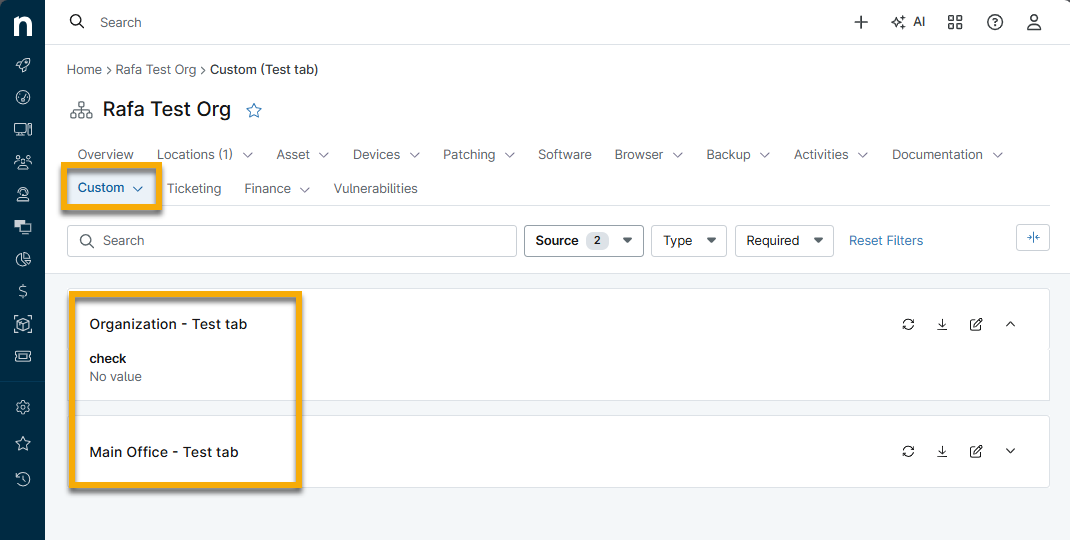
When you open the specific tab for your custom field list in the Custom tab on the organization dashboard, it will display the custom fields you have configured for that tab. If you only added a custom field to the tab at the organization level and not the location, you will notice the location custom fields will be empty.
To learn how to interact with these fields on the dashboard, refer to NinjaOne Custom Fields: View and Modify.
Additional Resources
Learn more about managing custom fields in our Custom Fields: Resource Catalog.