
Topic
Service Principal Authentication in our SaaS Backup Organization Email Portal aims to minimize the potential damage caused by accidental or intentional security breaches. It restricts data access rights to the minimum levels required to perform their tasks. This is a simple process that removes the need for global administrator creation and automates the custom role creation.
Environment
Description
NinjaOne SaaS Backup is a cloud backup platform that helps businesses securely backup, manage, recover, and protect their business information. The automated and incremental backups simplify the backup, recovery, and compliance experience. It works with Microsoft 365 (Hosted Exchange, Groups and Teams, SharePoint, OneDrive), Gmail (including Calendars, Contacts, and Tasks), and other IMAP email servers. NinjaOne uses 256-bit (AES) encryption at rest and in transit, supporting multifactor authentication (MFA).
Index
- Service Principal Authentication for New and Existing Clients
- Deactivation, Inactive Accounts, and Backup Status
- Service Principal Authentication (SPA) Toggle Addition
- Frequently Asked Questions
Service Principal Authentication for New and Existing Clients
Prerequisites for Service Principal Authentication
- For users who will authorize the Exchange Online Management App, PowerShell must be enabled.
- An Exchange Online License and email backups are required.
- Organizations that back up only SharePoint and Groups are unable to use Service Principal Authentication.
- SPA requires users to authorize the Exchange Online Management App by using a role that has access to required cmdlets in PowerShell.
- Global Admin can be used.
- If Global Admin is not used, a custom role can be created that has access to the required cmdlets.
- The Global Admin is used once and standing access will not remain with NinjaOne once the authorization process is complete.
- Global Admin can be used.
- The required PowerShell cmdlets are:
- Enable-OrganizationCustomization
- Get-RoleGroup
- New-RoleGroup
- Get-ManagementRole
- New-ManagementRole
- New-ManagementRoleAssignment
- Get-ServicePrincipal
- New-ServicePrincipal
- Get-RoleGroupMember
- Add-RoleGroupMember
Please note that with SPA, NinjaOne will still use the Global Admin within the tenant (Not the backup admin that is created for our legacy connection method) for the following scenarios. This Global Admin will need to have an exchange license in order to properly access these. In the case of public folders, it should also be an owner of the folders.
- Backup Module:
- Public Folder Backup
- Public Folder Restore
- PowerShell Module:
- Creating a sub-app during the initial setup and recreating it if the sub-app becomes invalid.
Adding M365 Backup with Service Principal Authentication for New Clients
As a partner, you can instruct your clients on adding M365 backup with Service Principal Authentication authorization by providing them with these steps, or you can perform the task by yourself by impersonating the client.
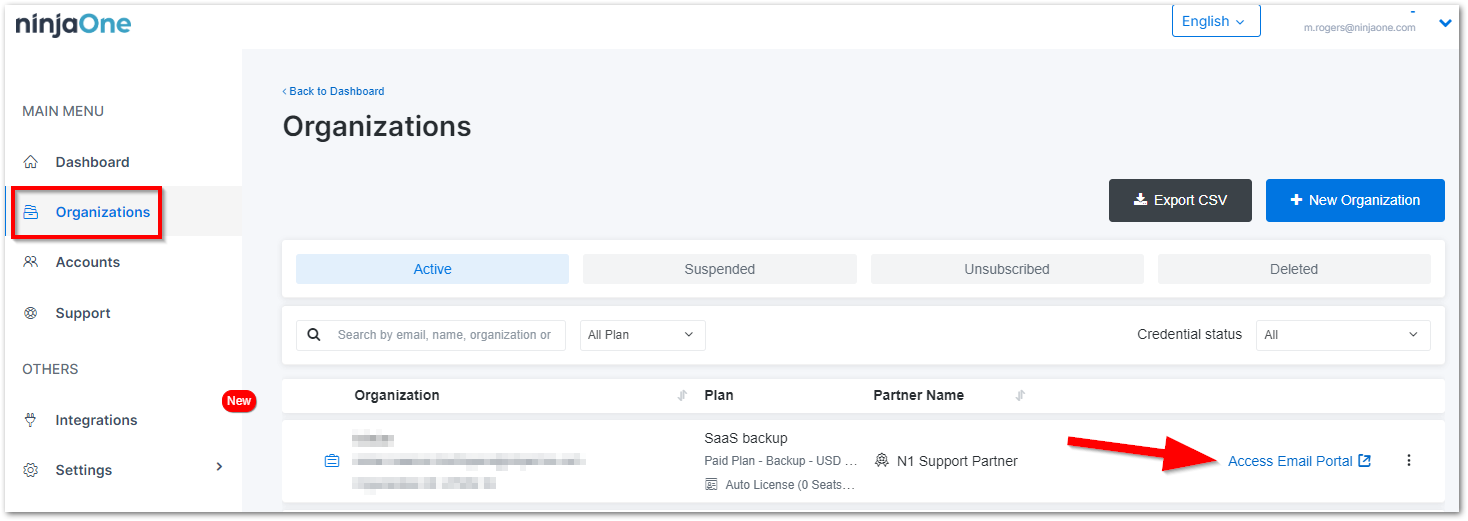
- Access the Organization Email Portal.
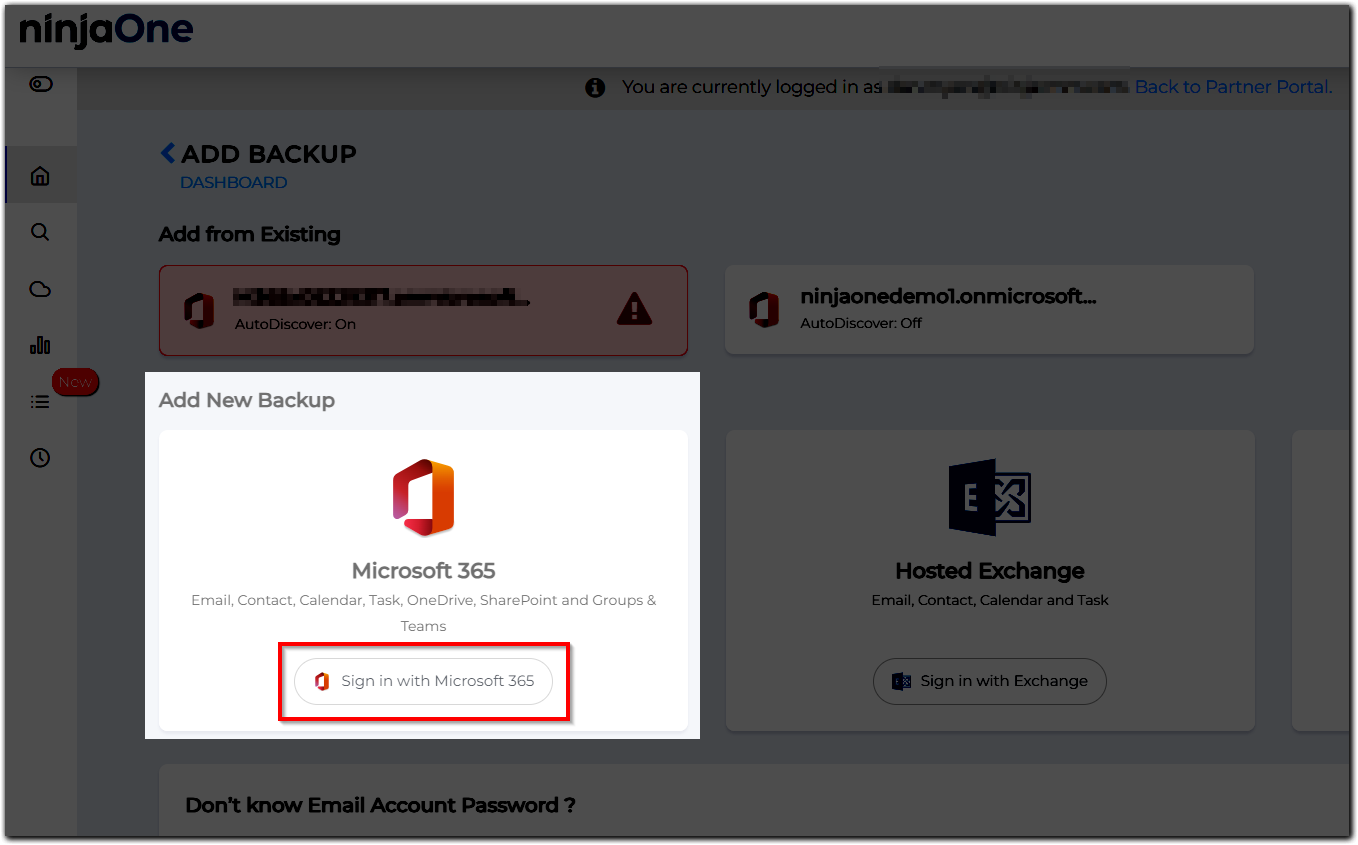
- Click the + Add Backup button on the Dashboard page.

- Click Sign in with Microsoft 365.
You will see 2 options. Select the second option, “Authorize with Least Privilege Permissions,” for authorization and input the M365 admin account accordingly. - Scroll down the page and click Accept.
Once the consent is granted, the user will be redirected to the M365 AUTHORIZATION page. There are two (2) steps in total:- Create Backup Application; we are creating sub-applications in the user's tenant. It may take a few seconds to complete.
- In Device Authorization, click the available link. The system will redirect you to the new Microsoft window, copy and paste the code from the portal, then click the Next button. Select the correct email admin. Click the Continue button.
- Go back to the Organization Email Portal and click Verify & Continue to finish.
Once it is successful, the system will list all of the M365 accounts on this tenant. Please wait until custom role creation is successfully connected. It may take up to 24 hours. During this time, the Public Folder is restored, and Journaling (for the Archiver plan) is stopped. You can monitor the status on the Account Settings page under the Credentials tab.
Migrating Service Principal Authentication for Existing Clients
As a partner, you can instruct your clients on adding M365 backup with Service Principal Authentication authorization by providing them with these steps, or you can perform the task by yourself by impersonating the client.
- When logged in to the portal, you see a banner; click the Learn More button.
You will be redirected to the Credentials tab under the Account Settings page. - Click the Migrate Now button.
- Click the Yes, Continue button on the confirmation popup.
- Select the correct organization’s email.
- Click the Continue button.
- Complete the device authorization process. When the process is completed, you can close the window.
- In the Organization Email Portal, click the Verify & Continue button.
When successful, the system will list all of the M365 accounts on this tenant, with an additional banner indicating that the migration to use Service Principal Authentication is successful.
Deactivation, Inactive Accounts, and Backup Status
When a valid email license is assigned to an account in the source tenant, backup runs regularly. When that license is not assigned to an account in the source, it is marked as “Inactive” in the NinjaOne system as it has detected the user has no valid license in the mail provider.
If a mailbox does not have any data, it will be marked as deactivated within the UI. However, NinjaOne will still regularly check to see if any data was added and will automatically reactivate it once data exists.
If a user manually deactivates a mailbox from backup, the tooltip displays that it was manually deactivated. The system automatically deactivates a mailbox backup when it is deleted from the mail server, and the mailbox is removed from the AD Group registered in NinjaOne.
When there is a backup error for a mailbox, the Organization Email Dashboard displays it. The backup status can also be checked from the System Status tab (Organization Email Portal) and Support tab (Partner Portal). Our system automatically retries during backup errors, and the backup process doesn’t stop. The backup process stops only when a mailbox is in a deactivated / inactive state.
Please contact NinjaOne Support if you need help investigating any backup errors.
Mailbox Status Colors
- Orange represents an inactive mailbox that was deactivated.
- Gray represents an inactive mailbox with no data (empty) on the M365 end. Such Inactive Mailboxes do not use a license
Service Principal Authentication (SPA) Toggle Feature
How do I find the SPA toggle?
- Log in to the Partner Portal.
- Go to the Organization Page.
- Select an organization, click the ellipsis, and then click View Details.
- The SPA toggle is available under the Features tab.
What is the default value of the SPA toggle?
It will be in a disabled state.
What is the effect on the Organization Email Portal once the toggle is activated?
Users will be redirected to use manual custom role creation while adding M365 backup. On the other hand, when the toggle is deactivated, users will be redirected to use the automated custom role creation while adding M365 backup.
Frequently Asked Questions
- How long does it take to create a custom role?
- Does SPA require a Global Admin?
- Let’s say I choose to use automated custom role creation, and I find that creating the role takes some time to complete, so I want to switch to running the script manually to create the role. Will it make the custom role creation faster?
- What will happen to tenants when custom role creation is still pending?
- What tenant protocols need to be available?
- After partners are successfully authorized with the service principal permissions, what should they do next?
- I've successfully migrated to Service Principal Authentication and received the prompt that I can clean up the backupadmin and the app registration Azure AD, why is their other app registrations still listed?
- After we migrated to Service Principal Authentication, we learned Service Principal Authentication does not support Groups and Teams' calendar backup or Groups and Teams Mailbox with attachments. Can we revert to the legacy method?
- After switching from the legacy method to Service Principal Authentication, will I still have to periodically re-authenticate?
- What is needed to set up or migrate to Service Principal Authentication?
- My Custom Role Status shows "Disconnected," what do I do?
- I am seeing a credential error after migrating to SPA, how do I resolve this?
- What are the Roles/Scopes required for SPA?
- What does manual custom role creation mean when adding the M365 backup?
- What does automated custom role creation mean when adding the M365 backup?
How long does it take to create a custom role?
It will depend on the situation on Microsoft’s side. It varies from a couple of minutes up to 3 days.
Does SPA require a Global Admin?
Yes, a global admin is required during the setup of SPA. Additionally, the below scenarios will continue to require a Global Admin within the tenant
Backup Module:
- Public Folder Backup.
- Public Folder Restore.
PowerShell Module:
- Creating a subapp during the initial setup and recreating it when the subapp is invalid.
Let’s say I choose to use automated custom role creation, and I find that creating the role takes some time to complete, so I want to switch to running the script manually to create the role. Will it make the custom role creation faster?
It’s not a guarantee that switching to a manual role will make the custom role creation faster, as it depends on what’s happening on Microsoft’s side.
What will happen to tenants when custom role creation is still pending?
We expect them to wait up to 24 hours. Every day, we’re going to retry the process, and if it still fails, we’ll send a notification email and ask them to contact our support.
What tenant protocols need to be available?
We use the ‘Exchange Online PowerShell V3 Module’ to connect to the client’s tenant.
After partners are successfully authorized with the service principal permissions, what should they do next?
We advise you to remove the backupadmin from your account after verifying your new authorization with the service principal.
I've successfully migrated to Service Principal Authentication and received the prompt that I can clean up the backupadmin and the app registration Azure AD, why is their other app registrations still listed?
Once you have migrated from the legacy method to Service Principal authentication, the backup admin and associated app registration can be deleted, however, SPA requires the remaining sub-apps not to be deleted.
After we migrated to Service Principal Authentication, we learned Service Principal Authentication does not support Groups and Teams' calendar backup or Groups and Teams Mailbox with attachments. Can we revert to the legacy method?
Yes, please reach out to NinjaOne support to request this reversal. Note: Once this is completed, reauthentication with the backupadmin will be required.
After switching from the legacy method to Service Principal Authentication, will I still have to periodically re-authenticate?
No, since we no longer hold tokens for the backupadmin, there should not be any re-authentication required. The only time a re-authentication could be required is if the tokens for the main app of the organization are revoked.
What is needed to set up or migrate to Service Principal Authentication?
The admin that is being used for authorization must have access to the cmdlet (enable-organizationcustomization) for custom role creation before authorizing the ExO app. Remote Powershell should be enabled for the user who is authorizing the ExO app. The tenant should have an exchange license to migrate to the Service Principal Authentication (SPA) flow, otherwise, the custom role cannot be created.
My Custom Role Status shows "Disconnected," what do I do?
Please reach out to NinjaOne support if you are seeing this in your organization.
I am seeing a credential error after migrating to SPA, how do I resolve this?
To resolve the credential error that presents after migrating to SPA, use any global admin within the M365 tenant to re-authenticate. Since SPA doesn't hold tokens for the backup admin, this should be the only re-authentication that has to be completed.
What are the Roles/Scopes required for SPA?
| Permission | Type | Purpose |
|---|---|---|
| Application.Read.WriteAll | Delegated | Create and delete sub-applications used for backup and restore |
| AppRoleAssignment.ReadWrite.All | Delegated | Grant administrative consent for sub-applications |
| Calendars.ReadWrite | Application | Calendar backup and restore |
| ChannelMessage.Read.All | Application | Teams chat backup and restore |
| Chat.Read.All | Application | Teams chat backup and restore |
| Contacts.ReadWrite | Application | Contact backup and restore |
| Domain.Read.All | Delegated | List the available domains in the tenant |
| Files.ReadWrite.All | Application | File backup and restore |
| Group.ReadWrite.All | Application | Group and Teams backup and restore |
| Mail.ReadBasic.All | Application | Email backup and restore |
| Notes.ReadWrite.All | Application | Notes backup and restore |
| offline_access | Delegated | Renew refresh token for ORG admin |
| Reports.Read.All | Application | |
| RoleManagement.Read.Directory | Application | Retrieve the list of users and administrators in the organization |
| Sites.Manage.All | Application | Sites backup and restore |
| Sites.ReadWrite.All | Application | Sites backup and restore |
| Teamwork.Migrate.All | Application | Teams Chat restore |
| User.Read.All | Application | Lists users |
| User.ReadWrite.All | Delegated |
What does manual custom role creation mean when adding the M365 backup?
It refers to the manual process of creating a role with minimum necessary permissions to perform backup tasks. The role is created by running the PowerShell script. In the manual flow, users must download and run the PowerShell script instead of letting NinjaOne run it. Please follow these steps to add M365 backup with manual custom role creation:
- Log in to the Organization Email portal.
- Click the +Add Backup button on the Dashboard page.
- Click the Sign in with Microsoft 365 button.
- Input the M365 Global admin account accordingly.
- Click the Accept button.
- Once the consent is granted, the user will be redirected to the M365 AUTHORIZATION page. There are two steps in total.
- Create Backup Application - sub-applications are created in the user's tenant (may take a few seconds to complete).
- Click the Verify & Continue button to complete the authorization. Please ensure you follow all three provided instructions for a successful result.
- Download the PowerShell script by clicking the provided button.
- Open your PowerShell command prompt, then run the script (point 2.1) until it is executed completely.
- A brief FAQ section has been included to further assist you in understanding the flow.
- Once authorization is successful, you will be redirected to the M365 account list page where you can start selecting mailboxes to backup.
What does automated custom role creation mean when adding the M365 backup?
It refers to the automated process of creating a role with minimum necessary permissions to perform backup operations. The role is created by running a PowerShell script. In the automated flow, NinjaOne will run the PowerShell script instead of letting users do so. Please follow the steps to add M365 backup with automated custom role creation:
- Log in to the Organization Email portal.
- Click the +Add Backup button on the Dashboard page.
- Click the Sign in with Microsoft 365 button.
- The system shows two options:
- Select the second line to experience Service Principal Authentication (SPA).
- The first line corresponds to the current authorization, which still involves Global Admin creation.
- Input the M365 admin account accordingly.
- Scroll down the page and click the Accept button to allow our application to be backed up.
- Once the consent is granted the user will be redirected to the M365 AUTHORIZATION page. There are two steps in total.
- Create Backup Application — sub-applications are created in the user's tenant (may take a few seconds to complete).
- Device Authorization — start by clicking the available link.
- The system will redirect you to the new Microsoft window, copy and paste the code from the portal, then click the Next button.
- Select the correct email admin.
- Click the Continue button.
Once you see this screen, device authorization is complete. You may close the window. - Back in the Organization Email portal, click the Verify & Continue button to finish this step.
Once it is successful, the system will list all of the M365 Accounts on this tenant. Select the account you wish to add to the backup.