
Topic
This article covers the process for enabling full permissions for devices running MacOS 10.14 and later for use with NinjaOne Backup.
If you have not successfully enabled Full Disk Access to a Mac device, the following error will occur when attempting to run a backup.
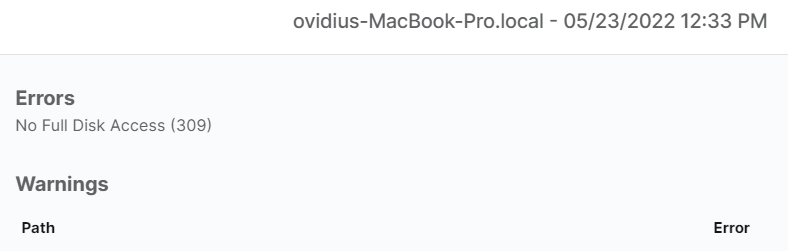
Figure 1: Example of disk access error
Environment
Description
Full Disk Access permission is a privacy feature introduced in MacOS 10.14 that prevents some applications from accessing important data. Certain applications must be granted permission manually to access these protected areas, while previous versions of MacOS allowed permission to be granted automatically.
- Click the Apple icon on the top left corner of your Mac desktop screen.
- Navigate to System Settings → Privacy and Security, then click Full Disk Access.
- Click the lock icon.

Figure 2: Mac system settings → Full Disk Access → Privacy
- Enter your system administrator credentials, and then click Unlock.
- Click the (+) icon.

Figure 3: Mac system settings → Full Disk Access → Privacy → Add
- Select the lockhart application from the list, and then click Open.
- If prompted, click Quit Now.
Full Disk Access is now enabled.