
Topic
This article explains how to use Wake-on-LAN with your devices managed in NinjaOne.
Environment
NinjaOne Endpoint Management
Description
Wake-on-LAN (WoL) is an Ethernet computer networking standard that allows you to "wake up" a system/turn on a computer through a network message.
It is accomplished by sending a packet, called a "Magic Packet", to the sleeping machine’s Network card’s MAC (Media Access Control) address to wake it up.
Index
Select a category to learn more.
Prerequisites
The Wake-on-LAN settings need to be configured in two places:
- BIOS level
- Network Adapter level
BIOS Level
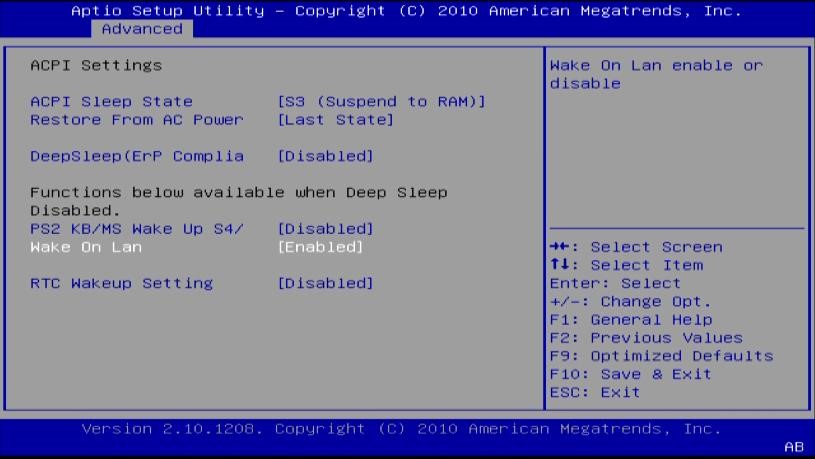
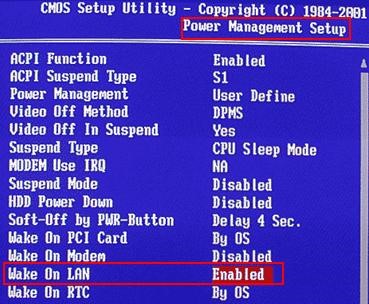
The Wake-on-LAN settings need to be turned on at the BIOS level.
Different vendors and their devices have these settings buried under different settings in the BIOS menus. Please refer to your machine’s vendor documentation to find out where these setting are located.
Here are some examples:

Network Adapter Level
In Windows, you need to change the network adapter settings in the following manner to turn on WoL:
- Open the Start menu and type “Device Manager.”
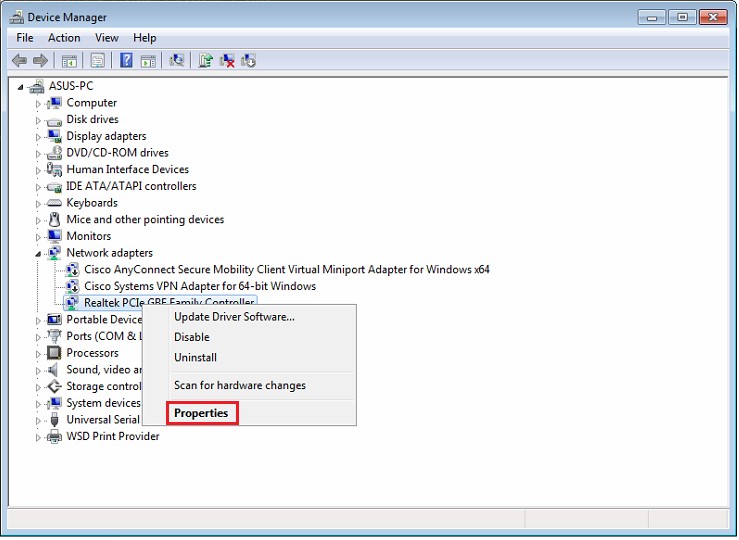
- Open the Device Manager and expand the Network Adapters section.
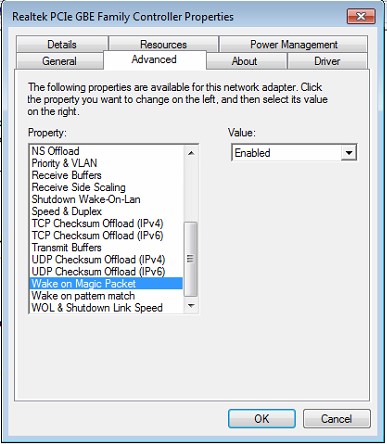
- Right click on your network card and go to Properties, then click on the Advanced tab.
- Scroll down in the list to find “Wake on Magic Packet” and change the Value to “Enabled.” You can leave the other “Wake on” settings as they are.
- Open the Power Management tab and ensure the “Allow this device to wake the computer” and “Only allow a magic packet to wake the computer” boxes are enabled.
- When you're finished, click OK.
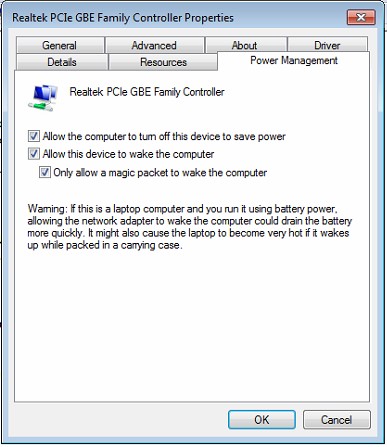
Now that you’re done configuring it on the device level, you need to make sure it works properly before you start using NinjaOne to wake up this computer.
Pre-Test
Prior to using the WoL feature in NinjaOne, please perform the simple test documented below, which should confirm if your device is configured correctly.
- Download the free Wake-on-LAN tool from nirsoft.net.
- Put a device for which you believe WoL is configured to sleep.
- Install this utility on a machine in the same subnet and ‘Wake’ the device in question from there.
If these steps work, then you are all set. Otherwise, please check the device settings and make sure this pre-test passes. It is possible that you can verify packet transmission by performing a packet capture during the time of the broadcast on a switch port.
How Wake-on-LAN Works in NinjaOne
NinjaOne requires the following conditions to be met for it to function correctly:
- The Windows agent should be running on the ‘sleeping’ device and should be registered on the backend.
- The sleeping device must be connected to a LAN with a wired Ethernet connection.
- Both the sleeping device and the device waking it up should be:
- Under the same organization.
- Should have the same subnet and Gateway IP.
- Must be a Windows machine.
Once all the above conditions are satisfied, select the device that is sleeping and the option “Wake-on-LAN" will appear.
You can also select multiple devices of the same type to wake them up simultaneously.

You can also wake up a device by clicking the action button on the device dashboard and selecting Wake-on-LAN.

Once you click the button, you will see one of two messages depending on device settings:
- There is at least one active device under the same organization with the same subnet and gateway IP and running a windows agent.
- In that case, you will see the following message:

If everything is configured correctly, this device should come back online in the NinjaOne console in a couple of minutes.
- In that case, you will see the following message:
- No device is online under the same organization with the same subnet and gateway IP.
- In this case, you will see the following message:
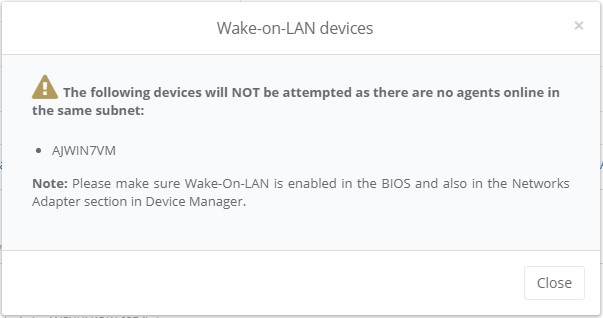
- In this case, you will see the following message: