
Topic
This article describes how to create and edit conditions in your NinjaOne policies.
Environment
NinjaOne Endpoint Management
Description
You can create conditions that trigger when the device's integrity or performance meets the specified criteria. When triggered, conditions can automatically alert technicians, display on NinjaOne Dashboards, create support tickets, and run automations.
Get Started: Conditions (NinjaOne Inc. 01:24)
Adding a New Condition
To configure monitored conditions in NinjaOne, perform the following steps:
Configure the Condition
- In NinjaOne, navigate to Administration → Policies, then click a policy.
- On the policy's configuration page, select the Conditions tab, then click Add a condition.
- The Condition window will open. Click Select a condition and specify the condition to monitor. For a complete list of all available conditions, refer to Policies: Condition Types Breakdown.
- Use the configuration options in the Condition window to finish setting up the condition. Refer to the table below for an explanation of each option.
| Option | Description |
|---|---|
| Name | Give the condition an optional descriptive name. |
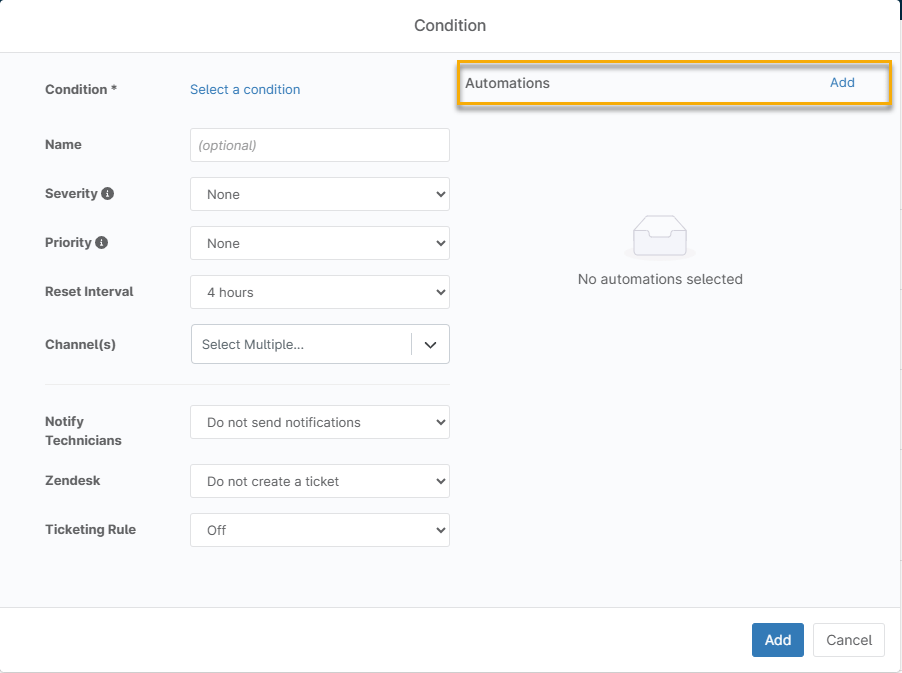
| Automation | Click Add to add an automation that will run when the condition is triggered. For more information, refer to the Add an Automation (Optional) section below. |
| Severity | Severity is the extent to which a defect can affect the system. |
| Priority | Priority defines the order in which to resolve defects. Use the Priority field to determine whether something should be fixed immediately or at a later time. |
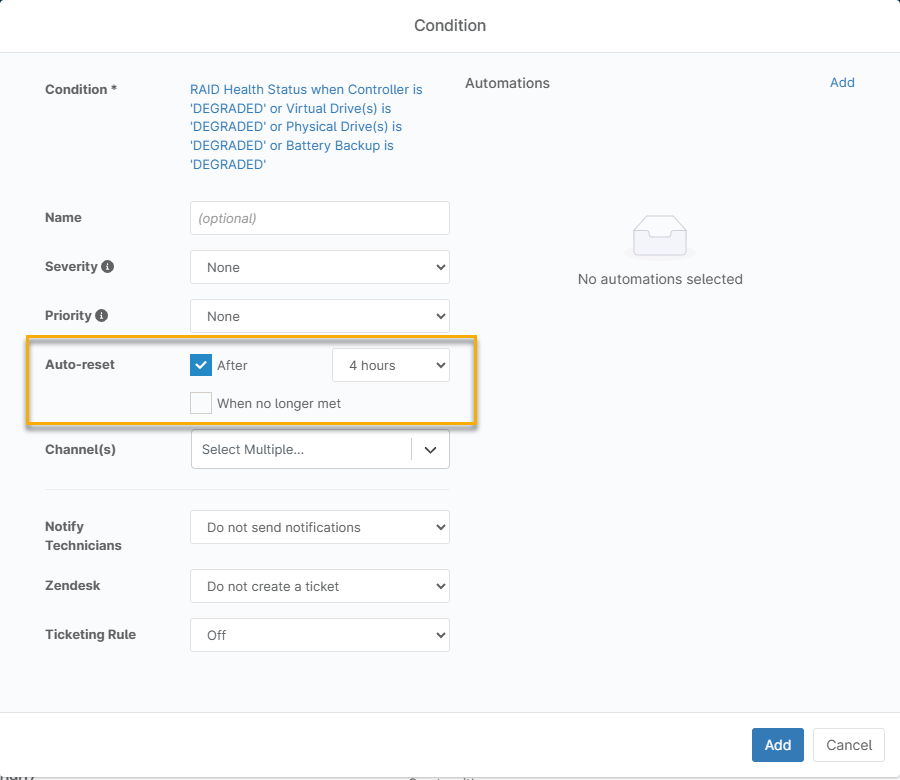
| Auto-reset | Specify the amount of time to elapse before the condition automatically resets. Refer to the Configure the Reset Interval section of this article for more information. |
| Health Status | Assign a custom health status to the condition. You can choose from Healthy, Needs attention, Unhealthy, or Unknown. If the condition triggers, you can view and sort your devices according to this custom health status, making it easier to gain visibility into the extent of the issue. Refer to Per Condition Health Status to learn more. |
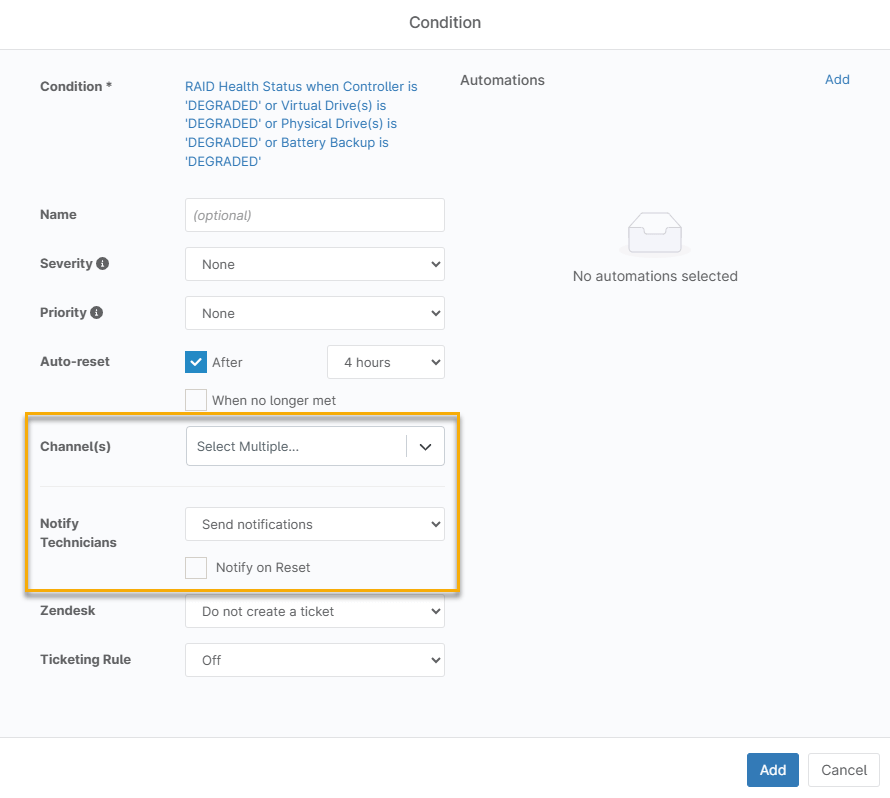
| Channel(s) | If you selected Send notifications from the Notify Technicians drop-down menu, you can select through which channels the technicians receive the notification. Refer to the Notification Channels article for more information |
| Notify Technicians | Activate this option to notify all technicians in your organization when the condition occurs. NinjaOne sends condition alerts in UTC +0 format by default. You cannot change this setting. The local device timestamp will still appear in the Activities feed. |
| Ticketing Rule | This option allows you to create a ticket from the triggered condition. Ticketing options may vary or may not be available if PSA or NinjaOne Ticketing is not enabled with your system configuration. To learn more about ticketing in NinjaOne, refer to Ticketing: Resource Catalog. |
Configure the Reset Interval
Configure the reset interval in the Auto Reset section of the Conditions card.
- Select the After checkbox to specify how long the system should wait before resetting the condition and clearing the alert from the device.
- Some conditions allow you to instruct the system to reset the alert when the condition is no longer met. Select the When no longer met checkbox to activate this option. This checkbox will not appear if the condition does not allow the option.
The Notify on Reset Option
Some conditions, such as Device Down, can notify technicians when they reset. Select the Notify on Reset checkbox to enable this option.
Create a Ticket (Optional)
If you configured a PSA integration or NinjaOne Ticketing, you can choose to create a ticket when the specified condition is triggered. The NinjaOne ticketing rule relies on the forms you added in Administration → Apps → Ticketing → Forms.
Once there are ten open tickets for the same condition and device, NinjaOne prevents the creation of additional tickets and updates the most recent ticket with a private message detailing the issue. To resume ticket creation, users must delete at least one existing ticket.

Add an Automation (Optional)
If the condition triggers, you can add a script to install or run an application to remediate it. Click Add in the Automation section of the Condition editor window. This action displays a list of all native scripts and scripts added through the NinjaOne Automation Library. When you save a condition, NinjaOne displays it on the policy's Conditions tab, with visible ticketing and notification details.
Working With Existing Conditions
When you create a condition, it appears in the Conditions list on the policy's configuration page.
Condition Health Status
The colored bars represent the condition's assigned custom or default health status:
- Green: Healthy
- Yellow: Needs attention
- Red: Unhealthy
- Grey: Unknown
Editing a Condition
Click a condition to open its configuration screen. After making your changes, click Apply to save them.
Deleting a Condition
Place your cursor over the condition, then click Delete when it appears.
Additional Resources
To learn more about working with policies and conditions, refer to the following articles: