
Topic
This article explains how to configure permissions for technicians in NinjaOne. This article addresses the settings for an individual technician account, which you can use as a reference when setting up a user role.
Environment
NinjaOne Platform
Description
After creating technicians in NinjaOne, you can assign them permissions for various product features to ensure they have the minimum necessary access to perform their roles.
Select a section to learn more.
- Navigating to Technician Permissions
- Important Considerations
- Permission Settings Explained
- Additional Resources
Navigating to Technician Permissions
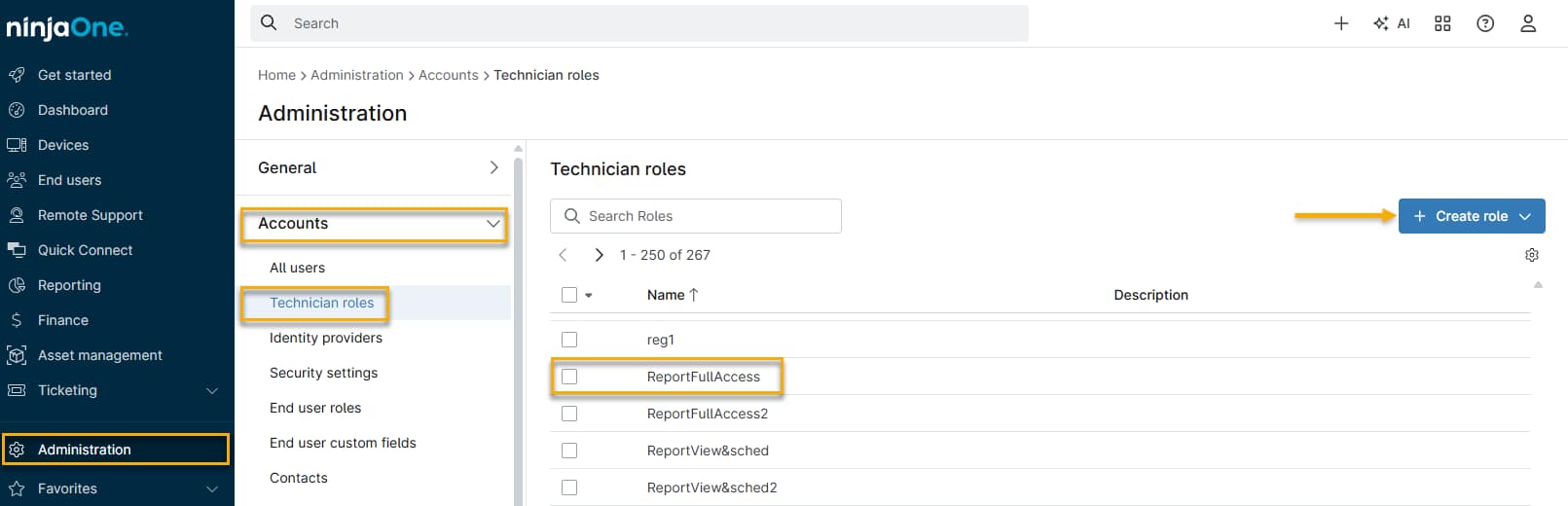
- In NinjaOne, navigate to Administration → Accounts and select Technician roles from the flyout menu.
- Select a role from the list, or click Create role to create a new Technician role.
Important Considerations
You must activate the toggle switch at the beginning of each Permissions page to configure the settings.
By default, specific permissions will automatically update to provide recommended access levels after you enable the section. You can change the selection by choosing a new permission level from the drop-down menus.
For some Permission sections, you can set Default Access, which determines the access level for all subsequent permissions within a category. For example, you can set the default access to all organizations to View, but then change the access level for a single organization to View, Update, Delete. To change the default access, select the checkbox next to the individual organization name and then click Edit Permissions.
Permission Categories Explained
Refer to the tables below for detailed information about each category's permission settings.
General
Use these settings to record basic member information. Click through each tab to review all configuration options.
Basic Details
| Field | Description |
|---|---|
| Name | Add the technician's first and last name. |
| The invitation to log in to NinjaOne is sent to this account, and the end user will use this account for all future access to their portal. | |
| Password | Click Reset Password to resend the NinjaOne invitation. The end user will be prompted to create a new password. |
| Phone | The end user's personal or work mobile number will be used to complete authentication if you select SMS in the Security tab. |
| Automatically assign tickets | This toggle switch is related to event-based automation actions. If a system administrator configures the action to auto-assign for "least open ticket" or "longest time since last ticket assignment," the ticket is automatically assigned (based on the selected condition) to whichever technician has the fewest open tickets or the longest period since they were assigned to a ticket. |
| Signature | This field appears after you create the technician account. Add a signature that will be applied to a ticket's public responses. |
Display
| Field | Description |
|---|---|
| Language | This tab provides the ability to set the language for this user, their user idle warning time, and whether to show or hide the Getting Started page. |
| User Idle Warning | If enabled, this option represents the time the technician can be idle in NinjaOne before getting a warning and logging out. |
| Getting Started | Show or hide the Getting Started page on the NinjaOne platform. |
Notifications
| Field | Description |
|---|---|
| Configure whether the technician receives notifications via the email associated with their NinjaOne account. | |
| SMS | Configure whether the technician receives notifications on their mobile device. |
| Organizations | To allow the technician to receive organization-specific alerts, select all organizations or an organization to which the technician was given access in Basic Details. |
Security
Select the authentication type for the account:
- Native: Allow native authentication and turn off single sign-on (if configured).
- Single sign-on: Require single sign-on and turn off native authentication.
Finance
This field enables you to track the estimated costs for each of your customers, including base wage, expected productivity, additional expenses such as taxes, benefits, paid time off, training, and other overheads. If you do not enter a value for this field, time entries will use the default hourly cost.
Only system administrators or technicians with NinjaOne Billing → Administrative Actions access can update this field. When you update this field, you will also have the option to update existing time entries for the technician. For more information, refer to NinjaOne Billing: Time Entries.
Roles or Members
If you are configuring permissions for a role, this section will be labeled Members. If you are configuring permissions for an individual account, this section will be labeled Roles. To learn more about user roles, refer to NinjaOne Platform: User Roles.
System
Select the access level for each system-level permission. Access level may vary between permissions.
| System Permission | Description | Permission Settings |
|---|---|---|
| Manage Reports | Control the ability to manage, view, and run reports. You can also add the ability to claim a report schedule. |
|
| Mobile Application | Give technicians access to the NinjaOne Mobile Application. For more information, refer to NinjaOne Mobile App. |
|
| End User Sharing | Grant the ability to view or manage an organization's end users. |
|
| Manage Contacts | Enable non-system administrators to view or manage contacts. |
|
| Uninstall Software | Use this setting to control the ability to uninstall software remotely. |
|
| Uninstall Patch | Define the ability to uninstall a patch remotely. |
|
| Custom SNMP Library | Allow technicians to access or modify the Custom SNMP Library. For more information, refer to NinjaOne NMS: Custom SNMP. |
|
| Backup | Control access to NinjaOne Backup management. Technicians with limited user permissions must also have view access to File Explorer in Remote Tools in the System permissions to restore file or folder data to a device. This will allow the technician to view the folder directory once they select the device to restore. |
|
| SaaS Backup | Allow management of NinjaOne SaaS Backup. |
|
| Maintenance Mode | Set permissions for Maintenance Mode. |
|
| Configure Activities | Allow the ability to manage notifications for system activities. |
|
| ITSM / PSA Integrations Configuration | Manage access to Professional Services Automation (PSA) applications. |
|
| CloudBerry | Manage the CloudBerry integration app. |
|
| Active Directory Management | Allow access to Active Directory User Management. |
|
| Active Directory Discovery | Set permissions for Active Directory Discovery. |
|
| Configure NinjaOne Remote | Technicians can configure settings for NinjaOne Remote, if enabled. |
|
| Background Mode for NinjaOne Remote | Set permissions for NinjaOne Remote's Background Mode feature. |
|
| Quick Connect for NinjaOne Remote | Control access to Quick Connect for ad-hoc NinjaOne Remote sessions. |
|
| GravityZone Admin | Technicians can configure settings for Bitdefender GravityZone, if enabled. |
|
| GravityZone Scan Options | Control the ability to run GravityZone scans on devices. |
|
| Configure SentinelOne | Technicians can configure settings for SentinelOne, if enabled. |
|
| Configure CrowdStrike | Allow the ability to configure settings for CrowdStrike, if enabled. |
|
| Configure TeamViewer | Control the ability to configure settings for TeamViewer. |
|
| Configure ConnectWise Control | Define the ability to configure settings for ConnectWise Control. |
|
| Configure Splashtop | Determine the ability to configure settings for Splashtop. |
|
| Configure Microsoft Intune | Grant the ability to configure Microsoft Intune. |
|
| Device Administration | Give technicians access to configure roles, health status, and custom fields for devices. |
|
| Tag creation | Allow technicians to create and manage tags globally. |
|
| Tag assignment | Permit viewing, assigning, and removing assignments of tags. |
|
| Caching | Control the ability to view or manage cache servers. |
|
| Custom fields export | Allow the export of custom fields data where available. |
|
| Vulnerability access | Grant the ability to access vulnerability functionality. |
|
| Discovered Devices | Grants the ability to view devices found during a discovery job. Refer to NinjaOne NMS: Network Discovery or Getting Started with the Microsoft Intune Integration in NinjaOne for more information. |
|
| Create Device Groups | Permit techinicians to create new device groups. Technicians will also be able to share new device groups with the roles to which they belong |
|
MDM Connections
These settings govern permissions for NinjaOne Mobile Device Management (MDM).
| MDM Permission | Description | Permission Settings |
|---|---|---|
| Create new Apple Push Notification service (APNs) certificates | Allow technicians to create new Apple Push Notifications (APNs) certificates. |
|
| Default APNs certificate access | Control the level of access for viewing, updating, and deleting APNs certificates. |
|
| APNs certificates | If you have added multiple APNs certificates to the Apple MDM, you can control which ones the technician can access and the level of access. |
|
| Create new Automated Device Enrollment (ADE) profiles | Technicians with this permission can create new ADE profiles for Apple MDM. |
|
| Default ADE profile access | Control access for viewing, updating, and deleting ADE profiles. |
|
| Create new Apps and Books content tokens | Create new Apps and Books content tokens for Apple MDM. |
|
| Default Apps and Books content token access | Control access for viewing, updating, and deleting Apps and Books content tokens. |
|
| Create new Android Enterprises | Allow technicians to create new Android Enterprise (AE) connections for Android MDM. |
|
| Default Android Enterprise connection access | Control the level of access for viewing, updating, and deleting AE connections. |
|
| Android Enterprise (AE) | If multiple AE connections have been added to the Android MDM, you can control which ones the technician can access, and control the level of access. |
|
| Create new Microsoft connections | Technicians with this permission can create new connections for Microsoft MDM devices. |
|
| Default Microsoft connection access | Determine a technician's specific level of access when viewing, updating, and deleting Microsoft connections. |
|
Organizations
Only system administrators can access and alter Node Approval.
| Organization Permission | Description | Permission Settings |
|---|---|---|
| Create New Organizations | This setting determines whether technicians with this permission can create new organizations. If the technician does not have access to policies, then new organizations will use the default system policies. |
|
| Default Access | Set the default access to current and newly created organizations. If the technician has permission to update an organization, they will also be able to edit multiple organizations at the same time. This feature lets technicians configure remote access provider settings across organizations for TeamViewer, Splashtop, and NinjaOne Remote. |
|
| Individual Organization Permissions | You can edit individual organization permissions (overriding the default access) by selecting the checkbox next to the organization name and then clicking Edit Permissions at the top of the table. |
|
Devices
| Device Permission | Description | Permission Settings |
|---|---|---|
| Secure Fields | This setting grants the ability to allow viewing or restrict access to secure fields. You can configure secure fields with our NinjaOne Custom Fields: Getting Started with Setup guide and store sensitive data, such as passwords. Technicians not granted permission to view these fields cannot access them. |
|
| TOTP Fields | This setting grants the ability to allow viewing or restrict access to time-based one-time password fields. |
|
| Remote Tools | Select which tools technicians can use on workstations and servers by selecting the checkbox for each tool. You can select as many as necessary. |
|
| Remote Access | Choose which tools technicians can use on workstations and servers by selecting the checkbox for each tool. You can select as many as necessary. Allowing permissions to an application will only allow that application if it is configured for the organization. This setting does not include NinjaOne Remote. To provide access to NinjaOne Remote, refer to the System table in this article. |
|
| Create New Devices | Technicians with this permission will be able to create new devices. |
|
| Decommission Devices | Technicians with this permission will be able to decommission obsolete devices. This action includes uninstalling agents, stopping monitoring, and hiding devices from default views in NinjaOne. |
|
| Default Access | Define default access to current and newly created device roles and grant the ability to delete devices. Individually overwrite access for specific devices. The Default option aligns with whichever option you choose for the default setting. |
|
Policies
Select the applicable policy options for each device.
| Policy Permission | Description | Permission Settings |
|---|---|---|
| Create New Policies | Users with this permission will be able to create new policies. |
|
| Default Access | Define default access to current and newly created policies. Individually overwrite default access for specific policies. The Default option will align with whichever option you choose for the default setting. |
|
| Individual Policy Permissions | You can edit individual policy permissions (overriding the default access) by selecting the checkbox next to the policy name and then clicking Edit Permissions. |
|
Automation Library
You can delegate run permissions to restricted technicians, enabling them to run automations and reboot devices on demand without having full device permissions.
To access Wake-on-LAN (WoL), the technician must also have Permissions: Devices → Default Access set to a minimum of View and Update.
| Automation Permission | Description | Permission Settings |
|---|---|---|
| Create New Categories | Users with this permission will be able to create new automation categories. |
|
| Scheduled Tasks Administrator | Grant permission to create and run scheduled tasks. |
|
| Default Access | Define default access to current and newly created automation categories. Individually overwrite default access for specific categories. The Default option will align with the option you choose for the default setting. |
|
| Individual Permissions | You can edit individual category permissions (overriding the default access) by selecting the checkbox next to the category name and then clicking Edit Permissions. |
|
Ticketing
Technicians without access to all organizations cannot assign tickets to end users who are linked to all organizations. Technicians must have access to an organization equal to or greater than that of the end user.
| Ticketing Permission | Description | Permission Settings |
|---|---|---|
| Administrative Actions | Grant the ability to manage boards, triggers, custom fields, forms, automations, response templates, and administrative actions. |
|
| Ticket Actions | Control the ability for users to create and run ticket actions. |
|
| Ticket Private Notes | Manage the ability for technicians to view private notes on tickets. |
|
| Ticket Relations | Allow viewing or updating ticket relations in the Custom tab on the NinjaOne Ticketing configuration page. |
|
| Pending Email Boards | Manage the ability to access the Pending Email board. |
|
| Ticketing Mobile | This setting manages the ability to use the mobile app for ticketing. |
|
| Tickets without an Organization | Grant the ability to set permissions for tickets not assigned to an organization. |
|
| Update time entries on closed tickets | Let the technician specify which time entries can be edited. |
|
| Recently Created Tickets | Control whether the recent tickets widget will be shown on the right side of the ticket page when viewing a ticket. |
|
| Board Access | Set the permissions that newly created boards will inherit. Individually overwrite specific boards. The Default option will align with whichever option you choose for the default setting. |
|
| Individual Board Permissions | You can edit individual ticket board permissions (overriding the default access) by selecting the checkbox next to the board name and then clicking Edit Permissions. |
|
Documentation
These settings control permissions for NinjaOne Documentation.
| Documentation Permission | Description | Permission Settings |
|---|---|---|
| Documentation administration | Grant the ability to configure documentation templates. |
|
| Global Knowledge Base Documentation access | Allow technicians to manage global knowledge base documentation. |
|
| Knowledge Base public links Documentation access | Permit management of global knowledge base public links. |
|
| Organization Documentation access | Control the ability to manage documentation for organizations. |
|
| Secure fields management | This setting grants the ability to access and manage secure fields for organization documents. Secure fields are set up in custom fields and can store sensitive data such as passwords; they are hidden if the technician is not granted permission to view them. |
|
| Related items | Allow management of related items within documents. |
|
| Related items credentials | Let technicians access and manage secure related items within documents. |
|
| TOTP Code access | Grants the ability to access TOTP (time-based one-time password) codes for secure related items and document custom fields. Refer to NinjaOne Documentation: Time-based One-time Passwords (TOTP) for more information. |
|
| Sharing Global Knowledge Base Folders with end users | Allow sharing of global knowledge base folders and their files to the end user portal. |
|
| Organization checklist access | Manage checklist items inside organizations. |
|
| Checklist template access | Grant technicians permission to manage checklist templates. |
|
| Restrict knowledge base folder access | Restrict knowledge base folder access to specific technician roles regardless of permissions. In the Knowledge Base tab on the system dashboard, the Share option will have an additional section for technician permissions. You can limit access by role. The restriction applies to all files and sub-folders. |
|
| Documentation export access | Export documentation items and tables where available. |
|
NinjaOne Billing
These settings control permissions for NinjaOne Billing (formerly PSA).
| Documentation Permission | Description | Permission Settings |
|---|---|---|
| Administrative Actions | Grant the ability to configure and access NinjaOne PSA features. |
|
| Ticket Products | Allow technicians to add billable products to tickets. |
|
| Ticket Products Price | Let technicians view and edit the price of billable products on tickets. |
|
| Override Labor Ticket Time Entry | Give the ability to override time entry products on tickets with products they have can access and are part of the ticket's agreement. |
|
IT Asset Management
For more information about the features related to these permissions, refer to NinjaOne Endpoint Management: Getting Started With NinjaOne IT Asset Management.
| Permission | Description | Settings |
|---|---|---|
| Relationship types | Allows technicians to add entity relationships, which define how two entities work or connect with each other. |
|
| Asset Relations | Allows users to configure asset relationships between two entities. |
|
Additional Resources
Refer to User Management: Resource Catalog to learn more about managing users and technicians in NinjaOne.