
Topic
Environment
- NinjaOne MDM
- macOS enrolled in MDM
Description
System extensions allow macOS apps to use advanced OS feature sets, such as creating device drivers, network extensions (DNS proxies, VPNs, or content filters), and endpoint security extensions to monitor and block system events.
With NinjaOne's MDM solution, you can automatically manage and approve system extensions for managed apps. This allows for a more seamless application installation, a better user experience, and eliminating potential user errors.
- Create System Extension Configurations
- Allow System Extensions to Remove Themselves
- Allow Users to Approve Additional System extensions
- Edit or Delete System Extensions
- Additional Resources
Create System Extension Configurations
You can add system extensions to the NinjaOne agent policy. If you have not configured a policy and want to learn more, refer to Policies: Create a New Policy.
- From the policy configuration page, expand the MDM section and select System extensions.
- Click Add extension on the right side of the page.
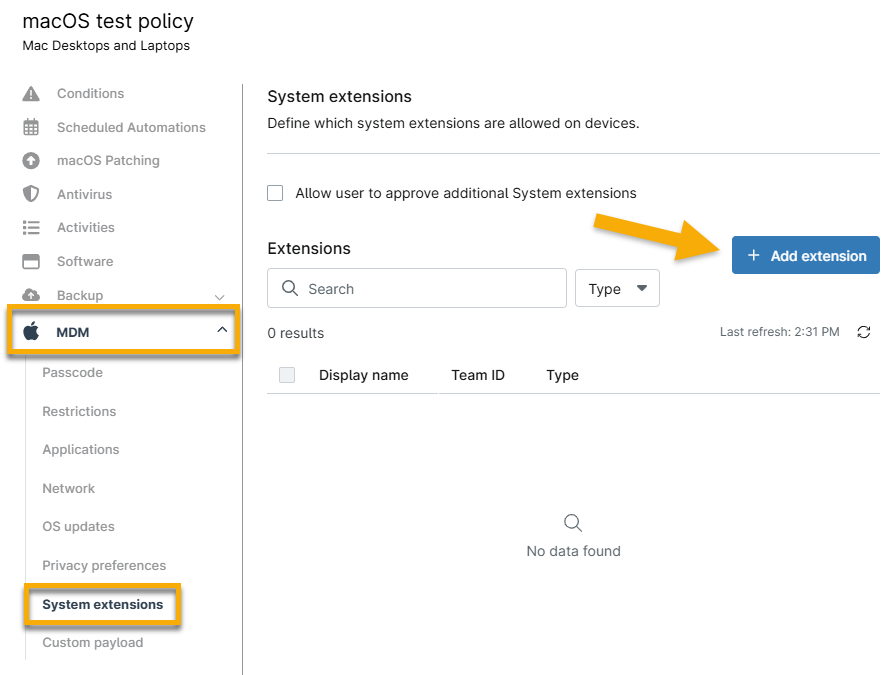
Figure 1: Add a system extension for macOS
- Complete the required fields in the system extension configuration modal and click Add. The following section explains system extension types.
- The Display name does not functionally affect the device behavior but can remind technicians which app and extension(s) are configured.
- The Team ID should be provided in the app documentation. If it is not, you can input the following Terminal command on the device where the app is installed to retrieve it:
codesign -dv {PATH_TO_APP} 2>&1 | grep TeamIdentifierAbout system extension types
Allow specified system extensions
Specify one or more extension bundle identifiers to approve. When working with Apple products, a bundle identifier is a unique identifier for an application and is often used to recognize updates and validate an app. The NinjaOne agent automatically approves the added system extension for the device.
Review the app documentation for any necessary system extension IDs. If unsure, run the following command in Terminal after fully installing the application on a device to see all loaded system extensions.
systemextensionsctl list
Edit or delete extensions by clicking the ellipsis button and selecting the applicable option.

Figure 2: Add, edit, or delete a specified system extension for macOS
Allow by type
If you select this option, you must activate at least one of the checkboxes that appear in the configuration modal:
- Driver extension
- Network extension
- Endpoint security extension

Figure 3: Add system extensions for macOS by type
Allow System Extensions to Remove Themselves

Figure 4: Allow system extensions to remove themselves
Allow Users to Approve Additional System extensions
When you add an app that uses system extensions to a macOS policy in NinjaOne but do not define which system extensions are approved, the user must manually allow them within their device's System Preferences before they can use them.
If you do not want users to be able to manually allow system extensions for unspecified apps, ensure this box is not checked.

Figure 5: Allow users to approve additional system extensions
Edit or Delete System Extensions
To edit or delete a system extension, move your cursor over the row and click the ellipsis button. Then, select the applicable option.

Figure 6: Edit or delete system extensions for macOS
Additional Resources
Refer to the following resource(s) to learn more about NinjaOne MDM: NinjaOne MDM: Resource Catalog.