
Topic
This article describes how to get started with scripting for automations in the NinjaOne Automation Library.
Environment
NinjaOne Endpoint Management (automation and scripting)
Description
NinjaOne provides several out-of-the-box native scripts, but you can also create and edit custom scripts or install and run app automations. When you run custom scripts on devices, NinjaOne will prompt you to specify optional parameters and whether you want to run the scripts as System, Current User, or with credentials from your credential store.
View additional tutorials in our video library.
Select a topic to learn more:
- Scripting Considerations
- Add New Scripts
- Import New Scripts
- Sort and Filter Automation Scripts in the Automation Library
- Edit, Copy, or Delete Existing Scripts or Applications
- Automations Under Review
- Template Library
- Additional Resources
Scripting Considerations
Consider the following when planning your scripts:
- The NinjaOne agent does not provide troubleshooting support for custom reboot scripts. To issue a reboot, we recommend using NinjaOne's native reboot script to ensure the agent can handle the action properly.
- Automations marked as All for the Architecture parameter run based on the device's native architecture (32 or 64-bit).
- You cannot use the following special characters in parameters:
&|;$><`!. - You may assign scripts to a category (or multiple categories) to further organize the Automation Library. To create new categories or edit or delete existing categories, click the Categories tab in Administration → Library → Automation.
- NinjaOne only accepts string value parameters. These include string decimal integers and checkbox options.
Supported Script Languages
NinjaOne supports the following script languages:
- JavaScript
- PowerShell
- Batch
- ShellScript
- VBS Script
Automated Applications
Administrators can configure scripts to run or install an application. The Run and Install automation application options allow you to create a library of installed and running application scripts to add to a policy or scheduled task, or run on demand. For example, if you run CCleaner on endpoints, you can use NinjaOne to call it.
Once you install an application in the Automation Library, you can use it multiple times across different organizations and devices.
Add New Scripts
To add new scripts, complete the following steps:
Configure the Scripting Parameters
- Navigate to Administration → Library → Automation, then click Add automation → New Script.

- The Create Script page will open. Configure the following parameters according to each script's language requirements:
| Parameter | Description |
|---|---|
| Name | Give your script a descriptive name. |
| Description | Add an optional description that explains the script's function. |
| Categories | Choose the Automation Library categories in which you want your script to reside. You can select one or multiple categories. |
| Language | Select the language in which you will write your script. Command formatting will change automatically based on the language selected. |
| Operating system | Select the operating system appropriate for your script. This option will be greyed out until you select a language. |
| Architecture | Select a 32-bit or 64-bit architecture. |
| Run as | Specify the role under which the script will run. These options will change based on the operating system you select. |
| Script variables | Click add to choose script variables from the drop-down menu. For more information about script variables, refer to NinjaOne Endpoint Management: Using Variables in Automation Scripts. |
| Parameters | Define the parameters that will take the arguments from calls for parameter values. For more information about parameters, refer to NinjaOne Endpoint Management: Automation Parameters. |
Write and Implement Your Script
Enter the script in the editing pane. If you want your script to interact with custom field data, type Ctrl+Space. Type Get or Set to access snippets, which are building blocks you can use to read from or write to specific custom scripts. For more information, refer to Reading from or Writing to Custom Fields in Scripts. When finished, click Save to save your script.
The script is now available for use in scheduled automation as a scheduled task. or as a manual execution. To learn more,refer to the following resources:
- NinjaOne Policies: Scheduled Automations
- NinjaOne Endpoint Management: Scheduled Tasks
- NinjaOne Endpoint Management: Running Automation Scripts and Applications on Demand
Import New Scripts
To import new scripts or files into NinjaOne, perform the following steps:
- Navigate to Administration → Library → Automation, then click Add automation → Import from file or Import from template.
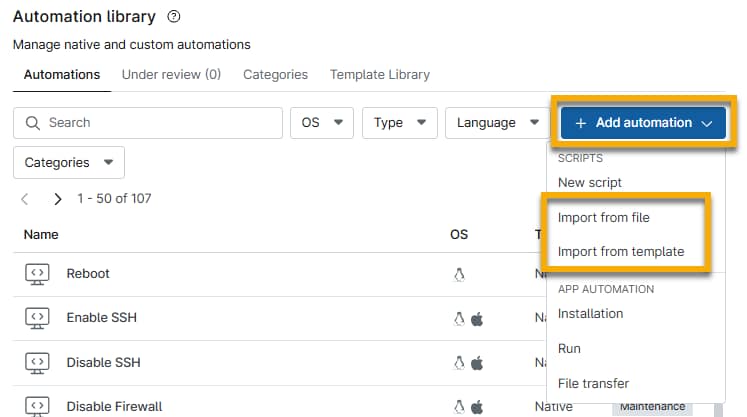
- Select the file for the script you wish to import. If you choose to import from a template, NinjaOne will redirect you to the Template Library tab, where you can select one of the native scripts that NinjaOne offers. To learn more about the scripts housed in the Template Library, refer to NinjaOne Endpoint Management: Native Automation Scripts.
Sort and Filter Automation Scripts in the Automation Library
You can change your sorting parameters in the Automation Library's table settings by performing the following steps:
- In the Automation Library, click the gear icon.

- Select your sort criteria. You can sort, add, remove, and reorder the column display. To reorder columns displayed on the page, click and hold the column name, then drag it up or down. When finished, click Save.
Edit, Copy, or Delete Existing Scripts or Applications
When working with existing scripts, remember the following considerations:
- You can only modify, copy, or delete custom scripts and applications.
- You cannot delete NinjaOne's native scripts, but you can edit their categories.
- You can delete or edit Run and Install applications, but you cannot copy them.
- You can only delete or view legacy installers.
Procedure
Navigate to Administration → Library → Automation and place your cursor over a script or application. Click the ellipsis icon to view the menu options.

- Click Edit to open the script editor and make changes. Click Save to finalize the new script.
- Click Delete to remove the script or application from your library. If you delete a category, NinjaOne will label the category as Uncategorized.
- Select Copy to create a new script identical to the original script. NinjaOne will prompt you to name the new script. When finished, click Save.
Automations Under Review
When you add an installation application to the Automation Library, it will appear in the Under review tab before moving to the Automations tab.
While automations are under review, NinjaOne validates the primary and helper files to ensure they are free of malware, viruses, or installer URL issues that could cause application errors.

Template Library
The Template Library is a collection of scripts written by NinjaOne's in-house script development team, compiled from popular requests from the NinjaOne community. NinjaOne provides these scripts "as-is," and it is your responsibility to test and evaluate them before implementation.
To learn more about the scripts housed in the Template Library, refer to NinjaOne Endpoint Management: Native Automation Scripts.
Additional Resources
For a list of frequently-asked questions about the Automation Library, refer to Automation Library: FAQ.
Refer to Scripting, Automation, CLI: Resource Catalog to learn more about automation in NinjaOne.