
Topic
This article explains the role of and use cases for Mobile Device Management (MDM).
For information about enrolling Android or Apple devices in MDM, refer to NinjaOne MDM: Getting Started With Android Device Management and NinjaOne Apple MDM: Getting Started with Apple Device Management.
Environment
- NinjaOne Mobile Device Management (MDM)
- Android OS
- Apple iOS
- Apple iPadOS
- Apple macOS
Description
NinjaOne MDM software automates, controls, and implements administrative policies on various mobile devices. It allows you to view, manage, and secure Android and Apple mobile devices alongside other endpoints.
These devices can include the following:
- Smartphones
- Tablets and pads
- Any Android device (v8.0+) with Google apps and services or another supported operating system
Select a topic to continue:
- Importance of MDM
- Terminology
- Usage Types: Unsupervised / Personal Profile vs Supervised / Work Profile
- Device Enrollment Check Expectations
- MDM Device Dashboard:
- Create MDM Policies
- Additional Resources
Importance of MDM
Mobile device management offers numerous benefits, including:
- The ability to easily provision mobile devices through unified policy-based management with applications to best support users and configure them in a manner that contributes to an overall strong, secure, and compliant posture.
- Tools to protect and manage assets on mobile devices.
- A level of protection against security breaches that stem from employee mobile device usage.
- Standardized mobile device management practices and processes with all your devices in one place.
- Seamless remote access to mobile devices allows you to access and view users’ mobile device screens to gain a clear understanding of the issue at hand.
- Complete, accurate, and updated inventory of company-owned and personal mobile devices to reduce the potential for device-based risks.
Compatibility
- Currently, NinjaOne MDM does not support Microsoft Windows OS.
- The minimum Android OS version supported for MDM is 8.0+; for Apple, the minimum OS version supported is 10+.
- The minimum Apple iOS version supported for NinjaOne Remote and Quick Connect is 16+.
Terminology
| Acronym/Term | Definition |
|---|---|
| AE | "Android Enterprise" is the connection used to manage Android devices. Related: Android Enterprise Resources | Android |
| APNs | "Apple Push Notification Service" is one of the connections used to manage Apple devices. Related: Configure devices to work with APNs - Apple Support |
| ABM | "Apple Business Manager" is an optional connection used for advanced management of Apple devices. Related: Apple Business Manager User Guide - Apple Support |
| ADE | "Automated Device Enrollment" is used with ABM to onboard devices and end users in NinjaOne automatically. Related: Use Automated Device Enrollment - Apple Support |
| MSP | "Managed Service Provider" is an organization that assists or fully takes over the management of devices and technology items for another organization. |
| Kiosk Mode | Settings that provide additional levels of control over a device when enabled. Kiosk mode can potentially limit a device to access only specific applications, restrict the use of certain device features, or change the behavior of device actions. |
- For more terminology used in NinjaOne guides, refer to NinjaOne Terminology.
- For Apple-specific terminology, refer to Glossary - Apple Support or Glossary - The Apple Wiki.
- For Android-specific terminology, refer to The Android Dictionary | Android Central.
Usage Types: Unsupervised or Personal Profile vs Supervised or Work Profile
After you enable the MDM feature and enroll your Apple or Android account(s), you can add mobile devices to be managed in NinjaOne. When you add a mobile device to NinjaOne, you have the option of categorizing the usage or enrollment type as either "For personal and work" (Android) and "Unsupervised" (Apple) or "For work" (Android) and "Supervised" (Apple).
Usage types define how a device is enrolled. The difference between these two usage types is outlined below.
- For personal and work or unsupervised: "Personally Owned". A personally owned device is typically considered a BYOD (bring your own device) enrollment. NinjaOne (or any MDM) has limited access to device information and actions.
- The device is expected to be enrolled from the policy application or a link on an already set-up device (one that has previously completed the setup wizard and is in active use). This will then allow an organization to manage the applications and data within the work profile alone, with no visibility or management of the personal (or parent) profile possible.
- All items, except for calls and messaging, can be segmented and kept separate between profiles; work-related policies will not affect the personal profile. Restrictions are applied to the work profile only.
- For work or supervised: "Company Owned." A device that is owned by an employer or company but personally enabled (COPE). This type enables platform-level separation of work apps and data. NinjaOne provides more detailed information about the device, including serial numbers and network-related data. Enterprises have control over data and security policies within the work profile. Outside the work profile, the device remains suitable for personal use.
- For Android devices, this must be a blank, new device (out of the box), or you will receive an error message when attempting to add the device to NinjaOne.
- During the setup process, the device user will also be prompted to add their own accounts and information to the configured work profile. The organization has some control over the personal (parent) profile for things like camera, screenshots, and other DLP policies; however, it still maintains limited visibility of anything outside of the work profile.
To learn how to configure a COPE device, refer to NinjaOne MDM: Adding a Company-Owned, Personally Enabled (COPE) Android device to NinjaOne.
For additional information about Apple supervised mode versus unsupervised mode, refer to Apple MDM: Understanding "Supervised" vs "Unsupervised".
Device Enrollment Check Expectations
Devices added to NinjaOne's MDM solution "check in" to the platform at least once a day. The check-in is not set to a specific schedule and may be affected by potential sync offsets, device power, or sleep state, or local conditions.
However, any action taken in NinjaOne, such as a policy change, will take effect on the device almost immediately. Certain application installations may take a few minutes, depending on the speed of the App Store connection, but should sync to the device as soon as deployed.
MDM Device Dashboard
 Ownership
The ownership of a device is selected at device setup and determines the policies and actions that can be taken on a device. If "For personal and work" or "Unsupervised" was selected when manually adding a mobile device in NinjaOne, then the ownership will show as "Personally Owned."
Encryption
The Encryption field, under Ownership on the Overview tab, refers to whether the device has Data Protection enabled, which is done by ensuring the Apple policy has enforced a minimum of a 6-digit passcode. See also, MDM: Apple Policy Management.
Actions
Click the action icon ( ) next to the device name to see available actions. The device enrollment type (company-owned vs. personally owned) and OS type determine which actions are available. For more information about device actions, refer to Manage Devices and Run Actions from the Device Dashboard.
- Lock Device: Lock device work profile.
- Clear Passcode: Select Clear Passcode to notify the end user that they must set a new passcode; select Reset Passcode to create a passcode for the work profile only (if the device is personally owned).
- If a device is personally owned, the Reset Passcode action potentially allows for two passcodes on a device (one for the work profile and one for the personal profile).
- Reboot Device: Reboot the device. Depending on how the device was enrolled, this action may be nested under Security actions.
- Erase Device: This may have different results depending on OS and ownership. Refer to NinjaOne Mobile Device Management (MDM): Unenroll, Erase, or Delete a Device for more information.
- Software: Install apps for Apple devices. See below for more information.
Apple Device Software Settings
When installing apps through the action button on the device dashboard, the app is assigned a "forced install" type because it is applied outside the assigned policy, and you do not have the option to remove the app from the device. For information about installing apps through the policy, refer to MDM: Apple Policy Management.
As a system administrator, hover your cursor over the play/action button and select Software; click Install apps.

A notification of the installation status is displayed in the dashboard's bottom right corner when complete, and a log is created in Activities. You can view a list of all applications installed on the device under Software → Inventory. This page shows only applications that were installed via the device or organization dashboard and does not show applications added through the policy. Likewise, the policy does not show applications that were installed via the device or organization dashboards.
- When an app is force-installed, you are given additional options for app management:
- Allow User Removal: Enable the device's end user to delete the app.
- Force Management: Allow the option to manage and remove apps through NinjaOne only.
- When you first click Install apps, you will not find any apps listed to select. You must enter the name of the app or vendor into the search field and then click Search to view the options. If unsure what to enter, you can simply type a single letter and click Search.
- Currently, NinjaOne does not support removing applications that were installed outside of a policy. To work around this, you can make the app "Blocked," which inherently uninstalls it and makes it unavailable.
View Device Details
Users can see data specifications for mobile devices in the Details tab on the device dashboard. These details include compliance status, security postures (Android), Cloud backup dates (Apple), system details, and more.
Click the arrow to the right of Compliance status to view details on the device's compliance state.

Software Inventory
The Software → Inventory tab on the device dashboard displays the applications that have been downloaded to the mobile device. The information displayed here may be different depending on whether the device is an Android or an Apple:
- Android Software Inventory: Shows system apps and those within the profile NinjaOne manages. Company-managed devices should display all apps, whereas personal devices only report on apps inside the work profile.
- Apple Software Inventory: Shows non-system apps. If a device is reset to factory defaults and enrolled in MDM, no software will be shown in the inventory until you install apps through either NinjaOne or on the device itself.
Location Tracking
Refer to MDM Geolocation for more information.
Custom Fields
Refer to Custom Field Setup for more information. Global custom fields created at the organization scope display for all organizations on the NinjaOne platform.
Activities
Refer to Device and System Activity Notification Feed for more information.
Create MDM Policies
- If you change a policy (for example, allowing access to the app store), users will need to restart their devices to view the changes.
- There may be times when a device is offline for an extended period or is otherwise unable to process a policy update. If this occurs or the configuration is not applied to a system, the ability to "resync" the policy has been added to the action button on the device dashboard.
MDM Policies determine how users can use company-owned devices. Administrators can control what apps can be downloaded, password requirements, default WiFi networks, personal usage policies, and more.
- Click Administration in the left navigation pane, then open the Policies drop-down menu and select MDM Policies.
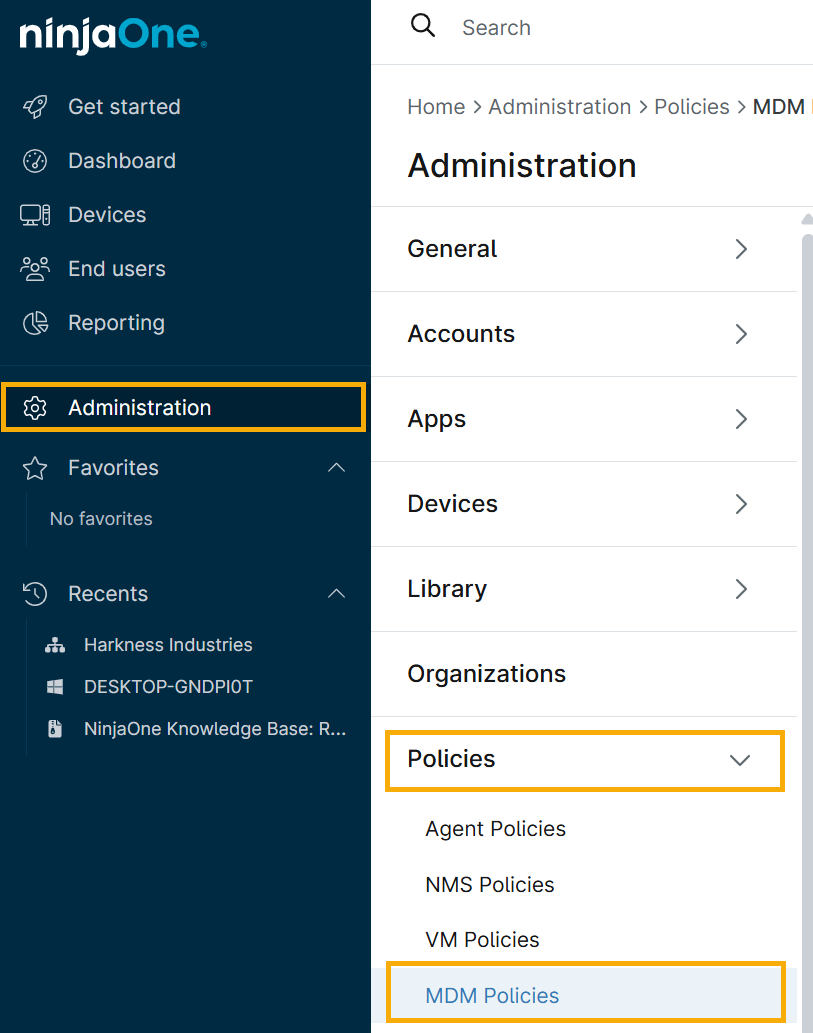
- Click Create New Policy. Enter policy details and click Save. Refer to Policies: Create a New Policy for detailed instructions.
- If you wish to change a device's policy, you can do so from the Devices tab on the left navigation panel. Select the checkbox next to the device name and then select Edit → Policy.

Apple Policy Configuration
Apple policies have four (4) configuration options. Below is a brief description of these configuration options; for more details, refer to MDM: Apple Policy Management.
- Passcode: Manage and define passcode settings.
- Configuration for password values.
- Lock after failed attempts.
- Passcode criteria and update requirements.
- Auto-lock settings.
- Restrictions: Add restrictions for any of the following:
- Functionality
- Application
- Security and Privacy
- Media
- iCloud
- Classroom
- Applications: Assign available applications from the Public App Store or through the Apple Apps and Books integration. Apps deployed via Apple Apps and Books do not require the end user to log into a personal Apple ID on their device, and supervised devices can be silently installed.
- Network: Add a policy network structure via manual proxy setup and/or wi-fi.
- All Wi-Fi networks saved to the policy are applied to the physical device.
- If a global proxy is configured, the user can turn it off on the device.
Android Policy Configuration
Android policy functionality depends on how the device is enrolled when it is added to the NinjaOne console (whether the Usage Type is set to "For work" or "For personal and work"). Policies take full control over Work-only types; if the device is personally owned, certain policy settings, like restrictions, may be limited.
There are six (6) configuration options for Android policies. Below is a brief description of these configuration options; for details, refer to MDM: Android Policy Management.
- Passcode: Click through the three tabs at the top of this setting for additional settings.
- Device scope: Set requirements for full device ownership
- Profile scope: Set requirements for the work profile of the device only.
- Restrictions: NinjaOne pulls most of the Android policy restrictions directly from the Android Management API; this reference provides the JSON representation and definitions.
- Applications: NinjaOne enables technicians to define what happens when mobile device management (MDM) applications, including kiosk app settings, are added or modified within a policy.
- Network: Configure the Wi-Fi SSID and security. If necessary, you can manually set up a network proxy using the button under Proxy Settings. Enabling direct proxy disables any established Wi-Fi networks. These settings can be edited at any time.
- Security: The Security section allows admins to encrypt the device, manage developer settings, define how data is moved for work, and more.
- Policy enforcement: Policy enforcement allows you to block access to a certain setting on either a work profile or the entire device for a specified number of days. If certain policy aspects are not applied successfully, there is an additional option to wipe the device.
Additional Resources
Refer to the following resource to learn more about NinjaOne MDM: NinjaOne MDM: Resource Catalog.