
Topic
This article explains how to use Apple Apps and Books content tokens to assign apps and manage licenses in use.
Environment
- NinjaOne Mobile Device Management (MDM)
- Apple Apps and Books
Description
NinjaOne's MDM tool supports apps assigned through Apple's Apps and Books feature. Apple Business Manager (ABM) or Apple School Manager (ASM) Apps and Books content tokens are supported per organization, and provide information related to the content token, assigned apps, and licenses from the MDM Configuration page in NinjaOne.
When you upload the content token to the Apps and Books section of the NinjaOne Apple MDM configuration page, technicians and administrators can install apps from the policy or sync from ABM or ASM. You cannot add Apps and Books applications through the Device Dashboard or Devices search page actions.
You can synchronize applications associated with the content token to the Apps and Books section of the NinjaOne Apple MDM app to show all apps, applicable operating systems (OSes), the number of licenses assigned from ABM or ASM, licenses available, and licenses in use. When an application cannot be associated with a device, an activity tells the user that the application cannot be installed. License availability is provided on the app page in ABM or ASM.
Are you interested in watching other videos related to NinjaOne MDM? Refer to our NinjaOne MDM Video Library.
Index
Select a category to learn more:
- Important Considerations
- Content Token Setup
- Asset License Availability
- Deleting Content Tokens
- Additional Resources
Important Considerations
Before getting started, consider the following notes:
- Currently, NinjaOne does not automate application updates for Apps and Books. To update these applications, you must resync the policy.
- ABM or ASM content tokens cannot sync with more than one MDM tool. If you are using Apps and Books content tokens, we recommend using a content token that is in use with only the NinjaOne MDM and has been added only once to NinjaOne.
- If using Apps and Books content tokens in NinjaOne that have been previously used with other MDM providers (such as Microsoft Intune, JAMF, Addigy, or others), then you must either create a new location in ABM or ASM and use the token associated with that new location or cease use of the previous MDM provider.
- NinjaOne lists custom applications (internally developed applications that are not available in the App Store) by application ID. You can deploy applications, force-install them, or more through the NinjaOne MDM policy, but you cannot remove them unless you also delete the Apps and Books content token from Administration → Apps → NinjaOne Apple MDM → Apps and Books.
Content Token Setup
- Navigate to Administration → Apps → Installed → NinjaOne MDM Apple, open the tab for Apps and Books, and click Add content token.

The Apps and Books configuration modal displays.
- Use the ABM or School Manager hyperlinks provided in the information box and follow the prompt to download the appropriate content token. For a step-by-step guide for obtaining the content token, refer to MDM: Apple Enrollment Sync with ADE or ABM (Supervised Devices).
- In NinjaOne, upload the content token and assign it a unique identifier to distinguish it from other content tokens in NinjaOne. NinjaOne will use this name and in other areas of the console.
Click Select Organizations to assign the content token. You can select multiple options or leave this field blank. You can only select organizations that have not been assigned a content token.
You can only install Apps and Books applications on devices associated with an organization that has an assigned Apps and Books content token. If you assign an application to a policy and devices assigned to that policy do not have an inherited content token from their organization, Apps and Books applications will not deploy to those devices. You can set a single content token to be automatically assigned to all NinjaOne organizations created in the future by making it the default content token.
Figure 2: Select organizations for Apps and Books content token - Click Save.
Your content token displays with expiration date, total assets, total associated devices, and the most recent sync date. You will also find a health status, which relates to the license expiration date; refer to Asset License Availability within this article for more information.
Change the Organization Assignments
When you add an organization to a content token, the applications will automatically deploy to those devices in the organization. If you remove an organization, the applications will be deleted from all devices associated with that organization.
To add or remove an organization from a content token, perform the following steps:
- From the NinjaOne MDM Apple configuration app, open Apps and Books and click the number in the Assigned organizations column.

- Select one or more checkboxes for all organizations that must be assigned the content token. You can only select organizations that have not been assigned a content token.
- Click Apply.
Asset License Availability
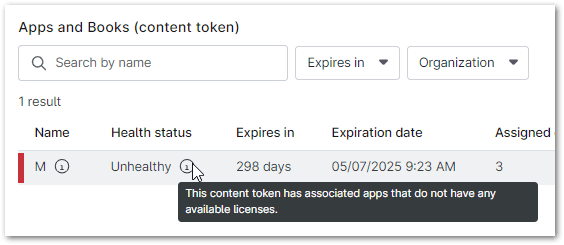
NinjaOne uses colored health statuses to track license availability and usage. Move your cursor over the data to review the tooltip, and then move your cursor over the tooltip to find specific health details.
| Color | Condition |
|---|---|
| Green | All assets have more than 10% of total licenses available for use. |
| Yellow | There are assets with less than 10% of total licenses available for use. The Apps and Books content token is expiring in 30 days or less. |
| Red | There is at least one asset with zero licenses available for use. The Apps and Books content token is expiring in 7 days or less. The Apps and Books content token is expired. |
To renew a license, move your cursor over the row and click the ellipsis. Click Renew. Refer to the content token setup instructions for renewal and use the current certificate information that shows at the bottom of the renewal modal.

Apps and Books Assets: Sync with ABM or ASM
When you transfer licenses away from a content token for an Apps and Books asset, NinjaOne will reflect the updated number of available assets upon syncing. If you remove all licenses from the content token, the asset will be completely removed from NinjaOne.
Select a content token and click Edit, then open the Assets tab. Click Sync with ABM to update this data with changes made in Apple Business Manager or Apple School Manager.

Deleting Content Tokens
When you remove a content token from NinjaOne, all applications associated with that token will be removed from all related devices.
To delete a content token, perform the following steps:
- From the NinjaOne MDM Apple configuration app, open Apps and Books and move your cursor over the content token you want to remove.
- Click the ellipsis button and then select Delete.
Additional Resources
Refer to NinjaOne MDM: Resource Catalog to learn more about NinjaOne MDM.