
Table of Contents:
Overview:
The NinjaOne Android MDM allows for multi-tenancy management, which means more control over mobile devices with different connections all from within the same NinjaOne instance.
Enable Device Enrollment:
Prior to adding Android devices to NinjaOne, you must first enable this tool using the instructions below.
If you do not currently have a Google account, you can sign up for one during this process. An organization-managed domain is preferred.
For Microsoft 365-enabled organizations, you may optionally use your Microsoft account to create a managed Google account; however, you must have permission to approve apps within your organization for this to succeed.
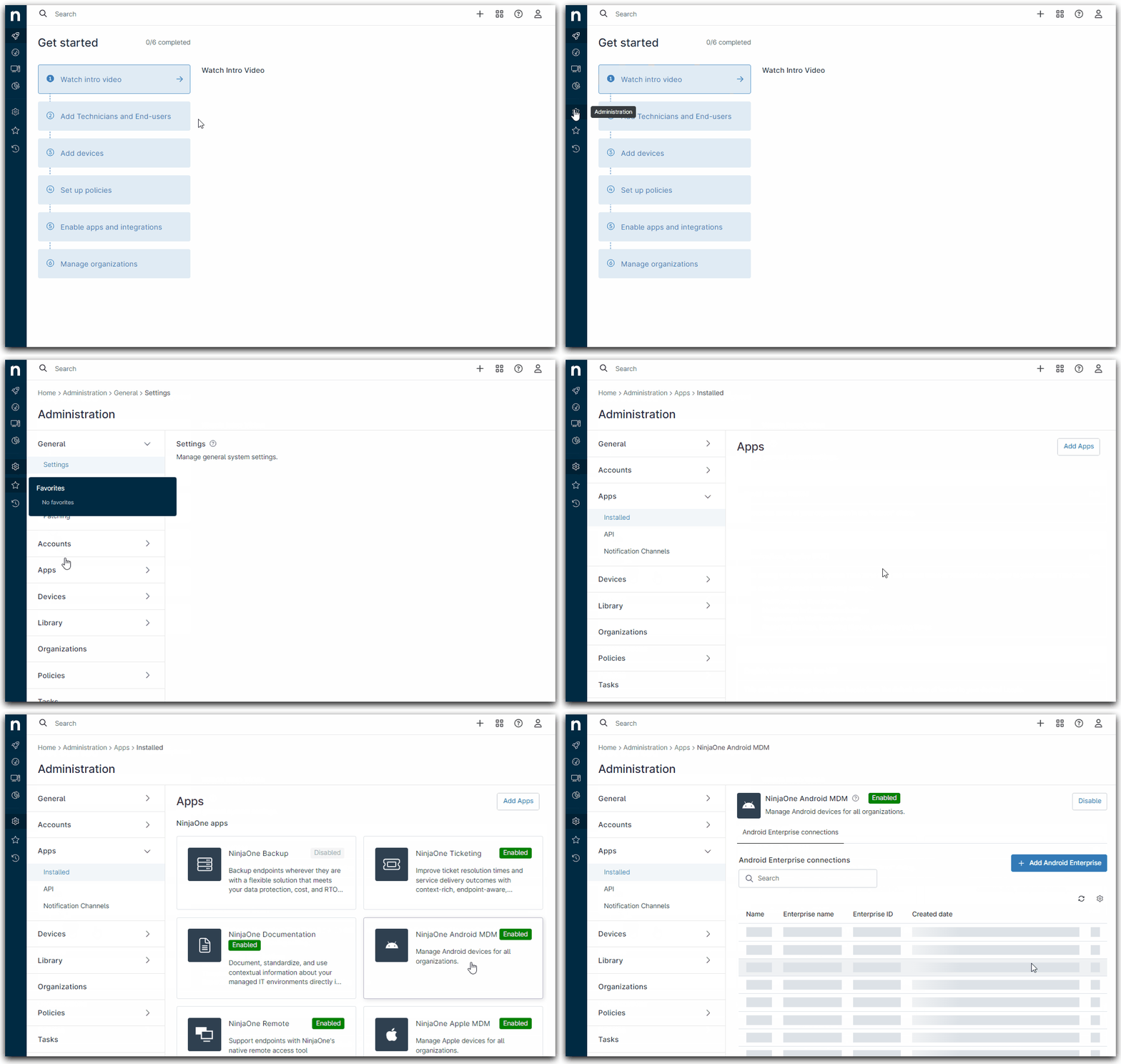
- Go to Administration > Applications > Installed. Open the NinjaOne Android MDM app.
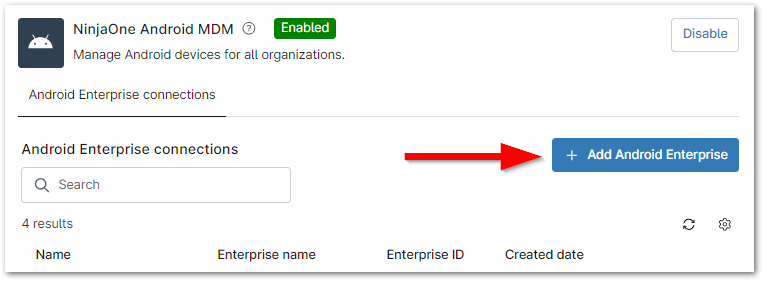
- Click Add Android Enterprise on the right side.
The Add Android Enterprise configuration modal displays. - For Step 1, add a name for the Android connection that will distinguish it from the other connections in NinjaOne. Then, click the blue hyperlink under Step 2.
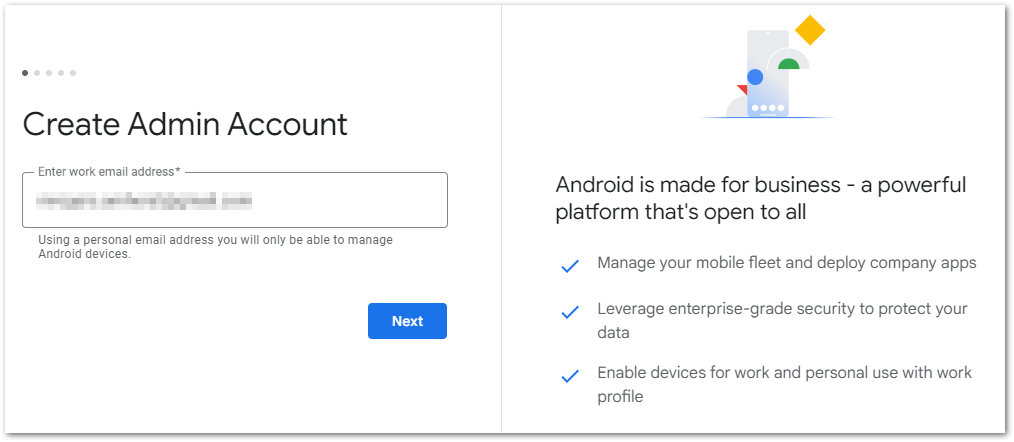
You are routed to the Android Enterprise sign-in page. - Create a new account by entering an unused password into the available field; you can use your business domain or a regular Google account. Click Next.
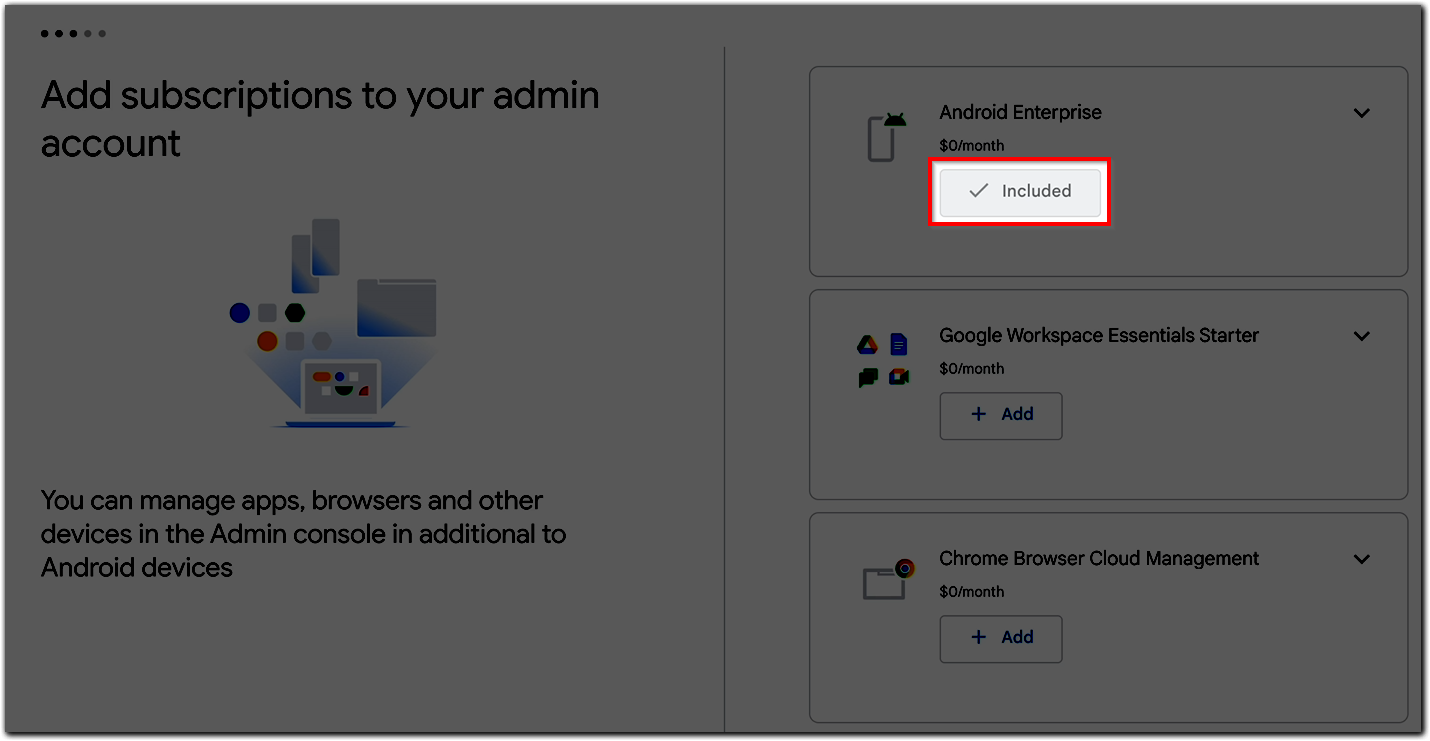
You will need to follow the prompts to verify your email and finish setting up your account according to your preferences. - During account setup, you may be asked to add subscriptions to your admin account. The Android Enterprise should be included by default and no other action is required.
- After selecting your subscriptions, you will be asked to create a password for the admin console. Then, confirm your NinjaOne environment/region will be used to manage the Android Enterprise devices by clicking Allow and create account. Your NinjaOne environment will not be the same one as reflected in the screenshot below.
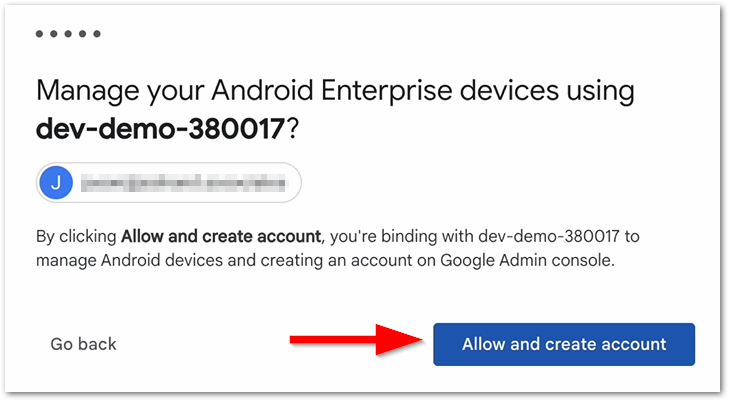
You should be redirected back to NinjaOne where the Android Enterprise account is added.
The enterprise name is displayed on the lockscreen of managed Android devices as the “managed by” entity. Devices will only see updates on the enterprise name once unenrolled and re-enrolled into the MDM.
The connection name is the name that distinguishes the connection from others in NinjaOne and is referenced when creating new QR codes/enrollment tokens. - From here, you can edit or delete the connection or Enterprise name—hover your cursor over the row and then click the ellipsis button to see the options.

You are now able to add Android devices to NinjaOne.
Change Android Enterprise or Connection Name:
When the Enterprise name is updated, the new name is additionally reflected on all newly enrolled managed devices as "Managed by <new Enterprise name>." The update is not reflected on devices that were enrolled prior to the name change—the Android device must be re-enrolled into NinjaOne MDM.
Migrate Devices from Another EMM to NinjaOne:
How you migrate depends on the deployment scenario in use:
Work profile devices
For company owned work profile devices where the intention is to migrate to another company owned work profile (COPD) deployment scenario, a factory reset from the original EMM console will be required.
If, however, the intention is to migrate to a personally owned deployment scenario (BYOD), the customer may choose to relinquish ownership in the departing EMM instead, which will retain all personal data on the migrating and Android devices. The departing EMM must support the ability to relinquish ownership for this to work.
For personally owned work profile devices, these can be deleted or wiped from the outgoing MDM platform and use the same process of scanning a QR code from the Android device. Policy application will allow the device to be reenrolled into NinjaOne.
Fully managed and dedicated devices
For fully managed or dedicated devices, the factory reset from the outgoing EMM platform is the only means for device migration at this time.
Following a factory reset, devices then can be configured to enroll into NinjaOne using any supported provisioning method with a NinjaOne enrollment token.
To ease this migration, you can lean on OOBE solutions, such as zero-touch or Knox Mobile Enrolment (KME). Particularly pertinent for devices out in field, OOBE solutions are simple and straightforward to re-point existing configurations to NinjaOne from an outgoing EMM and ensure devices are only able to enroll into NinjaOne as soon as a factory reset is performed and cannot land in an unmanaged state. This option also applies to company owned work profile devices.