

When a new Android device (Usage Type: For work) is newly integrated using the QR code, it can be automatically connected to the stored Wi-Fi. There are currently two (2) options for doing this:
- You can add Wi-Fi to the policy and deploy after enrollment (connect to Wi-Fi on the device as part of provisioning (any network) and the policy will push configured networks).
-or- - You can embed the Wi-Fi into the QR code manually using the following instructions which includes a JSON payload template (interactive options coming in a future release).
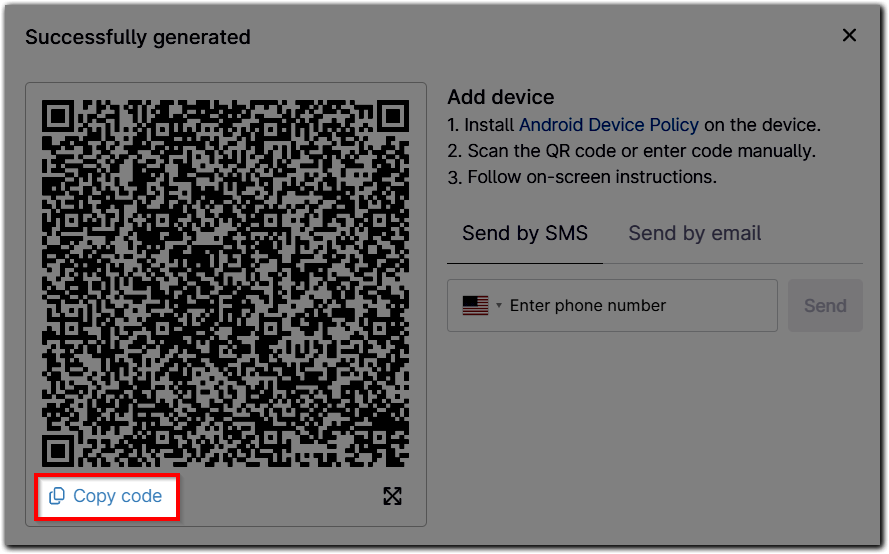
To generate a custom QR code, scan the QR code provided by NinjaOne MDM into an application that can read the JSON payload. From there, you will be able to add any of the DPC or provisioning extras as required to customize your provisioning experience.
Use the Copy code option underneath the QR image in the NinjaOne MDM console.
In the JSON template below, we highlighted a few of the data points for attention.
{
"android.app.extra.PROVISIONING_DEVICE_ADMIN_COMPONENT_NAME":"com.google.android.apps.work.clouddpc/.receivers.CloudDeviceAdminReceiver",
"android.app.extra.PROVISIONING_DEVICE_ADMIN_SIGNATURE_CHECKSUM":"I5YvS0O5hXY46mb01BlRjq4oJJGs2kuUcHvVkAPEXlg",
"android.app.extra.PROVISIONING_DEVICE_ADMIN_PACKAGE_DOWNLOAD_LOCATION":"https://play.google.com/managed/downloadManagingApp?identifier=setup",
"android.app.extra.PROVISIONING_ADMIN_EXTRAS_BUNDLE":{
"com.google.android.apps.work.clouddpc.EXTRA_ENROLLMENT_TOKEN":"xxxxxxxxxx"
},
"android.app.extra.PROVISIONING_LEAVE_ALL_SYSTEM_APPS_ENABLED":false,
"android.app.extra.PROVISIONING_USE_MOBILE_DATA":false,
"android.app.extra.PROVISIONING_LOCALE":"en_US",
"android.app.extra.PROVISIONING_WIFI_SSID":"xxxxx",
"android.app.extra.PROVISIONING_WIFI_SECURITY_TYPE":"WPA",
"android.app.extra.PROVISIONING_WIFI_PASSWORD":"xxxxx"
}
If you want to provision a Wi-Fi network as WPA-PSK (Wi-Fi protected access pre-shared key), the token WIFI_SSID and WIFI_PASSWORD in addition to the SECURITY_TYPE should be filled out. The ENROLLMENT_TOKEN must also be added.
You must define it within the JSON, for example:
"android.app.extra.PROVISIONING_WIFI_SSID":"Bananarama",
"android.app.extra.PROVISIONING_WIFI_SECURITY_TYPE":"WPA",
"android.app.extra.PROVISIONING_WIFI_PASSWORD":"password123!"
Additionally, the customer may wish to:
- Leave system apps enabled (adjust SYSTEM_APPS_ENABLED to true).
- Set a custom language for provisioning, such as setting LOCALE to a xx_XX format for the preferred location (i.e., en-US).
- Force mobile data for provisioning (set MOBILE_DATA to true).
Remove or falsify anything you do not want to configure. When finished, use a QR generation tool to convert it back to a QR code for scanning. Multiple QR code generation tools exist for multiple OSes and NinjaOne does not have a particular recommendation, but where the option exists the QR code generator type should be set to "text" for optimization.
Scan the QR code image with the device to automatically apply the Wi-Fi configuration.