
Topic
This article explains how to enroll an Android device in NinjaOne Mobile Device Management (MDM) using Samsung Knox Mobile Enrollment (KME).
Environment
- NinjaOne Mobile Device Management (MDM)
- Google Android OS
Description
You can use Samsung's provided instructions to enroll through KME, but you must include the NinjaOne-generated enrollment token to complete the setup.
Select a category to learn more:
Create the Profile
In these steps, you will set up and configure the enrollment profile in KME.
- In KME, navigate to the Create enrollment profile window, then select the Android Enterprise profile type. Configure the following fields:
- Profile name (required): Provide a unique identifier
- Profile description: Add an optional description.
- Select solutions and services to install: Select EMM.

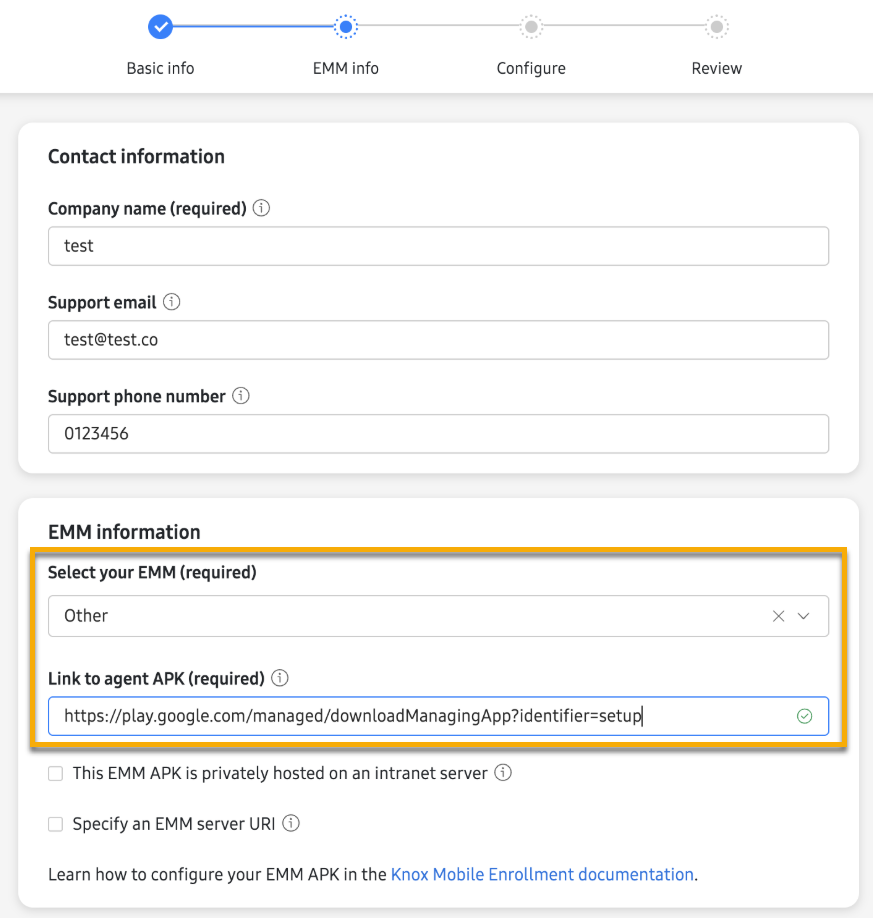
- EMM information configuration options will appear. Enter the following information:
- Select your EMM (required): Select Other from the drop-down menu.
- Link to Agent APK (required): Paste in the following value:
https://play.google.com/managed/downloadManagingApp?identifier=setup
Leave the other fields empty and click Continue.
Configure Standard Settings
In this step, you will create the enrollment token in NinjaOne and enter it into KME.
- In NinjaOne, follow steps 1-6 of the device procedure as described in Adding an Android Mobile Device to NinjaOne. Then, copy the generated enrollment token, which appears as a string of characters underneath the QR code.
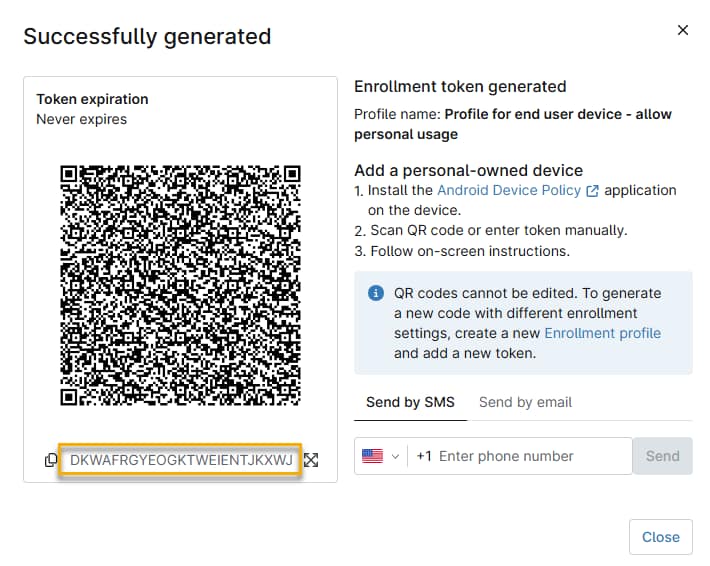
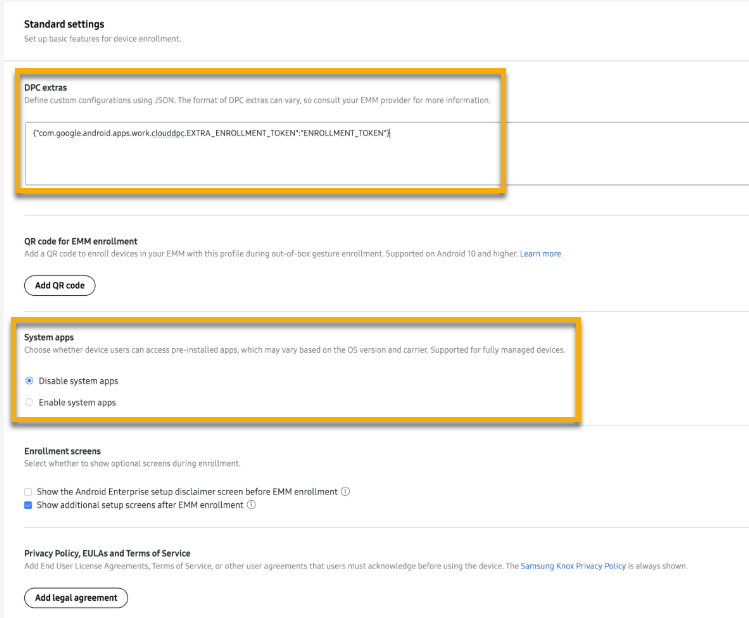
- In KME, paste the following code, including the enrollment token, into the DPC extras field :
{"com.google.android.apps.work.clouddpc.EXTRA_ENROLLMENT_TOKEN":"<enter your token>"}
{"com.google.android.apps.work.clouddpc.EXTRA_ENROLLMENT_TOKEN":"<DKWAFRGYEOGKTWEIENTJKXWJ>"}- Configure the remaining options:
- System apps: Activate or deactivate pre-installed. apps
- Enrollment screens: Show or hide optional screens during enrollment.
- Privacy policy, EULAs and Terms of Service: Click this button to add additional policies to which users must agree before completing device enrollment.
- Specify a company name in the dedicated input field.
- Click Create.
Once you have added your profile, you can add it to any device on your Knox KME platform.
Additional Resources
Refer to the following articles for more information: