
Topic
This article discusses application management on Android devices in NinjaOne MDM.
Environment
NinjaOne MDM
Description
NinjaOne allows technicians to define what happens when mobile device management (MDM) applications are added or modified within a policy. To learn more about general app settings and other policy actions, refer to MDM: Android Policy Management.
Navigating to Android Policy Management
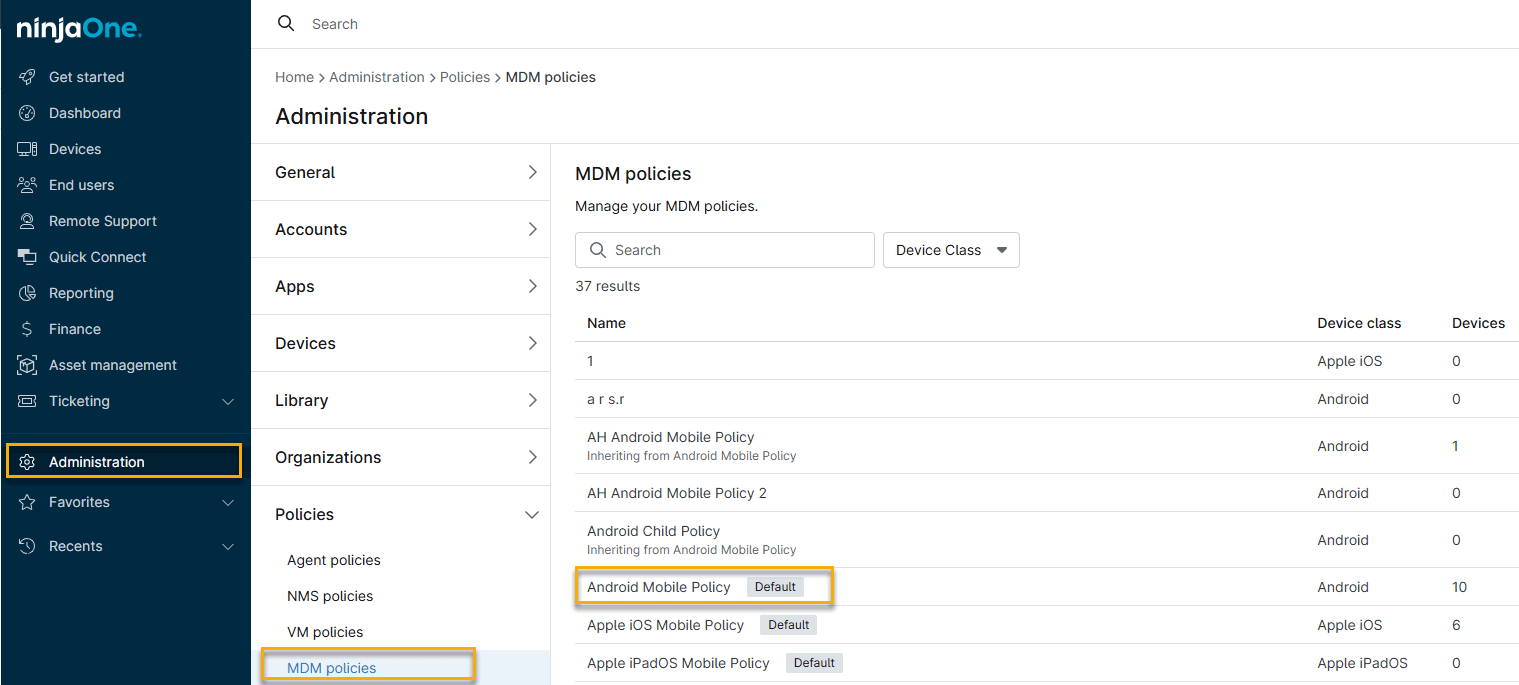
- In NinjaOne, click Administration, then click Policies and choose MDM Policies from the expanded options.
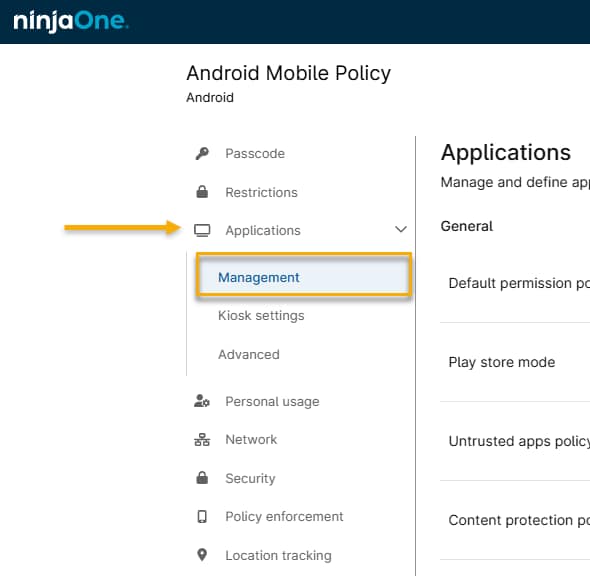
- Select Applications from the policy options, then click Management.
Configuring Android Policies
There are three option categories you can configure: General Settings, Always-on VPN, and Managed Applications.
General Settings
In General Settings, you can configure the policy to set permissions for all applications added to the device.
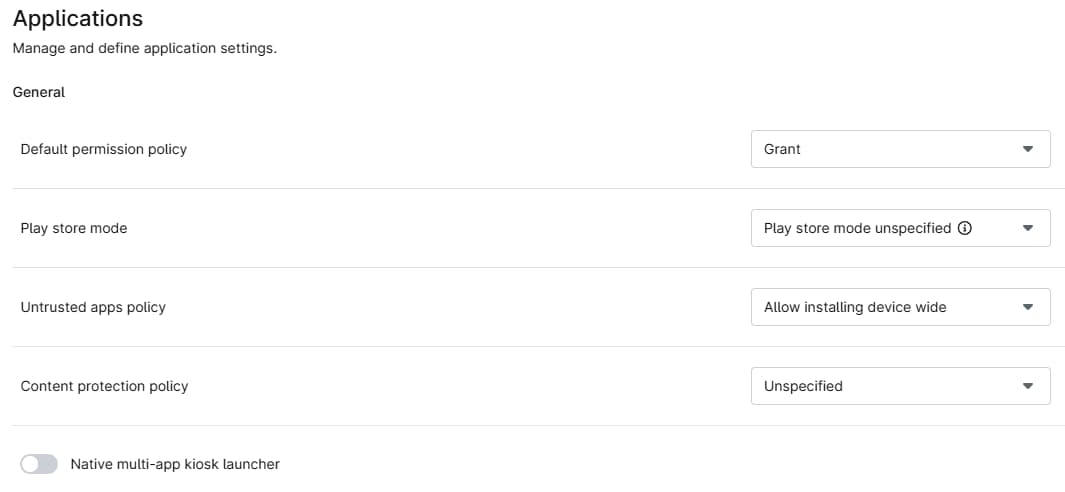
This table explains the various general configuration options.
| Application Setting | Description |
|---|---|
| Default Permission Policy | This applies globally to all installed applications. If you prefer, you can manage granular, per-app permissions from within app settings. Refer to the App-level Configuration Options section below to learn more. |
| Play Store Mode |
|
| Untrusted Apps Policy | This setting defines whether users can sideload applications onto the device via the web, file transfer, or developer options. |
| Native multi-app kiosk launcher | Toggle this switch to activate or deactivate the Kiosk Settings tab. |
Always-on VPN
In this section, you can define an app package name that the Android OS will consider the launch VPN package and ensure it runs as the Always-on VPN app.

Managed Applications
In this section, you can select specific applications to be installed or blocked from a mobile device.

The Applications table provides several data points at a glance, and you can add or remove columns by clicking the gear icon. To edit these settings, position your cursor over the row and click the ellipsis (three dots) button.
Managed application options explained
This table explains the various managed application configuration options.
| Column | Data |
|---|---|
| Name | The name of the app. |
| Publisher | The vendor who owns or created the app. |
| Package ID | The app's unique identifier. |
| Assignment Type | The assignment type is configured when adding the app. You can change the assignment type when editing an app. |
| Android Connection | The specific Android Enterprise profile that owns the device. |
| Status |
|
| Overrides | An "Inherited" or "Overridden" tag displays when you select a parent policy upon policy creation. Overridden tags indicate that the inherited value from the original policy was modified. |
App-level configuration options
On the Applications → Management page, position your cursor over an app, click the ellipsis (three dots) menu, and select Edit.
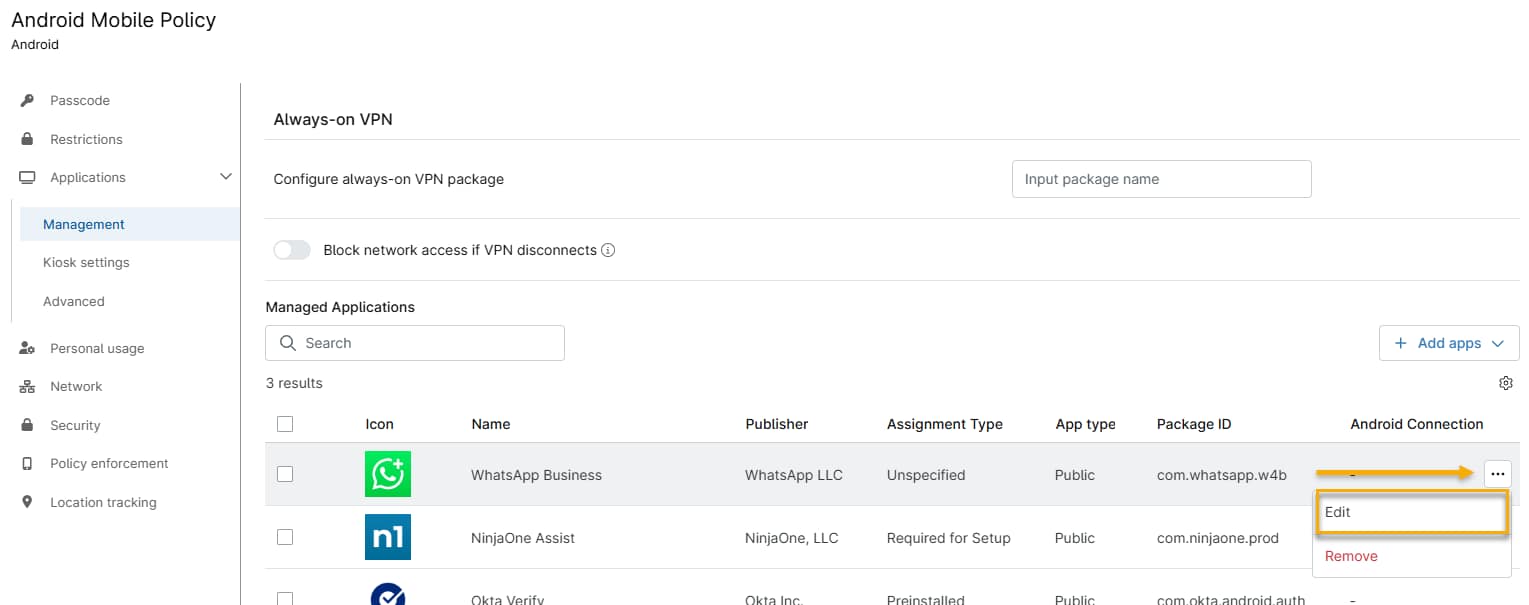
Configuration options for the specific app will open.
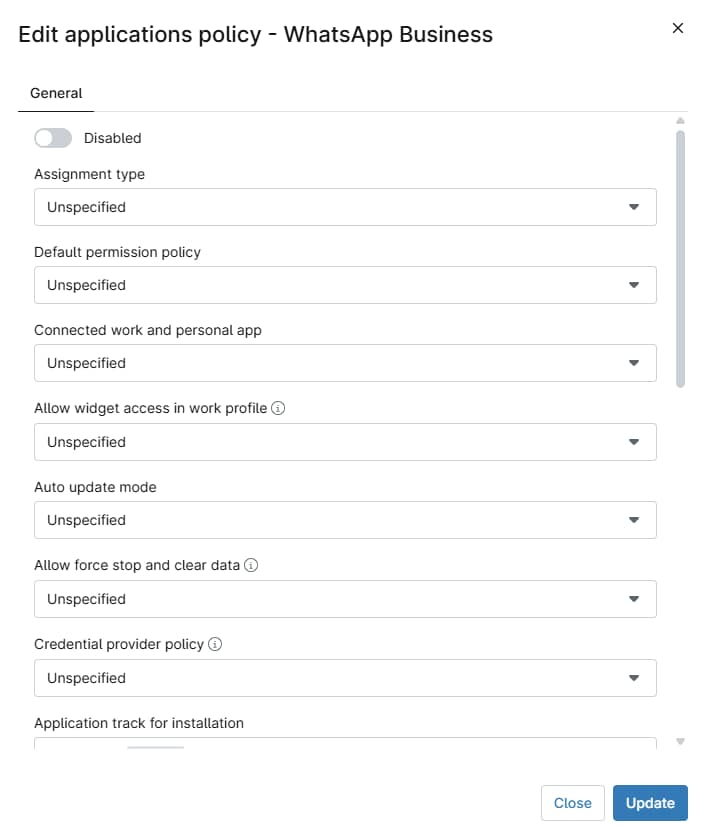
This table explains the various configuration parameters at the app level:
| Column | Data |
|---|---|
| Assignment Type | The assignment type is configured when adding the app. You can change the assignment type when editing an app. |
| Default permission policy | This policy applies at the app level. If preferred, global permissions management is available within Managed App settings. |
| Connected work and personal app | This option allows data sharing between the work and personal versions of the same application. For example, users can show work appointments in the personal calendar app. |
| Allow widget access in work profile | This option lets the user add widgets for work apps to the home screen. This parameter only pertains to devices with a work profile enabled. |
| Auto update mode | Here, you can set whether automatic updates will occur according to MDM policy defaults or immediately as high-priority. You can also choose to postpone them for manual update at a later date. |
| Allow force stop and clear data | This setting lets you decide if force-stopping the app, or clearing its stored information, is allowed or prohibited. This option requires Android 11 and newer. |
| Credential provider policy | Adding a credential provider policy will allow you to define which authentication app is responsible for the Android OS's Credential Provider function. |
| Application track for installation | This setting allows you to define any available Google Play track associated with the application, and enables use cases such as beta testing before release. |
| Per app permission overrides | These overrides let you bypass global permission settings and specify permission settings at the app level. |