
Topic
This article discusses how to add system apps to an Android device in NinjaOne MDM.
Environment
NinjaOne MDM
Description
NinjaOne lets you selectively enable or block system applications. This functionality is ideal if the system camera has been disabled or an unnecessary system app remains available after enrollment. Refer to Add an Application for more information.
When confirming the system app information, NinjaOne will search the Play Store and notify you if the app exists there. We highly recommend using the Play Store for all Play Store-accessible apps to ensure the most accurate options and information are always available.
Procedure
- In the left-hand Navigation menu, click Administration, then click Policies and select MDM Policies from the drop-down menu.
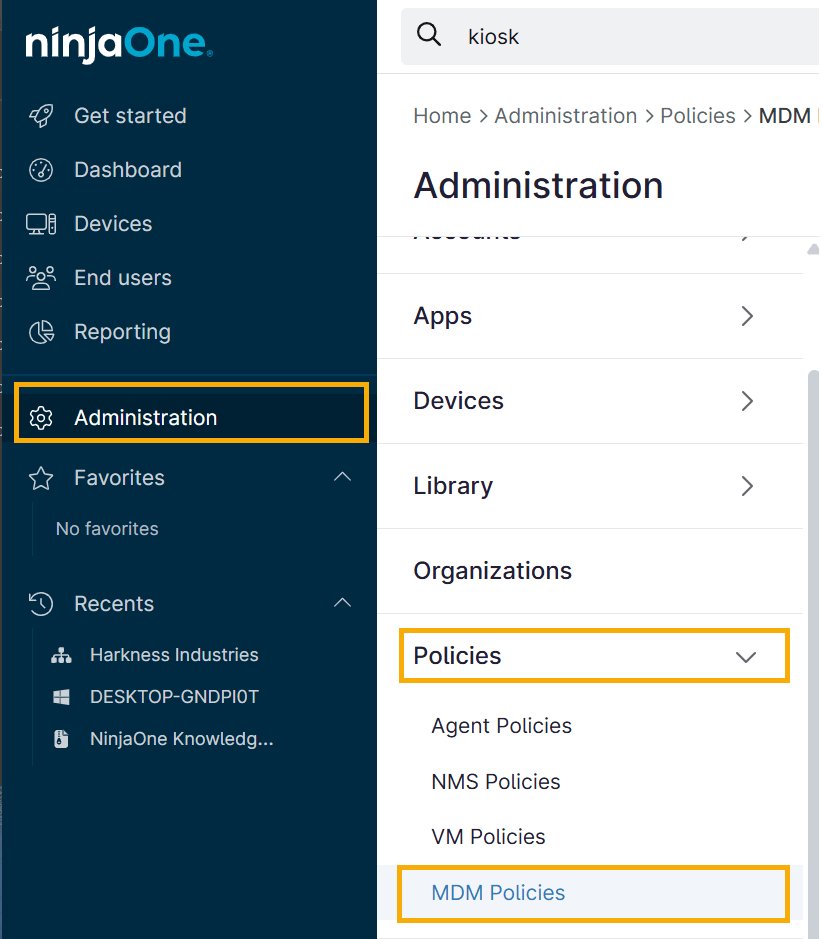
Figure 1: Navigating to MDM Policies (click to enlarge)
- Scroll down to the Managed Applications card, then click Add apps and select System app from the drop-down menu.
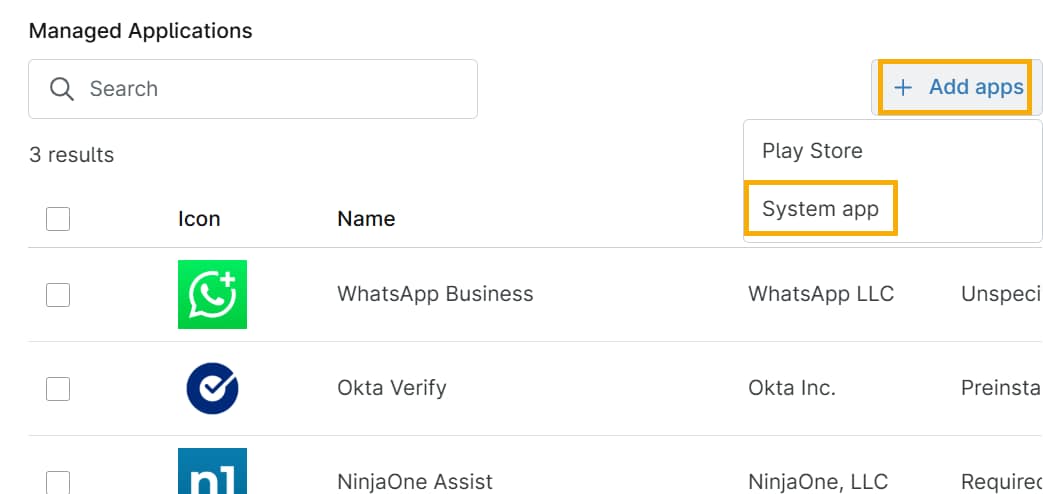
Figure 2: Managed Applications in the selected policy (click to enlarge)
- Enter the exact package name that the policy will manage. You can find the Android package name in the Play Store URL by using the Share function on the app page, via ADB commands, or by using a third-party package name viewer app. Refer to the Application Assignment Types section to select an option from the Assignment Type drop-down. When finished, click Confirm.
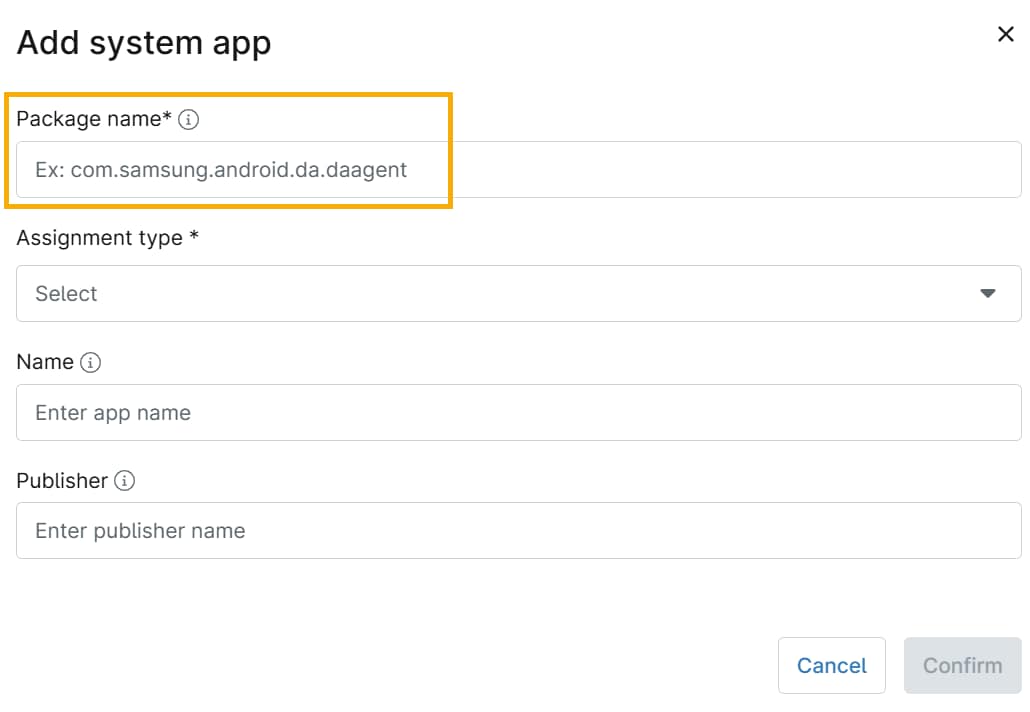
Figure 3: Add System app screen, Package Name field (click to enlarge)
Additional Resources
For further information about adding and managing Android applications, refer to NinjaOne MDM: Getting Started with Android Device Management.