
Topic
Automated Device Enrollment (ADE) is an optional feature within the NinjaOne Mobile Device Management (MDM) product that uses Apple Business Manager (ABM)/Apple School Manager (ASM) to automatically sync Apple devices with NinjaOne (zero-touch deployment). Enrolling with ADE and ABM/ASM is recommended for company-owned or "supervised" (managed) devices. This article describes the process to do so.
Environment
- NinjaOne MDM
- Apple iOS
- Apple Business Manager
Description
Supervised mode can prevent the removal of the MDM profile and provides greater control over restrictions, configurations, and features, such as turning off AirDrop or other system settings. It can be turned on only when you set up a device that is out of the box or has been recently reset to factory defaults. For more information about supervised mode on Apple devices, refer to Apple MDM: Understanding "Supervised" vs. "Unsupervised." and MDM: Apple Push Notification Service (APNs) Enrollment (external link).
Index
Select a topic to continue.
- ABM Requirements
- About Device Enrollment Through the ADE Integration
- Summary of Steps
- Automated Device Enrollment (ADE)
- Assign Default Configuration
- Configure or Update the ADE Profile in NinjaOne
- Renew Token
ABM Requirements
The ABM or ASM is a Web portal where IT administrators can view asset (Apps and Books) licenses purchased by their organization and assign devices for remote management to a specific MDM server (in this case, NinjaOne). To create multiple ADE connections in NinjaOne, you typically create one ADE connection per ABM/ASM for device enrollment.
To enroll devices with ADE, you must meet the following criteria:
- A minimum of one Apple Push Notification service certificate in NinjaOne.
- Devices registered in ABM/ASM using the Apple Customer Number or Reseller ID. For more information about registering devices in ABM, refer to Manage device suppliers in Apple Business Manager - Apple Support.
- Devices added to ABM or ASM purchased directly from Apple, Apple-authorized retailers or carriers, which include:
- iOS devices with iOS 7 or later.
- iPadOS devices.
About Device Enrollment Through the ADE Integration
Enrollment occurs after the device records have been synced from ABM or ASM and show in NinjaOne as assigned to an organization and location. Automated Device Enrollment occurs during the initial device setup process.
The following table outlines profile status definitions for ADE:
| Profile Status Name | Definition or Purpose |
|---|---|
| Assigned | The enrollment profile has been updated since the device was enrolled (or it hasn't been enrolled yet). |
| Pushed | The enrollment profile, as defined, was deployed to the device during an enrollment process. |
| Empty | An enrollment profile is not defined for the device. Make sure the device record is assigned to a NinjaOne organization and location. |
For a new device, follow the steps outlined in this article. Then, turn on the device for the first time and continue through the Setup Assistant until you see a Remote Management screen. Follow the prompt to enroll your device.
For devices that have already been set up, you must reset them to factory settings to access the Setup Assistant and proceed with Automated Device Enrollment. To do this, open the Settings app on the device and navigate to Erase all Contents and Settings. Once complete, you can enroll the device in NinjaOne as if it were brand new.
Enrollment can be locked if you have newly purchased devices automatically added to ABM during the purchase process. However, if you use Apple Configurator to manually add devices to ABM, a 30-day buffer is available after enrollment, during which the "Leave Remote Management" option is accessible. After this buffer, the system removes the option. Reference: Add devices from Apple Configurator to Apple Business Manager - Apple Support.
Devices added to ABM or ASM must be owned by the business, not an end user. You cannot add an end-user-owned device to ABM. The phones will be reset per Apple policy requirements when enrolling Apple devices through ADE.
Summary of Steps
To add devices to NinjaOne through ABM or ASM, you must:
- Configure an APNs certificate if you have not done so already.
- Configure the ADE integration.
- Sync with ABM or ASM.
Automated Device Enrollment (ADE)
- Navigate to Administration → Apps → Installed. Open the NinjaOne MDM Apple app.
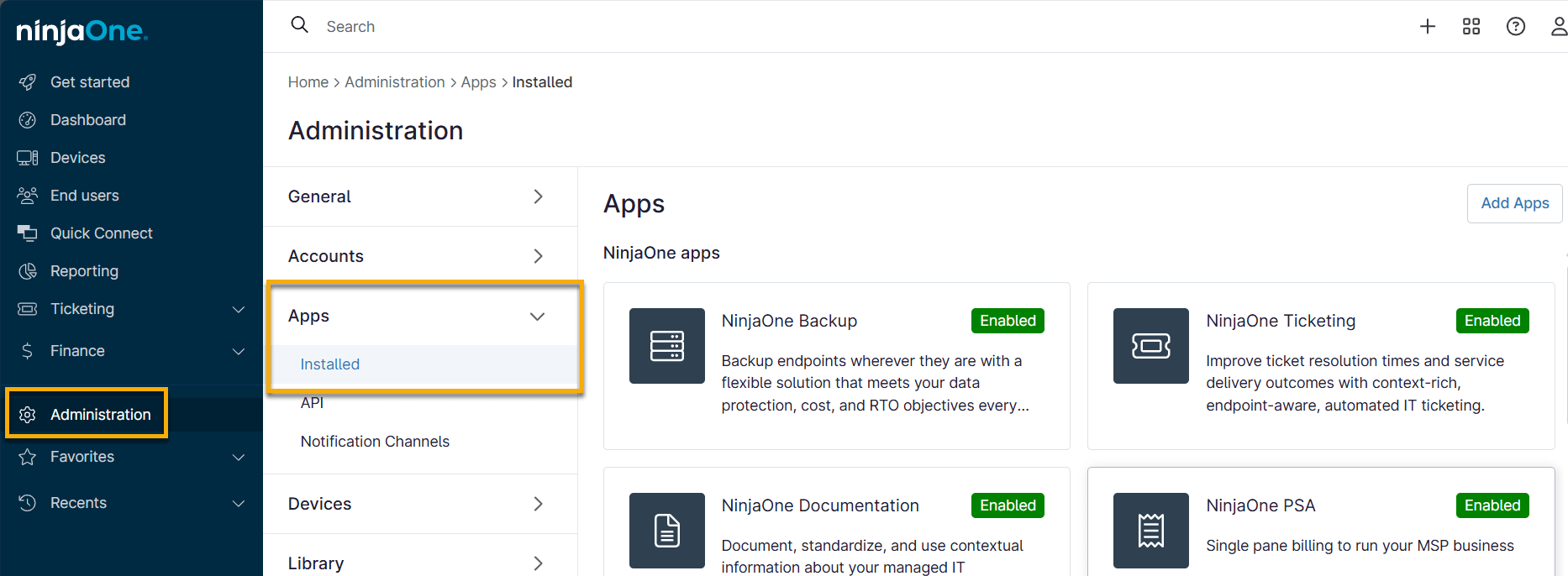
Figure 1: Access NinjaOne apps and third-party integrations
- Open the Automated Device Enrollment tab and then click Add ADE profile.
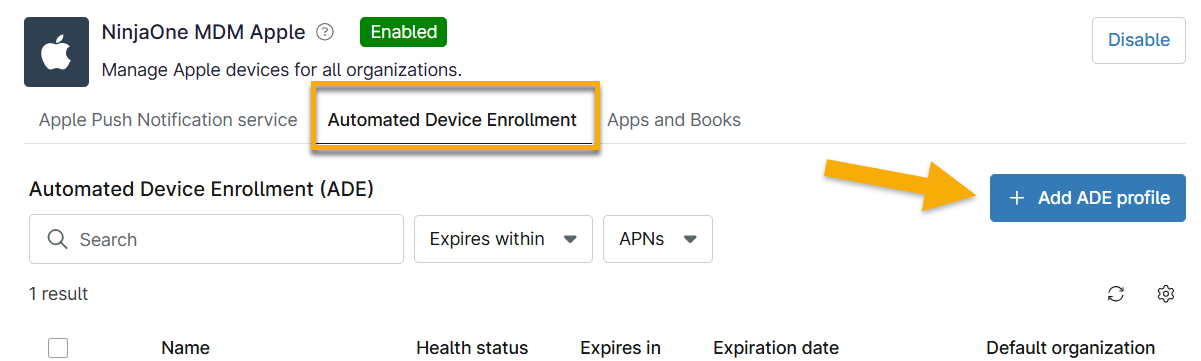
Figure 2: Add an ADE profile
The Add Automated Device Enrollment profile modal displays.
- Click Download file in Step 1 of the modal and access your download folder to find the PEM file.
- Click either of the blue hyperlinks in Step 2 of the modal.
- For the purposes of this guide, we are providing a walkthrough of the enrollment process through ABM. The process through Apple School Manager is almost identical, but we cannot provide screenshots because NinjaOne does not have the status to qualify for an account.
- In the Apple login portal, enter your Apple ID and password and follow the prompts to log in or use the hyperlinks provided by Apple to create a new account.
- In the bottom left corner of the ABM screen, click your account name and select Preferences.
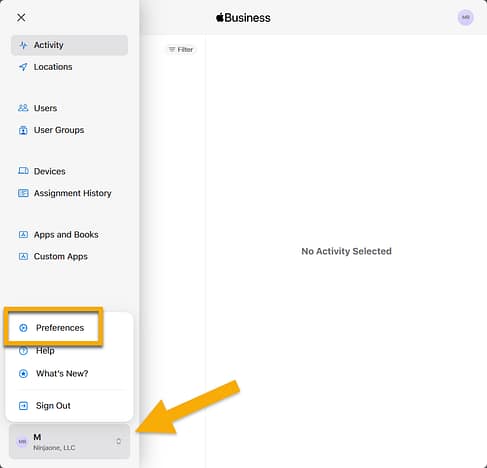
Figure 3: Access ABM preferences
You will navigate to your list of MDM servers or "organizations."
- Click Add MDM Server.
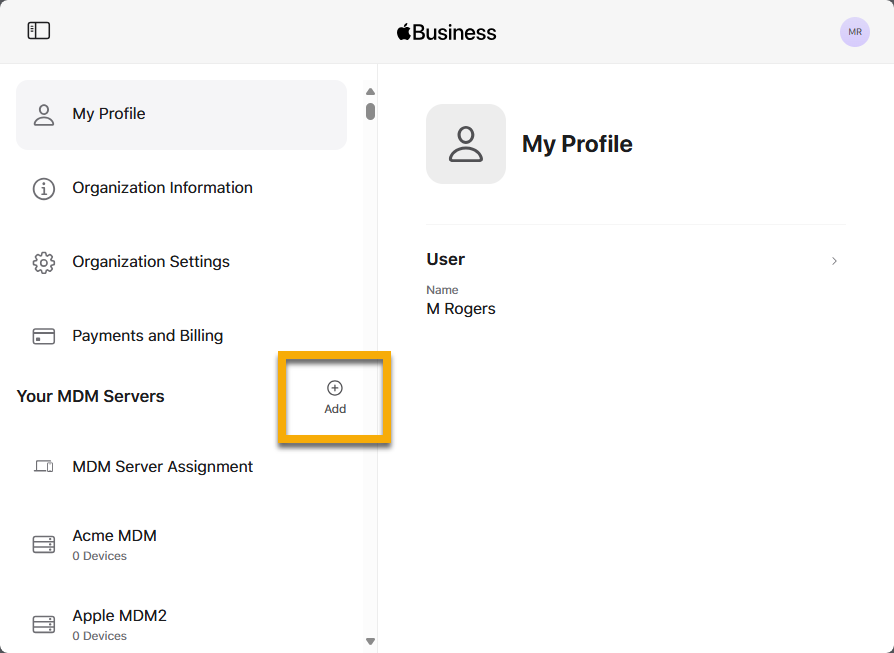
Figure 4: Add a new MDM server in the ABM
- Create a name for your server, which will act as the individual ADE profile connection, and then upload the PEM file downloaded earlier in the ADE enrollment process.
- Click Save.
- Click Download MDM Server Token at the top of the page.

Figure 5: Download the MDM server token in the ABM
- Click Download MDM Server Token in the confirmation window to confirm.

Figure 6: Add devices to the MDM server in the ABM
- Click Upload File under Step 3 on the ADE configuration modal in NinjaOne to add the token file you recently downloaded earlier in Step 10.
Optionally, select a default organization, location, and device role for the specific operating system being added (iOS, iPadOS, or macOS). The organization selected will be the default for all devices belonging to the MDM server.
- You can change the organization or device role at any time; if left unassigned, you must manage the organization-to-device relationship manually.
- If you add multiple profiles under the same organization, leaving this field blank will allow you to assign the default configuration to multiple profiles in bulk later.
- You cannot select device roles if the advanced installer is not enabled. For more information, refer to NinjaOne Agent: Device Role Selection.
- For the Assigned APNs certificate, select one of the certificates to tie to the profile. To add a new APNs certificate for this profile, refer to MDM: Apple Push Notification Service (APNs) Enrollment.
- Enter a support email address and phone number as the contact information the device user will refer to for help.
- Provide a friendly name or unique identifier for the ADE profile to distinguish it from other ADE profiles in NinjaOne MDM, and then click Save.
Assign Default Configuration
To assign default configuration in bulk, click the boxes to the left of the profile name and then click the Assign default configuration button that appears.

Figure 7: Assign default configuration to one or more ADE profiles in NinjaOne
A configuration modal will display, allowing you to select your preferences. This modal will also show any current configuration assignments so you can confirm whether the profile needs updating or is already using the correct default.
Configure or Update the ADE Profile in NinjaOne
Once enrolled, you must customize the setup experience and level of control over the device.
- Open the MDM app in NinjaOne Administration and click Edit for the ADE enrollment.

Figure 8: Configure or modify ADE profiles in NinjaOne
The Enrollment Profile tab displays by default.
- In this section, you can update support information and core management configurations or force the device to skip certain Setup Assistant screens. If you don't want to change the default settings individually, you can set them for multiple profiles in bulk using the default configurator discussed earlier in this article.
- Under Skip setup items, flip the toggle switch for any screen you want the device to skip during initial setup. The page separates skip items by the device's operating system, including only those that are visible on iOS & iPadOS, visible on macOS, or shared between all Apple device types.
- When finished, click Save Profile Configuration.
Information About Supervised Mode and MDM Removable
- Supervised mode enables the configurations made under the iOS & iPadOS section.
- The MDM Removable toggle turns on automatically if Supervised Mode is turned off and remains on even if It is turned back on.
Add Devices to NinjaOne from the ABM
You can add devices not purchased for ADE to ABM or ASM with the help of Apple Configurator for iPhone (external link). If Apple Configurator for iPhone is not available, you can also use Apple Configurator for macOS (external link).
- Open the MDM app in Administration and click Edit for the ADE enrollment.
- Open the Devices tab and click Sync with ABM.
- If you add more devices to the ABM, return to this page and click the Sync with ABM button again.

Figure 9: Configure or modify ADE profiles in NinjaOne
Renew Token
All ADE profile tokens will display health status colors next to their name in the NinjaOne Apple MDM app.

Figure 10: Check ADE profile expiration status in NinjaOne
| Color | Status | Condition |
|---|---|---|
| Green | Healthy | The ADE token is in good standing and has more than 90 days until it expires. |
| Yellow | Needs attention | The ADE token will expire in less than 90 days. Once expired, devices cannot enroll through ADE. |
| Red | Unhealthy | The ADE token is about to expire or has expired. If it expires, devices cannot enroll through ADE. |
Note that the ADE's token expiration date is listed in NinjaOne. When this token expires, click Renew Token and repeat the enrollment steps provided in this article to upload a new token from ABM.
You can renew the profile at any time, even if the status is healthy.
Figure 11: Edit or renew the ADE profile in NinjaOne