
This guide goes over your options for deleting file/folder data for a particular device. Deleting Backup data and/or policy plans does not disable NinjaOne Backup; please see Disabling NinjaOne Backup.
Table of Contents:
- Before You Delete
- Overview
- Delete Root Folders
- Delete Backup Plans
- Remove a Folder from a Backup Plan
- Delete Backup Data for Deleted, Rejected, or Disabled Devices
- Deleted Backup Activities
- View Scheduled Deletes
- Related Documentation
Before You Delete:
- Backup data cannot be recovered once it is deleted. Data that is manually selected for deletion is held for 72 hours before being permanently deleted; if you believe the wrong data was selected to be deleted, please contact NinjaOne Support immediately.
- Deleting or changing a device's policy does not delete data. It prevents the backup plan configured for that policy from running, but previously backed up data still must be deleted.
- Disabling NinjaOne Backup does not delete data. If you are disabling the NinjaOne Backup application, we recommend removing all data prior to doing so.
- When data is deleted for an active plan, the next time the plan runs it results in the agent sending data for the plan/folder/file as if it were running for the first time (i.e., creating a full revision).
- Whenever a device or organization with backup data is deleted or rejected in NinjaOne, the technician will be prompted to choose whether to keep or permanently delete all associated backup data.
Overview:
Whenever a device or organization with backup data stored is deleted or rejected in NinjaOne, the user will be prompted to choose whether to keep or permanently delete all associated backup data. This guide goes over the methods for deleting data assuming the user initially opted to keep the backup data.
NinjaOne allows technicians to delete:
Delete Root Folders:
File/folder data can be deleted from the device dashboard (see below) or at the policy level.
Delete Root Folders at the Device Level
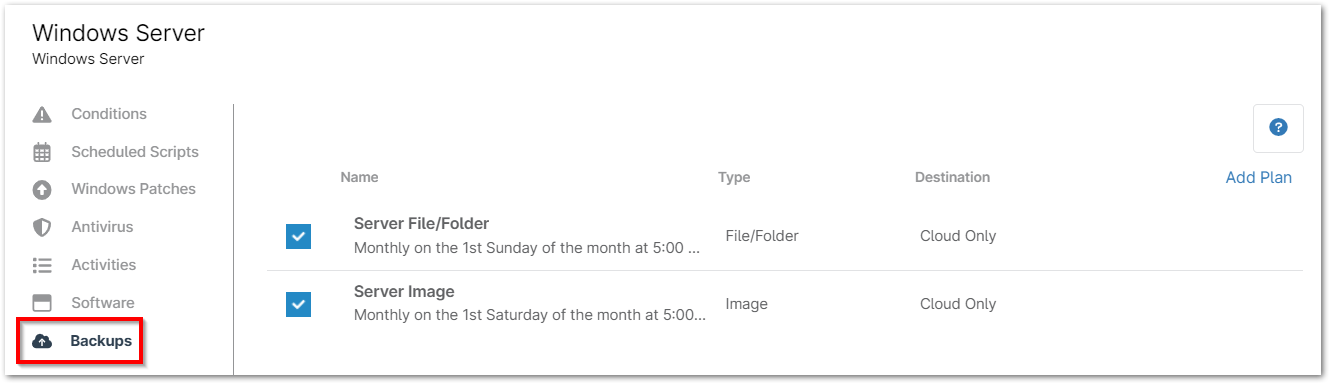
- Navigate to the device dashboard in NinjaOne, hover your cursor over the Backup tab, and select Manage.
The backup plan(s) set up at the policy level display on the page. - Select the plan that contains the root folder. You also have the he ability to search for specific files in a File/Folder Restore browser (must type minimum of three characters to search). File/Folder Delete options allow technicians to delete at the root folder, sub-root folder, and file levels in a File/Folder plan.

- Click down to the root folder that needs to be deleted.
- Activate the checkbox(es) to the left of the folder(s) and click Delete on the right side of the page.
 Important Notes:
- This process can be done only for root folders. For example, if you were backing up C: and removed this folder/path from the plan, you have the option to delete all of the data under C: but cannot currently delete only specific data from within this folder.
- This process does not apply to image backups. Specific revisions or data cannot be deleted from image backups.
- Data cannot be deleted for live file/folders (i.e., the plan is currently running). Live file/folder backup data must be deleted at the plan level.
Delete Root Folders at the Policy Level
- Navigate to the policy editor (Administration > Policies) for the device whose file/folder backup plan you wish to modify; open the Backups tab and click the name of the plan that needs to be updated.
The File Folder Backup Plan editor modal displays. - Open the Folders tab in the backup plan editor.
- Hover your cursor over the folder and then click Delete.

Delete Backup Plans:
Delete Backup Plan Data at the Device Level
- Navigate to the device dashboard in NinjaOne, hover your cursor over the Backup tab, and select Manage.
The backup plan(s) set up at the policy level display on the page. - Activate the checkbox next to the data plan that needs to be removed and then click Delete All Data on the right side of the page.

Delete Backup Plans at the Policy Level
When you delete a plan from the policy, the backup agent will no longer be able to run jobs for that plan on schedule or manually. The data for a plan is not deleted when the plan is deleted from the NinjaOne policy—you must delete the data for each device/endpoint as outlined in Delete Backup Plan Data at the Device Level.
- Navigate to the policy editor (Administration > Policies) for the device whose file/folder backup plan you wish to modify; open the Backups tab.
- Hover your cursor over the plan that needs to be removed and click Delete.

Remove a Folder from a Backup Plan:
This option does not delete the data, but NinjaOne will no longer back it up.
- Navigate to the policy editor (Administration > Policies) for the device whose file/folder backup plan you wish to modify; open the Backups tab and click the name of the plan that needs to be updated.
The File Folder Backup Plan editor modal displays. - Open the Folders tab. Then, click Manage > Include Common.

The Include Common Folders editor modal displays. - Click to remove the check in any box next to a folder to remove it from the path, and then click Save.

Delete Backup Data for Deleted, Rejected, or Disabled Devices:
When a device is removed from a backup plan or deleted from the NinjaOne console, the previously backed up data remains in the system. To remove backup data for a deleted device:
- Navigate to the system or organization backup dashboard and open the Overview section.
- Activate the checkbox next to the device in question (you can select more than one) and click Delete Permanently at the top of the screen.
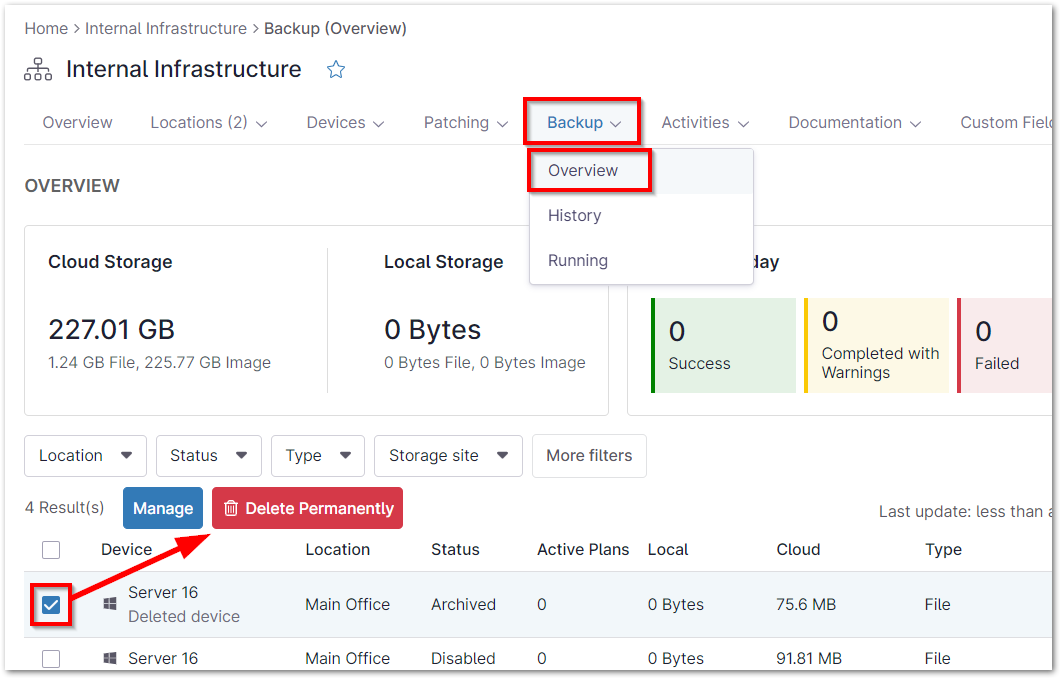
You will be prompted to enter your email address to confirm this action, as it cannot be undone.
Deleted Backup Activities:
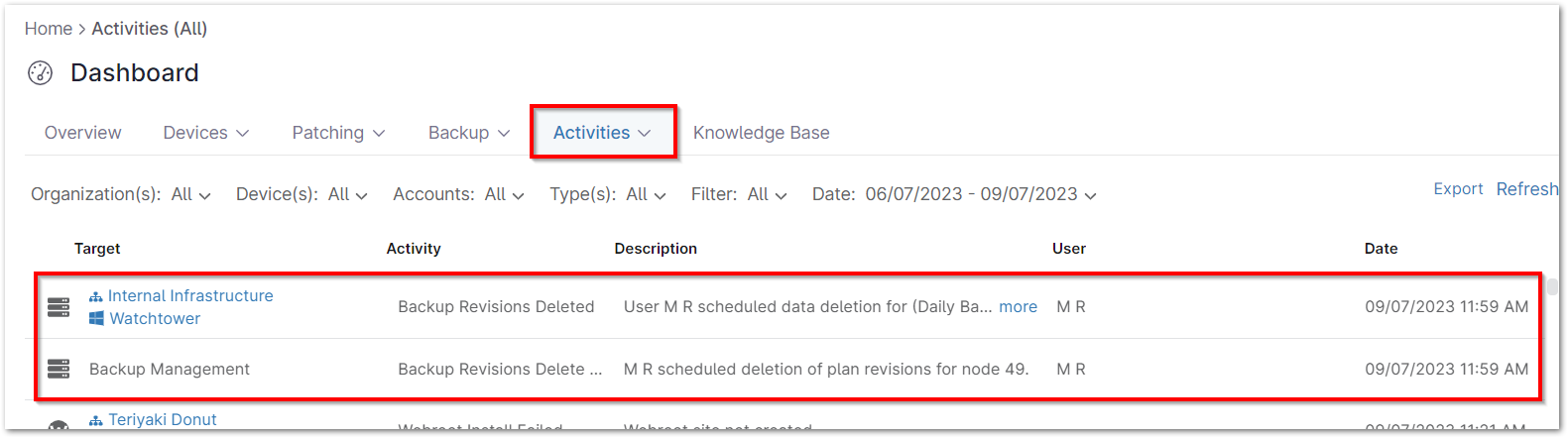
When backup data is deleted, the action is logged in the Activities section on the system, organization, and device dashboards.
Activity data provides the name of the user who deleted the data, the node and size of the data that was deleted, and the date/time at which it was deleted.

The system dashboard activities show an extra activity log for Backup Management deletion schedule.
View Scheduled Deletes:
When a system administrator or technician schedules or initiates a deletion of a backup plan, volume, and/or file/folder data, a new section appears under the Backup tab on the system dashboard as well as the affected organization and device dashboards. For more information, please see Dashboards: NinjaOne Backup.
