
Topic
This article explains how to use the Vulnerability Importer application in NinjaOne.
Environment
Vulnerability Management
Description
Vulnerability Management for networks and systems is an ongoing, iterative process that requires continuous attention and adaptation to emerging threats and vulnerabilities. It's a critical component of an organization's overall cybersecurity strategy, helping to protect assets and data from potential breaches and attacks.
The importer ingests a comma-separated values (CSV) file containing a list of vulnerabilities identified by a third-party tool. The vulnerabilities are mapped to NinjaOne-managed devices and reported in a dashboard and through device health. Ninja One remediates vulnerabilities when you upload new scans that no longer contain previously identified vulnerabilities.
Index
- About the Vulnerability Integration in NinjaOne
- Import a Vulnerability File to be Scanned
- Re-import or Override a Vulnerability File
- Delete a Scan Group
- Find Vulnerability Data in NinjaOne
- Automating the Vulnerability Import Process
- Additional Resources
About the Vulnerability Integrations in NinjaOne
- NinjaOne currently has four vulnerability integrations at Administration → Apps:
- Use the Inventory Scanning tool to identify vulnerabilities by reviewing the versions of the operating system and installed applications against the National Vulnerability Database (NVD). The Inventory Scanning tool identifies both traditional managed and unmanaged devices, where endpoints are regularly or continuously assessed for individual vulnerabilities.
- Integrate the results of your vulnerability scans with NinjaOne to help streamline remediation by applying operating system and third-party application updates from the same platform.
- Integration also includes surfacing vulnerabilities identified in NinjaOne Patching.
- Devices will provide health status reporting on the NinjaOne dashboards.
- The vulnerability scan maps columns from an uploaded Excel or CSV file. At a minimum, the uploaded file should contain a column with the device identifier and a column with the CVE identifier.
Terminology
Several acronyms are commonly used in vulnerability management to communicate various concepts, tools, and processes. Below is a list of some of the most frequently used acronyms in vulnerability management. For additional terminology used throughout NinjaOne and our Dojo, refer to our NinjaOne Terminology article.
| Term | Definition |
|---|---|
| CVE | "Common Vulnerabilities and Exposures" A widely used nomenclature for publicly known cybersecurity vulnerabilities. |
| CVE ID | Unique identifier for a specific CVE. |
| CVSS | "Common Vulnerability Scoring System" A standardized framework for rating the severity of security vulnerabilities. |
| CWE | "Common Weakness Enumeration" A category system for software weaknesses and vulnerabilities. |
| DAST | "Dynamic Application Security Testing" A process of testing an application or software product in an operating state. |
| GDPR | "General Data Protection Regulation" A regulation in EU law on data protection and privacy in the European Union and the European Economic Area. |
| HIPAA | "Health Insurance Portability and Accountability Act" A US law designed to provide privacy standards to protect patients' medical records and other health information. |
| IAM | "Identity and Access Management" A framework of policies and technologies ensuring that the right individuals access the appropriate resources. |
| IDS | "Intrusion Detection System" A device or software application that monitors a network or systems for malicious activity or policy violations. |
| IPS | "Intrusion Prevention System" A network security/threat prevention technology that examines network traffic flows to detect and prevent vulnerability exploits. |
| NVD | "National Vulnerability Database" A U.S. government repository of standards-based vulnerability management data. |
| OWASP | "Open Web Application Security Project" An online community producing articles, methodologies, documentation, tools, and technologies in the field of web application security. |
| PCI-DSS | "Payment Card Industry Data Security Standard" A set of security standards designed to ensure that all companies that accept, process, store, or transmit credit card information maintain a secure environment. |
| SAST | "Static Application Security Testing" A process of testing the application from the inside out by examining its source code, byte code, or binary code. |
| SIEM | "Security Information and Event Management" Solutions that provide real-time analysis of security alerts generated by applications and network hardware. |
| SOC | "Security Operations Center" A centralized unit that deals with security issues on an organizational and technical level. |
Import a Vulnerability File to be Scanned
- In NinjaOne, navigate to Administration → Apps → Installed or click the cluster box icon in the top right corner of the console and select View all apps.

Figure 1: View apps in NinjaOne (click to enlarge)
- Select Vulnerability Importer. If you do not see this app, click Add Apps in the top right corner and select it from the list to include it on the Apps page.
- Click Enable in the top-right corner of the app.
- To create a new group, click Create scan group on the right side of the importer. A scan group is a specific grouping relating to any particular items, for example, servers or workstations.

Figure 2: Vulnerability Importer app → Create scan group button
- The Create scan group editor displays as a modal. Enter a scan group name.
- From the Select a scanning vendor drop-down menu, select a scanning vendor. Doing so will help you identify the source of the scanning. If you select "Other," a new data field will display where you must enter a scanning source name for reference.
- Click Upload CSV file. Navigate to and select a .csv file (limited to 200 MB in size) containing vulnerability data (You can also automate vulnerability uploads from the Automation Library).
- Click Continue to confirm the mapping attributes from the file.
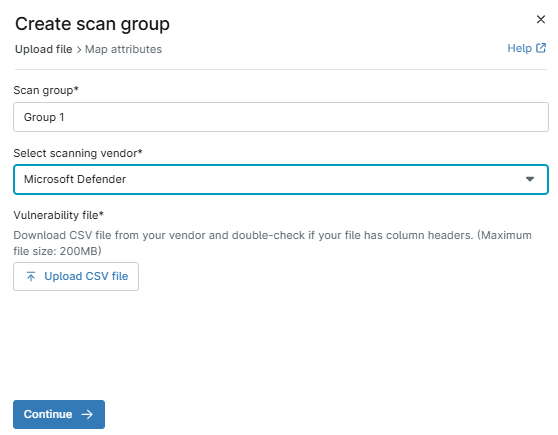
Figure 3: Vulnerability scan group creation → Create scan group modal → Upload file
- The next page of the modal allows you to map the attributes. From the top drop-down menu (Device ID identifier), select the column title that has the device identifier listed in the file.
- A new drop-down displays to confirm the Device ID type. Select the applicable option from the drop-down.
- From the third drop-down menu (CVE ID identifier), select the column with the CVE ID.
- Click Finish.

Figure 4: Vulnerability scan group creation → Create scan group modal → Map attributes
The imported file displays the associated column data in the importer grid.
If your status is not active, refresh your console to update the status and view the number of vulnerabilities processed from within the file.

Figure 5: Vulnerability Importer → Status column and Vulnerabilities process column (click to enlarge)
Re-import or Override a Vulnerability File
Because vulnerability management is ongoing, you may have updated CVE lists to import into the NinjaOne console.
- In the NinjaOne console, navigate to Administration → Apps → Vulnerability Importer.
The Vulnerability Importer opens, displaying a list of imported scan groups. - Move your cursor over a scan group row to expose the ellipsis button. Click the ellipsis button and select Import File.
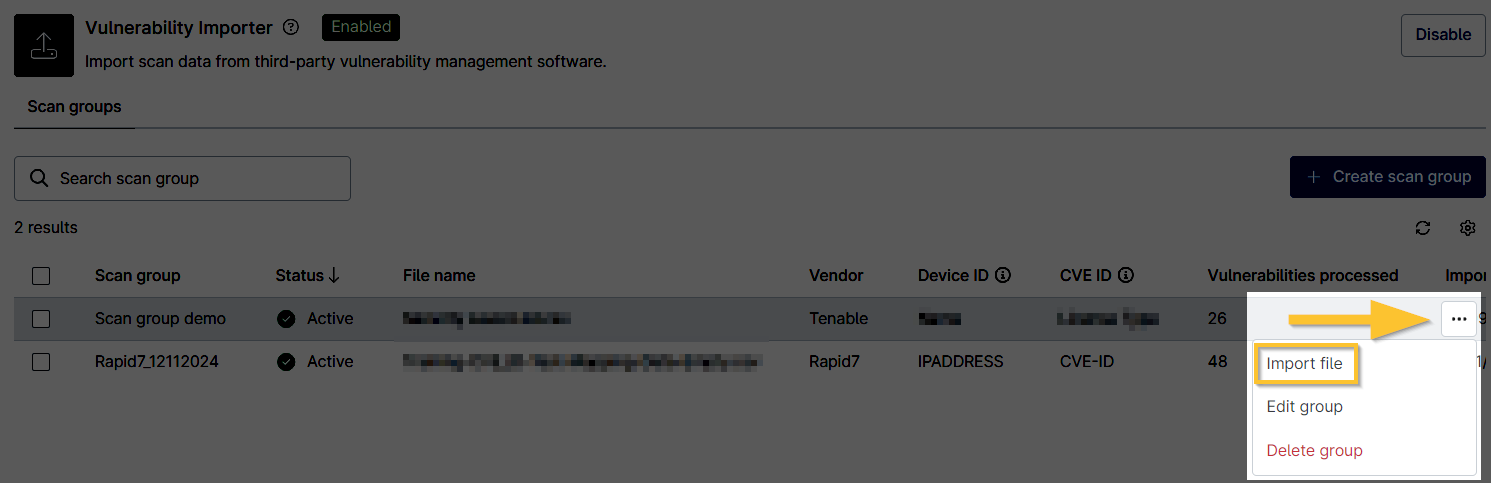
Figure 6: Vulnerability Importer → Import file (click to enlarge)
- The Import file modal displays. Click Upload CSV file, and then re-import your vulnerability file.
- If needed, refresh your console to view the updates. The data from the most recent import file is always listed.
Delete a Scan Group
- In the NinjaOne console, navigate to Administration → Apps → Vulnerability Importer.
The Vulnerability Importer opens, displaying a list of imported .csv files. - Move your cursor over a scan group row to expose the ellipsis button. Click the ellipsis button and select Delete group.

Figure 7: Vulnerability Importer → Delete group (click to enlarge)
Find Vulnerability Data in NinjaOne
The Vulnerabilities tab on the system, organization, and device dashboards groups data by CVE, with each row of the dashboard's table representing a single CVE and the related devices. This data is filtered by the set of devices visible to the calling user, so the dashboard only contains counts of visible devices.

Figure 8: Dashboard → Vulnerability data
- The Remediation column only populates if the Patch Vulnerability Health tool is enabled. Review NinjaOne Vulnerability Management: Getting Started with Configuration and Setup for more details on patching tools.
- Click the hyperlink in the CVE ID column. This action opens a new page providing risk information, CVSS score, scan group information, impacted sources, impacted devices, and references.
- You can view and export CVE data associated with an unmanaged device by clicking the number in the Unmanaged devices column. Unmanaged devices reflect data that NinjaOne could not map to an existing device.
- Access vulnerability remediation by clicking the Remediation KB hyperlink. You will navigate to the applicable OS Patching data table, where you can take action.

Figure 9: Dashboard → CVE details → Vulnerability remediation
Automating the Vulnerability Import Process
In an effort to support customers in this ongoing, iterative process, we created a series of APIs to automate the vulnerability import process. Read Automating the Vulnerability Import Process for more information.
Additional Resources
Refer to the following resources to learn more about vulnerability management in NinjaOne:
- Getting Started with NinjaOne Vulnerability Management
- Health Statuses and Icon Definitions (adjust the vulnerability CVSS severity level for your devices to indicate the impact on device health).
- Vulnerability Importer Sample Script