
Topic
This article discusses how to activate the Splashtop integration in NinjaOne.
Environment
NinjaOne Integrations
Description
Splashtop is a remote access software that you can integrate with NinjaOne to work with your managed devices. Enabling the integration allows you to use Splashtop to remotely access devices from the NinjaOne dashboard.
Select a category to learn more:
- Security Note
- Enabling Splashtop
- Connecting to Devices
- Requiring Confirmation from the end user to Connect
Security note
To establish a connection to the Splashtop for RMM Streamer, the Splashtop RMM Viewer must provide a unique token that can only be obtained from a private Splashtop API.
Requests to this API are only possible from allowlisted IP addresses (NinjaOne Servers). They are authenticated using a custom username, password, and Uniform Resource Identifier (URI) only available through a partnership with Splashtop. Tokens are generated on demand and expire after a short time.
In addition, access is secured by a unique, randomly generated password set by the NinjaOne agent when the connection is requested. For auditing purposes, each connection request timestamp is recorded in the activity log.
Installation notes
- TeamViewer and Splashtop applications are no longer integrated into NinjaOne by default. Contact your account manager to activate them.
- NinjaOne supports Splashtop version 3.6.6.1 for Mac and Windows OS, which also includes support for Federal Information Processing Standards (FIPS)-compliant cryptographic modules. For more information, read Splashtop FIPS Compliance - Support (external link).
- Read the Mac installation details section of the Splashtop Installation Instructions (external link) for information about installing Splashtop on Mac devices.
Installing Splashtop for RMM integration
To install the Splashtop integration in NinjaOne:
- Go to Administration → Library → Downloads.
- Click the hyperlink for the appropriate operating system.

Figure 1: The Splashtop Download link (click to enlarge)
Enabling Splashtop
- Navigate to the organization editor that you would like to enable Splashtop for (Administration → Organizations) and select the Splashtop tab on the left navigation pane.
- Select the Managed button and select the endpoints for which you are enabling Splashtop. This automatically triggers the installation of the Splashtop streamer.
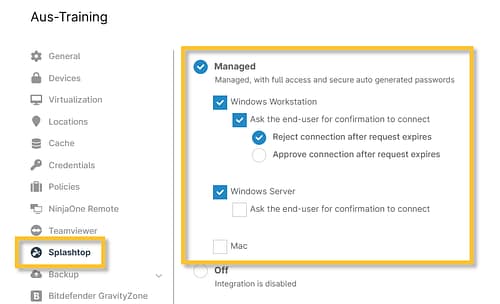
Figure 2: NinjaOne organization configuration page → Splashtop
Requiring Confirmation from the End User to Connect
Your end users may request the option to accept or deny incoming Splashtop connections. We currently offer an "Ask for Confirmation" feature to accommodate this. Follow these steps to configure the Ask the end-user for confirmation to connect option:
- Navigate to the organization editor (Administration → Organizations) and open the Splashtop tab.
- Under each device type with Splashtop enabled, check the box next to Ask the end-user for a connection confirmation.

Figure 3: End user confirmation to connect (click to enlarge)
- Select the preferred behavior for when the request expires (after 30 seconds of no response).
To enable or disable the connection confirmation feature for specific machines, navigate to the Settings tab on the Device Dashboard and click Change in the Splashtop widget.

Figure 4: Splashtop confirmation to connect (click to enlarge)
When you request a connection to a device with this setting enabled, the end user receives an alert requesting to allow or reject the incoming Splashtop connection.
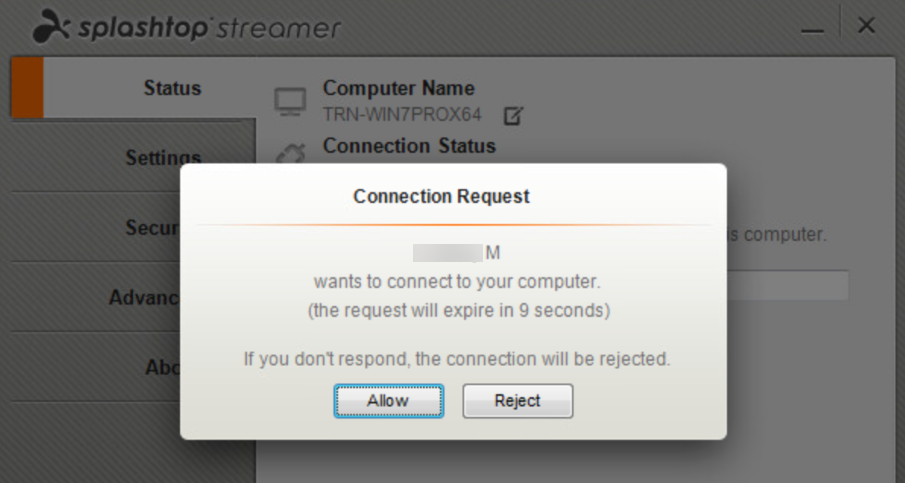
Figure 5: End user confirmation (click to enlarge)
You will also see a pop-up message from Splashtop stating that the system is waiting for the partner to confirm the request. Once the end user accepts the connection, the technician can view and control their screen.
Connecting to Devices
To connect to a device via Splashtop, perform the following steps:
- Go to the device dashboard and click the Splashtop icon next to the device name.

Figure 6: The Splashtop icon in the Device Dashboard (click to enlarge)
- Download Splashtop for RMM on the device from which you are connecting. When you click the Splashtop icon, a link to download Splashtop for RMM appears.

Figure 7: Splashtop download modal (click to enlarge)
The credentials may take time to pass to the device. If you cannot connect immediately, wait a couple of minutes and then try again. If you are experiencing issues connecting to a device via Splashtop, Navigate to Splashtop's connectivity site (external link) on the device to check its connection.
Rejected Connection Alerts
The technician receives a rejection alert if:
- The end user rejects the connection.
- The end user does not respond, and the connection is set to reject connection attempts that do not receive a response.
Disable Splashtop for Specific Devices
Once enabled, you can disable Splashtop for specific devices. Navigate to a device dashboard, open the Settings tab, then use the toggle switch on the Splashtop widget.

Figure 8: Splashtop settings (click to enlarge)
Additional Resources
Refer to the following resource(s) to learn more about Splashtop in NinjaOne: Splashtop FAQs.