
Topic
This article discusses the NinjaOne functions supported by Raspberry Pi (Raspbian) OS devices and explains how to add them to the platform.
Environment
- NinjaOne Endpoint Management
- NinjaOne Linux Agent
Description
Raspberry Pi devices fill important roles as affordable, lightweight sensors and controllers for industries that require constant monitoring and display capabilities, such as manufacturing, agriculture, and warehousing. The NinjaOne platform can provide comprehensive status updates about the health of these devices, just like it does for Windows, Mac, and other Linux devices. You can apply policies to your Raspberry Pi endpoints and deploy automation scripts to them, enhancing their functionality.
Select a topic to continue.
Compatibility
NinjaOne supports the following Raspberry Pi models:
- Pi2 (B)
- Pi3 (A, B, A+, B+)
- Pi4
Supported Features
The following table lists the NinjaOne features supported by the Raspberry Pi (Raspbian) OS.
| Feature | Supported? |
| Hardware Monitoring | Yes |
| Software Inventory | Yes |
| Scripting | Yes |
| Remote Tools, including CLI & Terminal | Yes |
| Remote Access (ConnectWise Control/ScreenConnect) | Yes |
| Patching | Yes |
| Systray Icon | No |
| Integrated Antivirus | No |
| Remote Access (TeamViewer, Splashtop) | No |
| Remote Access (Cloud RDP) | No |
| Ninja Backup | No |
Adding a Raspberry Pi OS Device to NinjaOne
To add a Raspberry Pi OS device to NinjaOne, follow the process described in our NinjaOne Agent Installation: Add Device (Linux) article. When prompted, select Raspberry Pi from the Architecture drop-down menu.
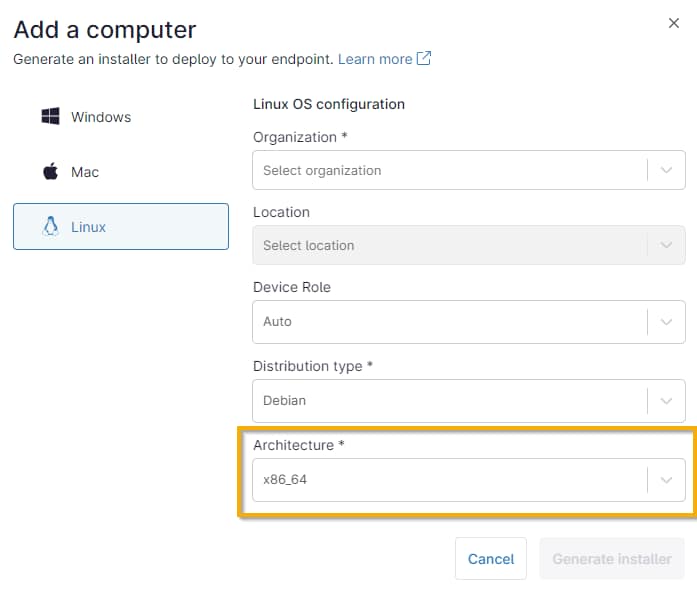
Figure 1: Selecting architecture (click to enlarge)