
Topic
Devices may have a pending reboot as a result of a number of different processes—the process may have been triggered either through NinjaOne or locally on the machine. Some examples of processes that may cause pending reboots are Windows patching, software patching, or antivirus installations or scans.
- If there is a Pending Reboot on a device, patch scan and apply functions will not complete for this device until the reboot has completed. The pending reboot icon will no longer display when a reboot has successfully occurred.
- NinjaOne pulls this information directly from the Windows System Information. Therefore, the "reboot" feature is not available for Mac devices.
Environment
NinjaOne platform
Index
- Find Devices with Pending Reboots
- Reboot Required to Install, Disinfect, or Upgrade
- Bitdefender Pending Reboots
- Perform the Reboot
Find Devices with Pending Reboots
There are a few different places in NinjaOne where you can see which devices (if any) have pending reboots.
- Under both the System and Organization dashboard, or from the Devices search grid, you will see a pending reboot icon next to the name of the organization or device.

Figure 1: NinjaOne Devices search grid → Device health detail
- From the Devices search grid, you can also filter for devices that have a pending reboot. Under More filters, select "Needs reboot".

Figure 2: NinjaOne Devices search grid → More filters → search "needs reboot"
- Under the organization or system dashboard, the number of devices that require a reboot will be listed under the Device Health section.

Figure 3: NinjaOne organization dashboard → Device Health section → Requiring Reboot
- See if a specific device needs a reboot from the Overview tab on the device dashboard. A message will be present under the Health section and you will have the option to perform the reboot from there.

Figure 4: NinjaOne device dashboard → Health section → Reboot
Reboot Required to Install, Disinfect, or Upgrade
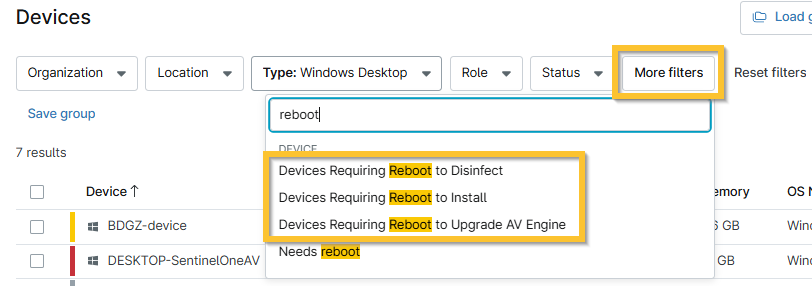
Figure 5: NinjaOne Devices search grid → More filters → Additional reboot filters
The Devices search grid contains three (3) additional filters for specific reboot requirements. The "Needs reboot" filter does not cross-reference these filters, which means that a device that appears for the "Needs reboot" filter may not show under the following filters:
- Devices Requiring Reboot to Disinfect
- Devices Requiring Reboot to Install
- Devices Requiring Reboot to Upgrade AV Engine
Bitdefender Pending Reboots
Pending reboots due to Bitdefender-related processes look a little different than other pending reboots.
You may see the following icon if a device needs a reboot to disinfect: 
The message under the Health section of the Device Overview will look like this:

You may see the following icon if a device needs a reboot to complete the Bitdefender installation, or to update the AV engine: 
The message under the Health section of the Device Overview will look like this:


Perform the Reboot
There are a few different ways to trigger a device to reboot when it has a pending reboot.
- Organization dashboard: Under the Overview tab, hover your cursor over the device with the reboot icon; click the arrow that displays to see the action menu. Select Reboot and choose the applicable option.

Figure 6: NinjaOne organization dashboard → Device reboot icon → Reboot
- Device Dashboard: Under the Overview tab, click the arrow for the reboot in the Health section and select Reboot.
- Finally, you can also use NinjaOne's native script, "Reboot (pending reboot devices)", to schedule a reboot. You can schedule this script to run using either a Scheduled Task or a Scheduled Automation. This script will only reboot devices that have a pending reboot—so, for example, if you choose to run the scripts against Device A and Device B, and Device A has a pending reboot at the time when the script is run but Device B does not, the script will only run on Device A (and therefore, only Device A will reboot).