
Topic
Frequently asked questions about the SaaS Backup Partner Portal.
Environment
Description
NinjaOne SaaS Backup is a cloud backup platform that helps businesses securely backup, manage, recover, and protect their business information. The automated and incremental backups simplify the backup, recovery, and compliance experience. It works with Microsoft 365 (Hosted Exchange, Groups and Teams, SharePoint, OneDrive), Gmail (including Calendars, Contacts, and Tasks), and other IMAP email servers. NinjaOne uses 256-bit (AES) encryption at rest and in transit, supporting multifactor authentication (MFA).
Index
- Account:
- Can I move organizations between data regions?
- How do change the owner of my partner in the Partner Portal?
- How do I upgrade from Backup Only to Backup + Archive?
- How do I find my Partner ID?
- What do I do if my login has been enabled but the link has expired?
- How can I locate an Organization ID?
- How do I reset an organization’s password?
- Dashboard:
- I couldn’t find a period filter next to the partner filter. Has it been removed?
- What happens when I click the Report Details button?
- Are partners only allowed to view charts?
- What criteria determine the color variations displayed in the widget?
- Is the Support Tickets page in the Partner Portal available for sub-partners?
- How do I add to backup from the Partner Portal?
- What is a Reporting Dashboard?
- Why is a Reporting Dashboard necessary?
- What are the newly added widgets on this improvement?
- Is the data shown in the Dashboard in real-time?
- Protection Coverage and Seat Usage:
- What is the benefit of Protection Coverage?
- What does the number next to Protection Coverage mean?
- How does the system calculate “Unprotected Licensed Account”?
- How do I find the count and list of accounts or sites under backup?
- Why is the period filter not included on the Protection Coverage and Seat Usage widgets?
Account:
Can I move organizations between data regions?
No, moving organizations between data regions is not possible.
How do change the owner of my partner in the Partner Portal?
Please reach out to NinjaOne Support with the current owner email address and the email address you wish to change it to. Once this is received, NinjaOne Support will send you a form to be signed and returned. Upon receipt of the signed form, NinjaOne Support can make the requested changes within the Partner Portal.
How do I upgrade from Backup Only to Backup + Archive?
- Log in to the SaaS Backup Partner Portal.
- Select Organizations on the far left.
- Click the ellipsis icon to the right of the desired organization and select View Details.

- Open the Subscriptions tab.
- In the "Update Subscription" box (blue box), select the dropdown and change this to the Archiver subscription.
- Select the blue Update button.
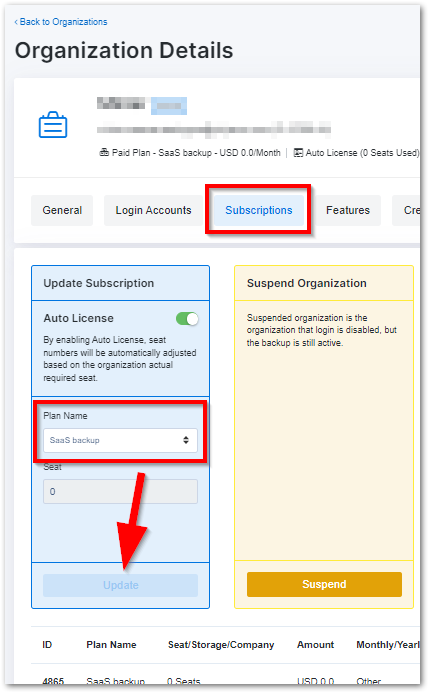
- A prompt will appear. Select Yes, Continue to finalize the change.
How do I find my Partner ID?
To locate your partner ID, log in to the Partner Portal and click the down carat next to your email at the top-right corner of the screen. Your Partner ID will be presented and available to copy. The Partner ID will be a combination of lower and uppercase letters and numbers.
What do I do if my login has been enabled but the link has expired?
If your login has been enabled by an administrator, but the link has expired, please ask the administrator to re-enable your login. Once this is done, you will receive another email link.
How can I locate an Organization ID?
From the Partner Portal, navigate to the Organizations page, click the three dots (...) on the desired organization to View Details.
The Organization ID will be directly below the organization name in parenthesis. This data can also be found in the Personal Info section next to the ID field.
How do I reset an organization’s password?
The Reset Password process also doubles as a way to resend an invite email to an organization.
- Navigate to the Organizations tab.
- Locate the specific organization and click the ellipsis menu (three vertical dots).
- Click Reset Password.
The Reset Password instructions are automatically sent to the organization owner. Emails may be found in the Spam / Junk folder.
Dashboard:
I couldn’t find a period filter next to the partner filter. Has it been removed?
No, it has not been removed. Instead, we've transitioned the period filter to a decentralized model, incorporating it within the Organizations and Accounts chart. This change allows partners to manipulate data points more seamlessly within their visualizations, enhancing the analytical experience.
What happens when I click the Report Details button?
You'll be redirected to another page offering comprehensive details:
- Protection Coverage Report: Displays the percentage of backed-up accounts out of all accounts, aligning with our commitment to safeguarding organizational data. Currently, this data covers the M365 mailbox account only.
- Seat Usage Report: Indicates the number of paid seats being utilized for backup, facilitating efficient seat management.
- Organization Report: Provides insights into the number of active, suspended, and unsubscribed organizations.
- Accounts Report: Offers details on the number of active, deactivated, and total accounts.
Are partners only allowed to view charts?
No, partners can also export CSV files for offline analysis or archival purposes. This feature is currently available for protection coverage and seat usage reports. Simply click the Export CSV button on the report details page to initiate the export.
What criteria determine the color variations displayed in the widget?
Protection coverage and seat usage widgets adhere to distinct guidelines for color presentation. Please refer to the table below for details.
| Protection Coverage | |
|---|---|
| Percentage | Color |
| Below 50 | Bold red |
| 50 to 80 | Red |
| Above 80 | Green |
| Seat Usage | |
|---|---|
| Percentage | Color |
| Below 40 | Red |
| 40 to 80 | Yellow |
| Above 80 | Green |
Is the Support Tickets page in the Partner Portal available for sub-partners?
No, it’s available only for direct partners and distributors with direct business with NinjaOne.
How do I add to backup from the Partner Portal?
- Open the Organizations section and click Access Email Portal for the desired organization.

- Click +Add Backup.
This will present multiple options:- Add from Existing
- If you have a previous backup already running and wish to add more mailboxes, select this option
- Add New Backup
- Microsoft 365
- Google Workspace
- Hosted Exchange
- Gmail
- Add from Existing
- If you've chosen Add from Existing, select the checkbox next to the user(s) you wish to add and click Add to Backup at the bottom of the page.
You will then be prompted to confirm the addition of the new account. - Click Yes, Continue.
If you've chosen Add New Backup you will be prompted to follow a specific set of instructions that differ between the options chosen.
Once users have been added to backup, you can visit the organization's home page and see "Added" beside the user(s) to verify they are added to backup.
What is a Reporting Dashboard?
Our Reporting Dashboard visually represents data about our partner with the ability to drill down into the data for further exploration. Once logged into the partner portal, you can access the Dashboard page.
Why is a Reporting Dashboard necessary?
It plays a crucial role in enhancing partner user experience by providing a streamlined interface for data visualization, enabling data-driven decision-making.
What are the newly added widgets on this improvement?
The newly added widgets are Protection Coverage and Seat Usage.
Is the data shown in the Dashboard in real-time?
No, the last update time can be identified by the message given on the chart.
Protection Coverage and Seat Usage:
What is the benefit of Protection Coverage?
Partners can ensure comprehensive protection across all organizations under their supervision, directing organizations to add email backup if the percentage is low.
What does the number next to Protection Coverage mean?
It represents the number of "Unprotected Licensed Accounts."
How does the system calculate “Unprotected Licensed Account”?
The system shows the number of Unprotected Licensed Accounts by following these formulas:
Unprotected Licensed Account = Unlicensed Account – Unprotected Licensed Account
Unlicensed Account = Total Account – Backup Account
How do I find the count and list of accounts or sites under backup?
- Click the menu on the top right of the page.
- Click Account Settings.
- Click the Credentials tab to find the count and list of accounts per tenant.
- Click on the Used for # Accounts & # Sites for the account list and corresponding statuses.
Why is the period filter not included on the Protection Coverage and Seat Usage widgets?
The widgets show real-time data, updated based on scheduled cron jobs on the end-user portal. You can locate the latest updates in the last updated date sections.