Topic
This article explains how to set up Microsoft Entra backups in NinjaOne SaaS Backup.
Environment
- NinjaOne SaaS Backup
- Microsoft Entra
Description
Microsoft Entra comprises a suite of identity and network access products designed to support a Zero Trust security framework. With Entra, organizations can verify user identities, enforce access policies, and validate permissions. It encrypts connection channels and continuously monitors for potential security breaches. These capabilities help you establish a trust fabric that dynamically ensures security across your network.
You can use NinjaOne to back up your Entra objects and configurations. We offer the following Entra backup plans:
- Entra Backup (Backup+Entra)
- Entra Archiver (Entra+Archiver)
The following sections of this article describe how to set up and work with Entra backups. Select a topic to continue.
Setting up Entra Backups
Working With Entra Backups
Add a Microsoft 365 (M365) Tenant
If you don't already have one, you must add an M365 tenant to NinjaOne before you can back up Entra. First, follow the steps in NinjaOne SaaS Backup: Adding an M365 Tenant to Backups. Then, proceed to the next section of this article.
Select an Entra Plan
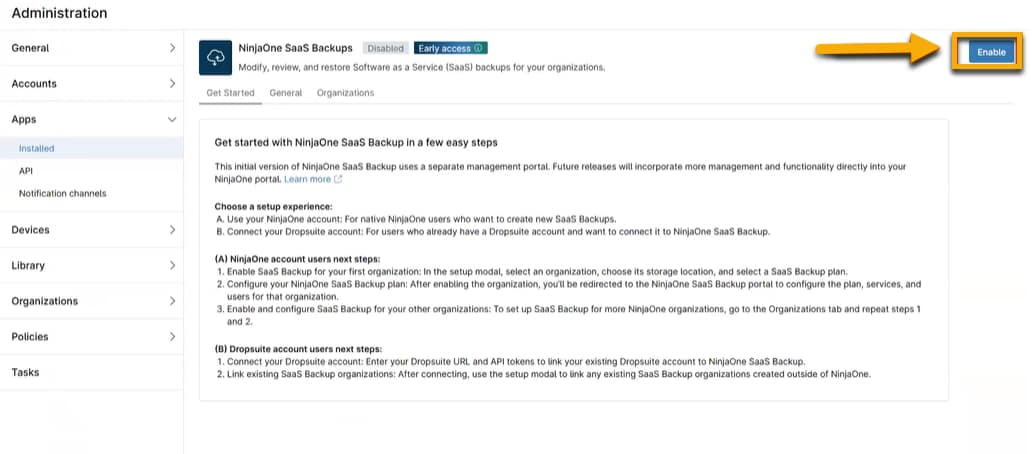
- In NinjaOne, navigate to Administration → Apps → NinjaOne SaaS Backup.
- Click Enable. The setup dialog box will open.
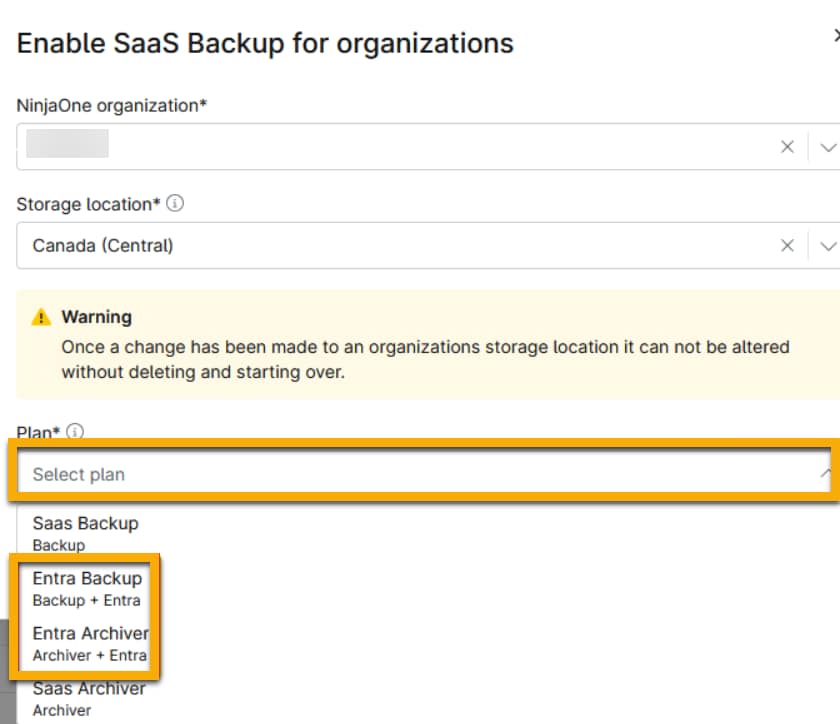
- Select an organization.
- Select a storage location.
- Choose one of the two available Entra plans.
- Entra Backup (Backup+Entra): This plan includes the M365 backup
- Entra Archiver (Entra+Archiver): This plan includes the M365 Archiver plan
- Click Enable.
Once you've selected your plan, you'll need to authorize Entra in your NinjaOne instance. To do so, follow the steps described in the Entra Authorization section of this article.
Entra Authorization
There are two available authorization applications with different purposes:
- Backup App: This app has read-only privileges. You will use it exclusively to perform backup operations. The Backup app is a required application.
- Restore App: You can enable this app permanently to restore operations without additional authentication and authorization, or temporarily as part of a specific restore operation.
To enable the Entra apps, follow these steps:
Authorize Entra Backup App
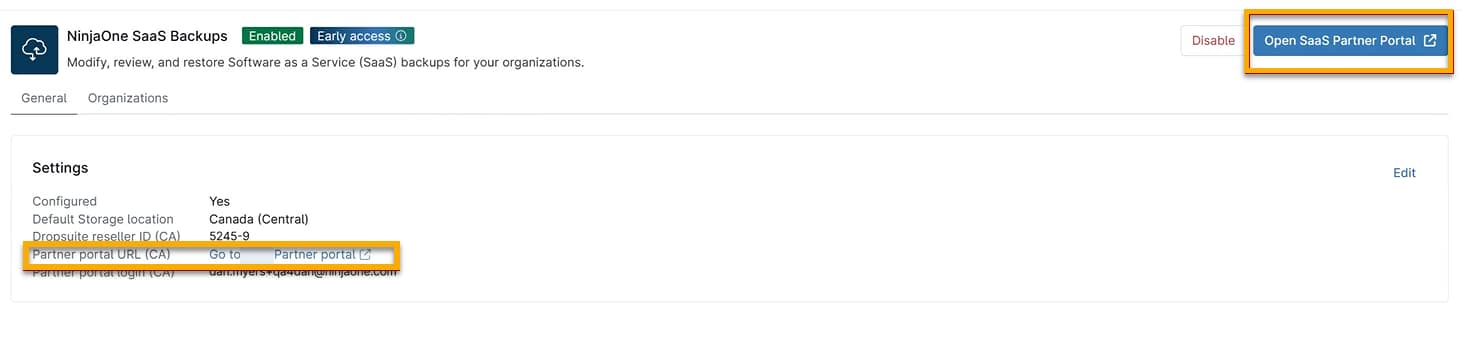
- Log in to the NinjaOne SaaS Backup Partner Portal. You can use the link provided on the NinjaOne SaaS Backup section of the Apps page in NinjaOne.
- Log in to the Entra Portal. On the Organizations section of the Partner Portal, choose Access Entra Portal. It is important to note that organizations can't access this option. Only resellers can manage Entra backups on behalf of their organizations.

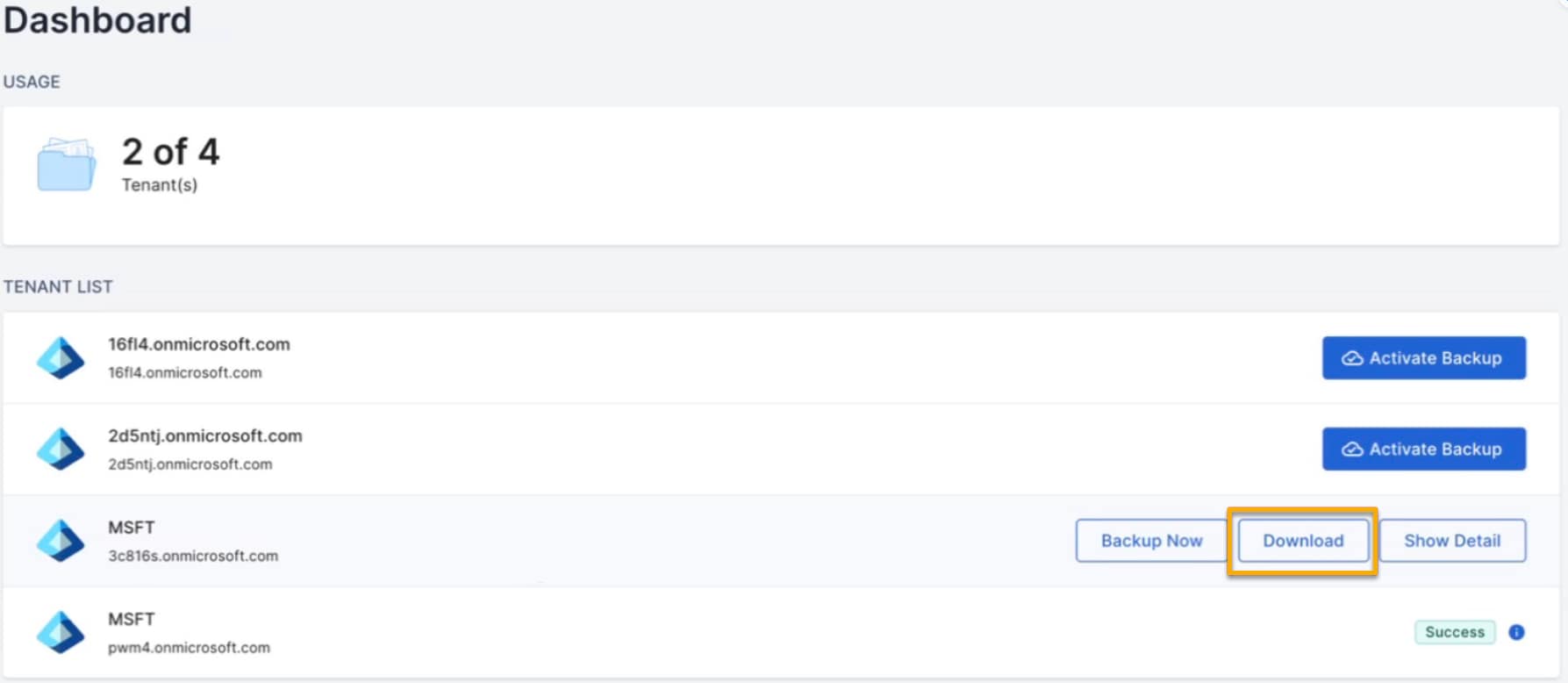
- The dashboard shows a list of M365 tenants you've added. Select the tenant you want to back up, and then select Activate Backup.
- On the New Tenants page, select Sign in with Microsoft to authorize.
- A new window will appear with the Microsoft login page. Use an M365 administrator account to authorize the Entra Backup app.
- Enable Immediate Backup to have the system start backing up immediately after authorization is granted.
- Set the Backup Frequency (currently only available every 24 hours).
- Choose Continue to complete authorization.
Once complete, the system will display that tenant's Backup Now, Download, and Show Detail options.
Authorize Entra Restore App
- Log in to the Entra Portal.
- On the dashboard, you'll see a Reauthorization Required badge for the M365 tenants. Select the tenant, and then select Update Now.
- On the New Tenants page, select Sign in with Microsoft to authorize.
- The Microsoft login page will open. Use the administrator email address to sign in.
Entra Backup
- Log in to the Entra Portal.
- On the dashboard, move your cursor over the tenant and select Backup Now.
- Once initiated, a success banner will appear.
- Visit the System Status page to monitor backup progress.
Download and Export Data
The Download button generates a download containing a .zip file with the selected data in JSON format. You can download specific objects, all objects of a particular type (such as user or group), or all currently backed-up objects.
The JSON format allows you to review data in a text editor, JSON tool, or programmatically (for example, in PowerShell or Graph API). In the event of a failed restore, you can use JSON data to perform a manual restore outside of NinjaOne Entra Backup.
Download Options
You have the following options available to you for downloading tenant data:
Tenant Level: On the Dashboard, select Download.
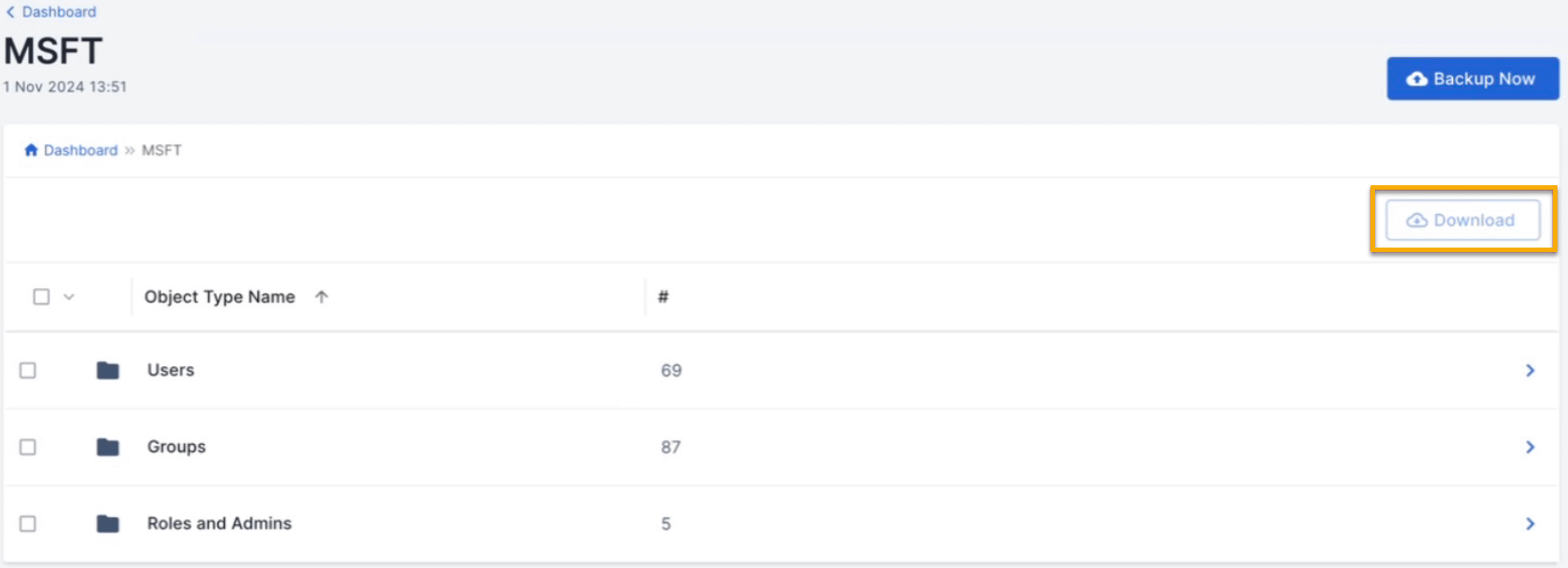
Object Type Level: Select the tenant on the dashboard, select the object type, and then choose Download.
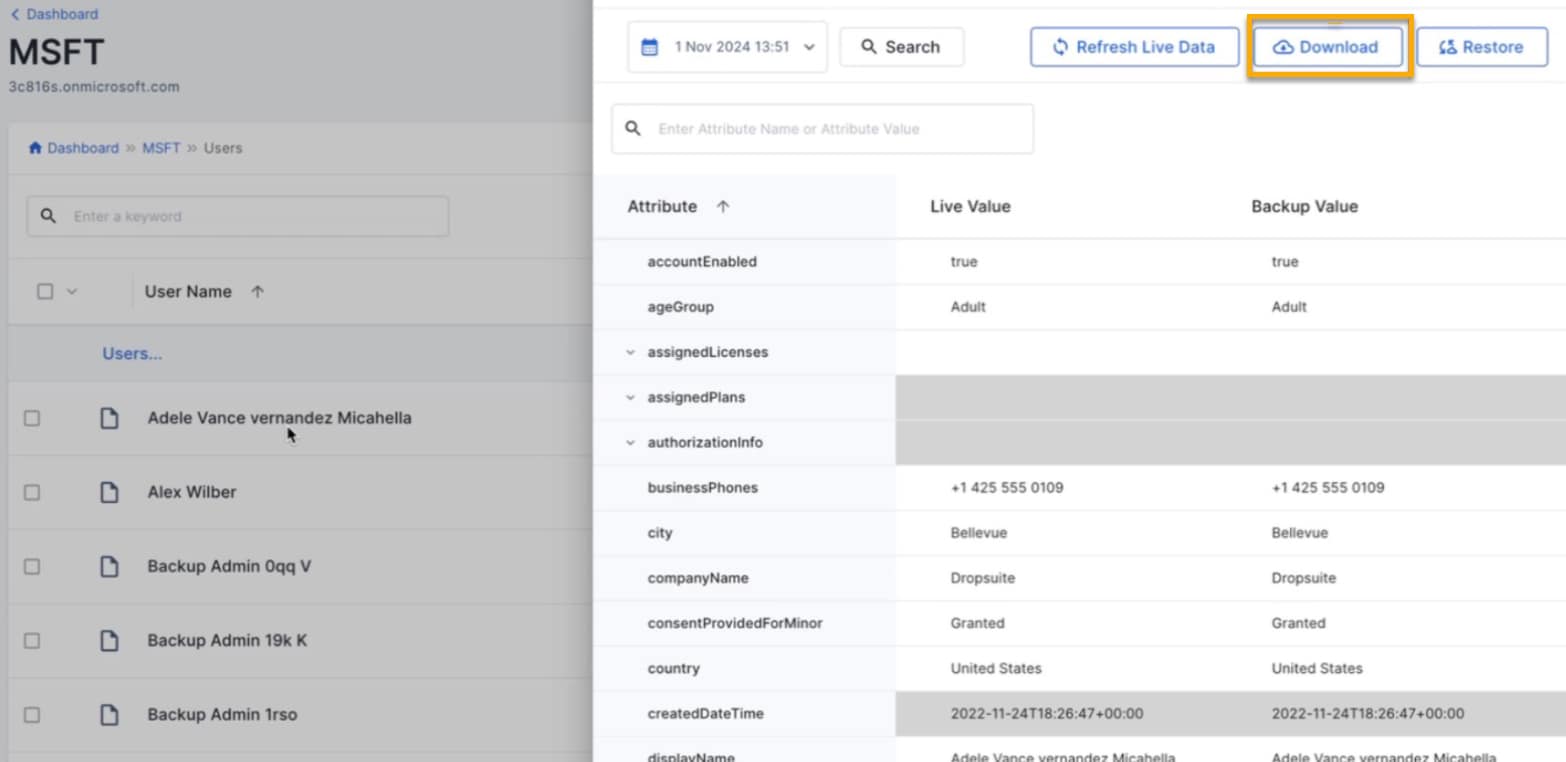
Object Detail Level: Select the tenant, select the object type and specific object, and then choose Download in the sidebar.
After initiating a download, monitor progress on the System Status page. The download link expires in seven days.
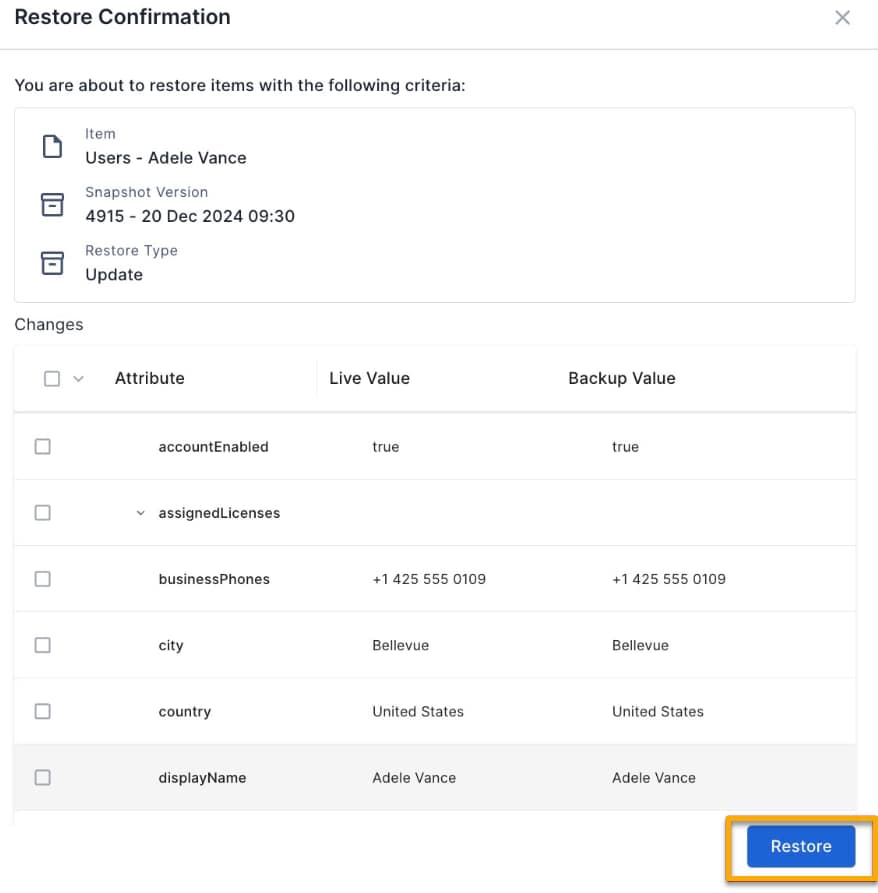
Restore Data
Unlike downloads, restores are available only at the Object Detail level.
After you select Restore, the system displays a confirmation message. To proceed, choose Restore.