
Topic
This article discusses protecting and restoring your Google Workspace data with NinjaOne SaaS Backup.
Environment
NinjaOne SaaS Backup
Description
Activating Backup for Google Workspace
Follow these steps to prepare your Google Workspace account for its initial backup.
- In the NinjaOne SaaS Backup partner portal, navigate to the organization for which you want to back up Google Workspace and click Add Backup.
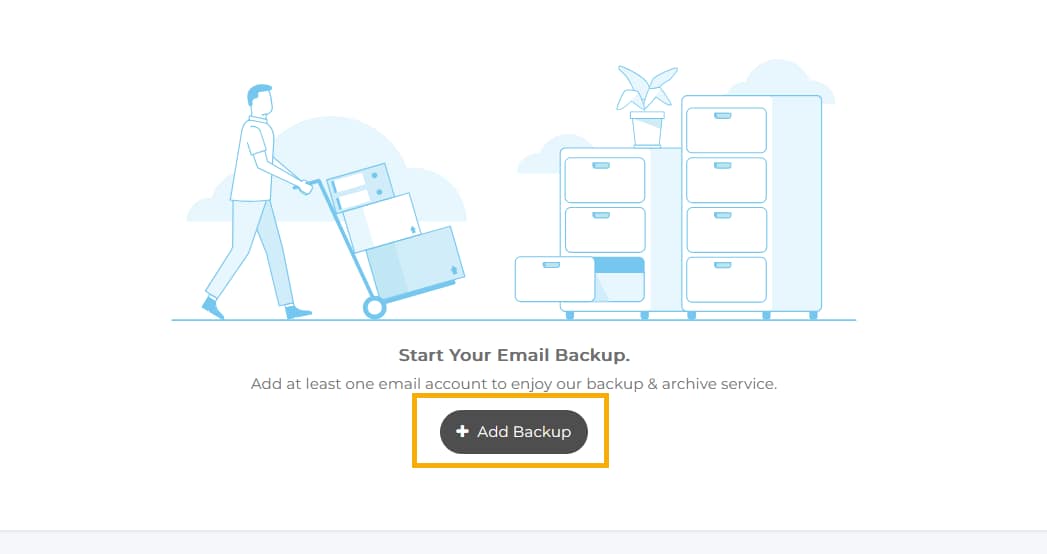
Figure 1: The Organization dashboard (click to enlarge)
- Click Sign in with Google Workspace.
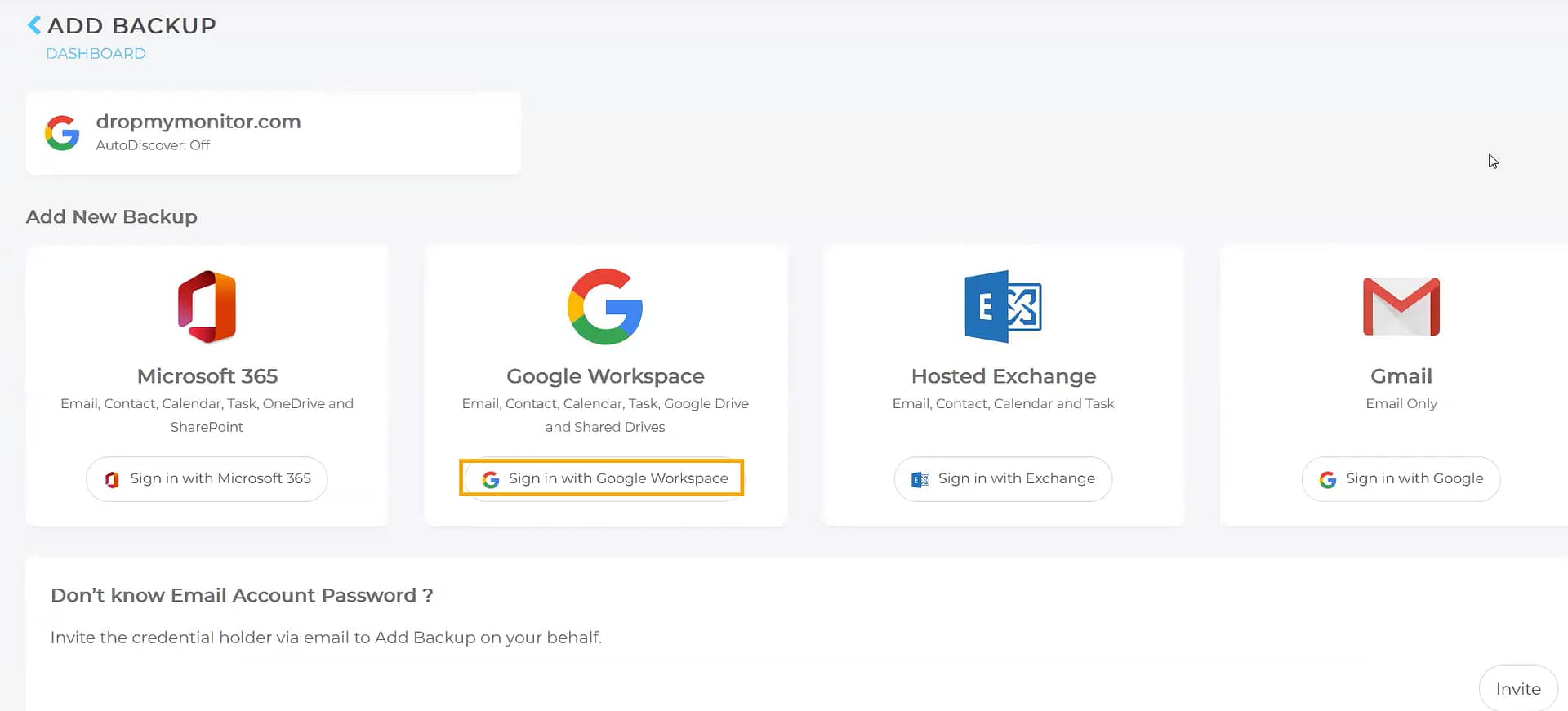
Figure 2: The Add Backup page (click to enlarge)
- Install the backup app by clicking Get it from the Google Workspace Marketplace.
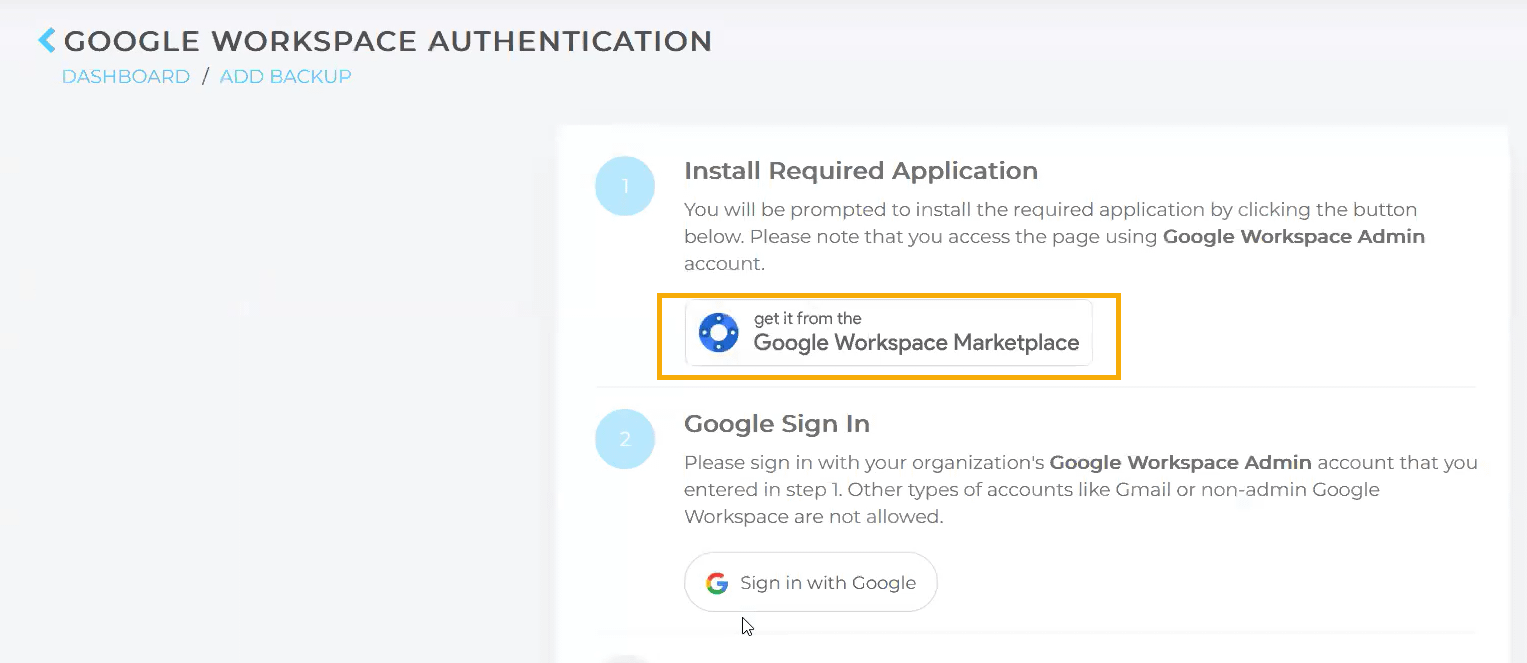
Figure 3: Download the backup app (click to enlarge)
- After installing the app, click Sign In with Google.
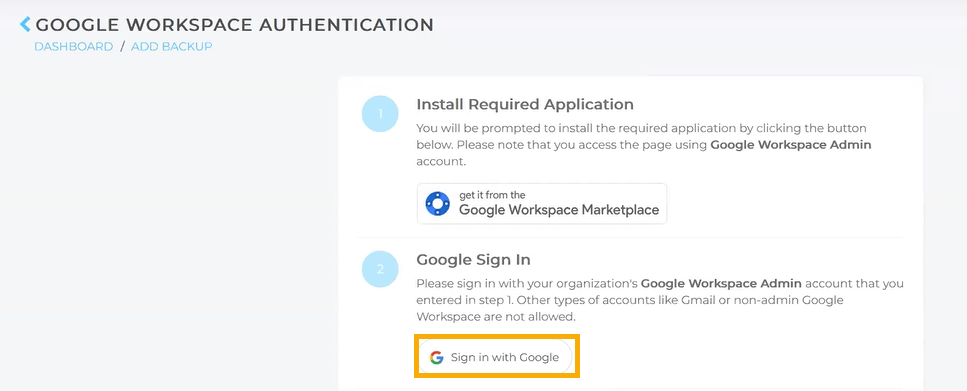
Figure 4: Authenticate with Google (click to enlarge)
- After authenticating, you will see your Google Workspace information on the Organization page.
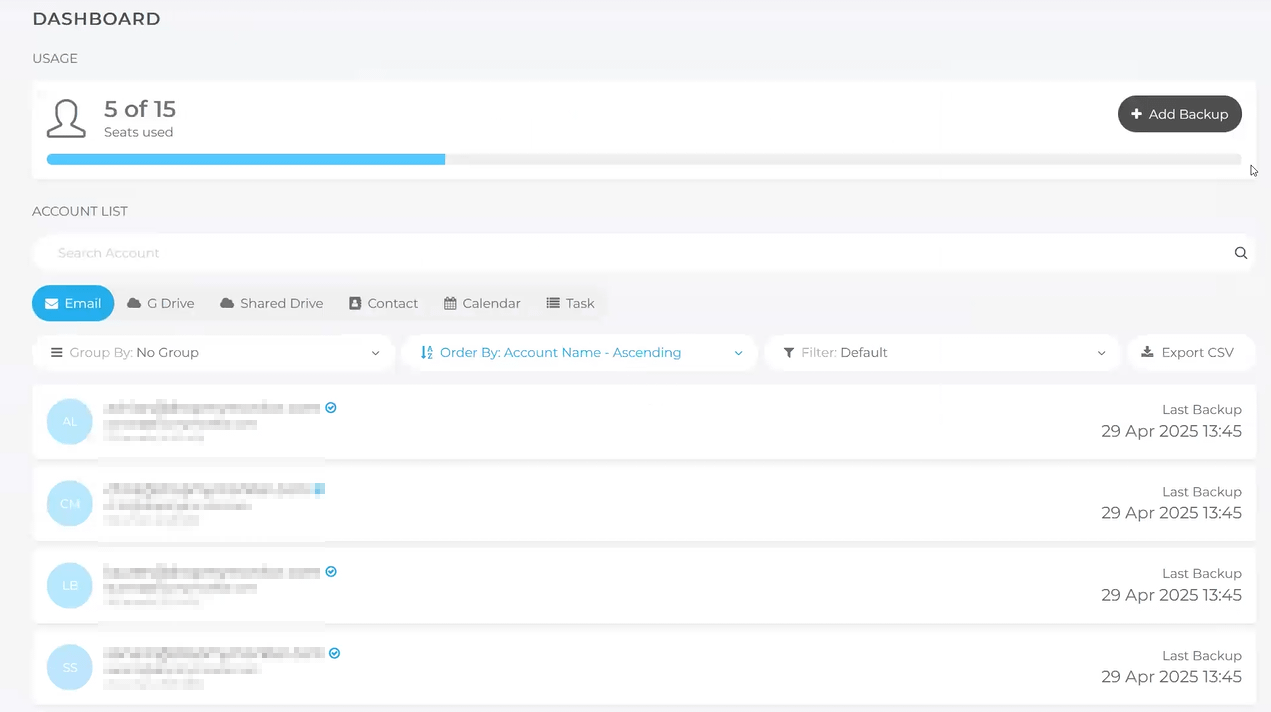
Figure 5: The completed setup. (click to enlarge)
Managing Google Workspace Backups
After activating Backup for Google Workspace, follow these steps to specify which accounts to back up.
- On the dashboard page, click the organization name to access management options.
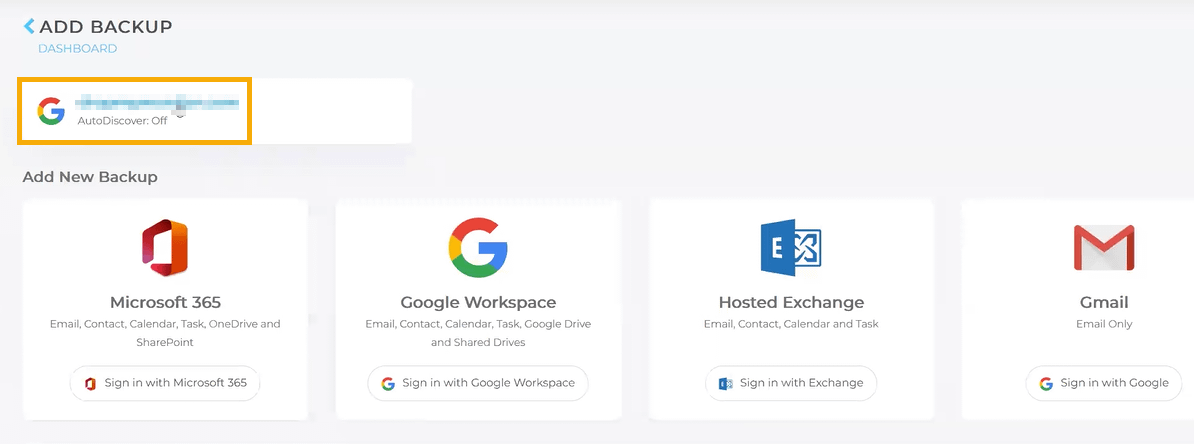
Figure 6: The organizational dashboard page (click to enlarge)
- The system will automatically detect all available accounts for backup. You can click individual accounts to exclude or include them. Click Shared Drive to include available shared drives in your backup.
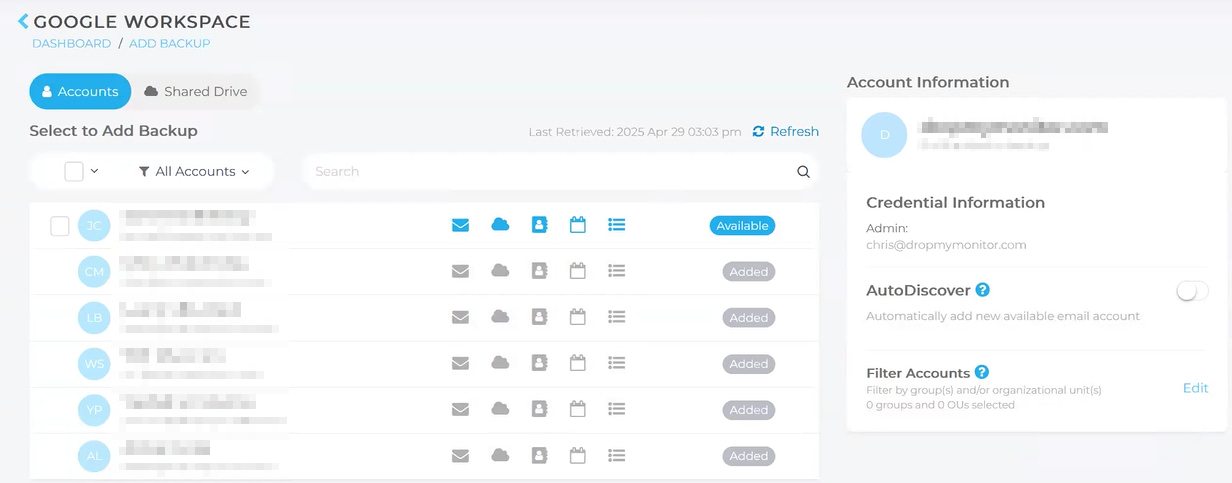
Figure 7: Account discovery (click to enlarge)
Restoring backups
Follow these steps to initiate a backup restore.
- Find the account you wish to restore and click the Restore button.
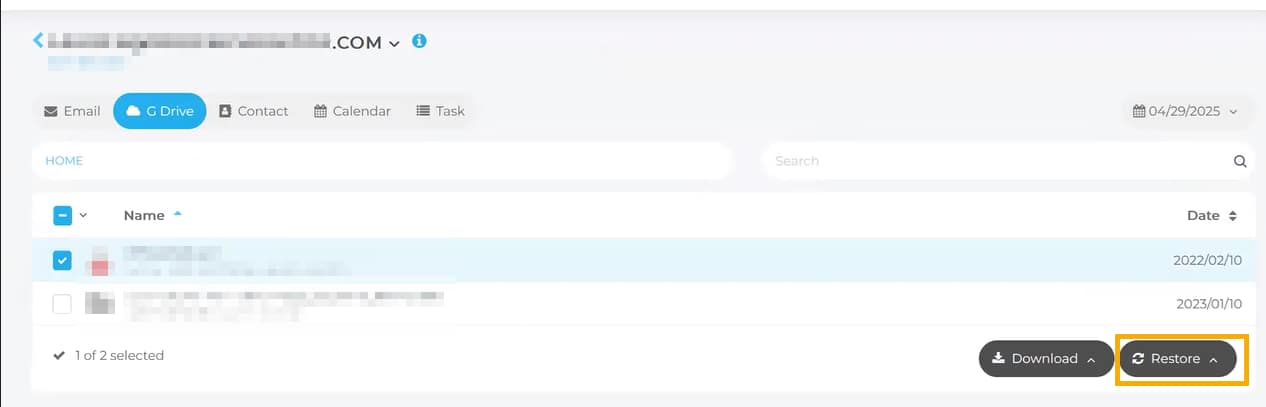
Figure 8: Account restore (click to enlarge)
- Select your restore folder option and click Start Restore.
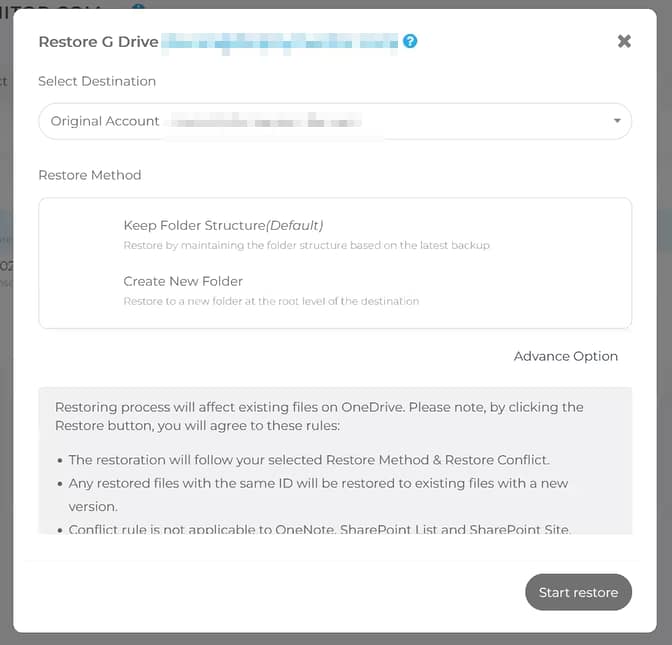
Figure 9: Restore options (click to enlarge)
Additional Resources
Refer to NinjaOne Backup: SaaS Backup FAQ for more information.