
Topic
Learn how to track and manage the lifecycle of your assets and work with unmanaged device roles within NinjaOne.
Environment
NinjaOne Endpoint Management
Description
Use NinjaOne's IT Asset Management app to track devices that NinjaOne does not support natively, such as phones (outside Mobile Device Management [MDM] support), cameras, and printers.
You can use this tool to create device types via custom fields. Refer to NinjaOne Custom Fields: Resource Catalog for information about using custom fields in NinjaOne.
These asset fields also affect the Devices search page filters. Refer to Find and Manage Endpoints from the Devices Search Page for more information.
Index
Select a category to learn more:
- Enable the Product
- Configure the Asset Fields
- Grant Technicians Access to the Product
- Manage Device Types and Roles
- Add an Unmanaged Device in NinjaOne
- Unmanaged Device Dashboard Information
- Additional Resources
Enable the Product
Refer to Getting Started With NinjaOne IT Asset Management.
Configure the Asset Fields
Open the Asset fields tab and then click the pencil icon to edit the default settings. This data is tracked for all managed assets.
Grant Technicians Access to the Product
Learn more about end user and technician permissions at User Roles and Permissions.
Give technicians permission to view, update, and delete device roles for unmanaged devices under Permissions: IT Asset Management.
In addition, you should ensure that the technician has access for Device Administration under Permissions: System.
Manage Device Types and Roles
To learn about how to add custom fields to the device roles, refer to NinjaOne Endpoint Management: Device Roles.
To learn how to create and configure unmanaged device roles, refer to NinjaOne IT Asset Management (ITAM): Unmanaged Device Roles.
Add an Unmanaged Device in NinjaOne
Refer to Add an Unmanaged Device in NinjaOne for more information.
Unmanaged Device Dashboard Information
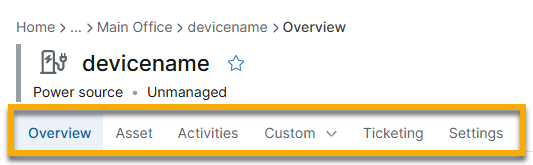
Unmanaged device dashboards offer a limited amount of data compared to those of managed devices in NinjaOne. You can access the following tabs from this page:
Device Actions
In the top right corner of the device dashboard, click Edit to perform the following actions for the unmanaged device:
- Edit display name: Manage the name of the device that is shown in NinjaOne.
- Change assigned user: Update the device owner. Changing device owner does not affect who has access to the device; refer to End User Sharing and Device Access for more information.
- Add tags: Refer to Getting Started with NinjaOne Device Tags for more information.
- Go to settings: Navigate to the Settings tab.
- Delete device: Remove the device from NinjaOne.

Overview
Device information, activities, notes, and related items are stored in this tab.
- Device information: Custom fields allow you to track additional information within NinjaOne. When you add an unmanaged device in NinjaOne, you select a device role. Any input field or static element that you added when configuring the device role will display here.
- Click the edit icon to update the input fields.
- Editing this information creates an activity on the dashboard.

- Activities: A brief note about recent events related to the device appear on the right side of the screen. These events provide more detail when you access the Activities tab in the top menu bar.
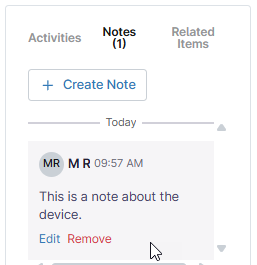
- Notes: Click Notes in the right-side widget to view or add device-related notes. Move your cursor over the note to see options to edit or delete it.
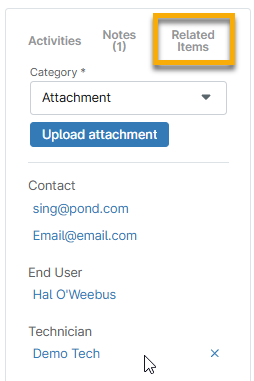
- Related items: Click Related Items in the right-side widget to view or add related items. Move your cursor over the item to see options to delete it.
Asset
View and update asset field information from this tab. Click the pencil icon to edit the data. This information will be tracked on the Devices search page.
Resource: Find and Manage Endpoints from the Devices Search Page
Activities
The activities displayed on the Overview page are recorded here with additional details. You can filter for certain activities, use the table settings (gear icon) to reorder columns, and export data.
If the description is truncated due to length, click it to see additional details.
You can copy the data to your clipboard using the button in the bottom right of the information modal.
Resources: Device and System Activity Notification Feed
Custom
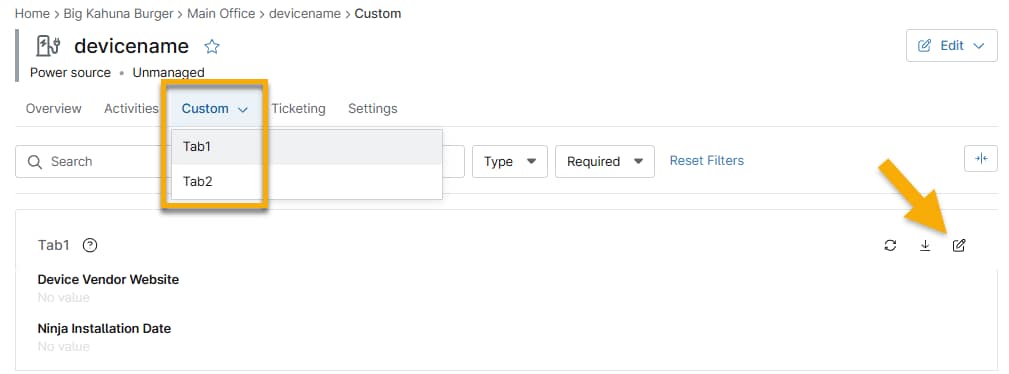
This tab is broken down by the custom field tabs you created for the device roles, or types. Similarly to the Overview tab, each will contain the custom fields you configured under Administration → Devices → Roles → Unmanaged devices.
Click the pencil icon to add information for each field.
Resources: Custom Fields: Resource Catalog
Ticketing
Create, view, and manage tickets for the device. The Edit Board button allows you to customize ticket sorting and column arrangement. Tickets for unmanaged devices also display on the Ticketing board in the main left navigation pane.
Resources: Ticketing: Resource Catalog
Settings
View and update device setting information from this tab. Click the pencil icon to edit the data.
Resources: Manage Warranty Information
Additional Resources
Refer to the following resources to learn more about asset management in NinjaOne: