
Topic
This guide explains how to use Duo to set up SAML (Security Assertion Markup Language) with NinjaOne.
Environment
NinjaOne platform
Description
SAML allows technicians to access the NinjaOne application using a single sign-on with their preferred provider. SAML can be used with both the standard and branded NinjaOne web application, which supports multiple IdPs (Identity Providers).
Any IdP that supports SAML 2.0 may be used. However, we have only tested and verified Azure, OneLogin, and Okta.
There are two different workflows related to SAML. Currently, only the workflow initiated by the service provider is enabled for NinjaOne SAML.
- Service Provider (SP) initiated workflow: You navigate to NinjaOne to log in and are forwarded to the identity provider.
- Identity Provider (IdP) initiated workflow: You navigate to your identity provider to log in and are forwarded to NinjaOne to log in.
How to Configure SAML in Duo
- Before following the steps in this article, be sure to add and configure your authentication source in Duo. For more information, refer to How to Use Duo Single Sign-On (SSO) | Duo Security (external).
- Refer to How to Use Duo Single Sign-On (SSO) | Duo Security for instructions on configuring SAML for Duo. Click the Other tab and follow the instructions.
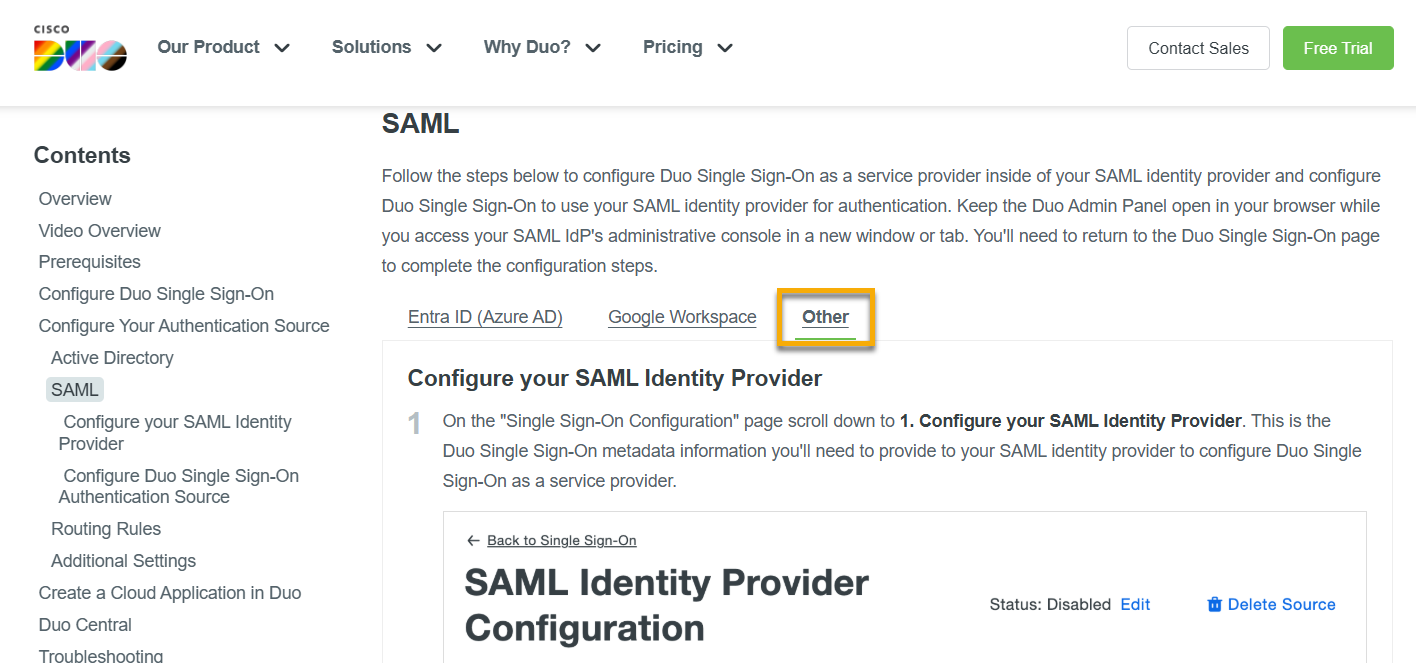
Figure 1: Refer to Duo instructions to configure SAML (click to enlarge)
- For information on gathering the Entity ID and Assertion Reply URL from NinjaOne, refer to Login Security: Configure Single Sign-On in NinjaOne.
Specifications for Configuring Duo SAML in NinjaOne
- You must copy the Metadata URL from Duo and paste it into NinjaOne.
- You must copy the Reply URL and SP identifier from NinjaOne and paste them into Duo.
- NinjaOne recommends choosing Duo’s preconfigured attributes. This will allow you to change Duo SSO Authentication Source in the future, if needed.
- Next to Signing options, leave Sign response and Sign assertion checked.
- Scroll down to the Policy section and choose the policy you wish to implement for this application. If you created a policy without a password, be sure to distinguish whether you want authentication without a password for NinjaOne.
- Scroll down to the Settings section and enter "NinjaOne" in the Name field. You may configure other options in this section, depending on how you configured Duo MFA for your users.
- Scroll to the bottom and click Save.
Additional Resources
To learn more about NinjaOne's identity services, refer to:
- Login Security: Configure Single Sign-On in NinjaOne
- Identity Authentication and Management: Resource Catalog