
Topic
This article explains how to enable conditional bypass for NinjaOne multi-factor authentication (MFA).
Environment
NinjaOne Platform
Description
Enable conditional NinjaOne MFA bypass to ensure it is only performed once during an SSO login, either at the Identity Provider or at NinjaOne, but not both. This still ensures a high level of security with the added usability benefit of only a single MFA being requested.
Select a category to learn more:
- MFA Workflow
- How does NinjaOne do this?
- Which Identity Providers are supported?
- What attributes does NinjaOne look for?
- Why is "Enable conditional NinjaOne MFA bypass" hidden after the Identity Provider test?
- Why do users still get the Ninja MFA during login even though I have this feature enabled?
- Does this affect NinjaOne MFA for security-sensitive operations in NinjaOne after login?
- Why do I still receive a prompt for MFA during login, even though I have enabled Bypass?
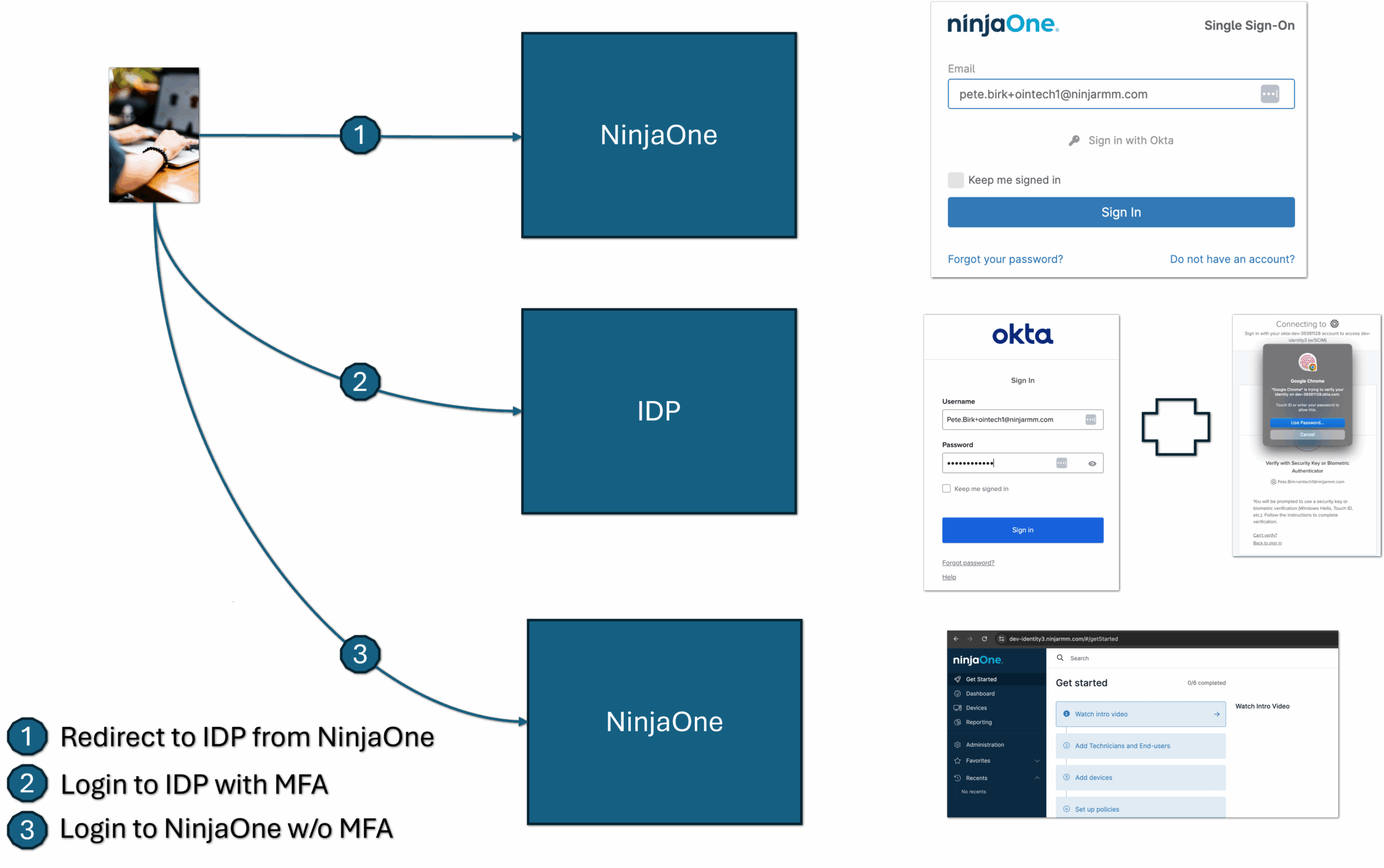
MFA Workflow
The following figure shows MFA used only as an Identity Provider:
The following figure shows how NinjaOne uses MFA:
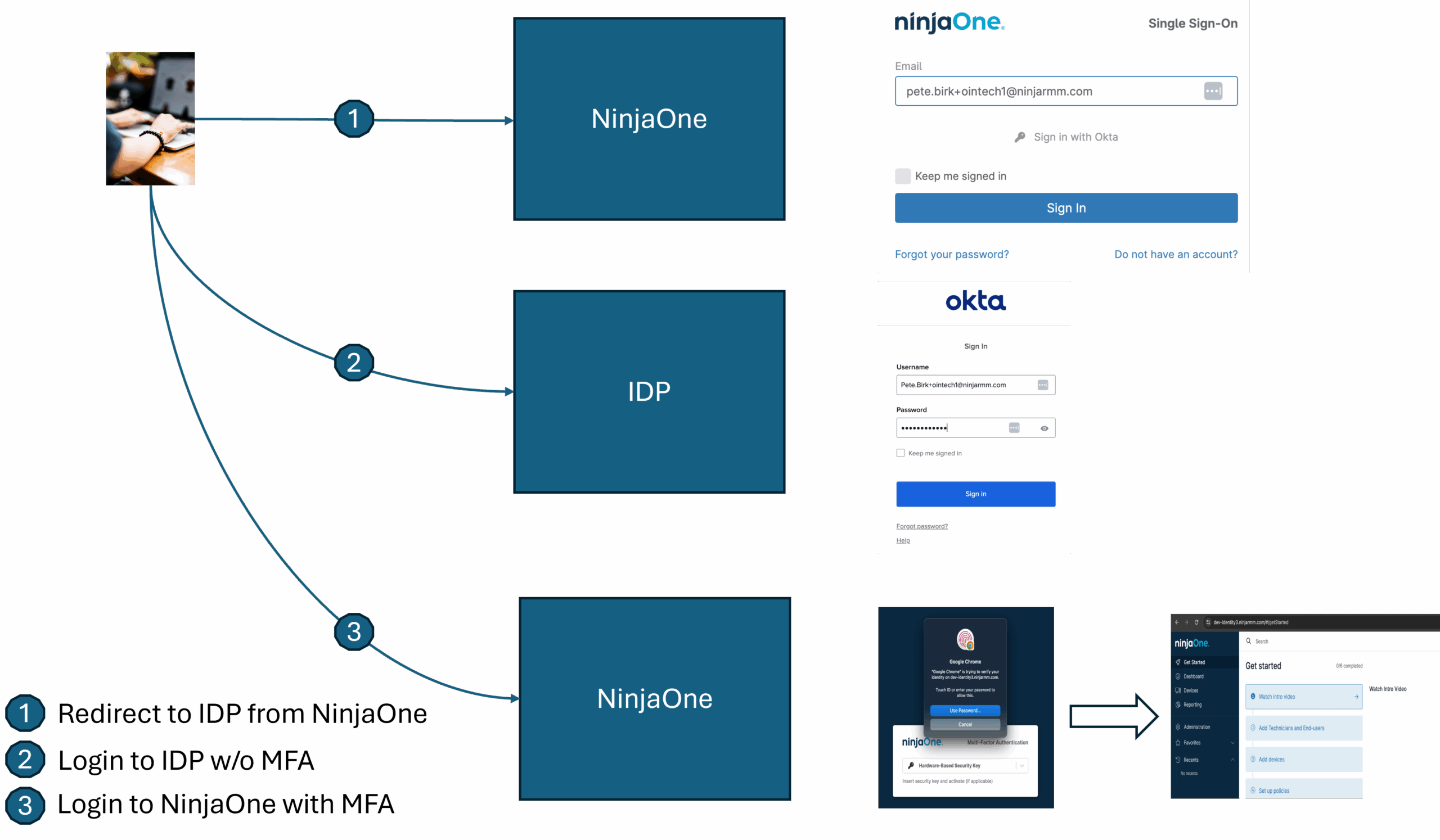
How does NinjaOne use MFA?
Some Identity Providers (IdP), including Okta and Azure, add a SAML attribute to the user login response that indicates whether MFA was performed at the IdP during the login session. We look for this attribute once the SAML response is received to determine whether to skip the Ninja MFA based on this condition. The SAML response is a cryptographically signed document that establishes trust between NinjaOne and the Identity Provider. It cannot be modified in between the Identity Provider and NinjaOne without detection. If we do not find this specific MFA attribute in the SAML response, we will not bypass the NinjaOne MFA for the user login.
Which Identity Providers Does NinjaOne Support?
Currently, only Azure and Okta are supported Identity Providers for this feature. Other IdPs will be supported once it is determined that they support such a session-based MFA attribute as described above.
For which attributes does NinjaOne search?
NinjaOne will look for the following attributes in the SAML response for Okta and Azure. If found, NinjaOne will bypass MFA for that request. If not found, NinjaOne will perform MFA for the login request.
Okta attributes:
<saml2:Attribute Name=“amr” NameFormat=“urn:oasis:names:tc:SAML:2.0:attrname-format:unspecified”>
<saml2:AttributeValue xmlns:xs=“http://www.w3.org/2001/XMLSchema” xmlns:xsi=“http://www.w3.org/2001/XMLSchema-instance” xsi:type=“xs:string”>swk</saml2:AttributeValue>
<saml2:AttributeValue xmlns:xs=“http://www.w3.org/2001/XMLSchema” xmlns:xsi=“http://www.w3.org/2001/XMLSchema-instance” xsi:type=“xs:string”>mfa</saml2:AttributeValue>
<saml2:AttributeValue xmlns:xs=“http://www.w3.org/2001/XMLSchema” xmlns:xsi=“http://www.w3.org/2001/XMLSchema-instance” xsi:type=“xs:string”>pwd</saml2:AttributeValue>
</saml2:Attribute>
Azure attributes:
<Attribute Name="http://schemas.microsoft.com/claims/authnmethodsreferences">
<AttributeValue>http://schemas.microsoft.com/ws/2008/06/identity/authenticationmethod/password</AttributeValue>
<AttributeValue>http://schemas.microsoft.com/claims/multipleauthn</AttributeValue>
</Attribute>
Why is "Enable conditional NinjaOne MFA bypass" hidden after the Identity Provider test?
Because only Azure and Okta are supported in this release, we are currently looking for an Identity Provider URL that contains .okta.com (Okta) or .microsoftonline.com (Azure). If your identity provider has a branded URL, it is currently not supported, but this is likely to change in the future. For now, all other IdPs will have this option hidden after the IdP test connection is complete.
Why do users still get the Ninja MFA during login even though I have this feature enabled?
This can occur for several reasons:
- Ensure the feature is enabled in the NinjaOne Identity Provider configuration.
- It’s possible that the attribute being set in the SAML response by the IdP is either not present or not the attribute name we’re looking for. Ensure the attribute is coming through in the SAML response received by NinjaOne.
- The user may not have performed MFA at the Identity Provider. Ensure the IdP policy enforces MFA for the NinjaOne application.
- If the IdP is configured with a third-party for MFA (such as using Duo with Azure IdP), it’s possible that the IdP is not adding the MFA attribute for which we are looking.
-
The user may only have a single authentication method configured for their account (such as account password, authenticator app, Okta Verify, or others). Therefore, the account does not meet the MFA requirement in NinjaOne and will receive the prompt. Add a secondary authentication option and try again.
Does this affect NinjaOne MFA for security-sensitive operations in NinjaOne after login?
No, it does not affect post-login MFA requirements. Even if NinjaOne MFA is bypassed during login, all NinjaOne users (technicians and end users) should still have a NinjaOne MFA configured and will still be required to perform MFA for security-sensitive operations after logging in.
Why do I still receive a prompt for MFA during login, even though I have enabled Bypass?
You may only have a single authentication method configured for your account (for example, an account password, authenticator app, Okta Verify, or similar). Therefore, the account does not meet the MFA requirement and will receive the NinjaOne MFA prompt.
Add a secondary authentication option and try again.