
What is SysTray Setup? The NinjaOne agent shows up as a small icon on your computer. You can find it in the bottom right corner (Windows) or the top menu (macOS). This icon lets you quickly check if the agent is working, for quick access to essential tools like running terminal commands, submitting help requests, and customizing your settings. You can also customize this icon to match your company’s style using NinjaOne’s settings. This lets you change how the icon looks and what it does, making it fit better with your brand and user experience.
Enabling and Configuring the Systray
Enabling Systray:
- Navigate to Administration in the main menu.
- From the General drop-down, select Systray.
- Click Enable to turn on the Systray feature.
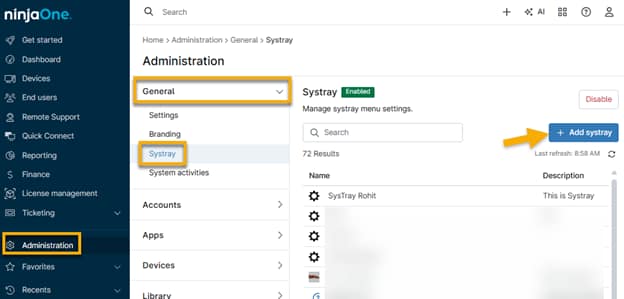
Configuring Systray
Once enabled, you can customize an existing Systray or create a new one.
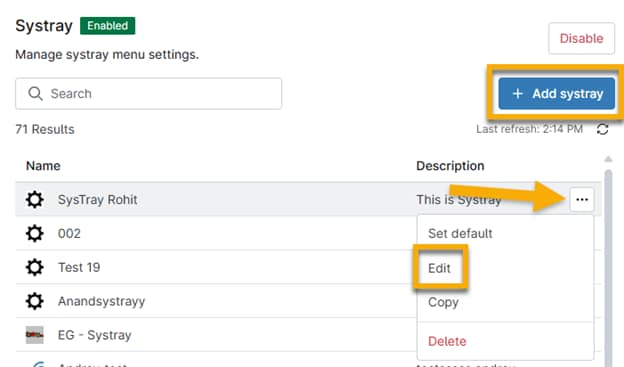
Customize an Existing Systray
- Hover over the Systray you want to modify.
- Click the ellipsis (⋯) icon and select Edit.
- Use the ellipsis again if you want to autofill or copy your Systray configuration.
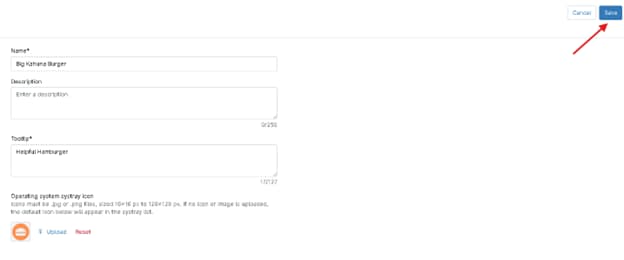
Add New Systray:
- Select the Add button to add a new Systray.
- Configure new Systray parameters (see the steps below for more information about the available options) and select the Save Changes button.
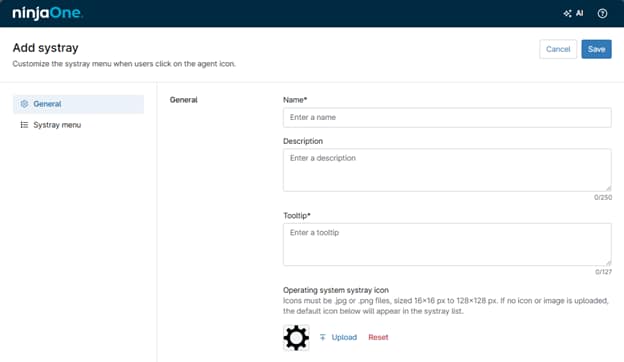
Systray Configuration Options:
General
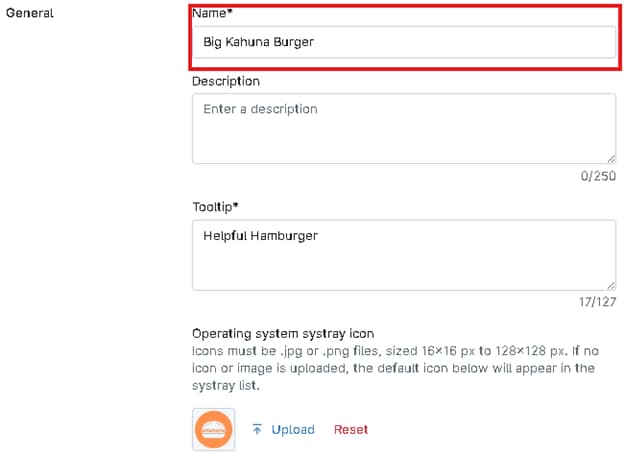
Name
A name helps you quickly identify the icon and its associated functions without having to hover over it or click on it.
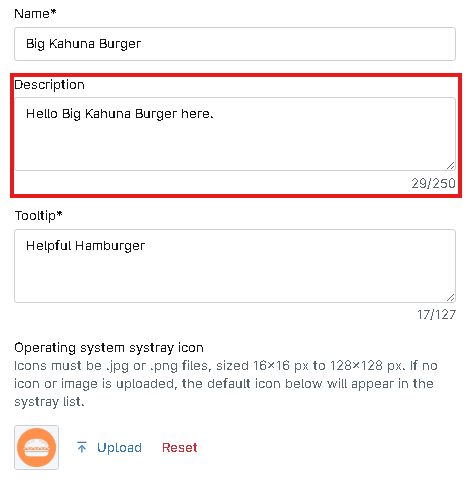
Description
A description provides additional context or information about the icon’s function, especially if the name alone is not immediately clear.
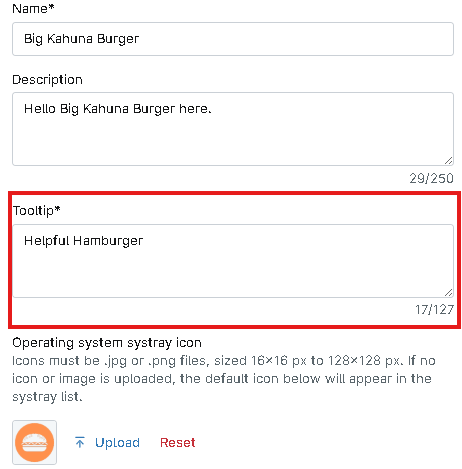
Tooltip
Add text that displays when a user hovers their cursor over the information icon.
Icon
Important Note: The systray icon must be .JPG or .PNG files between 16×16 and 128×128 pixels, of equilateral size.
There are two options to configure the icon image:
- Change: Select the Upload option to change the icon image.
- Reset: Select the Reset option to reset the icon to the default image shown below.
Systray Menu
Menu
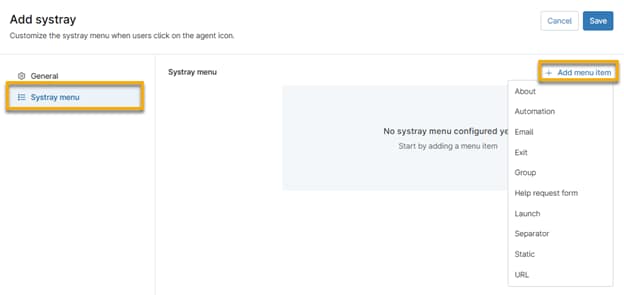
- Select the Add Menu Item option to add menu items to the Systray icon.
Refer to the Menu Items section for more information.
- Select the Add Menu Item option to add menu items to the Systray icon.
The Menu Item window is dynamic, depending on the option selected.
For each item, you have the ability to add a custom icon to represent that feature.
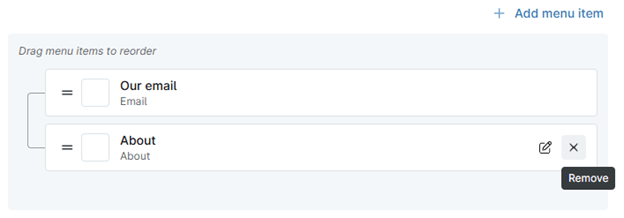
- Select the Edit option to edit an existing menu item.
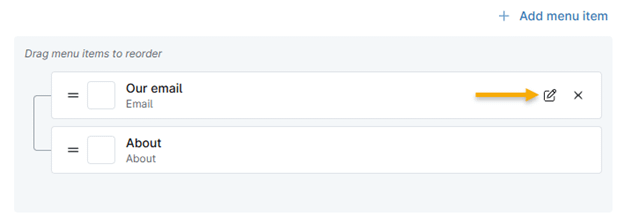
- Select the Delete option to delete an existing menu item.
- Organize and nest your menu items as necessary. Then, click Save Changes in the top right corner.
- Drag and drop items in the menu tree to arrange the menu items as desired.
- Multiple menu items can be nested together in Groups shown below.
- Organize and nest your menu items as necessary. Then, click Save Changes in the top right corner.
Menu Items:
About
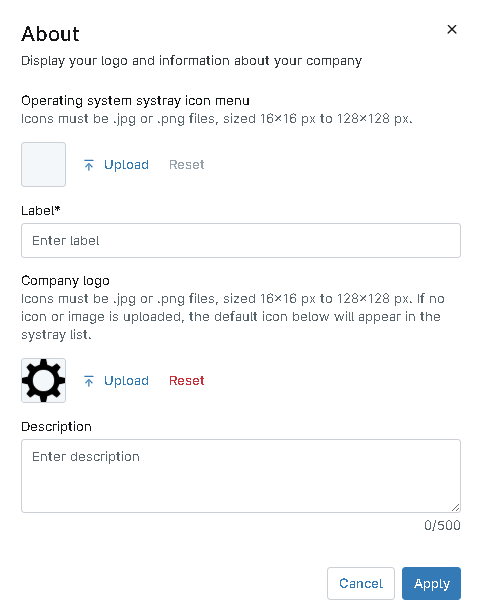
This item allows you to include information about your company. It is single-use and will always be at the root level position; it cannot be nested.
- The Description field supports basic HTML.
- The system will display the email and phone number created under Branding here.
Automation
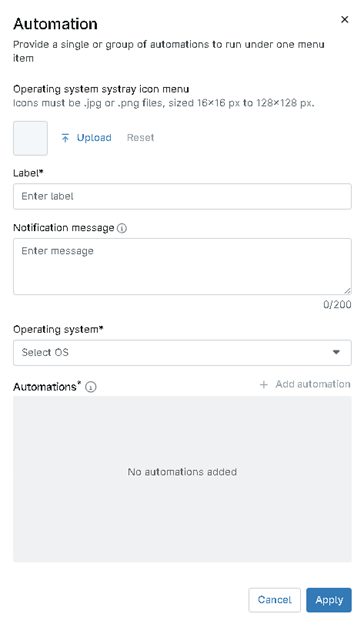
- NinjaOne will only offer automations compatible with the selected operating system.
- When a user selects an automation, the NinjaRMM agent runs the automation and all associated scripts in sequence.
- Automations run from the Systray will trigger an activity at the device level: “Start Requested by Device End User.” You can filter these activities on the device dashboard.
- You can add automation that is not native to NinjaOne. First, add the automation to the Automation Library. Instructions are in Getting Started with NinjaOne’s Automation Library (Scripting).
- Do not run Systray automations as the “current logged-in user” on Remote Desktop Servers. Doing so causes the script to run on the first session in a multi-user environment and, as such, will not target a specific user.
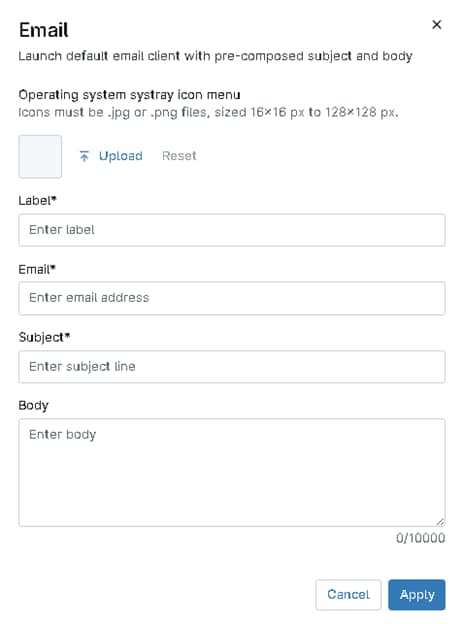
The Email type allows you to customize an email that a customer can send to you.
- This option utilizes the mail program configured on the node.
- You can also use environment variables with the Email menu item.
Exit
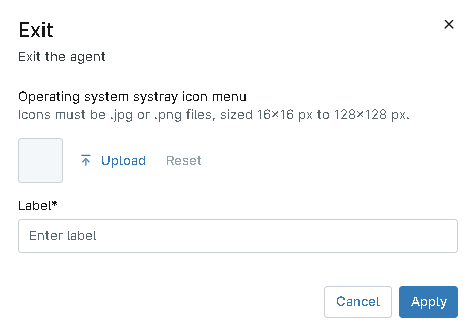
This single-use item will always be at the root level position. It cannot be nested. The item inserts an “exit” option to allow your users to close out of the Systray executable.
Group
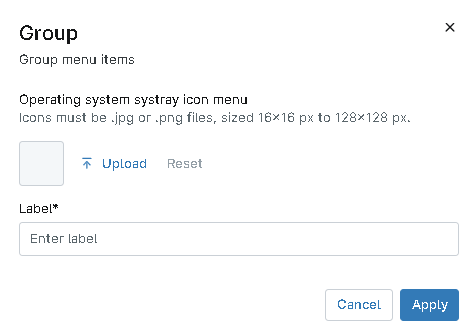
Group lets you create menu headings for your Systray items. By default, items are added at the root level. You can create as many groups as needed.
Help Request Form
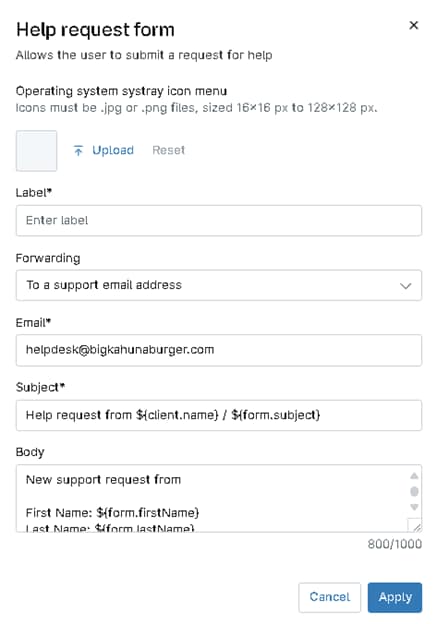
- This single-use item always appears at the root level and cannot be nested. It lets you configure a dynamic form that can be forwarded to an email address, an integrated PSA tool, or NinjaOne Ticketing.
- When forwarding to a PSA tool, you can select the ticket template (not applicable to NinjaOne Ticketing). The Subject and Description fields support basic HTML and placeholders. By default, all placeholders are included—you can add, remove, or rearrange them as needed.
- You can also truncate fields to meet PSA title length limits.
Example:
Help request from ${client.name?truncate(25)} / ${form.subject?truncate(100)} - End users can attach screenshots or image files when submitting requests. Environment variables are supported.
- If the form is configured to send to a PSA tool, the message will appear as a note on the created ticket (contents included), but it will not automatically populate PSA fields or sync with an existing contact.
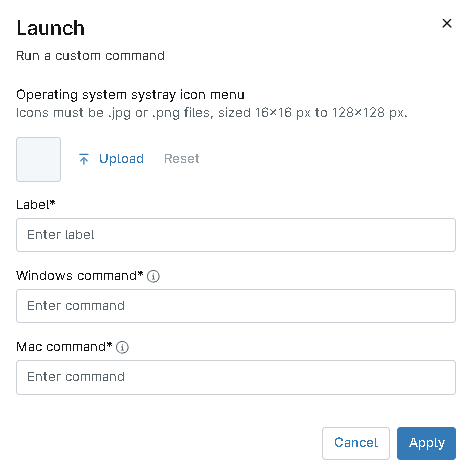
Launch
- This item type lets you populate launch commands for your customers to use. You can specify the location and filename of the executable to launch along with command line arguments.
- This feature will run applications as the logged-on user.
- Here are some example cmd commands you can run through the Systray icon (this list is not exhaustive):
- show add/remove programs: cmd.exe /c “appwiz.cpl”
- show computer management: cmd.exe /c “compmgmt.msc”
- show control panel: cmd.exe /c “control panel”
- launch cmd prompt: cmd.exe
- show device management: cmd.exe /c “devmgmt.msc”
- show disk management utility: cmd.exe /c “diskmgmt.msc”
- show event viewer: cmd.exe /c “eventvwr.msc”
- show network connections: cmd.exe /c “control netconnections”
- show printers: cmd.exe /c “control printers”
- show MTSC: cmd.exe /c “mstsc”
- show services: cmd.exe /c “services.msc”
- show msinfo: cmd.exe /c “msinfo32”
- show task manager: cmd.exe /c “taskmgr”
- show computer name: cmd.exe /c “Control sysdm.cpl”
- show full IP configuration information: cmd.exe /k “ipconfig /all”
- release the IP address: cmd.exe /k “ipconfig /release”
- renew the IP address: cmd.exe /k “ipconfig /renew”
- purge DNS resolver cache: cmd.exe /k “ipconfig /flushdns”
- Note: The full path is not required for executables residing in directories listed in PATH environment variable
- Use the open command built natively into macOS for macOS devices. For example:
open “/Applications/Google\ Chrome.app”
- For more examples of using the open command, use the man open command within the native terminal or the NinjaOne Remote Terminal.
- For macOS devices, you can also use the following example to write in a custom field:
“/Applications/NinjaRMMAgent/programdata/ninjarmm-cli” set Systraymacinstallshottr true
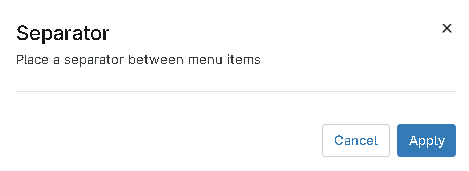
Separator
This item type inserts a line separator between menu items or groups.
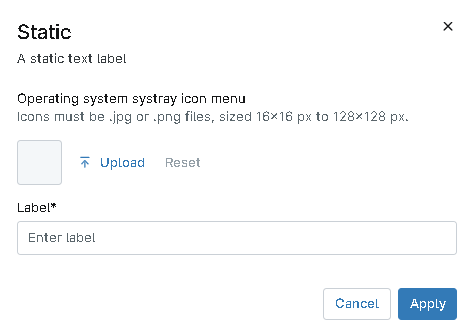
Static
This command lets you enter static text the system will display to the user.
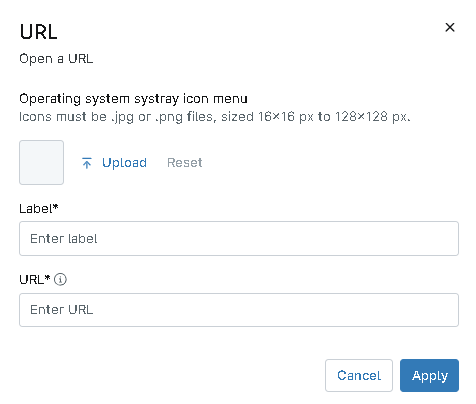
URL
This item type allows you to configure specific URLs for your customers to launch as needed. This command is helpful if you’d like to enable your customers to call you via Skype or any other dynamic URL.
Add Automation on the menu items
- Automations can now be added as menu items in Systray.
- It will only display automations based on the operating system of the endpoint.
- When a user clicks an automation, the RMM agent will run the automation, and all scripts associated with it in sequence.
- These scripts are executed as System.
- Automations run from Systray will trigger an activity at the device level: “Start Requested by Device End User”.
- Can filter device activities by “Start Requested by Device End User”.
Deploying the Systray Configuration:
Once the systray has been configured, it can be deployed to a single or multiple organization.
- Navigate to the Administration → Organizations tab.
- Select the checkbox next to the desired organizations. You can select more than one organization.
- Click Edit settings and select Systray from the drop-down menu.
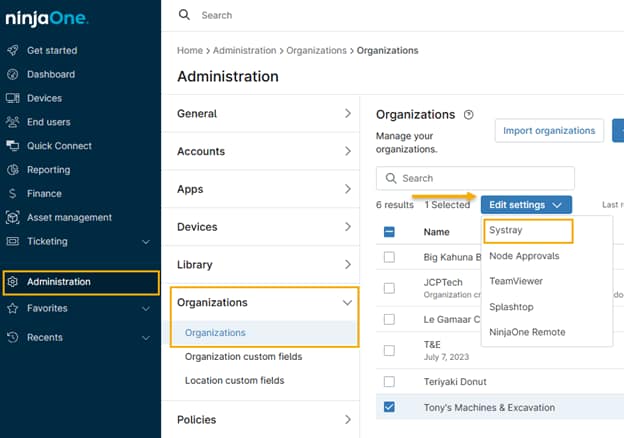
- Toggle the Enable systray switch, select the desired Systray template, and then select Apply to save changes.
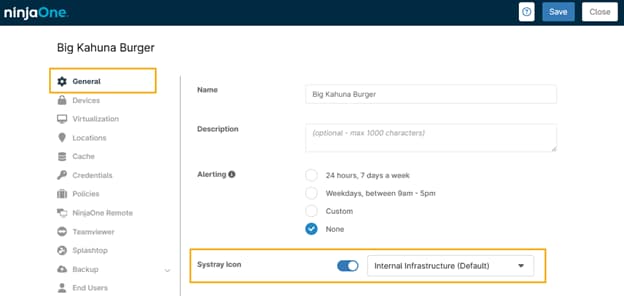
Alternatively, you can deploy the Systray icon from the organization configuration page:
- Navigate to the Administration → Organizations tab and select the organization. The General tab will be open by default.
- Activate the Systray Icon toggle switch, select the desired icon template from the drop-down menu, and click Save.
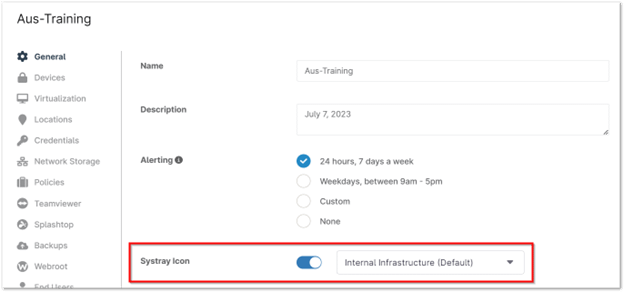
Alternatively, the Systray icon can be deployed from the organization level:
- Navigate to the Administration > Organizations tab.
- Click on a single organization.
- Activate the Systray Icon toggle switch and select desired systray icon template from the drop-down.
- Click Save.
Deleting a Systray:
Important Note: Ensure that the systray is not configured or associated with any organization before attempting to delete it.
- Go to Administration > General > Branding and open the Systray tab.
- Click on the ellipse icon of the systray to be deleted and select Delete.
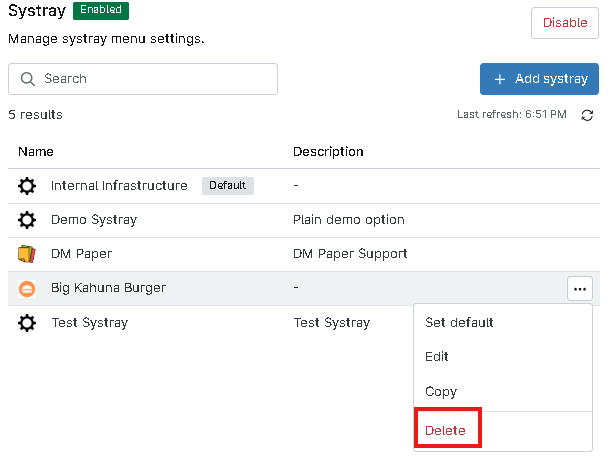
A notification displays to confirm the deletion of the systray.
- Select the Delete button.
If the systray is currently configured with any organization, an error message appears with a list of the organization(s) configured with that systray. You will not be able to delete the systray until is no longer configured to any organizations.
Click on the organization that appears in the dialogue box to change that organization’s systray.
User experience:
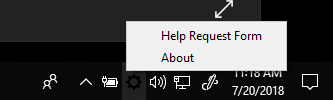
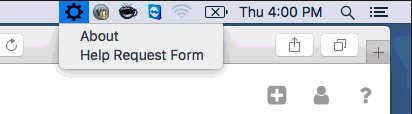
Once the systray icon is deployed, the user will see the icon you designated (or the default gear icon) and can interact with the Tooltips you have configured.
Windows
Mac
Linux
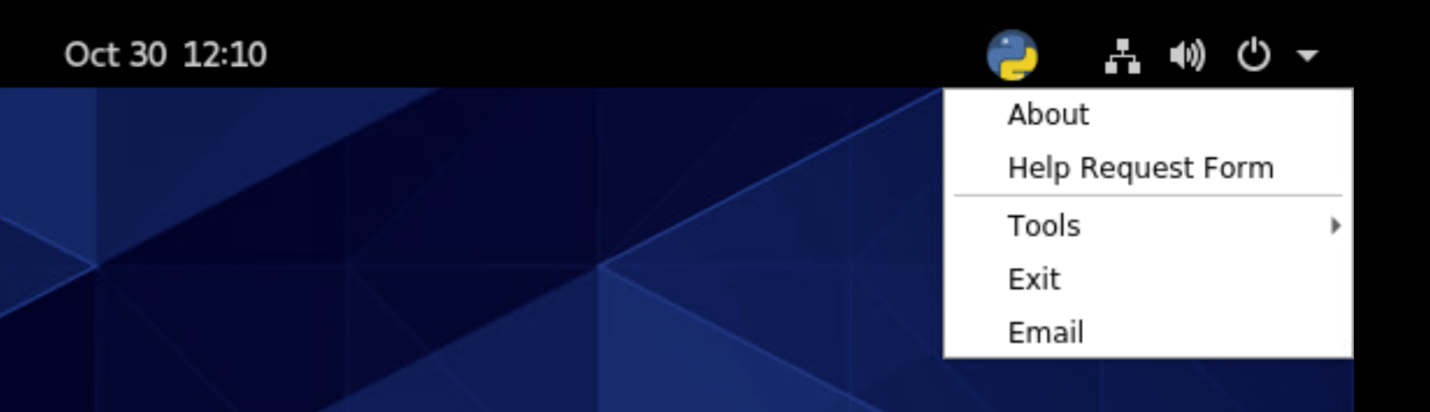
Important Note: To use the systray icon with the Linux agent, you may need to install a tray extension (such as GNOME). The tray extension will depend on the desktop environment that is being used.
Advanced Usage
Placeholders for Menu Items
Placeholders for use in menu items (URLs, Launch, or About dialog box):
- ${IP_ADDR}: IP Addresses
- ${USERNAME}: Username of current user
- ${HOSTNAME}: Machine hostname
- ${DOMAIN}: Domain machine that the node has joined
- ${TIMESTAMP}: Current timestamp in ISO format (UTC)
- Any environment variable, such as ${PROCESSOR_ARCHITECTURE}
Help Form Placeholders
- First Name: ${form.firstName}
- Last Name: ${form.lastName}
- Email: ${form.email}
- Phone: ${form.phone}
- Subject: ${form.subject}
- Problem Description: ${form.body}
- Device: ${node.displayName}
- Ninja URL: ${node.url}
- Device Role: ${node.nodeRole}
- Public IP: ${node.publicIpAddress}
- Private IPs: ${node.ipAddress}
- Device ID: ${node.id}
- Organization: ${client.name}
- Description: ${client.description}
- Organization URL: ${client.url}
- Policy: ${policy.name}
- Policy Description: ${policy.description}
- Policy URL: ${policy.url}
In addition, you can use any environment variable configured in the system with the env. Prefix.
- COMPUTERNAME: ${COMPUTERNAME}
- OS: ${env.OS}
- NUMBER_OF_PROCESSORS: ${NUMBER_OF_PROCESSORS}
- PROCESSOR_ARCHITECTURE: ${PROCESSOR_ARCHITECTURE}
- USERDOMAIN: ${USERDOMAIN}
- USERNAME: ${USERNAME}
Benefits, Strategies and Best Practices of Systray with NinjaOne
Improved Accessibility: Provides a convenient and easily accessible way for users to interact with the NinjaOne tool.
Consistent Presence: The systray icon ensures that NinjaOne is always accessible and ready to assist, regardless of your current application or window.
Customizable Actions: Allows you to add custom menu items to the systray, providing users with quick access to specific actions or information.
Branding: Enables customization of the systray icon to match your organization’s branding, fostering a more cohesive user experience.