

Table of Contents
- Introduction
- Reset Passwords
- Restart services
- Reboot machines
- Protect Business Data
- Free up Disk Space
- Deploy Software
- Setup New Computers
- Patching
- Reporting

This guide walks through 10 common time wasters (including password resets, rebooting endpoints, deploying software, and more) and gives step-by-step on how to automate these tasks.
Introduction
Helpdesks and IT teams are inundated with repetitive, time-consuming, often low-value tasks that distract from larger strategic projects. With most IT leaders saying their staff is already stretched thin, this leaves little room for important projects that will lead to greater organizational productivity and efficiency. Add to this the cost and complexity of point solutions for frequent issues, technician training costs, and lost productivity, and the cost of even simple remediation tasks can creep up quickly.
NinjaOne enables you to monitor the health and performance of all your endpoints — servers, laptops, and workstations, SNMP devices, cloud infrastructure, and virtual machines — and manage them remotely from a single pane of glass.
NinjaOne also provides easy access to all your managed endpoints remotely, without the need to take control of the device. That means that, without interrupting the end-user, and often without the end-user knowing, you can perform regular maintenance, patch endpoints, run security scans, make registry changes, and more. Most of the repetitive, time-consuming, and low-value tasks that plague helpdesks can be automated away through scripts and NinjaOne’s automation engine.
This guide shows you how NinjaOne can help your IT team spend less time on common IT tasks and gives you step-by-step best practices to set up these processes in NinjaOne. Here is what it covers:
- Reset passwords.
- Reboot endpoints.
- Protect business data.
- Free up disk space.
- Manage antivirus threats.
- Deploy software.
- Setup a new computer.
- Setup user permissions to ensure security.
- Patch Windows, Mac, and Linux computers.
- Report on IT processes and outcomes.
Reset Passwords
By some estimates, password resets account for 20 – 50% of all helpdesk tickets. It’s a critical, but low-value task and no matter how quickly you do it, it’s not fast enough. Minimizing the time your team spends on password resets improves end-user satisfaction and saves your team significant time.
How to Automate Resetting Passwords:
- Write a password reset script using a scripting language such as PowerShell or Batch.
- Whenever a password reset is requested, the responding technician can run the password reset script on the appropriate machine, entering the appropriate username and temporary.
 | Hint: Use script parameters to allow a username and password to be entered at runtime so the script can be reused. |
Resources:
- Changing the password for a local account with PowerShell
- Changing the password for an AD account with PowerShell
- Scripting How-to Guides
- Script Share
Restart Services
Often, when an application crashes, behaves unexpectedly, or can’t be accessed, the simple solution is to restart the service. This happens frequently enough that it can bog down IT in high volume, but low-value tickets. This can be especially common with on-premises line-of-business applications used across an organization.
Reducing service restarts to the click of a button — or automating away service restarts — can significantly reduce helpdesk workload.
How to Automatically Restart a Windows Service When It Goes Down:
- Create a condition in NinjaOne that monitors for a Windows Service being down.
Condition: Windows Service
Service: << Service Name >>
State: Down - Add a script to the monitor.
Script: Windows Service
Service: << Service Name >>
Action: Start
How to Ad-hoc Restart a Windows Service When It Goes Down:
- Navigate to the affected device.
- Mouse-over the play button and select Run Script > From Library.

- Select the ‘Windows Service’ script.

- Enter the service name and set action to ‘start’.
- Click Apply.
Reboot Machines
Regular reboots are one of the easiest steps end-users can take to minimize IT issues, improve device efficiency, and ensure device health.
Use script automations in NinjaOne to avoid relying on end users or taking time to manually restart devices.
How to Enforce Scheduled Automatic Reboots Across Many Endpoints:
- Navigate to an appropriate policy (Administration > Policies) and select the Scheduled Scripts tab.
- Click Add a Scheduled Script.
- Set an appropriate schedule based on your preferences (daily, weekly, etc.).
- Click add a script.
- Select Reboot and save the condition.
How to Perform Automatic Reboot Endpoints When They Haven’t Been Rebooted for X Days:
- Navigate to an appropriate policy and click Add a condition.
- Select ‘System Uptime’ and set days to an appropriate uptime (5, 15, 30, 60 days).
- Click add a script.
- Select Reboot and save the condition.
How to Ad-hoc Restart a Single Endpoint:
- Navigate to the device that requires a reboot.
- Mouse-over the play button and select Run Script > From Library.
- Select the ‘Reboot’ script.
Protect Business Data
Backup products can be overly complex, difficult to roll out, and unreliable. The cost and complexity can make it difficult to provide adequate data protection to every end user.
NinjaOne includes an integrated cloud-based backup software that automatically deploys to NinjaOne-managed endpoints. File backup and restore is fast and easy. Through our self-service IT portal, users can restore their own files, saving your team time.
Resource: Backup documentation
How to Automatically Backup Critical Local Files:
- Navigate to an appropriate policy (Administration > Policies) and select the Backups tab.
- Click Add Plan.
- Set an appropriate frequency for files to be backed up.
- Set your file revision preferences — this step is critical to balance data protection needs against storage costs.
- Click the Folders tab and click Manage.
- Add the folders you want backed up and click Save.

How to Restore Files to End-Users:
- Navigate to the device which has files that need to be restored.
- Hover over the Backup tab and click Manage.
- Navigate to the file that needs to be restored and click Restore.

- Select the appropriate revision and where to restore the file and click Restore.
How to Enable End-Users to Restore Their Own Files:
- Navigate to Administration then to Accounts.
- Click Create New User and choose End User.
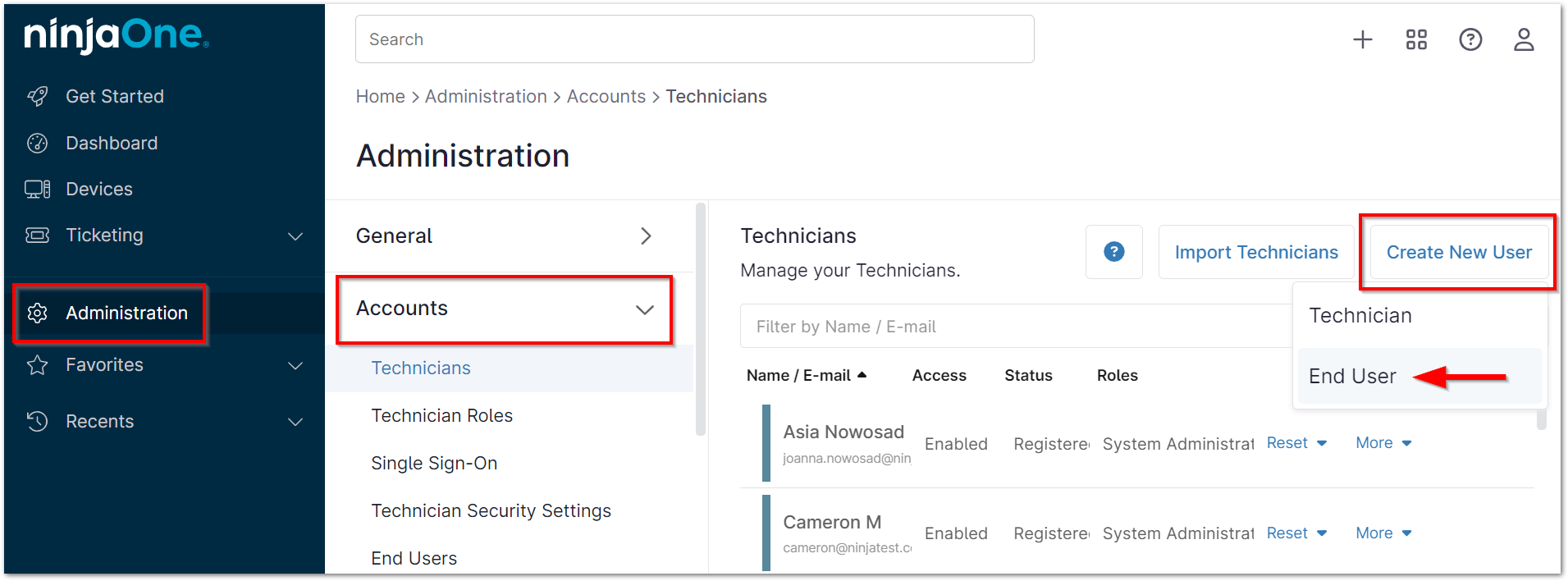
- Enter the user’s details.
- Assign the end user to their associated organization.
- Enable access to backup.

- Assign the user to the machines they should be able to access.
- Save.
| NinjaOne can provide you with instructions you can give to end-users to teach them to restore their own files. |
Free up Disk Space
Drives on workstations, laptops, and servers all occasionally fill up. Depending on the use of the endpoint, a full drive can have anywhere from no impact to disastrous outcomes for an organization. Either way, you’re likely to get a ticket, but only after it’s too late.
Through proactive monitoring and smart use of scripts, NinjaOne enables IT teams to automatically remediate full disks to stave off disaster until a technician can find a permeant solution.
Resources:
How to Detect and Automatically Remediate Low Disk Space:
- Create a script to delete / remove unnecessary files.
You can use pre-built scripts from NinjaOne for common unnecessary files.
- Delete Temporary Files.
- Empty Recycle Bin.
- Navigate to an appropriate policy and select the Conditions tab.
- Click Add a Condition.
- Condition: Disk Free Space.
- Operator: Less than.
- Threshold Percent: Set to your preference.
- Duration: Set to your preference.
- Click Apply.
- Add the script created above.
- Click Add.
Manage Antivirus Threats
No matter how much security training you provide, someone eventually makes the wrong choice.
NinjaOne’s Bitdefender and Webroot integrations allow you to automatically deploy antivirus to all your endpoints, centrally coordinate scanning preferences, and automate the remediation of
threats.
How to Automate Antivirus Scanning:
- Enable Bitdefender or Webroot in NinjaOne.
- Navigate to an existing policy or create a new policy.
- Navigate to the Antivirus tab.
- Enable Bitdefender or Webroot.
Hint: Once enabled, NinjaOne automatically deploys your chosen security solution to endpoints covered under the associated policy. - Set your scan and auto-remediation preferences.
- Save the policy.
How to Run an Ad-Hoc Scan on an Endpoint:
- Navigate to the appropriate device.
- Hover over the play button.
- Hover over the Antivirus menu.
- Click scan.
How to Manage a Threat:
- Navigate to the system dashboard; open the Devices tab and select Threats.

- From the active threats dashboard, you can add an exclusion to unblock an infected file.
- From the quarantine dashboard, you can delete quarantined files.
Deploy Software
Installing a single piece of software on an end-user’s device is rarely difficult. But installing a whole suite of software for a new employee? Or deploying software to your entire business? Those are both time-intensive processes that can pose significant challenges. NinjaOne allows you to automate both to save your team time.
How to Deploy a Single Piece of Software to a Single Endpoint:
- Navigate to the device that requires the new application.
- Mouse-over the play button and select Run Script > From Library.
- Select the ‘Install Application’ script.
- Upload the MSI / EXE or enter a URL to download the executable from.
- Add any appropriate parameters (such as /q for quiet install).
- Click Apply.
How to Deploy a Single Piece of Software to Many Endpoints:
- Navigate to the device search from the left navigation pane in NinjaOne.
- Use filters to narrow the device list down to the appropriate, online device list and select all devices.
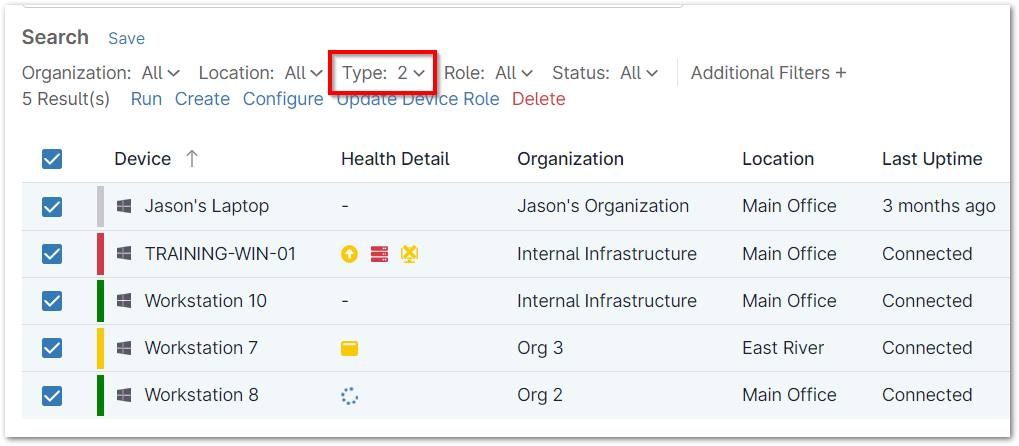
- Alternatively, you can just select the appropriate devices.
- Repeat steps 3–6 under How to Deploy a Single Piece of Software to a Single Endpoint.
How to Automatically Deploy One or Many Pieces of Software to Endpoints:
- Navigate to an appropriate policy and select the Scheduled Script tab.
- Click Add a Scheduled Script.
- Set the schedule to Run One Immediately.
- This will set the script to run as soon as the policy is saved.
- Whenever the policy is assigned to a new device — such as during onboarding — the new software will be deployed.
- Set the schedule to Run One Immediately.
- Click Add Script and follow steps 3–6 under How to Deploy a Single Piece of Software to a Single Endpoint.
Setup New Computers
Depending on the level of customization, provisioning new devices can take anywhere from 1 – 5 hours per device.
Most of the steps taken in new device setup can be easily automated, saving high growth and large organizations significant time while also increasing standardization.
How to Automate New Device Setup
- Write scripts to accomplish the following.
- Create local admin or local user.
- Uninstall bloatware.
- Resource: Removing Applications.
- Install productivity, security, and line of business applications.
- Install these apps using the ‘Install Application’ script in Ninja.
- Map network drives.
- Add / remove user permissions.
- Resource: Set file system rights.
- Patch everything.
- See the ‘Patching’ page of this guide.
- Setup backup.
- Setup and deploy NinjaOne Backup to back up a new device.
- Create a new policy in NinjaRMM.
- Add a scheduled script.
- Set the schedule for the script to ‘Run once immediately’.
- Add the scripts above to the scheduled scripts in order of priority and dependency.
- Save the policy.
- Apply the policy to the organization you want to onboard the new device to.
- Download and install NinjaRMM on the device.
Patching
Patching is perhaps one of the most time-intensive processes an IT team deals with. Patching can regularly take between 30 minutes to an hour per device per month — for Windows patching only. This time commitment balloons quickly in more heterogenous environments. Failing to keep updated carries significant security and compliance risks.
NinjaOne enables you to automatically patch Windows, Mac, and Linux devices along with third-party applications.
How to Automatically patch Windows devices:
- Navigate to an existing policy or create a new policy.
- Click on the Patch Management tab.
- Enable patch management and set mode to ‘Control Windows Patch Management’.
- Set your scan schedule, update schedule and reboot options.
- Automate your approvals.
Resource: Patch management best practices. - Save the policy.
How to Automatically Patch Mac or Linux Devices:
- Navigate to an existing policy or create a new policy.
- Click on the Scheduled Scripts tab.
- Add one of the pre-built Mac / Linux patching scripts.
- Set your patching schedule.
- Save the policy.
How to Automatically Patch 3rd-Party Applications:
- Navigate to an existing policy or create a new policy.
- Click on the Software tab and enable 3rd party patch management.
- Click on the Products tab.
- Click Add Products and select all the products you want to install or patch for this policy.
- Select a single or multiple software and click Edit.
- Set Critical Patches and ‘Recommended Patches’ to ‘Auto’ to keep that software up to date.
- Set Install to ‘Yes’ if you also want to install that software automatically.
- Save the policy.
Reporting
From software and hardware inventories to patch compliance and security, reporting can be an endless task.
NinjaOne not only automates collection of the critical data needed for reporting, but it also automates the creation of beautiful, presentation-ready reports.
How to Automatically Create and Distribute a Report
- Navigate to Administration then Reporting.
- Click Create new Report.
- Give the report a name.
- Choose the organization, report, recipients, timeframe, and frequency.
- Choose a report type and give it a name.
Custom reports let you select sections from any report type.
- Select the sections you want included in the report.
- Save the report.