
Topic
This article discusses managing user identities by using the System for Cross-domain Identity Management (SCIM) with NinjaOne.
Environment
- NinjaOne Platform
- NinjaOne Integrations
- Microsoft Entra ID
Description
Integrate your Identity Provider (IdP) via SCIM to automatically create and delete technicians and end users within NinjaOne.
This article serves as a starting point for SCIM configuration in NinjaOne. Configuration is dependent on your specific Microsoft Entra setup, so we recommend reviewing the Additional Resources section to find related processes.
Select a category to learn more:
- Important Considerations
- SCIM configuration
- Group Mapping in NinjaOne
- Disable SSO and SCIM
- View SCIM and SSO Activities
- Additional Resources
Important Considerations
Consider the following:
- Users managed via SCIM cannot be edited or deleted in the NinjaOne console, unless SCIM is temporarily disabled. However, you can change the phone number, language, and other minor settings not managed by SCIM. Deleting and editing users must be done in the IDP.
- Users provisioned via SCIM will not receive an invitation to set up their password or MFA, as their email addresses will already be considered activated by the identity provider.
- When revoking SCIM tokens or disabling SSO (Single Sign-On), the user will be prompted to verify MFA by entering the time-based code.
- You cannot assign system administrators via SCIM. You must assign them manually in the NinjaOne console. For instructions on adding a system administrator, refer to NinjaOne Platform: Create a Technician Account.
- When users are no longer members of a company, the IDP will automatically mark them as Inactive in the NinjaOne console. However, they will still appear in the list of users.
SCIM configuration
The following instructions have been confirmed to support Microsoft Entra ID. If you wish to use Okta as your IDP, read NinjaOne Identity Authentication Management: Activate SCIM for your Identity Provider. The instructions in this article assume your IDP supports SCIM. You should test a hybrid SSO (Single Sign-On) configuration before activating it through NinjaOne.
To enable SCIM and generate the secret token, perform the following steps:
- Create a Microsoft Entra ID Enterprise application in Microsoft Azure. Refer to Login Security: Configure Single Sign-On in NinjaOne to learn more.
- Navigate to Administration → Accounts → Identity Providers and open the Microsoft Entra ID provider entry you created in the previous step.
- Click Enable for System for Cross-domain Identity Management (SCIM).

Figure 1: Enable SCIM for your identity provider
- Activate the Enable SCIM provisioning toggle switch in the configuration modal and then click Generate token. Keep this configuration modal open so you can copy the data for the upcoming steps.

Figure 2: Enable SCIM and generate a token for the identity provider
Provision SCIM
To manage provisioning for SCIM, perform the following steps:
- Open your Microsoft Azure Enterprise application in a separate browser tab or window. In Manage, select the Provisioning tab, then click Get Started.
- In NinjaOne, copy the SCIM API endpoint URL (tenant URL) and secret token from NinjaOne and paste them into the Azure provisioning configuration. You can find this data in Step 4, which is earlier in this process.
- The URL is the endpoint of the IDP and will point to the SCIM API endpoint URL.
- The SCIM API endpoint URL should be
https://{tenant-hostname}/ws/scim/v2, where{tenant-hostname}is the native hostname of your tenant, such as app.ninjarmm.com, eu.ninjarmm.com, or similar.

Figure 3: Copy the SCIM data from NinjaOne
- Paste the copied data into your Microsoft Azure Enterprise application. Test the connection to verify it is successful.
Configure attributes
To configure attributes for your identity provider, perform the following steps:
- In your Microsoft Azure Enterprise application, expand the Mappings section and click Provision Azure Active Directory Users.

Figure 4: The Provisioning screen in Entra ID (click to enlarge)
- Configure the following attributes using the table below. Remove all other attributes from the mapping, as they are not in use.
| Azure Active Directory Attributes | customappsso Attribute |
|---|---|
| userPrincipalName | userName |
| Switch([IsSoftDeleted], , "False", "True", "True", "False") | active |
| emails[type eq "work"].value | |
| givenName | name.givenName |
| surname | name.familyName |
| mailNickname | externalId |
- Select the Show advanced options checkbox, and then click Edit attribute list for customappsso.

Figure 5: Advanced Attribute Options in Entra ID (click to enlarge)
- Add a new attribute at the bottom, and then add the following:
- Name: urn:ietf:params:scim:schemas:extension:ninjaone:2.0:User:organizationId
- Type: String
- Required?: Select this option
- Leave all other options blank. When finished, click Save.
- If you are creating NinjaOne technicians with SCIM, add the following attribute for Name:
urn:ietf:params:scim:schemas:extension:ninjaone:2.0:User:userTypeMap end users
You can map end users to specific organizations in NinjaOne or assign them as a global end user (not assigned to a particular group). In most situations, you should use expressions to assign users to their correct organization dynamically.
- In your Microsoft Entra account, navigate to Provisioning → Attribute mapping → Provision Microsoft Entra ID Users.
- Open NinjaOne in a separate tab or window and navigate to Administration → Organizations. Move your cursor over the Actions ellipsis on the right edge of the Organization row and select Copy Org ID.

Figure 6: Copy the organization ID in NinjaOne (click to enlarge)
- Return to your Microsoft Entra account and click Add new mapping.

Figure 7: Add a new mapping in Microsoft Entra (click to enlarge)
- Select the Mapping type based on whether you are mapping end users to a single or multiple organizations:
- Select Constant if you are mapping the end users to a single organization. Then, paste the single organization ID into the Constant Value field.
- Select Expression if you are mapping end users to multiple organizations. Then, create an expression that references the target NinjaOne organization IDs and enter it into the Constant Value field. End users are mapped based on the results of the expression. To learn more about creating expressions for organization mapping, refer to Reference for writing expressions for attribute mappings in Microsoft Entra Application Provisioning - Microsoft Entra ID | Microsoft Learn (external link).
- Enter the following into the Target attribute field to map end users to their respective NinjaOne organization ID:
urn:ietf:params:scim:schemas:extension:ninjaone:2.0:User:organizationId - Use "All" as the end user's organization ID to create a global end user.

Figure 8: Using a constant mapping type when editing a target attribute (click to enlarge)
- Click Ok, and then click Save.
Set the User Type for End User or Technician
By default, Entra ID creates SCIM-managed users as end user accounts. If you added the optional User Type attribute to your SCIM configuration (refer to Step 5 of the Configure attributes section), you now have the option to create technician accounts via SCIM.
- In your Microsoft Entra account, navigate to Provisioning → Attribute mapping → Provision Microsoft Entra ID Users.
- Click Add new mapping.
- Select the Mapping type based on whether you are creating end users or technicians:
- Select "Constant" if you are creating technicians. Then, enter "technician" (case-sensitive) into the Constant Value field.
- Select "Expression" if creating end user and technician accounts. Then, create an expression that assigns end user accounts a value of “endUser” and technicians a value of “technician” (case-sensitive). To learn more about creating expressions for organization mapping, refer to Reference for writing expressions for attribute mappings in Microsoft Entra Application Provisioning - Microsoft Entra ID | Microsoft Learn (external).
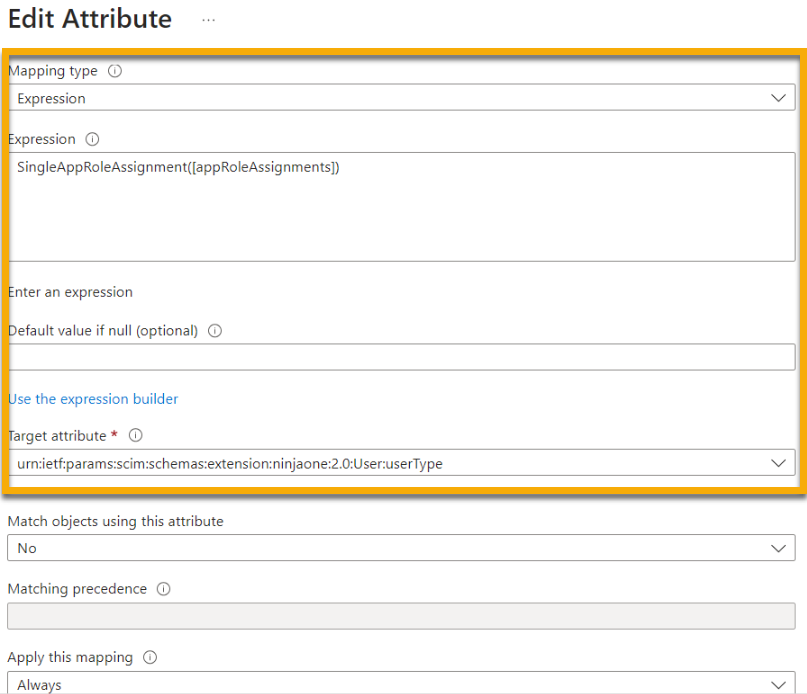
Figure 9: Using an expression mapping type when editing a target attribute (click to enlarge)
- Enter the following into the Target attribute field to map end users to their respective NinjaOne organization ID:
urn:ietf:params:scim:schemas:extension:ninjaone:2.0:User:userType - Click Ok, and then click Save.
Save the configuration
Return to Provisioning, enable the Provisioning Status toggle switch at the bottom of the page, and then click Save. NinjaOne will provision users automatically.

Figure 10: The Provisioning screen in Entra ID (click to enlarge)
Group Mapping in NinjaOne
Once you've provisioned the group in your IDP, it will appear in the Group Mapping section of the Identity Provider page of the NinjaOne console. Group mapping allows you to assign end user or technician roles to an identity group. To learn more about creating and managing roles in NinjaOne, refer to User Roles and Permissions.
- Identity group: Groups mapped from the IDP
- User roles: Roles assigned to the group
To change group mapping for your identity provider, perform the following steps:
- If you are a system administrator, you can add roles to users in each group by clicking Edit.

Figure 11: Edit group mapping
- Add one or more roles to each drop-down menu as necessary. Users flagged as end users will be assigned end user roles, and users flagged as technicians will be assigned technician roles.

Figure 12: Map technicians and end user groups
NinjaOne will display each user and their role on the NinjaOne account configuration page, allowing you to track mapping or edit as needed.
- The Source column on the account configuration page under Roles will indicate if a role was assigned manually or via SCIM. Roles indicating "Native" were assigned manually.
- You cannot edit roles assigned via SCIM in the NinjaOne console. You must update them through the IDP used to initially assign the roles (in the examples used in this article, you would update the roles in Microsoft Entra).

Figure 13: Role assignment source (click to enlarge)
Disable SSO and SCIM
On the Single-Sign-On page, you can disable SSO, SCIM provisioning, and revoke tokens.
Disable SSO
To disable SSO as a provider, perform the following steps:
- Navigate to Administration → Accounts → Identity Provider.
- Move your cursor over the IDP and click the ellipsis menu button. Select Disable SSO.

Figure 14: Disable SSO for an IDP
Disable SCIM
To disable SCIM provisioning, perform the following steps:
- Navigate to Administration → Accounts → Identity Provider and click the provider's name to edit the settings.
- Click Edit in the System for Cross-domain Identity Management (SCIM) section.
- Turn the Enable SCIM provisioning toggle switch off and then click Disable SCIM in the confirmation window.

Figure 15: Disable SCIM provisioning for an IDP (click to enlarge)
- Click Close.
Revoke Token
To revoke a token, perform the following steps:
- Navigate to Administration → Accounts → Identity Provider and click the provider's name to edit the settings.
- Click Edit in the System for Cross-domain Identity Management (SCIM) section.
- Click Revoke token and then click Revoke token again in the confirmation window.
- Click Close.
View SCIM and SSO Activities
- In the NinjaOne console, navigate to Dashboard (system or organization) → Activities → All.
- Select "SSO" in the Activity type drop-down menu.

Figure 16: View all activities related to SSO and SCIM (click to enlarge)
Use the Status drop-down menu to filter the results further. Options are available for the following activities:
- SCIM:
- End User Created, Updated, or Disabled
- Technician Created, Deleted, or Updated
- Token Created Removed
- User group Created, Deleted, Updated
- SSO: Created, Deleted, Disabled, Enabled

Figure 17: Filter SSO and SCIM activities by status
Additional Resources
Refer to the following resources to learn more about NinjaOne SCIM: