
Topic
This guide provides the NinjaOne Mobile Device Management (MDM) enrollment process for Apple mobile devices, including iPads. If you want to use Apple Business Manager to manage devices, please continue setup using this article and then refer to MDM: Apple Enrollment Sync with ADE / ABM (Optional).
Environment
- NinjaOne mobile device management
- Apple iOS and iPadOS
Description
For an overview of all MDM features, please refer to What is Mobile Device Management (MDM).
The NinjaOne Apple MDM allows for multi-tenancy management, which means more control over mobile devices with different connections from within NinjaOne.
- Multiple, separate APNs certificate support.
- Multiple ADE programs connect to support different ABMs for device enrollment using a single APNs push certificate.
- Automated synchronization of current ADE device records to reflect default organization/location/device role updates.
- Optimized presentation of device data, such as the number of devices related to each connection, license availability and expiration, user ID, and more.
- Policy management deployment is not limited to how APNs are associated with the device, meaning there are fewer policies to manage in NinjaOne.
Index
Select a category to learn more.
Enable Device Enrollment with APNs
Before adding the devices to NinjaOne and registering them with the MDM, you must enable the MDM app in the Administration section and enroll in Apple Push Notification services (APNs), which requires a signed certificate from Apple (instructions included below). APNs is a cloud service that allows approved third-party apps installed on Apple devices to send push notifications from a remote server to users over a secure connection.
- System administrators must set up a technician's permissions under MDM connectable to create new APNs certificates.
- If enrolling in the optional Automated Device Enrollment (ADE), you need to generate a token for use with Apple Business Manager (click here for instructions).
- If you do not renew the APNs certificate before it expires within Apple's 30-day grace period, NinjaOne MDM cannot manage the devices; they must be re-enrolled into the NinjaOne software. Additionally, new mobile devices cannot be added (refer to screenshot below). It is critical not to let the APN certificate expire. Click here to learn how to renew the APN certificate.
- Each new certificate requires a different private key; this allows for the migration of devices to a new NinjaOne division if necessary.
To enable Mobile Device Management:
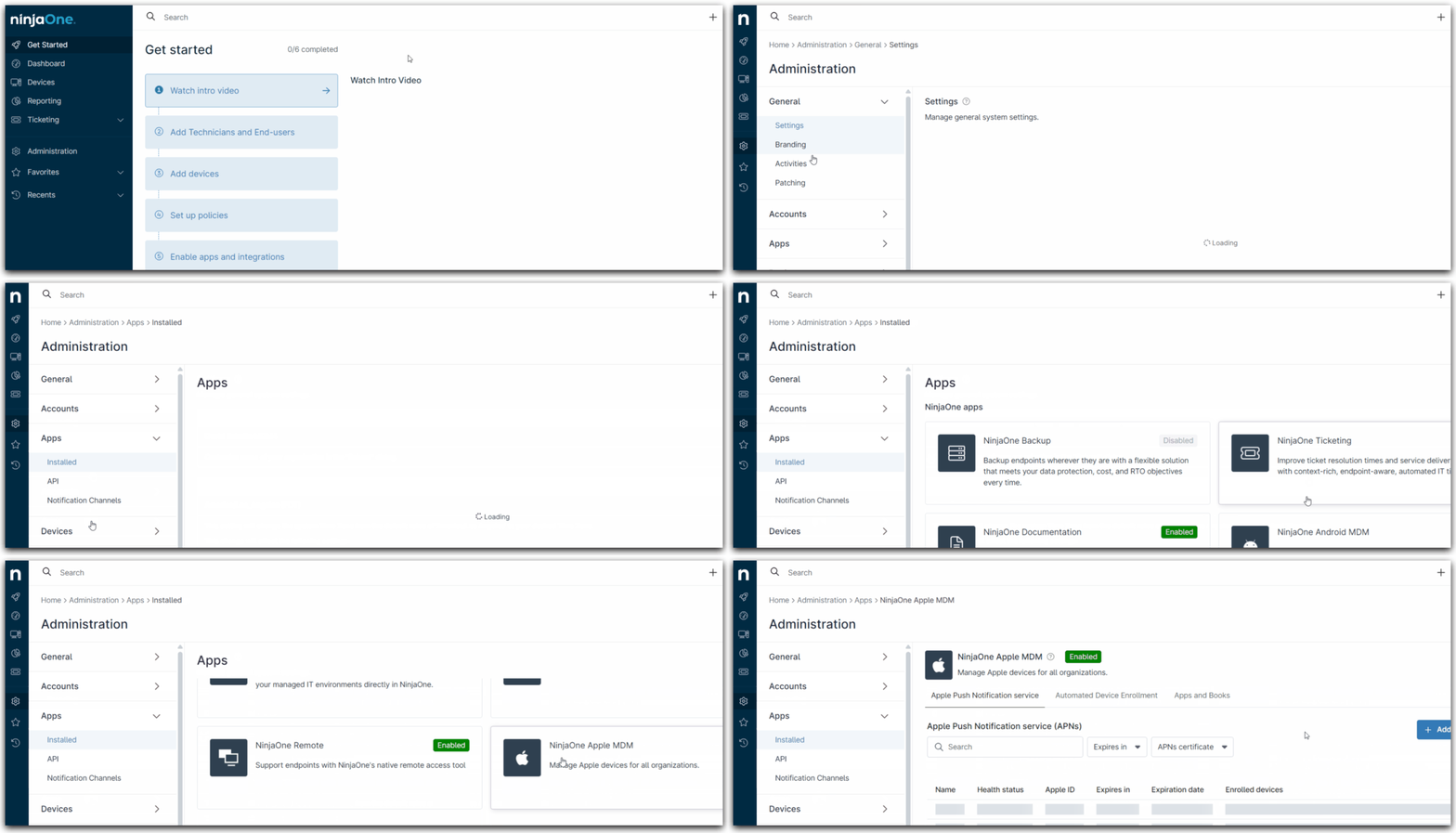
- Go to Administration > Applications > Installed. Click NinjaOne Apple MDM and enable it.
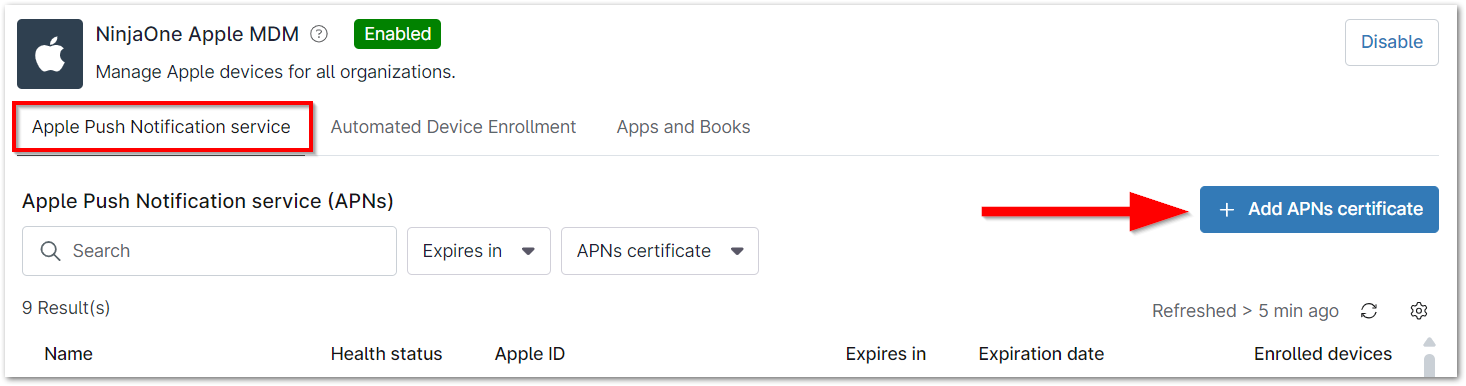
- Stay in the Apple Push Notification service tab and click Add APNs certificate.
The Add Apple Push Notification service certificate modal displays. - Click the Download file button in Step 1 to obtain the certificate signing request (CSR). It will be downloaded to your computer.
- Click the blue hyperlink in Step 2 on the modal and then click Continue to be routed to the Apple Certificate Portal.

The portal opens in a new tab. - Enter the Apple ID assigned to the device or create a new one. Use the hyperlinks below the sign-in field to create an account for new devices. Important Note: Using an account controlled by an organization rather than an individual user account is advisable. The account should be one that the organization can access to ensure access. Locking access to the account will cause issues when renewing the certificate and require the organization to re-enroll all Apple devices. Though you are required to use an Apple ID and renew the certificate annually, the Apple ID used for MDM will not be used on the devices.

- Enter the authenticator code to proceed.
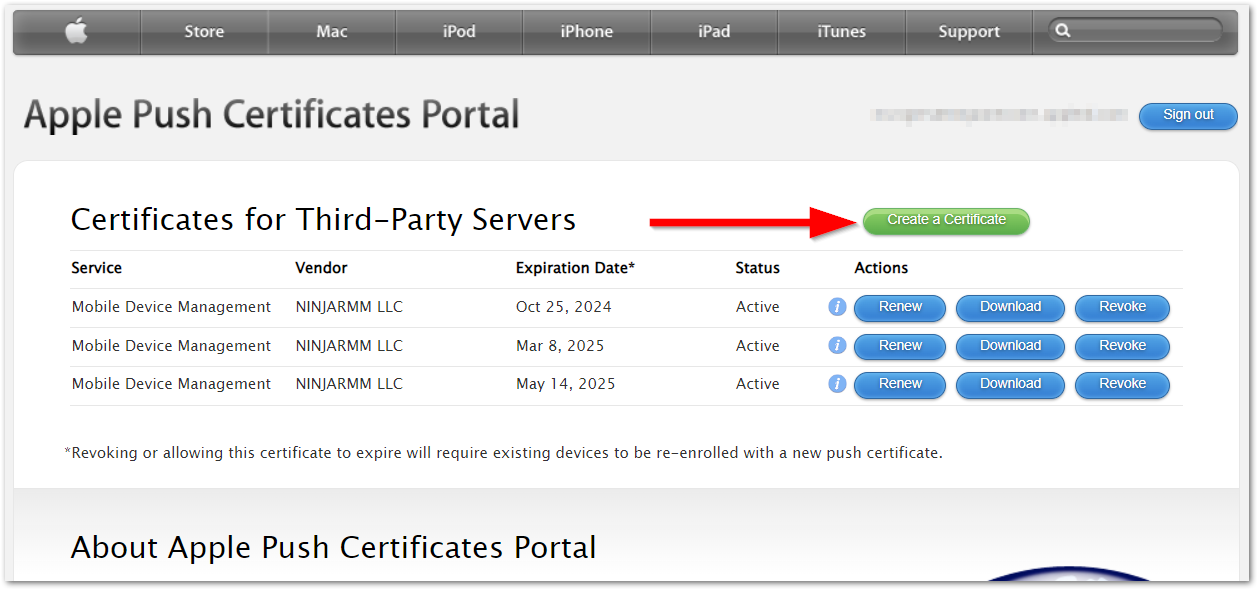
If successful, you will see the Apple Push Certificates Portal. - Click Create a Certificate.
- Read the Terms of Use completely; activate the checkbox at the bottom of the modal and click Accept.

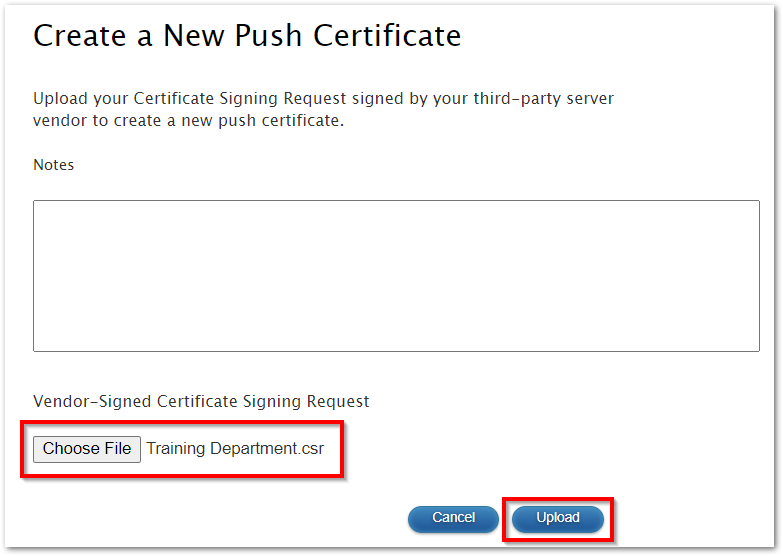
- Click Choose File to upload the CSR file you downloaded in Step 3 of this guide, then click Upload.
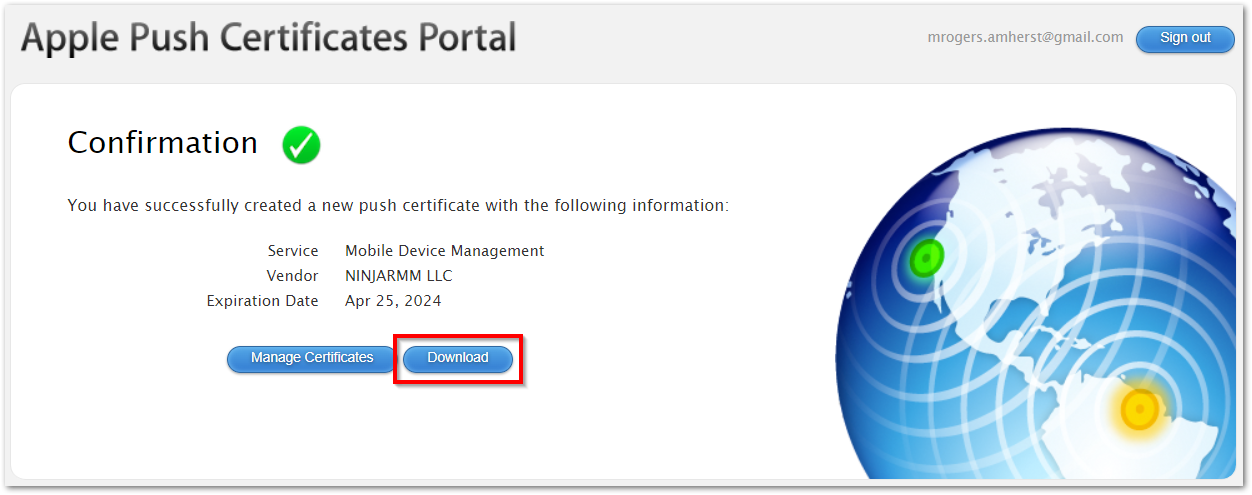
- Click Download in Apple to obtain the PEM file.
- Return to the NinjaOne platform. In the Add Apple Push Notification service certificate modal, click Upload File to upload the PEM file you downloaded in Step 10 above.
- Enter the same email you used to create the Apple ID (Step 5), and then give the APNs certificate a name to distinguish it from other certificates added to the MDM. Click Save.
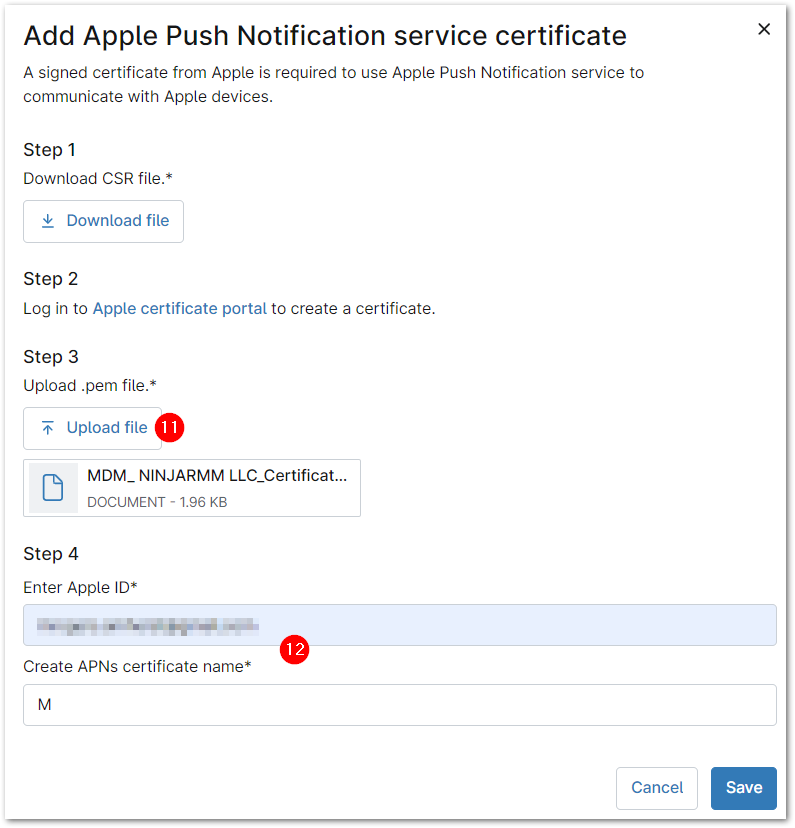
You will see confirmation of enrollment status displayed on the screen with the associated Apple ID.
Renew APN
Click the Actions > Renew link on the configuration page. This link also provides the expiration date for all certificates regardless of status. Follow the same process as outlined above for the initial configuration. Once complete, the Expires in column will update to reflect the new expiration date, which should be one year from the renewal date.
Delete APN
System administrators and technicians with the appropriate permissions can reset the MDM configuration. Once removed, the MDM can be enrolled again using the same account or a different one.
To delete the APN:
- Click the Actions > Reset connection link on the MDM App configuration page.

- Review the list of affected devices—you can click the View all devices hyperlink to navigate to the device search grid, which will be filtered for the devices associated with the APN connection.
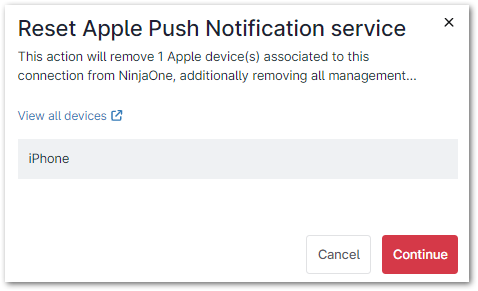
- Enter your email to confirm, and then click Reset connection.