
What is a Dashboard Inventory Alert?
One of NinjaOne’s most important features is its single-pane-of-glass view, which lets you see a broad set of information in one place and make quick decisions to keep your IT environment in optimal condition. The NinjaOne dashboards display ongoing inventory alerts as small colored icons that highlight issues requiring attention.
On the right side of each device or organization—depending on the dashboard you are viewing—you will see these colored icons if any alerts are present. These are the Dashboard Inventory Alerts.
The colors indicate the alert level: yellow signals that something needs attention, and red indicates an unhealthy or critical condition. The number near the icon indicates how many devices show this alert. Hover over each icon to view more details on the issue.
The screenshot below shows an example of the System Dashboard displaying these alerts for each organization.

Each yellow or red icon represents an inventory alert. When you hover over an icon, you can see a summary of the issues—for example, one device with a medium-severity vulnerability, another with a condition alert, and one that requires a reboot. Clicking any of these icons opens additional details, such as which specific device or devices are affected.
Device health overview
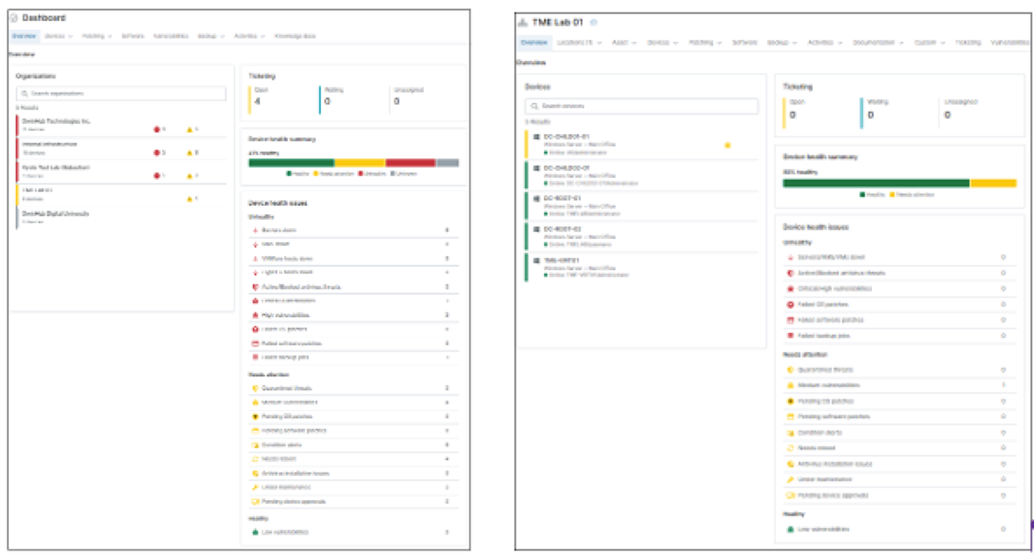
The System Dashboard and the Organization Dashboard each provide a device health overview. This overview includes a bar graph showing the percentage of devices that are healthy, need attention, are unhealthy, or have an unknown status. A detailed breakdown by status is also displayed.
In the screenshots below, the image on the left shows the device health overview from the System Dashboard, while the image on the right shows the same section from the Organization Dashboard. Only one graph is visible in the UI at a time; both are shown here for comparison purposes.
The graph on the left shows the health overview across all organizations in the tenant, while the graph on the right shows the health overview for a single organization

Some alerts include the option to view additional details—for example, backup-related alerts. Click the alert icon to display more information about the issue; a modal appears with additional details, along with an ellipsis menu for further actions. See the screenshot below for reference.

