
Key points
- Microsoft Defender SmartScreen blocks phishing sites, malicious downloads, and untrusted apps in Windows 10 and Windows 11.
- Windows Security GUI for individual users, Group Policy for enterprise environments, or Windows Registry for legacy or standalone systems.
- Registry edits and PowerShell Defender cmdlets mainly affect Explorer-based SmartScreen behavior.
- Always verify SmartScreen status after deploying new antivirus and security software.
- If SmartScreen is disabled, use alternative controls such as AppLocker or Windows Defender Application Control (WDAC).
Microsoft Defender SmartScreen is a built-in Windows security feature that helps block phishing websites, malware, and unrecognized applications. It uses Microsoft’s cloud-based reputation system to evaluate files and URLs before they run on Windows 10 and Windows 11 devices.
Even so, controlled environments may favor third-party software that gives them more customization options.
If you’re looking to manage security protocols, troubleshoot compatibility issues, or enforce policies for certain user groups or endpoints, this guide will showcase how you can enable or disable Microsoft Defender SmartScreen in Windows.
💡 Note: The methods in this guide apply to both Windows 10 and Windows 11. While some menu layouts or naming conventions may vary slightly between versions, the Group Policy settings, registry keys, and PowerShell commands are functionally the same.
For a visual version of this guide, watch How to Enable or Disable Microsoft Defender SmartScreen in Windows
If you’re short on time, check out this comparison table:
Comparison of SmartScreen management methods
Method | Best For | Scope | Requires Admin? | Recommended For |
| Windows Security GUI | Individual users | Per device | No | One-time or manual changes |
| Group Policy (GPO) | Enterprise environments | Multiple devices | Yes | Centralized policy enforcement |
| Windows Registry | Standalone or legacy systems | Per user or system-wide | Yes | Advanced/manual configuration |
| PowerShell | Validation and automation | Script-based control | Yes | IT admins and remote management |
Manage essential Windows endpoint settings at scale with NinjaOne.
Start your free trial of NinjaOne RMM
Methods to enable or disable Microsoft Defender SmartScreen in Windows
For a few options in this guide, you’ll need some or all of the following requirements to complete the action.
✔️ Windows Security is available.
✔️ A stable internet connection to run and update SmartScreen.
✔️ Windows 11 Pro, Enterprise, and Education editions to run Group Policy Editor, and
✔️ administrative access for Windows Registry or GPO-based configuration.
⚠️ Warning: Making unwanted changes to the Registry Editor can affect your system’s performance and stability. Learn how to back up the Windows Registry to save and restore the database when necessary.
Method 1: Enable or disable SmartScreen via the Windows Security GUI
This method is useful for one-time or user-driven configurations.
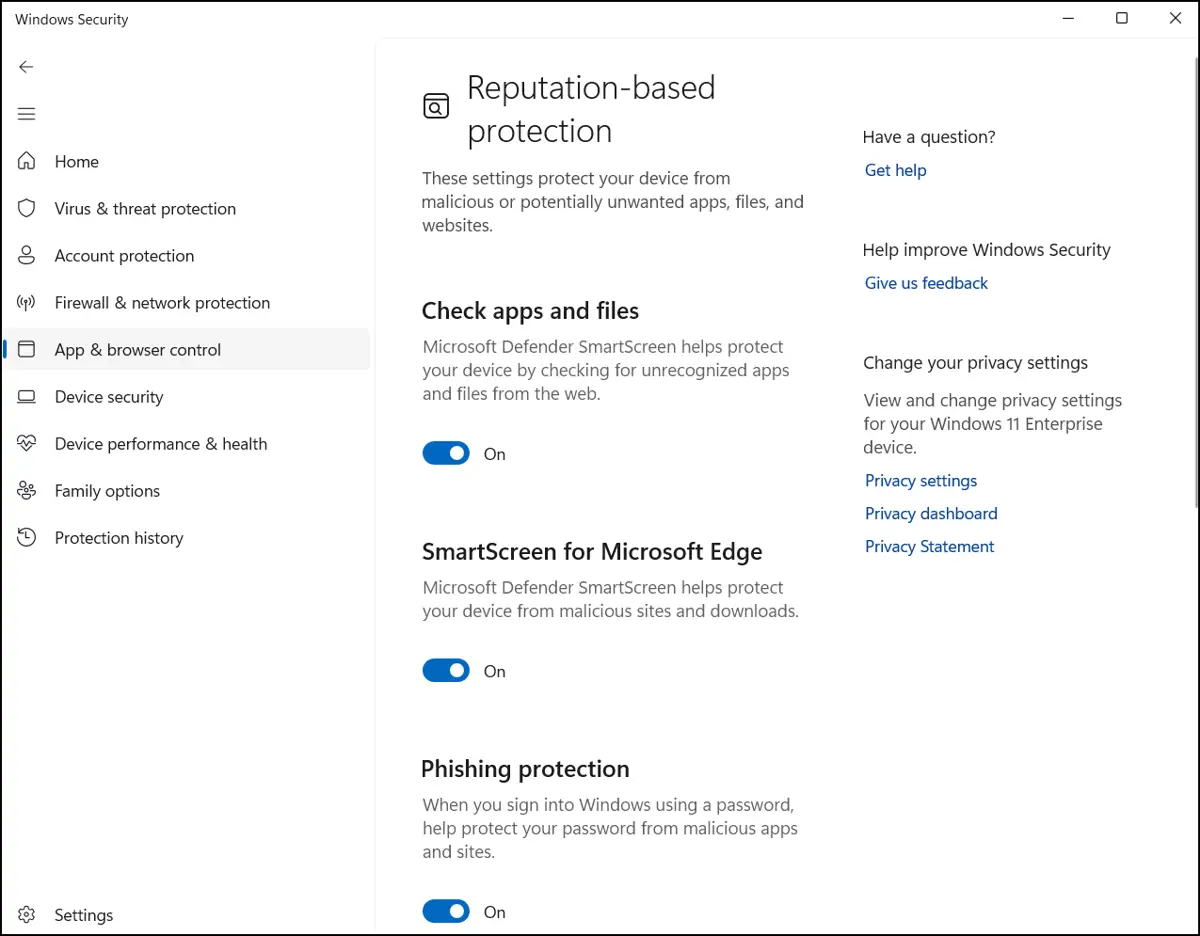
- Open Settings → Privacy & security → Windows Security → App & browser control.
- Under Reputation-based protection, click Reputation-based protection settings.
- Toggle Check apps and files on (recommended) or off.
Method 2: Enable or disable SmartScreen via Group Policy (enterprise control)
As a reminder, GPO requires Windows 10 or 11 Pro or higher and Microsoft Defender policies to be available. This method is ideal for consistent policy enforcement across all managed systems.
That said, policy names and locations may vary slightly depending on the Windows build and update channel. Always validate settings against your OS version.
- Press Win + R, type gpedit.msc, and click OK to open Local Group Policy Editor.
- Navigate to Computer Configuration → Administrative Templates → Windows Components → File Explorer.
- Find and double-click Configure Microsoft Defender SmartScreen.
- Set it to Enabled if you want SmartScreen to Warn or Warn and prevent bypass when unverified programs are detected. Toggle Disabled to stop SmartScreen entirely.
- Apply changes.
For changes to immediately take effect, you may run gpupdate /force or restart the system. Here’s a guide for forcing a Group Policy update remotely.
Method 3: Enable or disable SmartScreen via Windows Registry (per user or system-wide)
Keep in mind that registry-based configuration is best suited for legacy or standalone systems. In managed environments, Microsoft recommends using Group Policy, Intune, or MDM policies instead.
- Press Win + R, type regedit in the dialog box, and click OK to open the Registry Editor.
- Navigate to or paste the following path to the registry address bar:
HKEY_LOCAL_MACHINE\SOFTWARE\Microsoft\Windows\CurrentVersion\Explorer - Modify a SmartScreenEnabled 32-bit value.
- If it does not exist, create one by right-clicking and choosing New > String Value.
- Name it SmartScreenEnabled
- Double-click it and set the Value data to:
- “RequireAdmin” = Warn
- “Warn” = Prompt without admin
- “Off” = Disable
- Close the Registry Editor.
You may also modify the registry by running an equivalent PowerShell command:
Set-ItemProperty -Path
“HKLM:\SOFTWARE\Microsoft\Windows\CurrentVersion\Explorer”-Name
“SmartScreenEnabled” -Value “Warn”
Check out this guide if you need a refresher or an overview of PowerShell.
Method 4: Validate SmartScreen state via PowerShell
⚠️ Warning: This method is only applicable to earlier versions of Windows 10. The parameter – SmartScreenForExplorer was removed in Windows 11.
Use this command to query SmartScreen configuration using PowerShell:
Get-MpPreference | Select-Object SmartScreenForExplorer.
Then to enable SmartScreen run this command:
Set-MpPreference -SmartScreenForExplorer Enabled
Otherwise, run this one to disable it
Set-MpPreference -SmartScreenForExplorer Disabled
🥷 Note: These cmdlets apply Windows Defender preferences and may require Defender’s core services to run as intended. Furthermore, PowerShell Defender cmdlets only control Explorer-based SmartScreen behavior. Browser-based SmartScreen (Microsoft Edge) and reputation-based protection are configured separately via Edge policies, Intune, or MDM.
Additional considerations when configuring SmartScreen settings
Here are some additional actions to review or complement your Windows Defender SmartScreen preferences.
Check event logs
You can use the Event Viewer to review the list of restricted items by SmartScreen. Just navigate to Applications and Services Logs → Microsoft → Windows → SmartScreen (→ Operational, when available) to track related actions.
Third-party antivirus impact
Most modern third-party antivirus solutions coexist with SmartScreen, but some enterprise security stacks may disable or override it via policy. After installing a new antivirus software, you can check the active SmartScreen configuration via PowerShell.
Consider alternative policies
If you choose to disable SmartScreen, consider using AppLocker or Windows Defender Application Control (WDAC) policies as alternative security protocols.
Centralize policy enforcement, auditing, and remediation processes across your fleet.
Discover how NinjaOne Endpoint Management can help you
Quick-Start Guide
NinjaOne provides script capabilities that could be used to modify SmartScreen settings. You could create a PowerShell or registry script to:
- Enable/disable SmartScreen: Configure SmartScreen check settings for apps and files from the web
If you need specific configuration, I recommend:
- Consulting with a NinjaOne support representative
- Creating a custom script to modify the relevant registry keys
- Using Group Policy management through NinjaOne’s policy tools
When should you disable Microsoft Defender SmartScreen?
Disabling Microsoft Defender SmartScreen is generally not recommended because it is a standard fail-safe against phishing attempts and other security vulnerabilities. However, there are some controlled scenarios where this may be recommended (but still under strict supervision from your IT team!)
- In enterprise environments using advanced third-party endpoint protection that overlaps with SmartScreen functionality
- During application compatibility testing in sandboxed or isolated environments
- When implementing stricter application control policies, such as AppLocker or Windows Defender Application Control (WDAC)
When troubleshooting conflicts caused by layered security configurations
Before disabling SmartScreen, ensure alternative security controls are in place to maintain endpoint protection and compliance standards.
SmartScreen settings for managed Windows environments
Enabling SmartScreen is recommended to help filter out malicious programs and malware attacks on Windows devices. However, there are also instances where it needs to be disabled in favor of more comprehensive security protocols.
As an example, some antivirus or anti-malware programs require SmartScreen to be switched off to avoid compatibility issues. With that said, check out this expertly compiled list of the best malware protection solutions for controlled environments.






