Key Points
- Open Task Manager quickly: Use Ctrl + Shift + Esc to access Task Manager in Windows 11.
- Navigate to settings: Click the gear icon in the sidebar to open Task Manager settings.
- Toggle full account name visibility: Under “Other options,” check or uncheck Show full account name to enable or disable display.
- Edit settings.json manually: Modify %LocalAppData%\Microsoft\Windows\TaskManager\settings.json to control visibility outside Task Manager.
- Back up before editing: Always copy the settings.json file before manual changes to avoid corruption.
This tutorial demonstrates how to show full account name in Task Manager in Windows 11. The new Task Manager has a revised design that changes the location of this setting.
Why you may need to view the full user account name in the Task Manager
Showing the full account name (not just the username) in the Windows 11 Task Manager can assist with troubleshooting, especially when there are multiple users with similar usernames (for example, the hypothetical users Gary Smith and Quincy Smith with the usernames g_smith and q_smith).
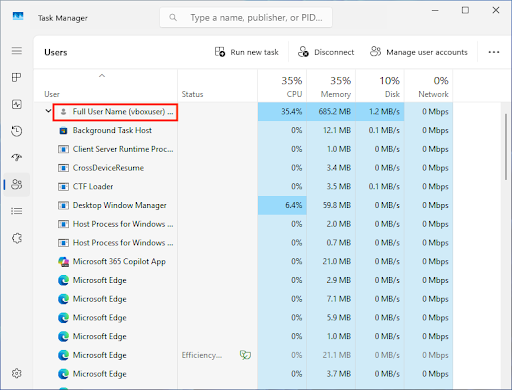
Alternatively, you may disable it to help hide user details in shared environments, especially where user privacy is a concern.
What you’ll need to configure full account name visibility in the Windows 11 Task Manager
Obviously, you’ll need a device running Windows 11 (any version). If your device is managed by an organization, you may be restricted from making changes or from accessing the Task Manager altogether.
Enable or disable ‘Show Full Account Name’ directly in Task Manager settings
The easiest method to show full user account names in the Task Manager is directly in its settings:
- Press the Ctrl + Shift + Esc key combination to open Task Manager
- Click the Settings (gear) icon in the bottom-left of the Task Manager sidebar
- Scroll down to Other options
- Check or uncheck Show full account name to show or hide the full account name
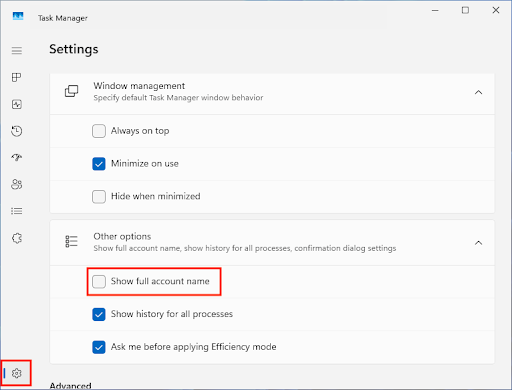
- The change to the setting will be immediately applied
If unchecked, only the username will be displayed in the Task Manager. You can view the result by clicking on the Users icon in the Task Manager navigation sidebar to list processes by user.
Controlling the display of full account names without opening the Task Manager
The data for this is stored in settings.json located at the path %LocalAppData%\Microsoft\Windows\TaskManager under the setting name ShowFullAccountName.
When its value is set to true, the display of full account names is on, and when set to false, full account names are hidden, and only the username is displayed.
Note that these settings are only written to the file after the Task Manager is closed. A text editor like Notepad++ or Visual Studio Code is recommended if you are manually making changes. These text editors can format the JSON data in a more readable way, as by default it’s a single line that is difficult to navigate and easy to make mistakes with when making changes.
Before making changes to the settings.json file, make sure you back it up (even by just making a copy in the same folder) so you can readily restore it if a mistake is made.
While not officially supported, this provides a method for using PowerShell scripting and remote monitoring and management (RMM) tools to remotely control this feature across fleets of devices.
However, if privacy and control is a significant concern, you may need to disable the Windows Task Manager entirely for end users working in shared environments.
Additional considerations and troubleshooting
In Windows domain environments, domain prefixes may be displayed (for example, YOUR_ORGANIZATION\user_name). Microsoft accounts and Microsoft 365/Entra ID accounts may display the full email of the user ([email protected]) as the username.
You can keep the full account name hidden in shared environments where other users may be able to access the Task Manager to help protect the privacy of other users.
If the setting fails to take effect, try rebooting your PC or running sfc /scannow to scan for any corruption to your Windows 11 operating system.
If you require more detail than the Windows Task Manager provides, consider using the Process Explorer, a part of Microsoft Sysinternals tools that is supplied separately to the Windows 11 OS. You can download it from the Microsoft website. The Process Explorer can provide additional information, including which files and directories a process is using, the user and service accounts that processes are running under, loaded DLLs, and detailed performance information.
NinjaOne automates the deployment of consistent, secure settings to end-user devices
NinjaOne brings automation to every aspect of IT administration, management, and support. It provides a unified toolchain including remote monitoring and management (RMM), mobile device management (MDM), remote access, helpdesk, and documentation – with ready integration with endpoint protection and security platforms, and an API for further customization and enhancement.
The NinjaOne platform is ideal for IT administrators working with internal teams, as well as managed service providers (MSPs) who need to efficiently manage multiple clients while maintaining information and security boundaries.
NinjaOne can assist with deploying Group Policy and other settings, as well as deploying and verifying the outcomes of scripts that go further by creating configuration files and managing the Windows Registry. Automatic enrolment and pre-defined software stacks can be deployed to get users up and running soon after unboxing their devices, while patch management and monitoring help ensure a strong security posture for all end-user devices, as well as your broader IT infrastructure.