

Key Points
- Disable personalization in Edge settings: Open Edge > Settings > Appearance > Copilot > Privacy, then toggle personalized suggestions on or off.
- Hide the Copilot button: In Edge settings, toggle Show Copilot button on the toolbar to remove it from view without disabling personalization.
- Use Group Policy for enterprise control: Configure policies in Windows 11 Pro or enterprise editions to disable Copilot system‑wide or in Edge.
- Manage Copilot via Registry or PowerShell: Edit registry keys or automate changes with PowerShell to disable Copilot personalization locally or remotely.
- Check online Copilot settings: Visit copilot.microsoft.com, sign in, and disable personalization and model training to stop online data sharing.
Copilot, Microsoft’s AI assistant, has found its way into just about every corner of Windows 11, including the Microsoft Edge web browser, as well as your Microsoft account that you use across the web. Copilot personalization sends your usage data to Copilot to help it understand how you use Microsoft services so it can tailor your experience. This leads many users to disable Copilot or personalization to hide features they do not use, or due to privacy concerns.
This tutorial demonstrates how to disable Copilot personalization and how to hide Copilot in Microsoft Edge.
What is Copilot?
Copilot is an AI assistant that has become tightly integrated with Windows 11. It appears everywhere from Notepad to the File Explorer and even in the taskbar search feature. It’s also present across Microsoft’s online services, from the Bing search engine to Outlook and Microsoft 365.
Some consider this invasive as well as a privacy concern. For Copilot to work, data must be shared with it, which includes any conversations you have with Copilot. If you ask it about a document, page, picture, or other data, that data must be uploaded to Microsoft’s servers for processing. While the Copilot app can be uninstalled from Windows 11, it remains in many places until specifically disabled in each. This includes Copilot in Edge.
Why do users disable Copilot personalization?
Copilot personalization is a particular concern for some users, as no explicit action needs to be taken for data to be sent to Copilot: recent conversations and activities in Microsoft services are automatically uploaded to Copilot to personalize the service it provides. This can include Bing searches and other data that helps Copilot understand you and tailor your experiences, including demographic information, interests, etc.
Copilot personalization is enabled by default for all users outside the EU, UK, and other countries with robust privacy laws. This means that privacy-conscious users, or organizations that handle sensitive information, must disable it manually.
What you need to disable Copilot personalization
Copilot personalization applies when you’re signed in to a Microsoft account on a Windows 11 device, or use Microsoft online services like Bing, Xbox, Office, or Copilot itself (regardless of which web browser you’re using). It applies to both personal and work/school Microsoft accounts. If you are configuring Copilot settings for Windows 11 devices in an education or enterprise environment, you’ll need administrative privileges if using Group Policy.
Note that disabling Copilot personalization does not clear your chat history, which remains in Copilot itself and must be manually deleted.
Enable or disable Copilot personalization from Microsoft Edge settings
If you want to disable Copilot in Microsoft Edge completely, follow these steps:
- Open Microsoft Edge from the Start menu
- Open the Edge browser settings (visible in the … menu in the Edge toolbar)
- Navigate to Appearance > Copilot and sidebar > Copilot
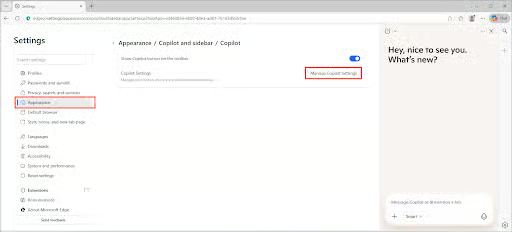
- Click Manage Copilot Settings
- The Copilot settings will appear in the sidebar
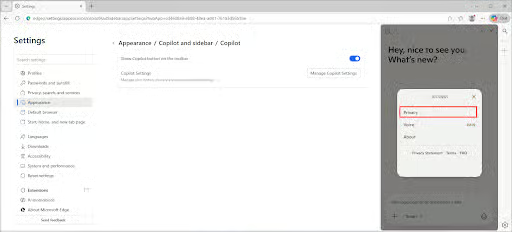
- Click Privacy
- Toggle Personalized suggestions on or off
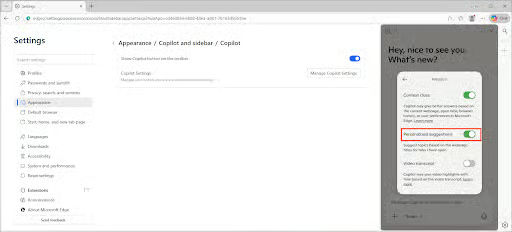
Note that this will only disable Copilot personalization in Edge. If it is enabled for other services, it will need to be disabled there.
Remove the Copilot button from the Edge toolbar
To hide the Copilot button in the Edge toolbar, follow these steps:
- Open Microsoft Edge from the Start menu
- Open the Edge browser settings (visible in the … menu in the Edge toolbar)
- Navigate to Appearance > Copilot and sidebar > Copilot
- Toggle Show Copilot button on the toolbar on or off
This will hide the button on the Edge browser toolbar, but not disable Copilot personalization if it is enabled in other services.
Disable or enable Copilot in Windows 11 using Group Policy
If you want to disable Copilot in Windows 11 as well as Edge, Group Policy can be used. This is only available in Windows 11 Pro, and in enterprise and education editions of the OS.
- Right-click on the Start button and select Run
- Run the command gpedit.msc to open the Local Group Policy Editor
- Navigate to the policies located at User Configuration > Administrative Templates > Windows Components > Windows Copilot
- Locate the Turn off Windows Copilot setting
- Set to Enabled to disable Copilot and prevent personalization
- Set to Disabled to allow Copilot usage and personalization
- Run gpupdate /force to apply the change
This policy can also be deployed in Windows Domain environments to disable Copilot for all connected PCs.
Disable Copilot in Microsoft Edge using Group Policy
Edge ADMX templates are available for finer control over Edge using Group Policy. Once these are installed, you can locate the EdgeCopilotEnabled setting and set it to Disabled to disable Copilot in Edge using Group Policy. Leaving it unconfigured or setting it to Enabled will re-enable Copilot in Edge.
This may need to be done in addition to disabling Copilot for Windows using the steps above to remove it from both Windows 11 and Edge.
Manage Copilot in Edge via the Registry Editor on Windows 11
The Windows Registry can be used to disable Copilot (and thus, any personalization) on any version of Windows 11.
- Right-click on the Start button and click Run
- Type the command regedit.exe and click OK to launch the Windows Registry Editor
- Navigate to HKEY_LOCAL_MACHINE\Software\Policies\Microsoft\Windows\WindowsCopilot
- Disable Copilot in Windows by setting the TurnOffWindowsCopilot DWORD value to 1 (re-enable by setting it to 0)
The Registry can be used to disable Copilot in Edge specifically by disabling the sidebar.
- Navigate to HKEY_LOCAL_MACHINE\SOFTWARE\Policies\Microsoft\Edge
- Set the HubsSidebarEnabled DWORD value to 0 to disable, or 1 to enable
If a DWORD value does not exist, right-click on the parent registry key and select New > DWORD (32-bit) Value.
As these are the registry settings for the local machine, administrative privileges will be required.
PowerShell automation for Windows 11 Devices
You can automate setting the above registry values using PowerShell:
Set-ItemProperty -Path “HKLM:\SOFTWARE\Policies\Microsoft\Windows\WindowsCopilot” -Name “TurnOffWindowsCopilot” -Value 1
Set-ItemProperty -Path “HKLM:\SOFTWARE\Policies\Microsoft\Edge” -Name “HubsSidebarEnabled” -Value 0
Disabling Copilot personalization in online services
Disabling Copilot in Edge and Windows won’t completely disable personalization, however.
If you use Copilot online, you’ll need to check that it is disabled there as well.
- Open copilot.microsoft.com in your web browser
- Sign in with your Microsoft account
- Click on your user profile icon then Settings
- Click Privacy
- Uncheck Personalization and memory
You may also want to uncheck Model training on text, which is enabled by default and allows your Copilot conversations to be used by Microsoft to train their AI.
Copilot is also built into other Microsoft products, including Office apps, so you may also need to check the settings for each to set your desired privacy options.
Additional considerations and troubleshooting
Windows Update has a tendency to re-enable features, so Group Policy is recommended where it is available to enforce privacy settings.
Edge is also inconsistent about how it applies settings, and it can vary across builds. Older versions may show settings in different places, and Copilot may need to be disabled across different apps and services to completely disable personalization or hide it.
Automating the configuration and control of Copilot in Edge and Windows 11 in enterprise and education
Copilot has quickly proliferated across the Microsoft ecosystem, including desktop apps and online services. Controlling its usage and enforcing privacy rules can be a challenge for IT administrators and managed service providers (MSPs), requiring configuring both Microsoft 365 policies and end-user devices.
NinjaOne helps apply consistent privacy configurations across users and devices, whether they are using Windows 11 devices, mobile apps, or the web versions of Microsoft’s products. You can configure Group Policy of build scripts that disable Copilot on all versions of Windows, and scan for configuration anomalies or potential unsanctioned AI usage (Copilot or otherwise), and set up alerts and mitigation measures through a unified interface that brings together NinjaOne’s remote monitoring and management (RMM), mobile device management (MDM), endpoint security, and IT support tools.
Quick-Start Guide
What NinjaOne CAN do:
– Deploy and manage Windows 11 devices through its RMM (Remote Monitoring & Management) platform
– Push policies and configurations to managed endpoints
– Manage software patching and updates via WinGet integration
– Execute scripts and remote actions on Windows devices
How to manage Copilot Personalization:
If you need to control this setting across your organization, you would typically:
1. Use Group Policy (for domain-joined devices) or Intune/MDM policies (for cloud-managed devices)
2. Deploy via PowerShell scripts through NinjaOne’s scripting capabilities
3. Configure through Microsoft Edge Group Policy settings if available
Recommendation:
If you need to manage Copilot settings at scale, we suggest:
– Checking with your IT/Security team about your organization’s device management approach
– Consulting Microsoft’s documentation on Edge Copilot policies
– Reaching out to NinjaOne Support to see if there are custom script solutions available






