Key Points:
- What Super Drag Drop Does: Super Drag Drop allows a user to drag links or text to open tabs or trigger searches on the same page in Edge on Windows 11.
- Why Disable Super Drag Drop: To prevent accidental tab opens and unintended data submission (critical for enterprise privacy and compliance), you must disable Super Drag Drop.
- Super Drag Drop in Settings: Enable/disable Super Drag Drop via Edge Settings → Appearance → Browser behavior → toggle “Enable Super Drag Drop”; configure foreground/background tab behavior.
- Use edge://flags to Unhide Super Drag Drop: Go to edge://flags → enable “Microsoft Edge Super Drag Drop”, then restart Edge. (Note that experimental flags may be unsupported per build.)
- Use Group Policy/Registry: Enforce Super Drag Drop using Group Policy or Registry (HKLM\SOFTWARE\Policies\Microsoft\Edge, SuperDragDropEnabled=1/0). Note that Policies override flags, and updates may reset unmanaged settings.
- Missing Super Drag Drop: Troubleshoot the missing option by verifying the Edge version/channel or enterprise policy; disabling does not affect standard tab drag behavior.
Super Drag Drop is a new feature in Microsoft Edge that allows users to drag a link or selected text and drop it on the same page to open the link or trigger a web search. This tutorial explains how to enable or Disable Super Drag Drop Mode in Microsoft Edge to help you browse faster, or to enhance your privacy or prevent misclicks.
Why disable Super Drag Drop in Microsoft Edge?
Super Drag Drop is an experimental feature that will soon be deployed to all users of Microsoft Edge. When it does become available, you may wish to disable it if it doesn’t fit with how you use your Windows 11 device. For example, you may find that you keep unintentionally opening new tabs because of accidental touch or mouse drags, or wish to avoid inadvertently submitting selected page content to search engines.
The latter reason is important in enterprise environments where compliance with privacy and data protection laws is a concern, and all measures must be taken to prevent data from unintentionally leaking.
What you need to enable or disable Super Drag Drop in Microsoft Edge
Super Drag Drop is supported in recent versions of Microsoft Edge on Windows 11. This setting is configured per-user, so you don’t need to be an administrator, unless you’re configuring the availability of Super Drag Drop using Group Policy.
If you’re using Group Policy, you may need to install additional ADMX policy templates, as Super Drag Drop is a relatively new feature that is currently being rolled out to Canary, Beta, and Dev preview channels.
Note that disabling Super Drag Drop does not change the normal drag and drop behaviors, such as rearranging tabs.
How to enable or disable Super Drag Drop in Microsoft Edge settings
To enable Super Drag Drop from the Microsoft Edge Browser Settings, follow these steps:
- Open Microsoft Edge from the Start menu or taskbar
- Click the menu icon (…) then select Settings
- If the setting sidebar is not displayed, press the menu icon (≡)
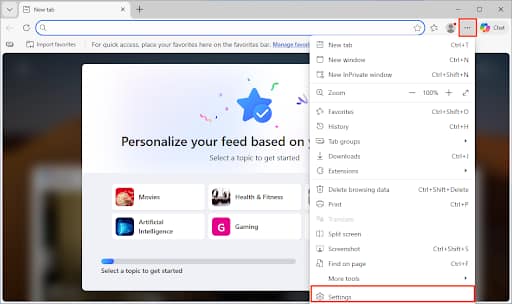
- Select the Appearance item in the menu
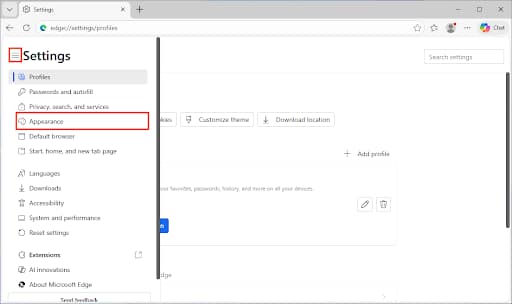
- Scroll to Browser behavior and features, and click it
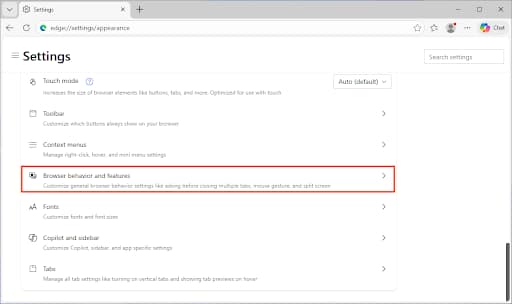
- Scroll to Enable Super Drag Drop
- Toggle it on or off to your preference
To configure Super Drag Drop behavior:
- Open Microsoft Edge and navigate to the Browser behavior and features settings as explained above
- Scroll to Configure Super Drag Drop
- In the Open mode dropdown, choose either Open in foreground tab (the default behavior), or Open in background tab
If these settings do not appear, you may not yet be running a version of Edge that supports it. If you don’t want to wait for the wider release, you can sign up for Windows Insider Preview Builds.
Use Microsoft Edge Flags to un-hide Super Drag Drop
Super Drag Drop may be available in your build of Edge, but not appear in the settings. You can check if this is the case, and unhide it using edge flags:
- Open Microsoft Edge
- Navigate to edge://flags in the address bar
- Search for Super Drag Drop
- Change the dropdown next to Microsoft Edge Super Drag Drop to Enabled
- Restart Edge
Edge flags are often experimental and subject to change, and if Super Drag Drop doesn’t appear, the feature may not yet be supported on your build of Edge.
Configuring Super Drag Drop using Group Policy
Group Policy allows you to enforce configurations across Windows 11 devices joined to a Domain. Local Group Policy is also available on Windows 11 Pro devices, giving you an additional way to fine-tune how your device operates.
To use Group Policy to enable or disable Super Drag Drop in Edge, follow these steps:
- Right-click on the Start button
- Click Run
- Enter the command gpedit.msc in the Run dialog and press OK to launch the Group Policy Editor
- Navigate to Computer Configuration > Administrative Templates > Microsoft Edge
- Configure the SuperDragDropEnabled setting – set it to Enabled to allow the use of Super Drag Drop (also the default if the setting is unconfigured), or Disabled to block its use
- Run the command gpupdate /force in the Command Prompt to apply the new policy
- Restart Edge
How to enable or disable Super Drag Drop using the Windows Registry Editor
You can also control Super Drag Drop from the Windows Registry. To do so:
- Open the Windows Registry Editor
- Navigate to HKEY_LOCAL_MACHINE\SOFTWARE\Policies\Microsoft\Edge
- You may need to create the Edge Registry key if it does not exist by right-clicking on the parent key and selecting New > Key
- Update the DWORD value SuperDragDropEnabled to 1 to enable, or 0 to disable
- If the SuperDragDropEnabled value does not exist, right-click on the parent Edge key and select New > DWORD (32-bit) Value
- Close the Registry Editor and restart Microsoft Edge
How to automate Super Drag Drop configuration using PowerShell
If you want to configure this setting on multiple devices but don’t have access to Group Policy, you can script the deployment of the above Registry values and run the script using your remote monitoring and management (RMM) platform.
The below PowerShell snippets will help you accomplish this.
To enable Super Drag Drop in Microsoft Edge:
Set-ItemProperty -Path “HKLM:\SOFTWARE\Policies\Microsoft\Edge” -Name “SuperDragDropEnabled” -Value 1
To disable:
Set-ItemProperty -Path “HKLM:\SOFTWARE\Policies\Microsoft\Edge” -Name “SuperDragDropEnabled” -Value 0
Force restart Microsoft Edge using the command:
Stop-Process -Name msedge -Force