Key Points
- Hide when minimized can be changed inside Task Manager: You can use the Settings panel and toggle the setting to control whether it moves to the system tray.
- The setting is saved in the local settings.json file: It is stored under %LocalAppData%\Microsoft\Windows\TaskManager and controlled by the HideWhenMin value.
- There is no Registry or Group Policy control for this option: The behavior must be managed per user through the UI or through editing the configuration file.
- You can automate changes with PowerShell: Scripts can edit the settings.json file and deploy the change across devices using RMM tools.
- Hiding Task Manager does not close it: The program continues running in the background and can be restored or closed from the system tray.
This tutorial demonstrates how to configure the Windows 11 Task Manager to hide when minimized, displaying as an icon in the system tray rather than on the taskbar. While this change is cosmetic, it is preferable for some users who want to de-clutter their taskbar.
Why set the Windows Task Manager to hide when minimized?
Many users choose to leave the Task Manager running to keep an eye on system performance or troubleshoot issues; however, doing so leaves it in the taskbar, potentially taking up valuable space.
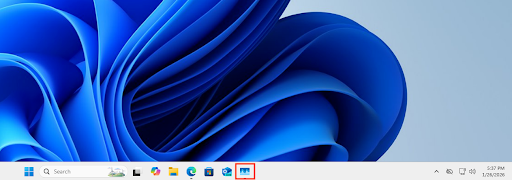
Setting the Task Manager to hide when minimized removes its icon from the taskbar and instead places a smaller icon in the system tray (the area in the taskbar near the clock and notification area, where the icons and menus for background apps like OneDrive are displayed when running). The icons in the system tray can also be optionally hidden behind the hidden icon menu.
When the Task Manager is set to hide when minimized, it will still appear in the taskbar while the window is maximized or active. Double-clicking on the system tray icon will restore the window. You can also right-click on the Task Manager icon in the system tray to close the Task Manager without restoring it. Hovering over the icon will display some basic system metrics – CPU, Memory, Disk, and Network usage as percentages.
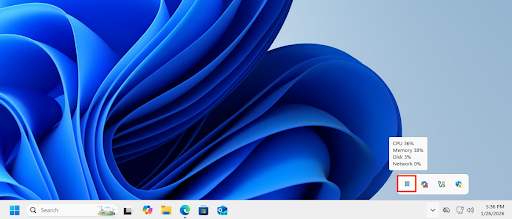
What you’ll need to minimize the Task Manager to the tray in Windows 11
You’ll need a device running Windows 11 (any version) and permission to access the Task Manager. If you’re using a managed device and your organization has restricted access to the Task Manager or other features, you’ll need to contact your IT support.
How to enable or disable ‘Hide When Minimized’ directly using the Task Manager settings
The most straightforward way to adjust this behavior is to toggle the Hide when minimized setting directly in the Task Manager settings screen:
- Right-click on the Start button and select Task Manager (or optionally use the Ctrl + Shift + Esc keyboard shortcut)
- Click the Settings (gear) icon from the navigation menu to the left
- Scroll down to the Window management section
- Check or uncheck the Hide when minimized option
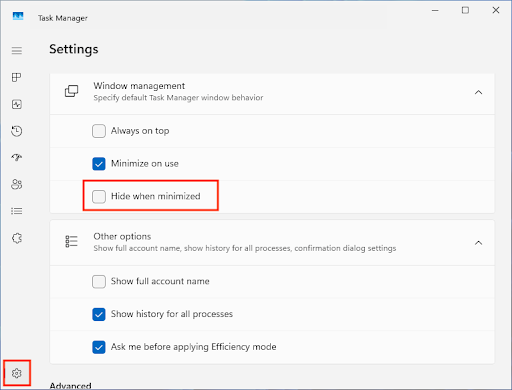
- The change will be applied immediately
Altering this setting does not require any administrative privileges and is applied per-user.
Configuring ‘Hide when minimized’ without opening the Task Manager using settings.json
The data for this setting is not stored in the Windows Registry, but instead in a settings.json file located in the directory located at %LocalAppData%\Microsoft\Windows\TaskManager. The setting is HideWhenMin, which will set the Task Manager to hide when minimized when set to true, or not hide when set to false (the default if the configuration value doesn’t exist in settings.json).
Changes to the Task Manager configuration are only written to settings.json when the Task Manager window is closed. As the settings are formatted as JSON, a more advanced text editor like Notepad++ or Visual Studio Code is recommended over the default Notepad for making changes. These text editors can format and display JSON with indentation to make it more readable, rather than the default single-line format of the Task Manager’s settings.json file.
This provides a method for using PowerShell scripts, optionally combined with remote monitoring and management (RMM) tools, to remotely control this setting across fleets of devices.
Additional considerations and troubleshooting
If you are making this change on behalf of another user, make sure they are aware of the changes so that they don’t mistakenly think the Task Manager is closed when it is still running from the system tray, especially if the hidden icon menu is in use.
Make sure that you back up settings.json before making changes so that any mistakes can be easily reverted.
Process Explorer as an alternative to the Task Manager
The Process Explorer is a more advanced system monitoring and diagnostic tool that serves the same purpose as the Task Manager. It’s not included with Windows 11 and needs to be downloaded separately from Microsoft Sysinternals.
Versions are available for 32-bit, 64-bit, and ARM versions of Windows 11. The Process Explorer offers additional information like what files, directories, and DLLs processes are using, with more detailed diagnostic and performance data. You can also hide the Process Explorer in the system tray by clicking Options in the toolbar and checking the Hide when minimized option. Uncheck it to restore the default behavior.
Deploy and support consistent, user-friendly configurations with NinjaOne
NinjaOne provides a comprehensive suite of IT management and support tools for IT teams and managed service providers (MSPs). You can deploy and enforce settings, including custom configuration files, to end-user devices, wherever they are located. You can also assist users remotely with one-click remote access, available right from a user’s support ticket, that will grant you immediate, secure access to their device.