


Many users want and need to learn how to recover deleted emails in Outlook. This can help minimize data loss from accidental or malicious deletions, ensure compliance with organization retention policies, and help administrators resolve support tickets about accidental email deletion.
Different ways to recover a deleted email in Outlook
Individual users can recover deleted emails through the Outlook app or through the web version. Administrators, on the other hand, can recover emails through Windows PowerShell using Exchange Online Management.
To manage recovery features, users have different options. They can use the Windows Registry, Command Prompt, or Group Policies.
📌 Prerequisites:
- You will need an active Microsoft 365 subscription and an Outlook account.
- You will need to have the appropriate permissions to use Windows PowerShell, GPO, and the Windows Registry.
📌 Recommended deployment strategies:
Method 1: Using Outlook Client (GUI)
📌 Use Case: This method is ideal for users who have Outlook installed on their computers.
- Open the Start Menu and search for Outlook to open the program.
- Go to Deleted Items on the left-hand side.
- If the email was recently deleted, you will find it there. Right-click the email you wish to restore > Move > Inbox.
If the email has been permanently deleted, you may still be able to recover it. Click Recover items recently deleted from this folder.
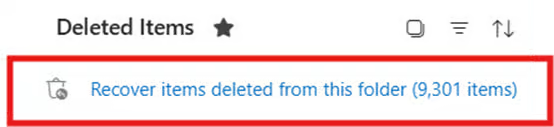
- Find the email you want to restore and right-click > Restore.
Method 2: Using Outlook Web App (OWA)
📌 Use Case: This method can be used by individual users who use Outlook through web browsers.
- Open your preferred web browser and go to Outlook.
- Sign-in.
- Go to Deleted Items on the left-hand side.
- If the email was recently deleted, you will find it there. Right-click the email you wish to restore > Move > Inbox.
If the email has been permanently deleted, you may still be able to recover it. Click Recover items recently deleted from this folder.
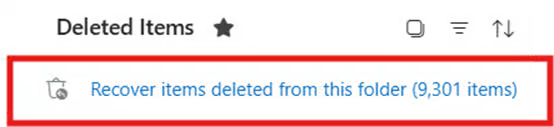
- Find the email you want to restore and right-click > Restore.
Method 3: Using PowerShell (admin-level recovery)
📌 Use Case: This method is available to IT administrators working in enterprise environments.
📌 Prerequisite: You need to have Exchange Online Management installed. To install, run Windows PowerShell as an administrator, go here, copy the command under Install Module, and press Enter.
- Open the Start Menu and search for Windows PowerShell.
- Right-click Windows PowerShell > Run as administrator.
- Type Connect-ExchangeOnline and press Enter to connect to Exchange Online Management.
- Enter your Outlook credentials when prompted.
- Type this and press Enter:
Search-Mailbox -Identity "[email protected]" -SearchDumpsterOnly -TargetMailbox "[email protected]" -TargetFolder "RecoveredEmails"
Replace “[email protected]” with your email address. Replace “[email protected]” with the email address where you want the restored email to appear.
Ways to manage recovery features in Outlook 365
Method 1: Using Registry Editor (enable deleted item retention UI)
📌 Use Cases: This method can be used by advanced users or by administrators working with managed devices to ensure that the “Recover deleted items” is available in all folders instead of just the deleted items folder.
💡 Note: This method only applies to the Outlook app and not the web version.
- Open the Start Menu and search for Registry Editor to open the program.
- Navigate to this address: HKEY_LOCAL_MACHINE\Software\Microsoft\Exchange\Client\Options
- Find the DumpsterAlwaysOn value and double-click it. If you can’t locate it, follow these steps to create it:
- Right-click Options > New > DWORD (32-bit) Value.
- Name it DumpsterAlwaysOn.
- Change the value to 1 and the Recover Deleted Items option will be available in all folders instead of just the Deleted Items folder.
- Click OK.
- Restart Outlook to apply the changes.
Method 2: Using CMD (trigger office repair or reindex search)
📌 Use Case: This method can be used by advanced users or by IT administrators.
💡 Note: Command Prompt does not have a native feature to recover deleted emails. However, if you’re missing items due to index corruption or profile issues, it can repair that.
- Open the Start Menu and search for Command Prompt.
- Right-click Command Prompt > Run as administrator.
- To repair your Outlook profile, type control mlcfg32.cpl and press Enter.
To rebuild the Windows Search Index, type control /name Microsoft.IndexingOptions and press Enter.
To launch Outlook and reset its profiles, type outlook.exe /resetfolders and press Enter.
Method 3: Using Group Policy (enable recover deleted items)
📌 Use Case: This method allows IT administrators to enforce recoverable items functions in enterprise environments.
- Go to the Start Menu and search for Edit Group Policy to open the program.
- Navigate to User Configuration > Administrative Templates > Microsoft Outlook 2016 > Outlook Options > Preferences > E-mail Options.
- Enable the following policies:
- Permanently delete instead of moving to Deleted Items
- Do not permanently delete items until backup
- Open Command Prompt as an administrator and type gpupdate /force to apply the changes.
⚠️ Things to look out for
| Risks | Potential Consequences | Reversals |
| The recovery option can’t be found. | The user will be unable to recover the email they need. | Make sure that the user has an Exchange Online mailbox, which is available in Microsoft Office business and enterprise plans. You can also check if the DumpsterAlwaysOn value is enabled in the Windows Registry. |
| The email cannot be restored. | The user is unable to recover the email they need. | It may be because it’s been purged, or it’s already outside the retention period. In that case, there’s no way to recover it anymore. |
| The user gets an error when running the Windows PowerShell script or changing the GPO. | The user is unable to recover the email they need. | The user may not have the necessary privileges. They need administrator privileges to use those methods. |
| A user may make an incorrect edit to the Windows Registry. | Incorrect edits can lead to incorrect settings or system instability. | Create a backup of the Registry that you can use to restore it in case any unintended changes are made. |
Additional considerations when trying to restore deleted emails in Outlook
- Microsoft 365 retention holds and litigation holds may affect recovery timelines.
- Exchange Online retains emails in the Recoverable Items folder for 14-30 days, depending on the configuration. Administrators can change this according to their organization’s needs.
- You can use Microsoft Purview Compliance Center to recover or export data for legal or auditing purposes.
NinjaOne services supporting Outlook email recovery
NinjaOne can complement Outlook’s native email recovery features through the following:
- Email Backup & Restore– NinjaOne has email backup services that automatically snapshots a user’s inbox without relying on Microsoft’s retention features.
- Automated PowerShell Scripts – You will be able to run commands remotely across multiple endpoints.
- GPO Deployment Automation – NinjaOne has a policy engine that will allow you to push registry edits or enforce Outlook retention settings.
- Alerting & Monitoring – Administrators can set up an alert to see when user inboxes are approaching retention limits or deletion anomalies are detected.
Quick-Start Guide
NinjaOne can help you with restoring a deleted email in Outlook 365 using SaaS Backup solution.
You have three restore options Using NinjaOne SaaS Backup:
- Restore to default folder: Messages go back to their original folders.
- Restore to existing folder: Choose an existing folder to restore to.
- Restore to new folder: Create a new folder for the restored messages.
Restore deleted emails in your Outlook inbox and minimize data loss
Outlook has a native feature to recover deleted emails, both in its desktop app and web browser versions. Administrators can also use Online Exchange Management in Windows PowerShell to recover emails in their managed devices.
Users can also manage recovery email options in several ways. They can use the Registry Editor, Command Prompt, or manage Group Policies.
Related topics:






