

Key Points
- Manage Windows apps and unpaired devices’ communication to improve privacy and limit unwanted wireless interactions.
- Control this setting using Windows Settings for personal devices or use Group Policy or the registry for IT environments.
- Verify changes by reviewing the privacy settings and current app behavior.
Windows 11 includes a niche but useful privacy control that lets Windows apps communicate with unpaired devices, which affects how apps interact with nearby wireless signals. This guide offers several methods for managing this feature and minimizing unintended or unauthorized data sharing.
Methods for managing communication settings with unpaired devices
First, confirm that your environment supports this privacy setting and that you have the appropriate access level.
- Administrator access for Group Policy or registry-based configuration.
- A Windows 11 build where the setting is available under the Privacy & Security section.
If everything is good to go, you can use Windows Settings to configure personal or individual devices. Meanwhile, Group Policy and the registry are recommended for advanced users and those with managed IT environments.
Method 1: Enable or disable the setting using Windows Settings
This method is best suited for individual devices or isolated applications in the new setting.
- Open Settings → Privacy & security → Other devices.
- Navigate to the Communicate with unpaired devices setting.
- Toggle the switch On or Off to allow or prevent apps from communicating with unpaired devices.
- Close Settings to apply the change.
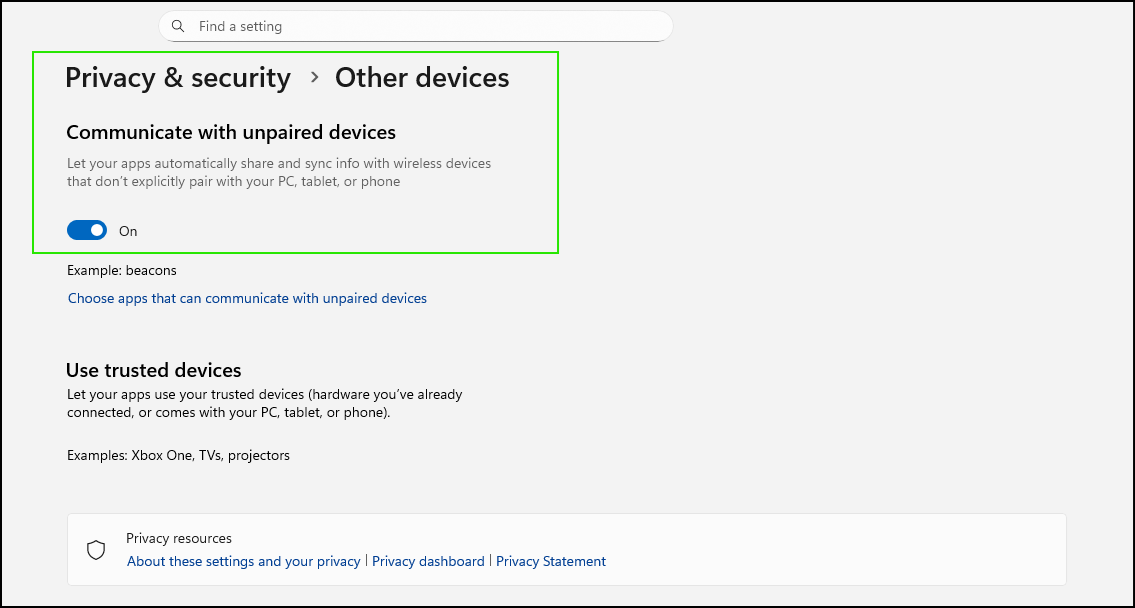
The apps should update immediately to reflect the new preferences.
Method 2: Enforce the setting using Group Policy
This method is intended for managed or enterprise environments where administrators need to apply the same settings across multiple users or devices.
- Press Win + R, type gpedit.msc, and press Enter.
- Go to Computer Configuration → Administrative Templates → Windows Components → App Privacy.
- Open Let Windows apps communicate with unpaired devices.
- Set the policy to Enabled, then under Options, choose a Default setting for all apps (such as Force Allow, Force Deny, or User is in control).Optionally, you can define per-app behavior by specifying Package Family Names under the corresponding Force Allow or Force Deny sections.
- Click OK, close the editor, and run gpupdate /force to apply the policy immediately.
You can watch this GPUpdate video demonstration on how to apply the new setting consistently across managed endpoints.
Method 3: Configure the setting using the registry
This method applies system-wide control on devices where Group Policy is unavailable.
- Press Win + R, type regedit, and press Enter.
- Navigate to or copy and paste the following path to the Registry address bar. If the path is incomplete, create the required key.
HKEY_LOCAL_MACHINE\SOFTWARE\Policies\Microsoft\Windows\AppPrivacy
- Create or modify the DWORD (32-bit) value named LetAppsSyncWithDevices.
- Set the value to 1 to force allow communication or 2 to force deny communication.
- Close Registry Editor and restart the device to apply the change.
Editing the registry can cause system issues. Create a registry backup before proceeding.
Verify the setting after changes
After making changes, open Settings → Privacy & security → Other devices and confirm that the Communicate with unpaired devices toggle reflects the new preferences. You may need to do this to ensure the configuration is applied correctly at the system or policy level.
Additionally, validate new behavior by testing whether apps can detect or interact with nearby unpaired devices. Where available, review audit logs or privacy reports to confirm that app access aligns with the configured setting.
Manage app and system interactions at scale
Registry-based controls or Group Policy may provide sufficient control and monitoring solutions in emerging IT environments. But managing app behavior and system interactions at scale requires broader visibility over the IT environment and consistent enforcement of privacy settings.
In these scenarios, an RMM solution enables centralized control, ongoing monitoring, and scalable IT Policy Enforcement across Windows 11 devices. This approach supports stronger privacy controls while maintaining predictable application and system behavior in managed or hybrid IT environments.
Related topics: