Key Points
- Control Windows 11 Snap Layouts: Snap Layouts for the Maximize button can be enabled or disabled to customize window management behavior.
- Use Native Configuration Options: Windows Settings provides granular controls for Snap Layouts and related multitasking features.
- Apply Registry-based Control: The EnableSnapAssistFlyout registry key determines whether the Snap Layouts flyout appears.
- Manage Settings Across Devices: Group Policy Preferences, Intune, and PowerShell enable centralized Snap Layouts deployment.
- Verify and Troubleshoot Behavior: Validation and troubleshooting ensure Snap Layouts changes apply consistently across users and devices.
Windows 11 Snap Layouts is a built-in feature that provides predefined layout options to arrange open windows quickly and efficiently. A built-in flyout menu appears when you hover your mouse over the Maximize button, but these options can run counter to organizations that prefer standardized work setups.
Fortunately, you can easily enable or disable Snap Layouts through your computer’s settings or centralized tools. This use case guide shows you how to modify the Snap Layouts in Windows 11’s maximize buttons.
Configure Windows 11 Snap Layouts
You can enable or disable the Snap Layouts maximize button feature via native settings or your system’s registry. Here’s how:
📌 Prerequisites:
- Windows 11 operating system
- Local user access for Settings changes
- Administrator access for registry modification
- Optional device management tools for large-scale deployment
📌 Recommended deployment strategies:
| Click to Choose a Method | 💻 Best for Individual Users | 💻💻💻 Best for Enterprises |
| Method 1: Windows settings | ✓ | |
| Method 2: Registry Editor | ✓ | |
| Method 3: Apply the setting across multiple devices | ✓ | ✓ |
Method 1: Enable or disable Snap Layouts for the maximize button using settings
Snap Layouts can be turned on or off as a whole in your Windows settings. That said, you can also pick and choose which suboptions you want for your workstation.
📌 Use Cases: Enable or disable Snap Layouts features and subfeatures.
- Press Win + I to open your Settings.
- In the left-hand panel, choose System.
- Scroll down and click Multitasking.
- Configure Snap Layouts for your device:
- To enable or disable all Snap Layouts features, toggle it On/Off.
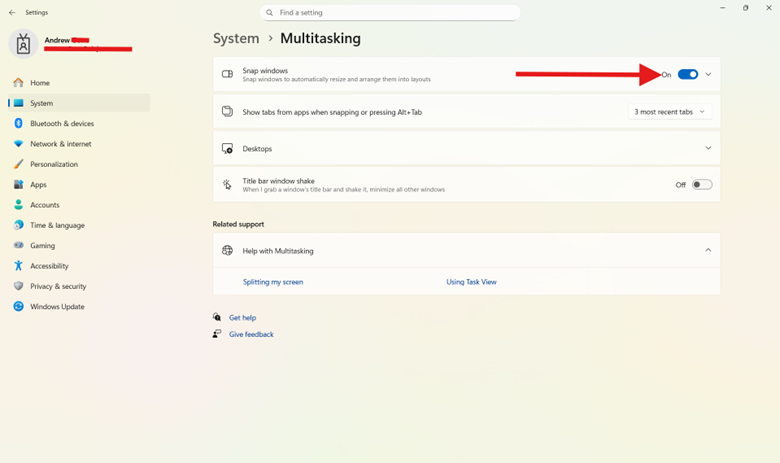
- To enable or disable the Snap Layouts flyout menu in your browser, expand the bar, and tick the box next to Show Snap Layouts when I hover over a window’s maximize button.
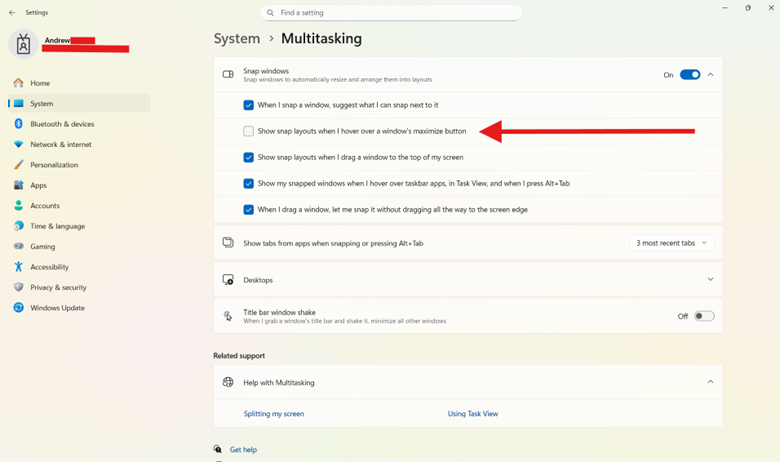
- Hover your mouse over the maximize button to validate your changes.
Method 2: Configure the maximize button Snap Layout behavior using the registry
You can modify window behavior and Windows 11 Snap Layouts through the Registry Editor, an advanced, built-in platform that stores important, low-level system values. Here’s how:
📌 Use Cases: Modify the window Snap Layouts behavior using registry changes.
📌 Prerequisites: Administrative privileges.
- Press Win + R, type regedit, and press Ctrl + Shift + Enter.
- Paste the following in the address bar:
HKEY_CURRENT_USER\Software\Microsoft\Windows\CurrentVersion\Explorer\Advanced
- Double-click EnableSnapAssistFlyout.
- If this isn’t present, do the following:
- In the left-hand pane, right-click Advanced and select New > DWORD (32‑bit) Value.
- Name the new value EnableSnapAssistFlyout.
- If this isn’t present, do the following:
- Double-click EnableSnapAssistFlyout to modify Windows 11 Snap Layout behavior in the maximize button:
- To enable Snap Layouts as a whole, set the value to 1.
- To disable Snap Layouts as a whole, set the value to 0.
- Press OK.
- Restart Windows Explorer or sign back into the Windows 11 device.
- Hover your mouse over the maximize button to validate your changes.
Method 3: Apply the setting across multiple devices
Knowing how to adjust Snap Layouts in Windows 11 is simple enough, but organizations working with hundreds or thousands of devices need centralized ways to test changes and deploy them at scale without incident.
📌 Use Cases: To automate Windows 11 Snap Layouts changes per-user in managed environments.
📌 Prerequisites: Administrative privileges.
Group Policy Preferences
- Press Win + R, type gpmc.msc, and press Ctrl + Shift + Enter.
- Edit the target User Group Policy Object (GPO).
- Navigate to:
User Configuration > Preferences > Windows Settings > Registry.
- Choose New > Registry Item
- Modify the value to apply changes:
- Action = Update
- Hive = HKEY_CURRENT_USER
- Key Path = Software\Microsoft\Windows\CurrentVersion\Explorer\Advanced
- Value name = EnableSnapAssistFlyout
- Type = REG_DWORD
- Value data = 0 (disable) or 1 (enable)
💡Note: No direct GPO exists for specifically modifying Snap Layouts for the maximize button.
Intune (MDM)
- Log in to the Intune admin center with elevated credentials.
- Create a Device configuration profile (Windows 10 and later),
- Use a custom PowerShell endpoint script to set the HKCU values for each user session.
- Assign changes to a Pilot group before rolling out changes to production environments.
- Hover your mouse over the maximize button to validate your changes.
PowerShell
Deploy these scripts across your fleet for easy automation.
- Open the Start menu, type PowerShell, and launch it normally under the current user session.
- To enable the Snap Layout assist flyout, run the following:
New-Item -Path “HKCU:\Software\Microsoft\Windows\CurrentVersion\Explorer\Advanced” -Force | Out-Null
New-ItemProperty -Path “HKCU:\Software\Microsoft\Windows\CurrentVersion\Explorer\Advanced” `
-Name “EnableSnapAssistFlyout” -PropertyType DWord -Value 1 -Force | Out-Null
💡 Note: In most Windows 11 installations, the Explorer\Advanced registry key already exists. Attempting to recreate it using New-Item may return an “Attempted to perform an unauthorized operation” error. If this occurs, you can safely proceed using only the New-ItemProperty.
- To disable the Snap Layout assist flyout, run the following:
New-Item -Path “HKCU:\Software\Microsoft\Windows\CurrentVersion\Explorer\Advanced” -Force | Out-Null
New-ItemProperty -Path “HKCU:\Software\Microsoft\Windows\CurrentVersion\Explorer\Advanced” `
-Name “EnableSnapAssistFlyout” -PropertyType DWord -Value 0 -Force | Out-Null
- Restart Windows Explorer to apply the changes immediately:
Stop-Process -Name explorer -Force
Start-Process explorer
- Hover your mouse over the maximize button to validate your changes.
🥷🏻| Automating site-wide changes saves time and reduces errors.
Read how having an IT automation strategy increases operational efficiency.
Method 4: Validate window behavior and user impact
Checking if the Snap Layouts flyout menu appears is the fastest way to verify your settings. With that, here are additional ways you can make sure your windows are properly configured:
- Maximize click: Always maximizes (regardless of showing window layout options).
- Global Snap toggle: Disabling ‘Snap windows’ turns off edge snapping, keyboard snapping (Win + Arrow), and related Snap subfeatures.
- Assist & Groups: With Snap On, confirm Snap Assist prompts and Snap Groups previews on your taskbar.
- Top‑of‑screen flyout: The “Drag to top” layout picker should appear or disappear based on whether the “Show Snap Layouts when I drag a window to the top of my screen” option is enabled.
Important considerations when you modify Snap Layouts
Snap Layouts have become an important feature for many workplaces, so changing its availability can affect productivity in specific industries. But for traditional workplaces, disabling Windows 11 Snap Layouts can be beneficial in simplifying your work environment.
Ensure your workers’ needs are being met to uphold operational efficiency. Accessibility plays a critical role in your day-to-day, so survey internal needs often.
Moreover, keep in mind that third-party window managers can also override Snap Layouts configurations, as knowing this can save your IT helpdesk time and energy in future troubleshooting scenarios.
Disabling Snap Layouts features shouldn’t affect basic windows snapping and non-layout keyboard shortcuts, but registry changes and fleet rollouts should always be beta tested before they enter production.
Troubleshooting Windows 11 Snap Layouts
Here’s how to solve the most common roadblocks system administrators and Windows users encounter when modifying Windows 11 Snap Layouts.
Snap Layouts still appear
If you’re still seeing Snap Layouts when you mouse over the maximize button, the EnableSnapAssistFlyout registry key might not be applied or is being overwritten. To solve this, go into your registry and set the key’s value to 0. Moreover, go into Settings > System > Multitasking and set the specific subfeature off.
Registry value isn’t applying
A user context mismatch, having the wrong value type, or not restarting your device can invalidate your changes. To fix this, ensure your registry value is DWORD 32-bit, try running the script as the intended user, or simply restart Explorer.
Inconsistent results across users
If your changes aren’t applied uniformly within your fleet, it’s likely due to different user logons or roaming profiles. Misapplied GPOs can also impact Windows 11 Snap Layouts behavior across multiple devices.
Maximize button unresponsive
Confirm that the Maximize button functions independently of Snap settings. If layout behavior appears abnormal, verify that ‘Snap windows’ is enabled as expected and check for third-party window management tools (such as FancyZones in PowerToys) that may alter window behavior.
Snap assist acting unexpectedly
If snap assist behavior becomes erratic, it’s either due to mismatched configurations in the snap minitool or an incomplete configuration. To solve this, IT experts either recheck all Snap Layout subfeatures in System > Multitasking or adjust toggles to similar Snap Group Behavior.
NinjaOne integrations streamline browser management
NinjaOne offers a convenient IT system management platform that combines intuitive controls with consolidated features like deployment, documentation, and report creation. Here’s how it can streamline your process:
| Method | With NinjaOne |
| Windows settings | Uses a custom script to modify the required registry value and deploy it to assigned devices or user groups through NinjaOne policies |
| Registry Editor | Deploys registry changes by executing a script (for example, importing a .reg file or applying registry commands) through NinjaOne’s Script Library or assigned policies |
| Enterprise-wide deployment | Uses NinjaOne policies and automation to deploy registry configurations across multiple devices, with centralized monitoring and reporting for compliance tracking |
Manage Snap Layouts in Windows 11
Windows 11 Snap Layouts increases ease-of-use, but can disrupt preconfigured/traditional work environments. Tailoring this feature to your productivity goals eases tasks and creates consistency, especially with modern management platforms.
Related topics:
- How to Enable or Disable Snap Assist in Windows 11
- How to Enable or Disable Snap Layouts on Top of Screen in Windows 11
- How to Enable or Disable Snap Windows Without Dragging All the Way to the Screen Edge in Windows 11
- How to Enable or Disable Show Snap Groups on Task View, Alt+Tab, and Taskbar in Windows 11