Key Points
- Choose whether Windows 11 displays pop-up descriptions when hovering over folders and desktop items.
- Minimize visual distractions or provide supplementary context, tailored to users’ device interactions.
- Toggle pop-up descriptions using File Explorer Options or by modifying the Windows Registry.
- Adjust the amount of on-screen information to better align with individual user needs or accessibility preferences.
- Apply the same configuration across multiple devices to standardize the Windows 11 user experience.
Windows 11 pop-up descriptions appear when you hover over files or folders, offering quick details of the item, such as its file type or size. While helpful for some users, these descriptions (which are sometimes referred to as File Explorer folder tips), can feel distracting in highly customized or controlled environments. Toggling this feature allows users and IT teams to fine-tune how much information appears on screen during everyday navigation.
In this guide, we provide simple, brand-neutral processes for enabling or disabling these pop-up descriptions.
Prerequisites
Before proceeding, make sure you have:
- A Windows 11 device
- Standard user permissions for File Explorer settings
- Administrator permission for Registry modifications
- Optional: Device management tools for applying settings at scale
Enabling or disabling Windows pop-ups
Method 1: Through File Explorer
This is the simplest and most user-friendly method, and is recommended for individual devices.
- Open File Explorer,
- Go to See More (⸱⸱⸱) > Options.
- Click on the View tab.
- Find Show pop-up descriptions for folder and desktop items.
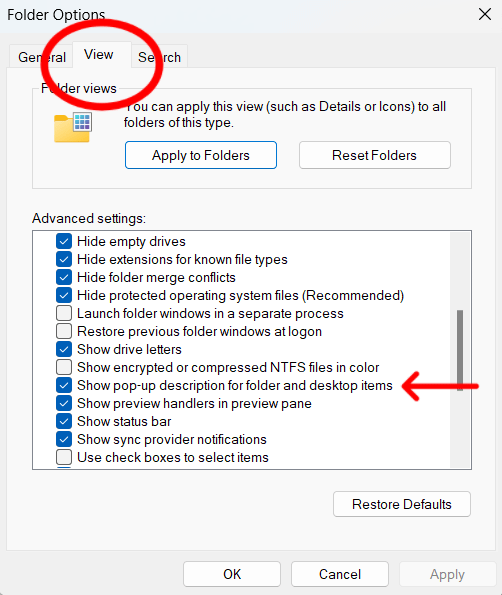
- Check the box to enable pop-up descriptions, or clear it to disable them.
- Click Apply, then Ok.
- Hover over folders or files to confirm the change.
Method 2: Using Windows Registry
This is recommended for advanced users or IT admins who need more control. This is also suitable for MSPs.
- Open Run, type regedit, and press Enter
- Navigate to:
HKEY_CURRENT_USER\Software\Microsoft\Windows\CurrentVersion\Explorer\Advanced
- Create or modify the DWORD (32-bit) value named ShowInfoTip
- Set the value to 1 to enable pop-up descriptions.
- Set the value to 0 to disable them.
- Restart File Explorer or sign out and back in to apply the change.
Method 3: Using device management or automation tools
This is useful in managed environments, as it ensures consistency across multiple devices.
- Use PowerShell scripts to set the ShowInfoTip registry value for users.
💡Check out our guide How to Automate Repetitive Tasks with PowerShell for more information.
- Apply policies through mobile device management or endpoint management platforms where supported.
- Validate that changes align with accessibility or usability requirements.
- Document the configuration for internal standards or baselines.
After care: Confirm system behavior and user experience changes
Regardless of the method you used, it is always essential to verify that the setting behaves as expected.
- Test hover behavior on desktop icons and folders.
- Confirm descriptions appear or remain hidden based on the configuration.
- Adjust related visual settings if further customization is needed.
- Update user documentation if workflows are affected.
Additional considerations
Pop-up descriptions can be helpful for new or less technical users who benefit from extra context. Power users, on the other hand, often prefer a cleaner interface with fewer on-screen distractions. Keep in mind that third-party customization tools may override File Explorer settings, and registry changes should always be applied carefully.
Organizations may standardize this setting to promote visual consistency or align with internal usability guidelines across shared devices.
Troubleshooting common issues
| Common issue | Likely cause | How to troubleshoot |
| Pop-up descriptions still appear after disabling. | The ShowInfoTip registry value wasn’t applied correctly, or the Explorer shell has not refreshed. | Recheck that ShowInfoTip is set to 0, confirm no policies are overriding it, and restart File Explorer or sign out and back in. |
| The setting does not persist after a reboot. | MDM policies, login scripts, or third-party tools are overriding the local settings. | Review device management policies and automation scripts that may be reapplying defaults. |
| Pop-up descriptions do not appear after enabling. | File Explorer is running in a restricted, kiosk, or policy-managed environment. | Confirm the user profile has standard Explorer functionality enabled. |
| Inconsistent behavior between user accounts | The setting is stored per user, not system-wide. | Verify the registry value under each user profile where the issue occurs. |
| File Explorer does not reflect changes immediately. | The Explorer shell has not fully refreshed. | Restart File Explorer or perform a full system reboot. |
| Behavior changes after Windows updates. | Feature updates may reset Explorer preferences. | Reapply the configuration using scripts or management tools after updates. |
Configuring pop-up descriptions
Pop-up descriptions in Windows 11 can be useful, but they aren’t always necessary in streamlined or usability-focused setups. By configuring this feature through File Explorer options or the registry, users and organizations can tailor the desktop experience to better match their needs and workflows.
Related topics: