


Key Points
- Identify Failed Patches: Use PowerShell (PSWindowsUpdate or Event Logs) to detect failed or incomplete update attempts before retrying.
- Retry Installation via PowerShell: Re-attempt failed updates using scripted logic with error handling to prevent silent failures.
- Track Retry Attempts: Store retry counts, timestamps, and failed KBs in the Registry to avoid infinite loops and maintain visibility.
- Automate with Scheduled Tasks or RMM: Schedule recurring patch retry scripts or deploy them at scale using NinjaOne, GPO, or similar tools.
- Validate Update Conditions: Ensure update sources are reachable and restart the Windows Update service before retrying to improve success rates.
Failed updates are a recurring challenge in patch management, often caused by network issues, system locks, or service conflicts. If left unresolved, this could cause unstable performance and make endpoints vulnerable to threats.
Automating patch retry helps minimize risks, lower mean time to repair (MTTR), and improve update success rates without overburdening technicians with high ticket volumes.
Standardize patching workflows to improve MTTR and documentation.
→ Try NinjaOne Autonomous Patch Management for free
Steps to automate patch retry to mitigate update failures
Automatic remediation of patch failures eliminates the need for hectic manual diagnostics, ensuring patch compliance across endpoints. This, in turn, cuts technician workload while providing visibility into recurring failure patterns through logs.
📌 Use Cases: Leverage PowerShell scripts to list past update attempts and extract error codes, allowing scripts to retry, back off, or stop. Through scheduled tasks, RMM platforms, and GPO deployment, technicians can automate patch retry of failed or missing updates.
📌 Prerequisites:
- Supported OS: Windows 11 or Windows Server 2016 or later
- Permissions: Admin or SYSTEM privileges
- Update source: WSUS, Intune, or Windows Update
- Optional: RMM platforms like NinjaOne
💡 Note: Some steps may vary depending on system defaults or active settings per environment. Also, Microsoft announced that WSUS is being deprecated. While it still ships with Windows as of writing, we recommend transitioning to cloud tools like Windows Autopatch and Intune, or Azure Update Manager.
Step 1: Identify failed patches using PowerShell scripts
Effective automated patch failure remediation starts with proactive detection. The following scripts query an endpoint’s update history and outcomes, returning problematic entries for a clearer view.
Sort failed patches using the PSWindowsUpdate module
This script reads the last 200 update history entries, then filters out successful installs, outputting only failed entries.
| Import-Module PSWindowsUpdate
# Retrieve failed updates |
⚠️ Important: Skipping the installation of PSWindowsUpdate will cause errors, as this PowerShell module isn’t built into Windows by default. (See ⚠️ Things to look out for)
Alternative method to sort failed patches via Windows Event Log
This script queries Windows Update Client logs, searching for entries with common failure signals, like IDs 20, 25, and 31.
| Get-WinEvent -LogName “System” | Where-Object { $_.ProviderName -eq “Microsoft-Windows-WindowsUpdateClient” -and $_.Id -in 20, 25, 31 # Common failure event IDs } |
Step 2: Retry failed patches using PowerShell logic
Once failed updates surface on an endpoint, you can use PowerShell scripts to re-attempt patches automatically. This eliminates manual patching jobs, allowing hands-off remediation at scale once patch failure is detected.
Sample PowerShell script to re-attempt installation of failed updates
This script builds on $failedUpdates as seen on step 1, looping through the enumerated failed updates for reinstallation.
| foreach ($update in $failedUpdates) { Write-Output “Retrying: $($update.Title)” Install-WindowsUpdate -KBArticleID $update.KBArticleID -AcceptAll -AutoReboot -IgnoreReboot -ErrorAction Continue } |
Sample script that includes error handling
| try { Install-WindowsUpdate -KBArticleID $update.KBArticleID -AcceptAll -ErrorAction Stop } catch { Write-Output “Retry failed for: $($update.KBArticleID) – $_” } |
⚠️ Important: Use error handling to avoid scripts from silently failing. (See ⚠️ Things to look out for.)
Step 3: Use Registry logging for retry attempts and tracking
Leverage the Registry to store retry attempt count and failed KBs for quick local queries. This helps provide persistent identification even when an endpoint is disconnected during WSUS or RMM outages.
Sample PowerShell script to track retry attempts and result timestamps in the Registry:
| New-Item -Path “HKLM:\SOFTWARE\Org\PatchRetry” -Force Set-ItemProperty -Path “HKLM:\SOFTWARE\Org\PatchRetry” -Name “LastRetry” -Value (Get-Date).ToString(“u”) Set-ItemProperty -Path “HKLM:\SOFTWARE\Org\PatchRetry” -Name “FailedKBs” -Value ($failedUpdates.KBArticleID -join “, “) |
Sample PowerShell script to check patch status via the Registry:
| Get-ItemProperty -Path ‘HKLM:\SOFTWARE\Org\PatchRetry’ |
Step 4: Automate retry with scheduled tasks or NinjaOne RMM
Schedule scripts across endpoints to regularly check for compliance and to automatically reinstall patches on non-compliant devices. With NinjaOne, technicians can create compound conditions, ensuring that patch retries are reapplied after a failed execution.
Create a recurring scheduled task using a pre-existing .ps1 script via CMD:
| schtasks /create /tn “RetryFailedPatches” /tr “powershell.exe -File C:\Scripts\PatchRetry.ps1” /sc daily /st 02:00 /ru SYSTEM |
💡 Tip: Save the retry script found on step 2 as a .ps1 file and direct your command to query its path.
Automatically update Registry values and monitor success or retry limit via PowerShell script
| $retryCount = (Get-ItemProperty -Path “HKLM:\SOFTWARE\Org\PatchRetry”).RetryCount if ($retryCount -gt 3) { # escalate or log for technician } |
Step 5: Use GPO to Ensure Retry-Compatible Update Settings
Automated patch retries are most effective when Windows Update behaves predictably. Technicians can deploy GPOs to pre-download update contents, schedule installs, and defer reboots within baseline configurations.
⚠️ Warning: It’s good practice to test GPOs locally before deployment. (See ⚠️ Things to look out for.)
- Open the Group Policy Management Console (gpmc.msc), then go to:
Computer Configuration > Administrative Templates > Windows Components > Windows Update
- Configure the following policies:
| Settings | Recommended configuration | Definition |
| Configure Automatic Updates | Select the checkbox next to Auto download and schedule install. | Automatically pre-downloads updates and installs them on a set schedule. |
| Specify Intranet Microsoft Update Service Location | Select Enabled and enter the HTTP(S) URL of your preferred WSUS server in the following fields:
|
Specifies the WSUS server that Automatic Updates will query for updates. |
| No Auto-restart for Scheduled Automatic Update Installation Options | Configure the policy as Enabled. | Disables auto-restarts when someone is signed in, preventing disruptions mid-session. |
| Re-prompt for Restart with Scheduled Installations | Configure the policy as Disabled. | Stops prompting users mid-session to reboot after a scheduled update. |
- After linking the GPO to an OU, enter the following PowerShell command on a target endpoint: gpupdate /force
⚠️ Things to look out for
| Risks | Potential Consequences | Reversals |
| Skipping the PSWindowsUpdate module installation | Using Windows Update cmdlets without the required PowerShell module will lead to errors. | Load the PSWindowsUpdate module by entering Import-Module PSWindowsUpdate on a PowerShell prompt. |
| Not including error handling in scripts | Scripts fail silently without proper error handling, making technicians guess what went wrong. | Leverage PowerShell error handling in scripts for better documentation when errors occur. |
| Deploying untested GPOs | Untested GPOs may contain misconfigurations that can severely impact endpoints once deployed. | Test GPOs locally within a controlled environment before deploying them across an environment. |
Considerations when automating patch retry for failed updates
When automating patch retries, ensuring a smooth transition between steps is crucial, as even one hiccup can potentially cause errors. Employing the following considerations guides scripts to properly decide which step to take, improving retry success rates.
Enforcing retry limits
Retry limits inside the Registry help prevent infinite retry loops and ticket spam. Set increments for each run to increase backoff time per failed instance. Once the maximum number of attempts is reached, retry limits stop scripts from executing and escalate the issue once.
Restarting the Windows Update service
Patching failures can occur when Windows Update (wuauserv) is unreachable, and a quick service restart often clears this issue. That said, it’s advisable to restart Windows Update before starting another retry attempt.
- Sample PowerShell script to restart wuauserv: Restart-Service -Name wuauserv
Workaround for offline devices
Offline devices can easily burn through retry limits, causing scripts to skip them altogether. Through RMM platforms, such as NinjaOne, technicians can set a script result condition to retry or reboot during off-peak hours.
Validating patch sources
Before attempting a retry, scripts should verify if their patch source is reachable, as unreachable sources often cause failures. If the source is down after validating, create a short backoff, but don’t count it as a failed retry. If a single KB fails, hold off on that KB and proceed with other patches, then retry at a later time.
Quick-Start Guide
NinjaOne offers several features to automate patch management and reduce manual intervention:
1. Patch Intelligence AI
Automatically evaluates patch risks every six hours
- Can move patches between approved, manual, and rejected states based on community feedback
- Helps reduce risks from potentially problematic patches
2. Approval and Retry Strategies
Multiple levels of patch approval:
- Device-level overrides
- Policy-level overrides
- Global preemptive approvals/rejections
- Can automatically approve patches after a specified number of days (up to 30 days for updates, 365 days for feature updates)
- Allows manual approval or rejection of patches by KB number or Patch ID
3. Ring Deployment
Staggered patch rollout to minimize risks
- Create device groups for different deployment rings
- Test patches on a small subset of devices before wider deployment
4. Patch Scheduling and Retry
Recommended to separate scan and update cycles by at least one hour
- Scan cycles run before application cycles
- Configurable reboot options and notifications
Troubleshooting patch retry script automation issues
Issue #1: No retry activity
Retry logic fails to execute without proper elevation, showing no retry activity. As a workaround, check if the script runs as SYSTEM or has the highest privileges. Additionally, validate your script’s syntax and verify that all referenced paths exist.
Issue #2: Update not found
Verify if the missing update is available from your specified source. Consider alternative sources like Windows Update instead of Windows Server Update Services (WSUS) to avoid burning retry attempts through wasteful queries.
Issue #3: Updates fail consistently
Combine retry efforts with insights generated from Windows Update logs, allowing you to pinpoint errors within failed patches.
- Sample PowerShell script to query Windows Update logs:
Import-Module PSWindowsUpdate
Get-WindowsUpdateLog
Issue #4: Reboot loop
Updates sometimes prompt a device reboot before being applied, and a shutdown won’t have the same effect. Once missed, it’s easy to fall into the cycle of reapplying patches with no noticeable change. To avoid this, check if an endpoint asks for a restart and confirm it, then try updating again.
NinjaOne services that simplify patch retry automation
NinjaOne helps automate patch queries and remediation to ensure compliance and reduce the need for manual intervention. Here are some of NinjaOne’s features that you can leverage to simplify patch retry automation at scale.
- Policy Scheduled Task. Use NinjaOne’s scheduled automation capabilities to set retries across device groups within specified intervals.
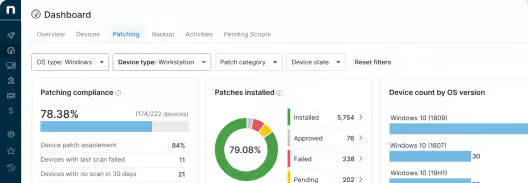
- Patch Management Dashboard. NinjaOne’s dashboard categorize devices by failed, successful, and pending patches for improved visibility. Technicians can also easily generate custom patch reports through the dashboard.
- Compound Conditions. Create custom automation triggers, such as generating notifications, triggering scripts, or escalating cases, based on script result conditions.
- Remote Script Deployment. Run scripts remotely at scale, allowing consistent retry automation for failed patches across an environment.
Automate patch documentation for efficient error-handling.
Automate remediation of patch failures to maximize uptime
From querying update history to enforcing baseline policies, this guide provides technicians with strong foundational strategies for automation. With NinjaOne handling monitoring, script deployment, and scheduling, patch retry logic can be automated within a single pane of glass.
Consolidating automation strategies within a centralized platform makes the overall automation framework proactive, enabling quick remediations once issues are detected. This helps reduce downtime, cuts ticket volume, and ensures consistent patch compliance across endpoints.
Related topics:






