
Key points
- What Is Delivery Optimization? It reduces bandwidth by letting PCs share Windows Updates and Microsoft Store downloads with nearby devices.
- Configure via Settings App: Go to Settings > Windows Update > Advanced options > Delivery Optimization and toggle “Allow downloads from other PCs” on or off.
- Configure via Local Group Policy: Use gpedit.msc to set a specific DownloadMode value (0–3, 99) for granular control over how and where update content is sourced.
- Configure via Windows Registry: Set the DODownloadMode DWORD value at HKEY_LOCAL_MACHINE\SOFTWARE\Policies\Microsoft\Windows\DeliveryOptimization.
- Know Your Download Modes: Mode 1 (LAN peering) is the default; use Mode 0 to disable peer sharing on internet-connected devices; avoid Mode 100/64 as it’s deprecated in Windows 11 and causes download failures (error 0x80d03002).
- Control Bandwidth and Scheduling: Limit upload/download bandwidth, set active hours, and pause updates for up to 5 weeks.
This guide demonstrates how to specify Delivery Optimization Download Mode in Windows 11 update settings. It includes step-by-step instructions for specifying the Download Mode that controls how Delivery Optimization downloads Windows Updates and software from the Microsoft Store using the Settings app, Local Group Policy, and the Windows Registry. It also covers how update behavior can be configured for metered connections and how automatic updates can be paused and scheduled.
Note: Windows 10 reached end of support on October 14, 2025. This guide covers Windows 11 only. If you’re still on Windows 10, Microsoft recommends upgrading to Windows 11 to continue receiving security updates.
If you prefer a visual guide, watch the video “How to Specify Delivery Optimization Download Mode in Windows 10/11.”
Utilize NinjaOne endpoint management to gain visibility over your Windows environment.
Specify Delivery Optimization Download Mode for Windows Updates and the Microsoft Store
In order to specify where Windows Update and the Microsoft Store download update data from, you need to configure the Delivery Optimization Download Mode.
You’ll need to be logged in as an administrator to do this. Also, make sure you back up your Local Group Policy or Windows Registry settings if you use either method so you can restore your previous settings if you make a mistake.
How to set Delivery Optimization Download Mode in Windows 11
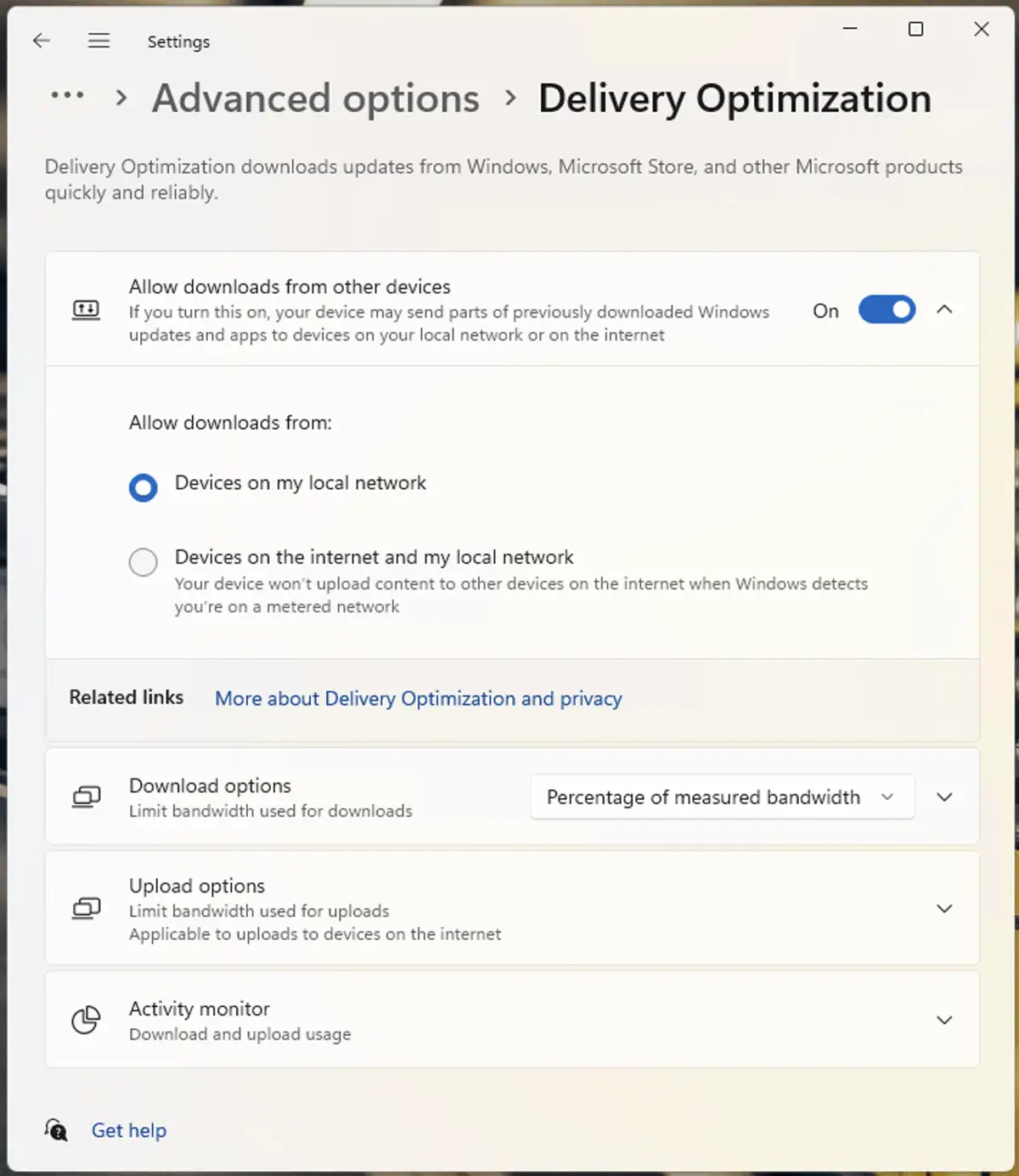
You can control whether Delivery Optimization downloads files from local PCs or from other PCs on the internet in the Settings app in Windows 11:
- Right-click the Start button and select Settings.
- Open Windows Update and select Advanced options.
- Under Additional options, select Delivery Optimization.
- To enable or disable Delivery Optimization, toggle Allow Downloads from other devices on or off.
- Choose whether to only download from Devices on my local network or Devices on the internet and my local network.
Using the Local Group Policy Editor to control Delivery Optimization Download Mode
You can have more granular control over Delivery Optimization using the Local Group Policy Editor (available only in Pro, Enterprise, and Education editions of Windows 11):
- Right-click the Start button and click Run.
- Input the command gpedit.msc and press Enter to open the Local Group Policy Editor.
- Navigate to Local Computer Policy\Computer Configuration\Administrative Templates\Windows Components\Delivery Optimization.
- Double-click the Download Mode setting to edit it.
- Change the setting value to Enabled and then choose one of the following delivery Optimization Download Modes:
- 0 = HTTP only, no peering (for reliable, hash-checked downloads but disables all peer-to-peer sharing; the recommended mode if you want to disable peer sharing while remaining on an internet-connected device)
- 1 = HTTP blended with peering behind the same NAT (the default, allows caching and sharing updates with other PCs on the same local network)
- 2 = HTTP blended with peering across a private group (groups devices by their domain or site in an Active Directory deployment so that they can efficiently share updates; usually used in enterprise or education environments)
- 3 = HTTP blended with internet peering (download from other devices, including those on the Internet)
- 99 = Simple mode: HTTP only, no peering, no use of DO cloud service (for offline/air-gapped devices only)
- 100 = Bypass mode, deprecated and nonfunctional in Windows 11 (setting this mode can cause content downloads to fail with error code 0x80d03002; if you previously used this mode, change it to Mode 0 to disable peer sharing without breaking downloads)
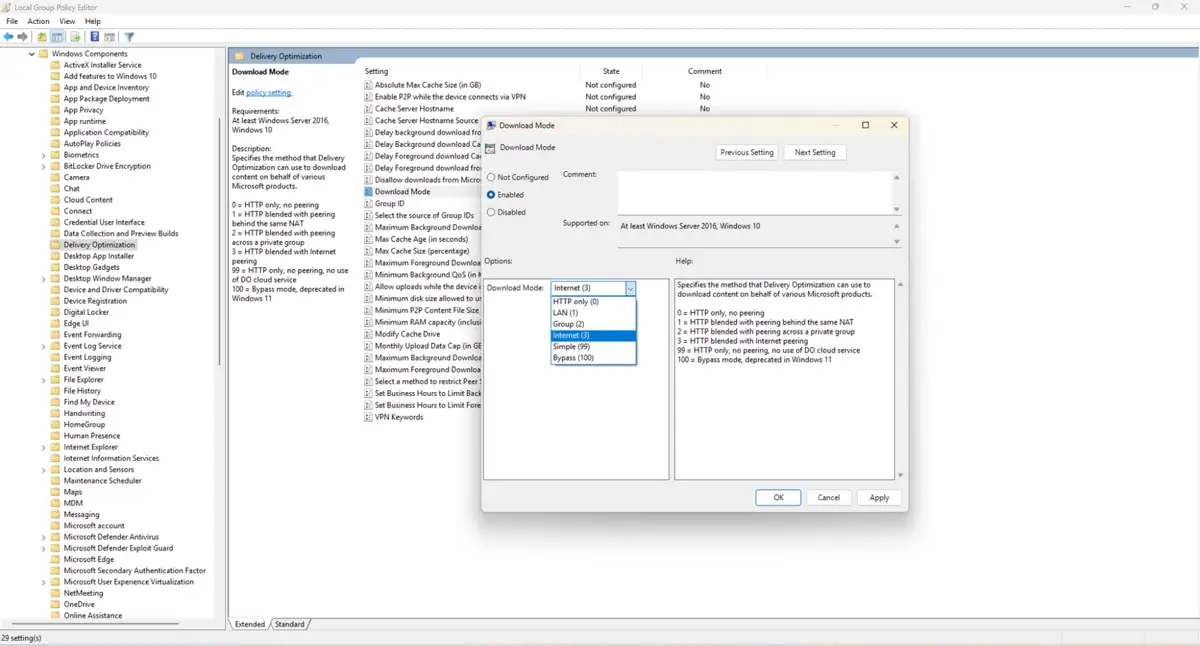
- To return your PC to the default behavior (or control it using the Settings app), set the value of the Download Mode setting back to Not configured.
- Press OK to save your changes and then close the Local Group Policy Editor.
- Reboot your PC or run gpupdate /force to apply the change.
Using the Windows Registry Editor to manage Delivery Optimization Download Mode
The Windows Registry Editor can also be used for finer control over Delivery Optimization Download Mode and is available in all versions of Windows 11 (including Home editions):
- Right-click the Start button and select Run.
- Enter the command regedit.exe in the Run dialog and press OK to open the Windows Registry Editor.
- Navigate to the key located at Computer\HKEY_LOCAL_MACHINE\SOFTWARE\Policies\Microsoft\Windows\DeliveryOptimization.
- If this key doesn’t exist, highlight the Computer\HKEY_LOCAL_MACHINE\SOFTWARE\Policies\Microsoft\Windows key and select Edit > New > Key in the toolbar; then name the newly created key DeliveryOptimization.
- If it doesn’t already exist at this location, select Edit > New > DWORD (32-bit) Value and name it DODownloadMode.
- Set the DODownloadMode value to one of the following numerical values (note that they differ from the ones you set in Local Group Policy):
- 0 = HTTP only, no peering (disables peer-to-peer sharing while still using the Delivery Optimization service; recommended for internet-connected devices where peer sharing isn’t desired)
- 1 = HTTP blended with peering behind the same NAT
- 2 = HTTP blended with peering across a private group
- 3 = HTTP blended with Internet peering
- 63 = Simple mode: HTTP only, no peering, no use of DO cloud service (for offline/air-gapped devices only)
- 64 = Bypass mode, deprecated and nonfunctional in Windows 11 (may cause download failures (error 0x80d03002); use Mode 0 instead)
How to limit Windows Update on metered internet connections
By default, Windows 11 will only download critical updates on metered connections and pause all other downloads. This happens automatically when you set a connection to metered or specify a data usage limit for a connection.
You can control this setting in Settings > Windows Update > Advanced options > Download updates over metered connections.
How to pause and resume automatic Windows Updates in Windows 11
Microsoft makes it very difficult to permanently disable Windows Updates from within Windows itself (for good reason—they’re vital for the security of your system). However, you can pause them in the Settings app.
Go to Settings > Windows Update > Pause Updates and select the option to pause updates for 1–5 weeks. Click Resume updates to resume updates.
How to control the Windows Update schedule
You can set the schedule for Windows Update to only install updates when you aren’t using your PC (for example, by scheduling updates to install overnight).
Simply go to Settings > Windows Update > Advanced options > Active hours.
Controlling bandwidth for Windows Update
You can control how much bandwidth is used by Windows Update Delivery Optimization for downloading and uploading as either a percentage of bandwidth or an absolute bandwidth limit. This can prevent Windows Update and Delivery Optimization from slowing down your connection while you’re using your PC.
Controlling Microsoft Store app updates
Some apps that come with Windows receive updates through the Microsoft Store (along with any apps later installed from the store). You can control this behavior by following these steps:
- Open the Microsoft Store from the Start menu.
- Click your user profile icon in the top-right corner of the window.
- Select Settings.
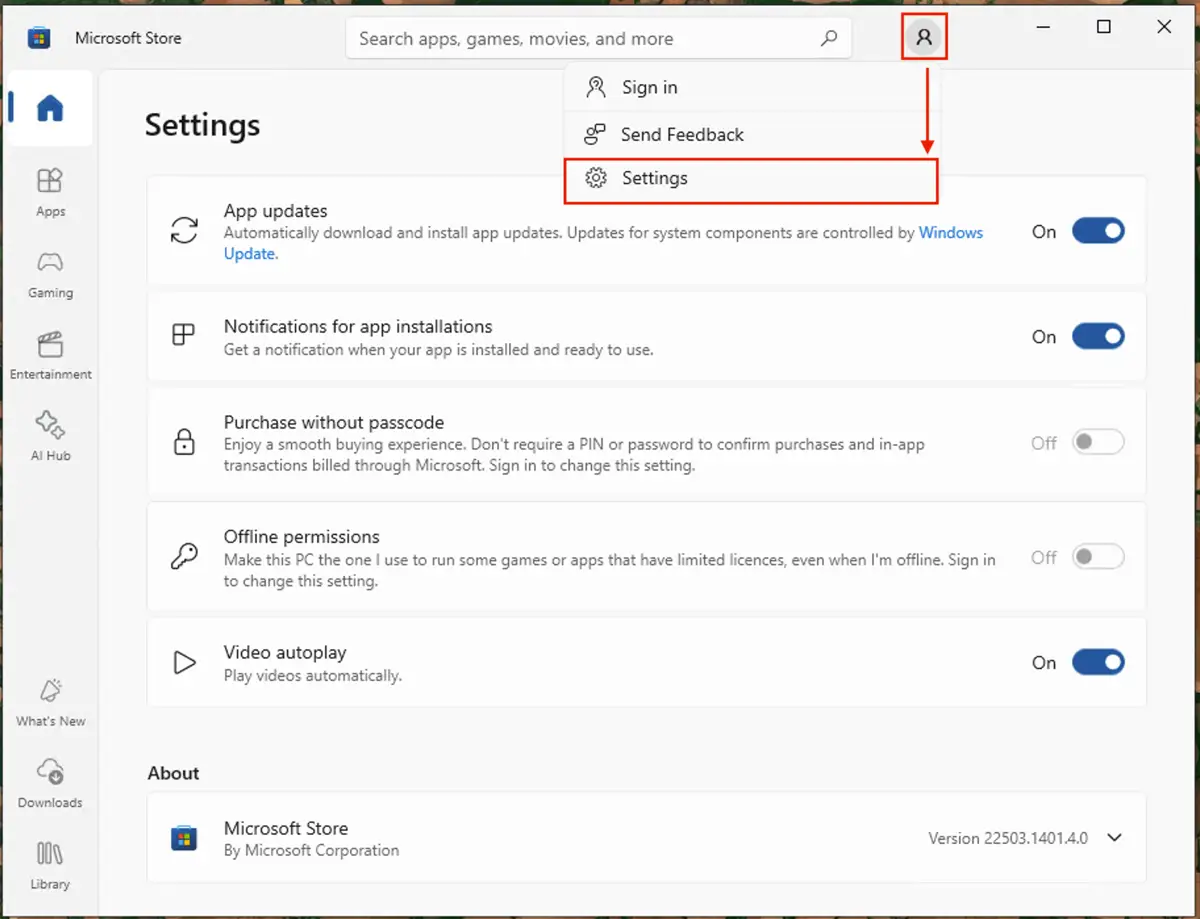
Changing settings in the Microsoft Store will not affect the settings for Windows Update itself, which will continue using its own settings for keeping Windows components updated.
Understanding Windows Updates and Microsoft Store app updates
In Windows 11, Delivery Optimization lets your PC download Windows Updates and software from the Microsoft Store from nearby PCs to save bandwidth.
For example, in an office environment, if a PC has downloaded an update, the other PCs on the network can install that update using cached files kept on that device, rather than having each download its own copy from Microsoft’s servers. This speeds up the update process and reduces the amount of bandwidth used to keep your machines up to date.
Delivery Optimization lets you specify a Download Mode, which specifies whether to download and share updates with only devices on your local network or devices on the public internet. By default, Windows will cache updates and download them from other local Windows PCs.
Windows also provides a number of other settings that let you control how and when updates are installed to help you save bandwidth while traveling and prevent the installation of updates from interrupting you while you work. This includes setting connections as metered and limiting bandwidth for Windows Update.
If you’re experiencing issues with Windows Update, you can troubleshoot it by checking its logs.
Enhace efficiency by integrating Delivery Optimization settings into NinjaOne’s automated workflows.
How Windows 11 manages network congestion during downloads
Starting with Windows 11 version 22H2, delivery optimization uses two congestion-control technologies to prevent updates from slowing down your connection:
- LEDBAT (Low Extra Delay Background Transport) for peer-to-peer connections
- rLEDBAT for HTTP and connected cache connections during background downloads
This means Windows 11 automatically backs off bandwidth usage when it detects your network is busy, reducing the impact of update downloads on other traffic without requiring manual bandwidth limits.
Managing Windows and software updates for PCs in enterprise and education environments
Ensuring Windows and software updates are properly deployed and that devices are secure, without interfering with users’ productivity, is a key challenge of IT departments. Endpoint management by NinjaOne allows you to centrally deploy, update, and manage Windows OS updates and third-party software for Windows 11 devices.
You can also create policies and deploy scripts to control how Windows Update Delivery Optimization behaves, including the Download Mode. Software and updates can be tested and deployed in stages to identify problems and conflicts, and auto-remediation steps can be configured to ensure updates are fully installed and devices are rebooted and monitored.






