Key Points
- To add or remove the Microsoft Teams icon in Windows 11, right-click the Teams app to pin or unpin it from the taskbar, adjust Taskbar settings > Other system tray icons, or toggle legacy Chat settings in Personalization.
- Administrators can control Teams visibility using the Windows Registry or Group Policy, which enforces consistent Teams taskbar behavior across Pro, Education, and Enterprise devices.
- Removing the Teams icon does not uninstall Microsoft Teams; Windows Update may reinstall legacy versions.
Teams is now Microsoft’s primary communication and conferencing app, and it is tightly integrated with Windows 11. While you may want to keep it installed for chat and work meetings, it can also be hidden in certain places so it’s not constantly visible while you use your PC. This tutorial shows you how to remove the Microsoft Teams icon from the taskbar in Windows 11.
Microsoft Teams is now Microsoft’s primary chat, audio, and video calling app for Windows 11
With the retirement of Skype, Teams has become the single unified brand for both consumer and business communication apps provided by Microsoft (with Outlook continuing to handle mail, calendaring, etc.). A version of Teams ships with most Windows 11 devices, and it is included in business versions of Microsoft 365.
Despite having the same name, for a long time, there were two variants of Teams that were distinct:
- Teams Chat: A consumer-focused chat app
- Teams App: Part of Microsoft 365 for business, intended for business use-cases like conferencing, remote work, and collaboration
However, Teams is now a single app that covers both private and work use.
How do I remove the Microsoft Teams icon from the taskbar?
There are several ways to remove the Teams icons from the Windows 11 taskbar, depending on whether you own your device or it is part of an enterprise network.
To show or hide the Teams icon, you’ll need:
- To be running Windows 11 with Microsoft Teams installed
- Administrator privileges if applying the setting globally or across devices using the Windows Registry or as Group Policy
How to pin or unpin the Teams App from the taskbar
The most prominent place that the Microsoft Teams icon appears is in the Windows taskbar, where it is often pinned by default.
The Teams icon can be removed from the taskbar by:
- Right-clicking on the Teams icon in the taskbar
- Selecting Unpin from taskbar
To add the Teams icon to the taskbar, the app must be running first:
- Launch Teams from the Start menu
- Right-click on the Teams icon in the taskbar and click Pin to taskbar
The Teams icon will display while it is running, whether it is pinned or not. This does not require any administrative privileges and can be done per-user.
How to add or remove the Teams App system tray icon
Teams is also displayed in the system tray (the small icons that appear next to the clock, usually in the bottom-right corner of the Start menu) while it is running. To remove it:
- Open Teams from the Start menu
- Make sure you’re signed in
- Select Settings (under the … icon next to your profile picture)
- Click General
- Toggle On close, keep the app running (checked to keep the icon in the system tray and keep the app running when the main window is closed, or unchecked to quit the Teams app when all windows are closed so that it doesn’t show in the system tray)
This option may not be available on all versions of Teams, or you may not want to quit Teams but still want to hide the icon in the system tray. You can show or hide the Teams icon (while the app continues to run) using the Windows 11 taskbar settings:
- Right-click on the taskbar and select Taskbar settings
- Click Other system tray icons
- Toggle On or Off the icon for Microsoft Teams
- If toggled to Off, the Teams icon will always be hidden behind the hidden icon menu
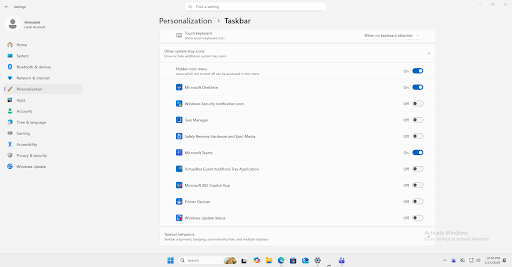
Icons in the system tray are typically hidden behind the hidden icon menu by default. This can be turned off so that all icons are always shown in the system tray. If you do not want Teams to be installed locally, but still want to use it periodically, you can try the browser-based version instead.
Controlling Microsoft Teams for Microsoft Office using Group Policy
Administrative Template files (ADMX/ADML) for Microsoft Office are available that allow you greater control over how Microsoft Office apps (including Teams) behave on devices connected to a Windows Domain using Group Policy.
The Teams app that comes as part of Microsoft 365 is heavily reliant on SharePoint, which it uses to store data. This makes control over Teams and SharePoint critical when dealing with data covered by privacy laws, and that its data is properly secured and protected (including backing it up).
You can also now sign up for Microsoft 365 plans that do not include Microsoft Teams at all.
Add or remove the Teams Chat icon from taskbar settings (for legacy versions of Windows 11)
The icon for the legacy version of Teams Chat that used to be included with Windows 11 can be removed by following these steps:
- Right-click on the Start button and select Settings
- Select Personalization
- Select Taskbar
- Under Taskbar items, locate Chat
- Toggle Chat On to show the Teams Chat icon in the taskbar
- Toggle Off to hide it
Note that this only applies to older versions of Windows 11, where Teams chat was integrated into the operating system.
You can also use the Registry to do this:
- Right-click on the Start button and click Run
- Type the command regedit.exe and press OK
- Navigate to the registry key located at HKEY_CURRENT_USER\Software\Microsoft\Windows\CurrentVersion\Explorer\Advanced
- Create or modify the DWORD value TaskbarMn
- Set the value to 0 to hide the Teams Chat icon or 1 to show the Teams Chat icon
- Restart Explorer from the Task Manager
Group Policy (available on Pro, Education, and Enterprise editions of Windows 11) can also be used to enforce hiding the Teams Chat icons on devices running outdated versions of Windows 11:
- Open gpedit.msc from the Run dialog
- Navigate to the policy located at Computer Configuration > Administrative Templates > Windows Components > Chat
- Locate the setting Configures the Chat icon on the taskbar
- Set to Disabled to remove the Teams Chat icon
- Set to Enabled or Not Configured to allow Teams Chat (the default)
- Run gpupdate /force to apply the change
Note that none of these methods affect the new Teams app.
Restoring missing Teams icons
If the Teams icon should be shown in the taskbar or system tray but is not, you can try restarting Explorer from the Task Manager. If this fails, you can clear the Teams app cache by deleting the files at %appdata%\Microsoft\Teams.
Microsoft Teams troubleshooting and additional considerations
If you still have legacy versions of Teams lingering, you may see multiple Teams icons. It is recommended to clean up these old versions as they are no longer supported. Windows Update also has a habit of re-installing some apps, including Teams, so if it’s important that users not have access to it (for example, for compliance reasons), you should control its usage with Group Policy.
Managing and securing Microsoft Teams usage across education and enterprise fleets
Microsoft Teams is an indispensable communication tool for businesses that have invested in the Microsoft 365 productivity suite. However, its uncontrolled use can present a problem for IT administrators and managed service providers (MSPs) that are obligated to protect sensitive data, especially when it is covered by privacy laws like GDPR, CCPA, HIPAA, and others.
Ensuring that Teams does not become a vector for data breaches, accidental disclosure, or social engineering attacks is vital. Teams and SharePoint data must also be both archived and backed up for compliance and to ensure that critical information contained in historical communications and shared files is not lost.
NinjaOne automates IT management, and brings together remote monitoring and management (RMM), mobile device management (MDM), endpoint protection, remote support, and a full suite of other IT management and support technologies that extend from on-premises to the cloud.
You can deploy scripts to devices, enforce policies, and integrate with data security posture management platforms. This helps to ensure that communication tools like Microsoft Teams are used as intended, that potential breaches are detected early, and that compliance is maintained across your IT infrastructure and user base.