


Key points
- Understand explorer.exe: It controls Windows 11’s entire graphical user interface, including the desktop, taskbar, Start menu, and File Explorer windows.
- Use Task Manager: Open Task Manager (Ctrl + Shift + Esc), go to the Processes tab, right-click Windows Explorer, and select Restart.
- Use the Taskbar: Hold Ctrl + Shift and right-click an empty area of the taskbar; then select Exit Explorer.
- Command Line Methods: Use “taskkill /f /im explorer.exe” followed by “start explorer.exe” in Command Prompt or run the single-line PowerShell command “Stop-Process -Name explorer -Force; Start-Process explorer.”
- Troubleshooting Restarting explorer.exe: Run “sfc /scannow” to check for corrupt system files, apply the latest Windows 11 updates, or perform a malware scan.
This tutorial explains how to restart the explorer.exe process in Windows 11. This will assist you in troubleshooting system issues (including freezing and slow responsiveness) as explorer.exe is responsible for displaying on-screen items such as the desktop, taskbar, Start menu, and File Explorer windows.
Assist end-users securely with their Windows endpoint troubleshooting.
What you need to know about Windows File Explorer/explorer.exe before you start
The File Explorer explorer.exe process is the part of the Windows operating system that handles much of the graphical user interface, including the desktop environment and file manager. Because of this, if it crashes, freezes, or otherwise behaves unexpectedly, it can cause your system to become unresponsive. Restarting the explorer.exe process can resolve this without needing to fully reboot your system. It may also be necessary to restart explorer.exe when applying configuration changes or customizations.
Note that if the explorer.exe process crashes or you stop it without restarting it, you won’t be able to use your Windows PC as the user interface won’t be displayed (only a blank desktop will be shown until a new explorer.exe process is started). While restarting explorer.exe is a common and safe practice, it’s still worth ensuring you regularly back up your vital data as problems with explorer.exe may be a symptom of an underlying system issue or malware infection.
Each of the following methods can be used on its own to restart the explorer.exe process. These will work on any version of Windows 11, and you should be able to restart explorer.exe without being logged in as an administrator.
How to restart explorer.exe using the Windows Task Manager
To restart File Explorer from the Windows Task Manager, follow these steps:
- Open the Task Manager by either pressing Ctrl + Alt + Delete and selecting Task Manager or pressing Ctrl + Shift + Escape.
- Select the Processes tab within the Task Manager.
- Scroll through the list of processes and locate the Windows Explorer process (the explorer.exe process is still named Windows Explorer in the Task Manager).
- Right-click the Windows Explorer process in the Task Manager and then click Restart in the context menu.
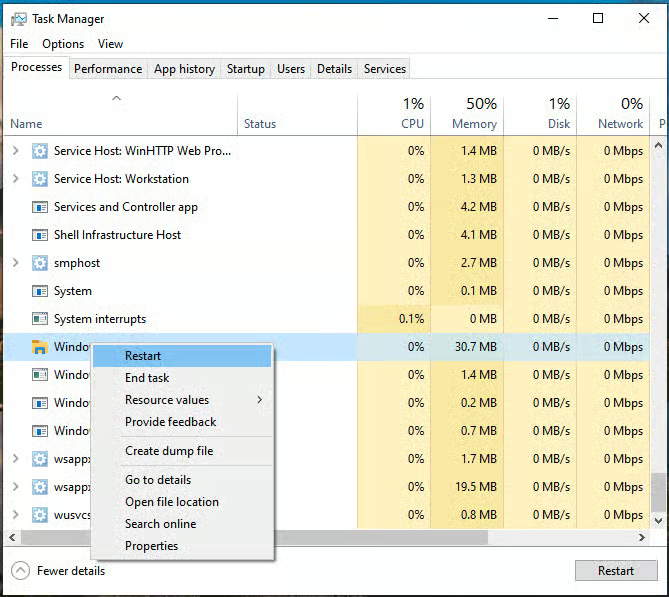
Note that when you restart the Windows File Explorer process, the Start menu, desktop icons, and other user interface elements will temporarily disappear until the process has started again. Any open File Explorer windows will also be closed.
How to completely stop and start explorer.exe from the taskbar
You can stop explorer.exe using the context menu available from the Windows taskbar:
- Hold both the Ctrl and Shift keys while right-clicking an empty part of the Windows taskbar
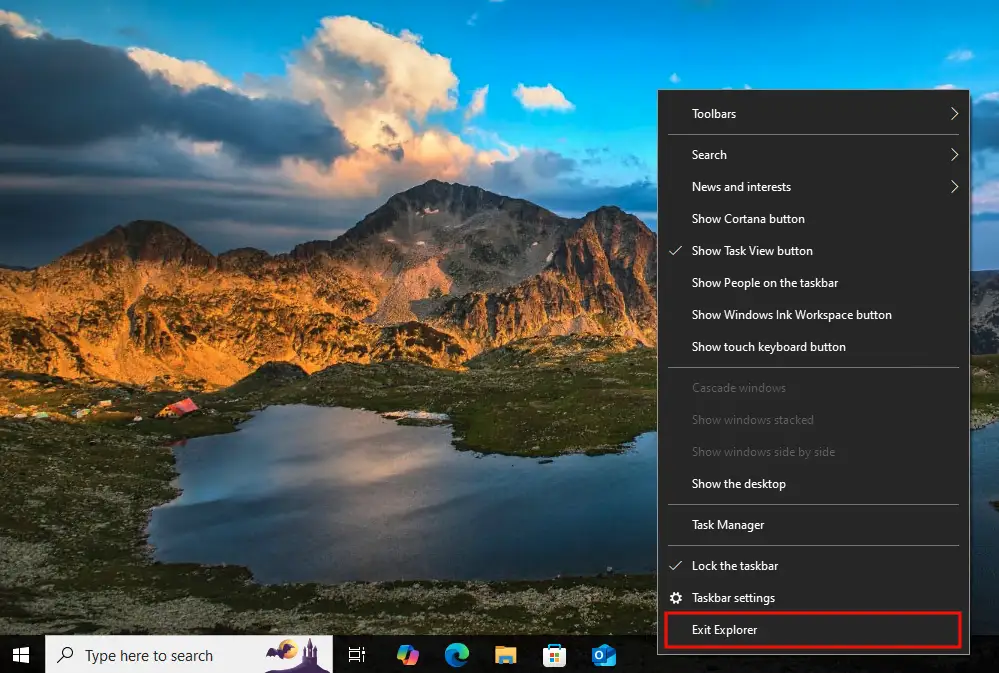
- Select Exit Explorer from the context menu that appears
You’ll then need to manually restart the File Explorer process:
- Open the Task Manager by either pressing Ctrl + Alt + Delete and selecting Task Manager, or pressing Ctrl + Shift + Escape.
- Click File > Run new task from the toolbar.
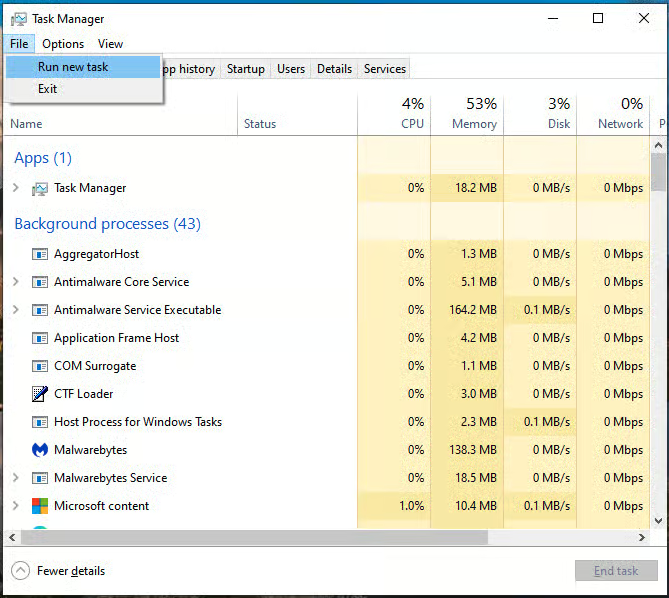
- Enter the command explorer.exe and press OK to launch a new File Explorer process
How to reset explorer.exe from the Command Prompt
Open the Command Prompt or PowerShell and enter the following command to stop the Windows File Explorer process:
taskkill /f /im explorer.exe
Then, enter the following command to restart explorer.exe:
start explorer.exe
You can add both of these commands to a batch script to automate them.
How to restart explorer.exe via PowerShell
The following single-line command will only work in PowerShell, and will stop and then restart the explorer.exe process:
Stop-Process -Name explorer -Force; Start-Process explorer
This command can be added to a PowerShell script for automation.
Troubleshooting issues with restarting Windows File Explorer
If Windows File Explorer fails to stop or properly relaunch using the above methods, you can try fully rebooting your system. If you continue to have issues with File Explorer, you should check for corrupt system files using sfc /scannow as well as check for Windows updates and perform a malware scan. You should also evaluate any recently installed software that could lead to system instability.
Automate tasks and ensure uniform policies across your Windows fleet.
Watch a demo or start a free trial of NinjaOne
Remotely assisting enterprise users with Windows File Explorer issues
Without the right tools, helping resolve issues with Windows 11 PCs can be frustrating for both the end user and support agents.
NinjaOne Remote allows you to manage and control Windows, Mac, and Linux devices so that you can directly help users and diagnose and resolve problems. By delivering tools such as chat, file transfers, and remote terminal sessions, you can ensure that your users’ issues are fully understood and completely resolved—all via industry-standard encrypted remote access from your own desktop or mobile devices.






