Key Points
- Disable the Copilot toolbar icon to hide the chat interface and deactivate associated shortcuts like Ctrl + Shift + .
- Remove the icon to prevent accidental data transmission to Microsoft servers and maintain compliance with privacy regulations
- Navigate to Settings > Appearance > Copilot and sidebar for a simple, per-user toggle that does not require administrative rights
- Use the EdgeCopilotEnabled Group Policy setting with updated ADMX templates to disable the feature across managed Windows 11 Pro, Enterprise, or Education domains
Copilot, Microsoft’s AI assistant, is present in many Microsoft products – it can be found in the Edge web browser and Bing, Office Apps including Word and Excel, communications apps like Teams and Outlook, and Windows 11 operating system components like Notepad and the File Explorer.
This tutorial demonstrates how to disable the Copilot toolbar icon in Microsoft Edge, with step-by-step instructions for using Edge browser settings, the Windows Registry Editor, and Group Policy for enterprise environments. If you want to disable Copilot itself, you’ll need to take action across all of the Microsoft products it has been integrated with, sometimes even in multiple places in the same app.
What does Copilot do in Edge?
Copilot is touted by Microsoft as ‘your AI companion’ while browsing the Web using the Edge web browser. The primary interface for this is the Copilot Chat interface, where you ask questions or ask Copilot’s AI agent to perform tasks. This is accessed using the toolbar icon shown in the screenshot below. Disabling this does not completely remove Copilot, but is often done for user preference or privacy reasons.
Other forms Copilot takes currently include:
- Ask Copilot: Accessed from a web page using the right-click context menu (this button still appears, but doesn’t currently work when the Copilot toolbar icon is disabled)
- @copilot: Copilot functions can be accessed by typing @copilot in the address bar (opening the Copilot web app)
- Copilot shortcut key: Copilot can be activated using the Ctrl + Shift + . shortcut (this is also currently disabled when the Copilot toolbar icon is hidden)
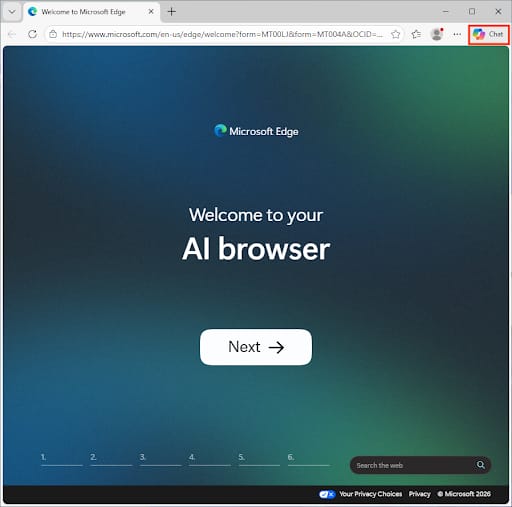
As disabling the Copilot icon in the toolbar may not disable all Copilot features in Edge, websites, or other apps, you will need to hunt down the individual settings for each (and any new ones added in the future), or use Group Policy to block them.
Why do users disable Copilot in Edge?
Users usually elect to disable Copilot in Edge for privacy reasons: for Copilot to function, it has to send data to Microsoft’s servers for processing. Personal users may disable Copilot as they do not wish for their browsing activities to be processed, or leave open the risk of accidentally entering private information into Copilot. Others may simply not want to use the feature and prefer to remove the icon to reduce clutter.
For businesses and other organizations that handle personally identifiable information and other data protected under privacy laws like GDPR, CCPA, and HIPAA, removing CoPilot may be a compliance requirement.
Note that removing the Copilot icon will not impact the performance of the Edge browser.
Copilot also appears in many other parts of Windows 11, as well as Microsoft’s other apps and online services, so you’ll need to make sure it’s disabled in every Microsoft product that you use.
What you need to add or remove the Copilot toolbar icon in Microsoft Edge
To remove the Copilot icon from Edge, you’ll need:
- The latest version of Microsoft Edge running on Windows 11
- Administrator access to the device or domain if you’re using Group Policy to configure multiple PCs on a domain
- Optionally, updated Edge ADMX templates if using Group Policy
As mentioned earlier, disabling the Copilot toolbar icon doesn’t remove Copilot from Edge completely. It’s heavily integrated, and still appears in the context menu and is integrated with Microsoft’s online products like Bing and Outlook. You should check the settings for each Microsoft product you use and ensure Copilot is disabled in those places.
IT administrators should check their Microsoft 365 settings and Group Policy settings to disable Copilot across Windows 11, Microsoft Office Apps, and other products.
Method 1: Add or remove copilot toolbar icon using Edge settings
The easiest way for users to disable the Copilot icon in the Edge toolbar is to use the browser settings:
- Open Edge from the Start menu
- Click the … menu icon, then select Settings
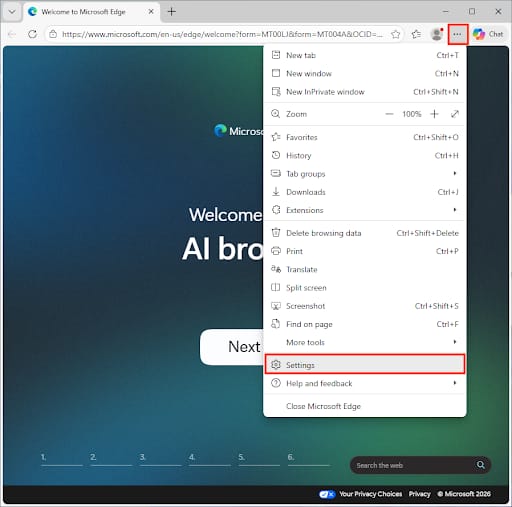
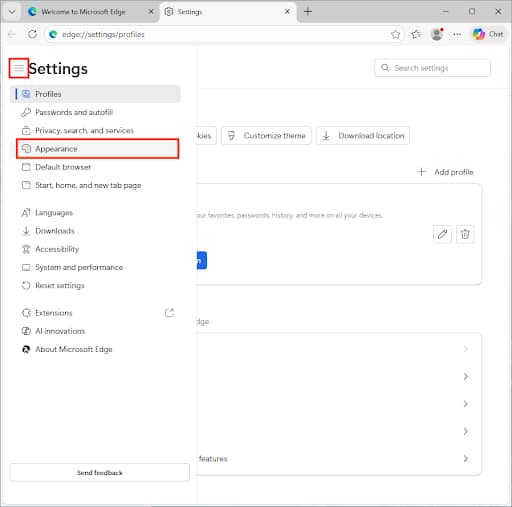
- Open the sidebar if it isn’t visible, then select Appearance
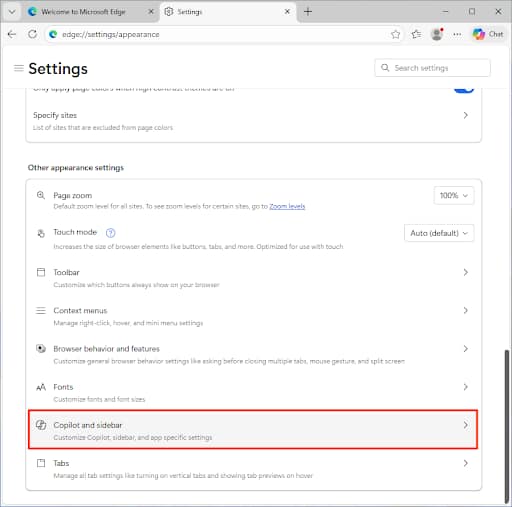
- Scroll to and click on Copilot and sidebar
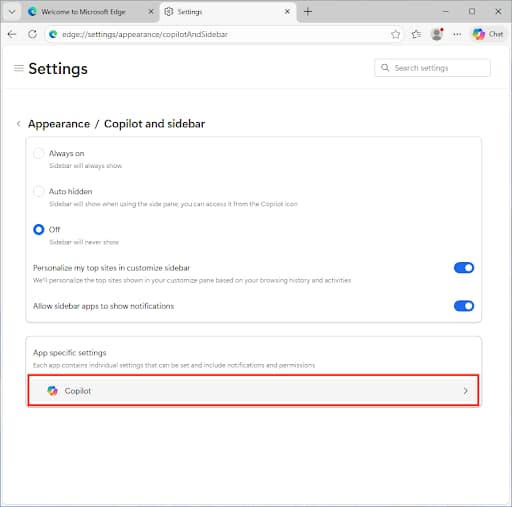
- Under App specific settings, click Copilot
- Toggle the Show Copilot button on the toolbar setting to off or on
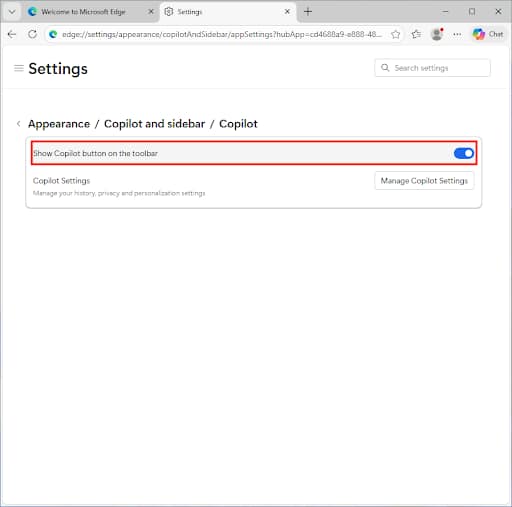
This setting is applied per-user and does not require any administrative privileges unless it is enforced using Group Policy.
Method 2: Disable or enable Copilot through Group Policy
For devices running Windows 11 Pro, Enterprise, and Education, Edge ADMX templates are available for control over Edge using Group Policy.
Once these templates have been installed, you can use Group Policy to disable Copilot in Edge by:
- Locating the EdgeCopilotEnabled setting and set it to Disabled
- Leaving it unconfigured or setting it to Enabled will re-enable Copilot in Edge
This may need to be done in addition to disabling Copilot for Windows. This can also be enforced using Group Policy with the following steps:
- Right-click the Start button in the taskbar and click Run
- Enter the command gpedit.msc to launch the Local Group Policy Editor
- Navigate to the Group Policy settings located at User Configuration > Administrative Templates > Windows Components > Windows Copilot
- Find the Turn off Windows Copilot setting in the list
- Set it to Enabled to turn off Copilot
- Set it to Disabled to enable Copilot
- Run gpupdate /force to apply changes
Method 3: Add or remove Copilot using the Registry Editor
In some builds of Windows 11 and Edge, you can also disable Copilot from the Windows Registry Editor. This will apply to all users of the device and requires administrative privileges.
- Right-click on the Start menu and select Run
- Enter the command regedit.exe and press OK
- Navigate to the key located at HKEY_LOCAL_MACHINE\Software\Policies\Microsoft\Windows\WindowsCopilot
- Disable Copilot in Windows 11 by setting the TurnOffWindowsCopilot DWORD value to 1 (or re-enable by changing it to 0)
The Registry Editor can be used to hide Copilot in Edge by disabling the sidebar:
- Navigate to HKEY_LOCAL_MACHINE\SOFTWARE\Policies\Microsoft\Edge
- Set the HubsSidebarEnabled DWORD value to 0 to disable it, or 1 to enable it
If a DWORD value doesn’t exist in the Registry, right-click on the parent key and select New > DWORD (32-bit) Value.
Note that if this is not effective on your version of Windows 11, you’ll need to use the Edge settings method or Group Policy.
Automating Copilot icon display configuration with PowerShell
The following PowerShell commands can be added to scripts for the automation of the above:
Set-ItemProperty -Path “HKLM:\SOFTWARE\Policies\Microsoft\Windows\WindowsCopilot” -Name “TurnOffWindowsCopilot” -Value 1
Set-ItemProperty -Path “HKLM:\SOFTWARE\Policies\Microsoft\Edge” -Name “HubsSidebarEnabled” -Value 0
Reverse the 0 and 1 values to perform the opposite action (enable or disable).
IT administrators can use remote monitoring and management (RMM) to deploy PowerShell scripts to end-user devices, wherever they are located, to control AI feature usage.
Troubleshooting and additional considerations
If the Copilot icon in the edge toolbar fails to hide or appear based on your settings, check that:
- A software update hasn’t caused the feature to be re-enabled (enforcing the setting using Group Policy should prevent this)
- You are not using a managed device, and are restricted from altering the setting by Group Policy or other measures implemented by your organization
- You are running a build of Edge and Windows 11 that is compatible with the Registry setting or Group Policy used – the Registry in particular can be unreliable as the setting has changed across Edge builds
- If using Group Policy, the correct ADMX templates are installed, and that the policy has been applied or the device rebooted
Fighting unsanctioned AI usage in your organization with NinjaOne
Unsanctioned AI usage is a new challenge for IT administrators and managed service providers (MSPs), which could present ongoing security and compliance issues if left unaddressed.
The NinjaOne suite of IT management, automation, and support tools provides a unified toolchain that helps you manage AI and other software usage in your organization. You can enforce policies that restrict access to default AI tools, integrate with endpoint protection and DLP to monitor for potential breaches, and keep users informed through helpdesk and documentation.
An important tool for combatting shadow AI is providing vetted, compliant AI tools that users are sanctioned to use, preventing them from seeking their own solutions. NinjaOne lets you deploy consistent configurations and software stacks to Windows, macOS, iOS, and Linux devices, ensuring users always have the tools they need to work efficiently and securely.