Key Points
- You can control the feature through Edge settings for one user: Turning the sidebar off in Edge settings disables it for the current profile.
- Use Group Policy to control it for all users on supported editions: The EdgeOpenInsidebarEnabled policy lets you enable or disable opening sites in the sidebar across the device.
- Use the Windows Registry to enforce it on any edition of Windows 11: Setting EdgeOpenInSidebarEnabled value under the Edge policy key applies the change to all users.
- PowerShell can automate the Registry setting: A simple Set-ItemProperty command always lets you enable or disable the feature and deploy it through RMM tools.
- Always test and verify the result: After applying the setting, restart Edge and confirm the sidebar behavior matches your intended configuration.
Microsoft Edge lets you open links in its sidebar so that you can view a website in the sidebar constantly, while continuing to browse in the main window. This tutorial demonstrates how to enable or disable Open Site or App to Sidebar in Microsoft Edge on Windows 11.
What is ‘Open Site or App to Sidebar’ in Microsoft Edge?
When you enable the sidebar in Microsoft Edge, you are given the option to open the current web page in the sidebar.
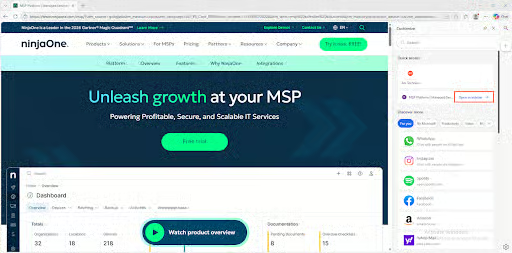
Once a page is opened to the sidebar, that page will persist in the sidebar as you continue to browse in the main window. This is demonstrated below, where the NinjaOne website has been opened in the sidebar while Google continues to be used in the main window.
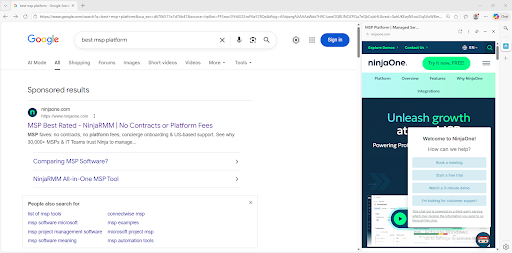
This can be useful in a variety of ways, for example, comparing a product against others by opening it in the sidebar and then browsing other product pages. However, some users and system administrators prefer to disable this functionality, generally to prevent unintended clicks from confusing users.
What you need to enable or disable ‘Open Site or App to Sidebar’ in Microsoft Edge
‘Open Site or App to Sidebar’ is enabled by default on Edge running on Windows 11 devices. While sidebar visibility is configured per-user and doesn’t require administrative privileges, specifically disabling opening links in the sidebar requires the use of the Windows Registry or Group Policy, which does require a local or domain administrator account.
If you are using Group Policy to configure the Edge sidebar, you may need to add the relevant ADMX files.
Method 1: Enable or disable the sidebar in Edge settings
The simplest way to stop users from opening websites in the sidebar is to disable the sidebar:
- Open Microsoft Edge from the Start menu
- Open Settings (visible in the … menu)
- Click Appearance
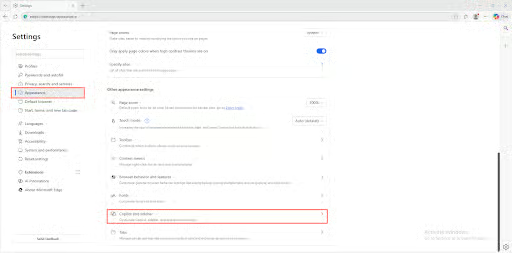
- Scroll down to Copilot and sidebar
- Select Always on, Auto hidden, or Off to set sidebar visibility in Edge
This disables the sidebar for the current user only. If you want users to be able to access the sidebar, but not be able to open websites in it, you’ll need to use the Windows Registry or Group Policy.
Method 2: Enable or disable opening websites in the Edge sidebar using Group Policy
To use Group Policy to enable or disable this functionality, ensure the Microsoft Edge ADMX templates are installed, then:
- Right-click on the Start button and click Run
- Run the command gpedit.msc to open the Group Policy Editor
- Navigate to Computer Configuration > Administrative Templates > Microsoft Edge
- Double-click on the EdgeOpenInSidebarEnabled setting
- Set it to Enabled to explicitly enable the setting (the default), or Disabled to turn off the feature
- Run gpupdate /force to apply the change, and restart Edge
- This Group Policy setting applies globally to all users
Group Policy is only available on Pro, Enterprise, and Education versions of Windows 11.
Method 3: Configure Edge using the Windows Registry Editor
This setting is also configurable by administrators using the Windows Registry Editor:
- Right-click on the Start button and select Run
- Run the command regedit.exe to open the Windows Registry Editor
- Navigate to the registry key located at HKEY_LOCAL_MACHINE\SOFTWARE\Policies\Microsoft\Edge
- If the registry key doesn’t exist, right-click on the Microsoft parent key, then select New > Key
- Double-click on the EdgeOpenInSidebarEnabled value to edit it
- If the value does not exist, select Edit > New > DWORD (32-bit) Value from the toolbar to create it
- Set the value to 0 or 1 to disable or enable users from opening links in the Edge sidebar
- Restart Microsoft Edge to apply the change
- This setting will apply to all users on the device
This method can be used on any version of Windows 11, including Home editions.
Use PowerShell automation to configure Microsoft Edge sidebar behaviour
You can apply the above registry setting using a PowerShell script, and optionally deploy it using remote monitoring and management (RMM) automation.
Use the following command to enable:
Set-ItemProperty -Path “HKLM:\SOFTWARE\Policies\Microsoft\Edge” -Name “EdgeOpenInSidebarEnabled” -Value 1
Use the following command to disable:
Set-ItemProperty -Path “HKLM:\SOFTWARE\Policies\Microsoft\Edge” -Name “EdgeOpenInSidebarEnabled” -Value 0
Troubleshooting and additional considerations
To test whether your chosen method was effective, open the Edge sidebar and check whether the option appears.
If you are enabling the setting, and it does not appear, check that you are running a version of Microsoft Edge that supports the feature. If you want consistent versions of software in enterprise or education environments, enact suitable patch management processes.
If the sidebar does not appear, check that it is enabled in your Edge browser settings and that it is not restricted by enterprise policy (this usually happens when your device is managed by an organization).
Automate and enforce Microsoft Edge configuration across devices with NinjaOne
Deploy consistent configurations across your entire enterprise fleet, including browser configurations for Windows 11, MacOS, and Linux devices, using NinjaOne’s comprehensive IT toolkit. The NinjaOne platform unifies mobile device management (MDM), remote monitoring and management (RMM), endpoint protection, remote access, and customer support tools in a single web interface that you can tailor for your own compliance and workflow requirements.
Quick-Start Guide
Can NinjaOne Manage Microsoft Edge Sidebar Settings?
What NinjaOne can do
NinjaOne’s current capabilities for Windows management include:
– Software patching and deployment (including Edge updates via WinGet)
– General Windows policy management through standard policies
– Remote monitoring and management of Windows endpoints
– Script execution on managed devices
How to Manage Edge Sidebar Settings:
If you need to control this Edge feature across your organization, you have a few options:
1. Group Policy (On-Premises) — Use Active Directory Group Policy Objects (GPOs) to manage Edge settings via edge://policy
2. Microsoft Intune/Cloud Policy — If using cloud-based management, configure policies through Microsoft’s cloud policy service
3. NinjaOne Scripts — Deploy PowerShell or batch scripts through NinjaOne to configure Edge settings on individual devices
4. Manual Configuration — Users can manually enable/disable this in Edge Settings > Appearance > Sidebar
Recommendation:
If you need centralized management of Edge sidebar settings across your NinjaOne-managed fleet, we recommend:
– Using Group Policy if you have Active Directory
– Using Microsoft Intune for cloud-native management
– Creating a custom NinjaOne script to deploy the registry/policy changes programmatically