
IT environments have strict policies when it comes to device log-in and other related actions. For example, it’s common in corporate setups to have employees confirm their credentials every now and again, especially if they’ve been away from their workstation for an extended period.
If you’d like to implement this within your own network, this guide offers several options on how to require a PC login after waking from sleep.
Methods for changing sign-in on wakeup preferences
Use the table to choose and quickly navigate to your preferred activation steps.
| Click to Choose a Method | 💻 Best for Individual Users | 💻💻💻 Best for Enterprises |
| Method 1: Windows Settings | ✓ | |
| Method 2: Group Policy (GPO) | ✓ | |
| Method 3: Windows Registry | ✓ | |
| Method 4: PowerShell script | ✓ |
💡 Tip: Check out the Things to look out for section to optimize your action plan and manage risks.
🎥 Watch all four methods on How to Enable or Disable the Require Sign-in on Wakeup Setting in Windows 11 — pick Settings, GPO, Registry, or PowerShell depending on your environment.
Method 1: Configure Sign-in options via Settings
This method is best for self-service or Remote Desktop Protocol configuration.
📌 Use cases: For remote activation and self-service.
📌 Prerequisites: Requires system access.
- Open Settings from Search 🔎 or press Win + I.
- Navigate to Accounts → Sign-in options.
- Under Additional settings, find If you’ve been away, when should Windows require you to sign in again? to manage your preferences.
- Choose Everytime or Never from the drop-down list.
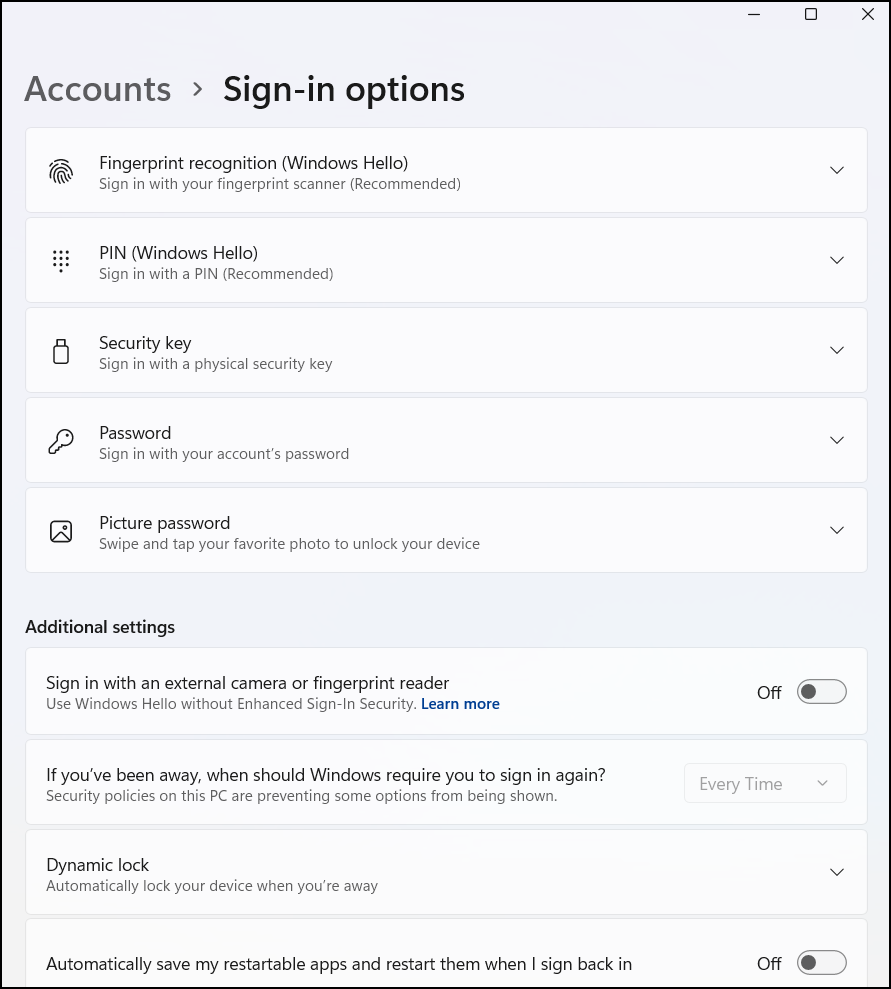
This setting applies to the current user only and takes effect immediately.
Method 2: Configure Sign-in options via GPO
GPO management tools are commonly used for enterprise-level deployments.
📌 Use cases: For enterprise and system-wide deployments.
📌 Prerequisites: Requires GPO access (Windows 11 Pro, Enterprise, or Education).
- Press Win + R, type gpedit.msc, and tap OK to open Local Group Policy Editor.
- Navigate to Computer Configuration → Administrative Templates → System → Power Management → Sleep Settings.
- Double-click Require a password when a computer wakes (on battery).
- Set to Enabled or Disabled based on your preference. Repeat for (on AC power) if applicable.
You can run the gpupdate /force command to apply the changes immediately. Otherwise, the new settings will be applied on the next interval.
💡 Tip: Looking for a guide? Check out this GPUpdate video demonstration.
Method 3: Configure Sign-in options via Registry Editor
These steps can be used by advanced users to configure personal and managed devices. It’s also an excellent alternative for systems without GPO access.
📌 Use cases: For personal and system-wide deployments; RMM distribution.
📌 Prerequisite: This setting only applies if the device supports Modern Standby.
- Press Win + R, type regedit, and tap OK to open the Registry Editor.
- Navigate to or copy and paste the following path to the Registry address bar.
HKEY_CURRENT_USER\Control Panel\Desktop
Create the required key if the path is incomplete.
- Modify or create the DelayLockInterval DWORD (32-bit) value.
- Open it and set its Value data according to your preferences.
- ffffffff = Do not require password.
- 00000000 = Require password every time.
- Restart the system or use powercfg /setactive to apply the active plan settings.
⚠️ Warning: Editing the registry can cause system issues. Create a backup before proceeding. Check out the video demonstration here.
Method 4: Set Configure Sign-in options via PowerShell script
PowerShell scripts are often used for task automation and software deployment.
📌 Use case: For automation and RMM scripting.
📌 Prerequisite: Requires network and system access.
(A) PowerShell script to disable sign-in on wake for all users
- Open PowerShell from Search 🔎 and select Run as administrator.
- Use the following command:
powercfg /SETDCVALUEINDEX SCHEME_CURRENT SUB_NONE CONSOLELOCK 0
powercfg /SETACVALUEINDEX SCHEME_CURRENT SUB_NONE CONSOLELOCK 0
powercfg /SETACTIVE SCHEME_CURRENT
(B) PowerShell script to enable sign-in on wake for all users
- Open PowerShell from Search 🔎 and select Run as administrator.
- Use the following command:
powercfg /SETDCVALUEINDEX SCHEME_CURRENT SUB_NONE CONSOLELOCK 0
powercfg /SETACVALUEINDEX SCHEME_CURRENT SUB_NONE CONSOLELOCK 0
powercfg /SETACTIVE SCHEME_CURRENT
💡 Note: This script may run or fail without displaying any confirmation or prompt. To verify that changes have been applied successfully, please check the corresponding Registry keys or system settings.
Things to look out for when you remove the login requirement on wake up
Missing something? Consider these scenarios and tips for handling errors, preventing system issues, and reinforcing policies.
| Risks and Considerations | Potential Consequences/Scenarios | Reversals and Tips |
| Security vulnerability | Disabling the setting increases the risk of unauthorized access. | Only turn off sign-in on wake in a secure environment. |
| Settings conflict | GPO enforcement will override all local GUI settings and user preferences. | N/A |
| Roaming profiles | Settings must be applied per device unless redirected. | GPO and PowerShell script activation can be used to streamline settings for all users. |
| Windows Hello conflict | Sign-in on wakeup preferences are overridden by Windows Hello settings. | Make additional adjustments to Windows Hello log-in settings to avoid conflicting access requirements. |
💡 Tip: When Fingerprint or facial recognition is enabled via Windows Hello, the If you’ve been away, when should Windows require you to sign in again? will be greyed out. A security policy may also prevent users from changing preferences.
Best practices for managing the require sign-in on wakeup setting
Configuring devices to require a username at login or wake from sleep adds a simple but crucial layer of security. On the other hand, switching off this spontaneous access, while convenient, is a security risk in high-risk and shared environments.
It’s highly recommended to have this option enabled in shared devices, training environments, kiosks, and business settings. This feature improves data security by default and limits unauthorized access. In lieu of passwords, you can encourage users to use PINs or biometrics to speed up device log-in without compromising security.
Related topics:
- How To Force Password Change at Next Sign-in in Windows 10 and Windows 11
- How to Add or Remove the Sign Out Option from the Start Menu in Windows 10/11
- Enable or Disable Sign in with Picture Password in Windows 10
- How to Change System Unattended Sleep Timeout in Windows
- Mastering Windows Power Management: A PowerShell Guide for IT Pros and MSPs
Quick-Start Guide
Here are the methods to enable or disable the “Require Sign-in on Wakeup” setting in Windows 11:
1. For Windows 11 Pro/Enterprise (with Group Policy Editor):
– Press Win + R, type gpedit.msc
– Navigate to: Computer Configuration > Administrative Templates > System > Power Management > Sleep Settings
– Look for policies related to “Require a password when a computer wakes”
– Disable these policies to remove the sign-in requirement
2. For Windows 11 Home (without Group Policy Editor):
– Open Settings > Accounts > Sign-in options
– Under “If you’ve been away, when should Windows require you to sign in again?”, set to “Never”
– Alternatively, use a third-party tool like PolicyPlus from GitHub to modify group policy settings
3. Settings Method:
– Go to Settings > Personalization > Lock Screen
– Configure screen saver settings to prevent automatic locking
NinjaOne’s documentation confirms that Windows 11 is a supported OS for their RMM agent, so these methods should work across most Windows 11 installations.
Pro tip: If you’re having persistent issues, try creating a new user profile or checking for any conflicting security policies that might be overriding your settings.