


Key Points
- Windows provides multiple built-in methods for how to view your PC system information, including msinfo32, systeminfo, PowerShell, and Settings.
The msinfo32 System Information tool offers the most comprehensive hardware and driver breakdown and allows export to .nfo or .txt. - The systeminfo command and Get-ComputerInfo PowerShell cmdlet support automation and remote inventory collection.
- Settings and Control Panel provide quick access to basic specs like CPU, RAM, and Windows version.
- IT teams can scale system information retrieval using PowerShell remoting or RMM tools for centralized asset visibility.
If you need to know how to view your PC system information in Windows 11, Windows includes multiple built-in tools that provide immediate access to hardware, operating system, BIOS, and driver details.
In a nutshell, here’s to view your PC system information:
- Press Windows + R, type msinfo32, and press Enter.
- Go to Settings > System > About for basic specs.
- Run systeminfo in Command Prompt.
- Use Get-ComputerInfo in PowerShell for automation.
This article goes into these methods in depth. Understanding how to view your PC system information is critical for troubleshooting, Windows upgrade planning, compatibility checks, and enterprise hardware documentation.
If you prefer watching over reading, watch How to View Your PC’s System Information in Windows 11.
What Is Windows System Information (msinfo32)?
Windows System Information (msinfo32) is a built-in diagnostic utility that provides detailed hardware, driver, BIOS, and OS configuration data for Windows 11 devices. IT professionals commonly use it for troubleshooting, documentation, and compatibility validation.
Get an overview of system information across all your managed devices.
How to Check System Information in Windows 11
There are several methods for viewing system information in Windows 10, detailed below.
Here’s a quick comparison table showing all of the methods:
| Method | Detail Level | Exportable | Best For |
| msinfo32 | High | Yes (.nfo/.txt) | Troubleshooting, documentation |
| systeminfo | High | Yes (CLI output) | Automation, scripting |
| Get-ComputerInfo | Very High | Yes | PowerShell automation |
| Settings > About | Basic | No | Quick checks |
| Control Panel > System | Basic | No | Legacy environments |
Using the Windows System Information tool (msinfo32)
msinfo32 is a built-in tool for viewing system information in Windows 10 and Windows 11. Follow these steps to access it:
- Right-click on the Start button and select Run (or press Windows key + R on your keyboard)
- Enter msinfo32 in the Open field and click OK
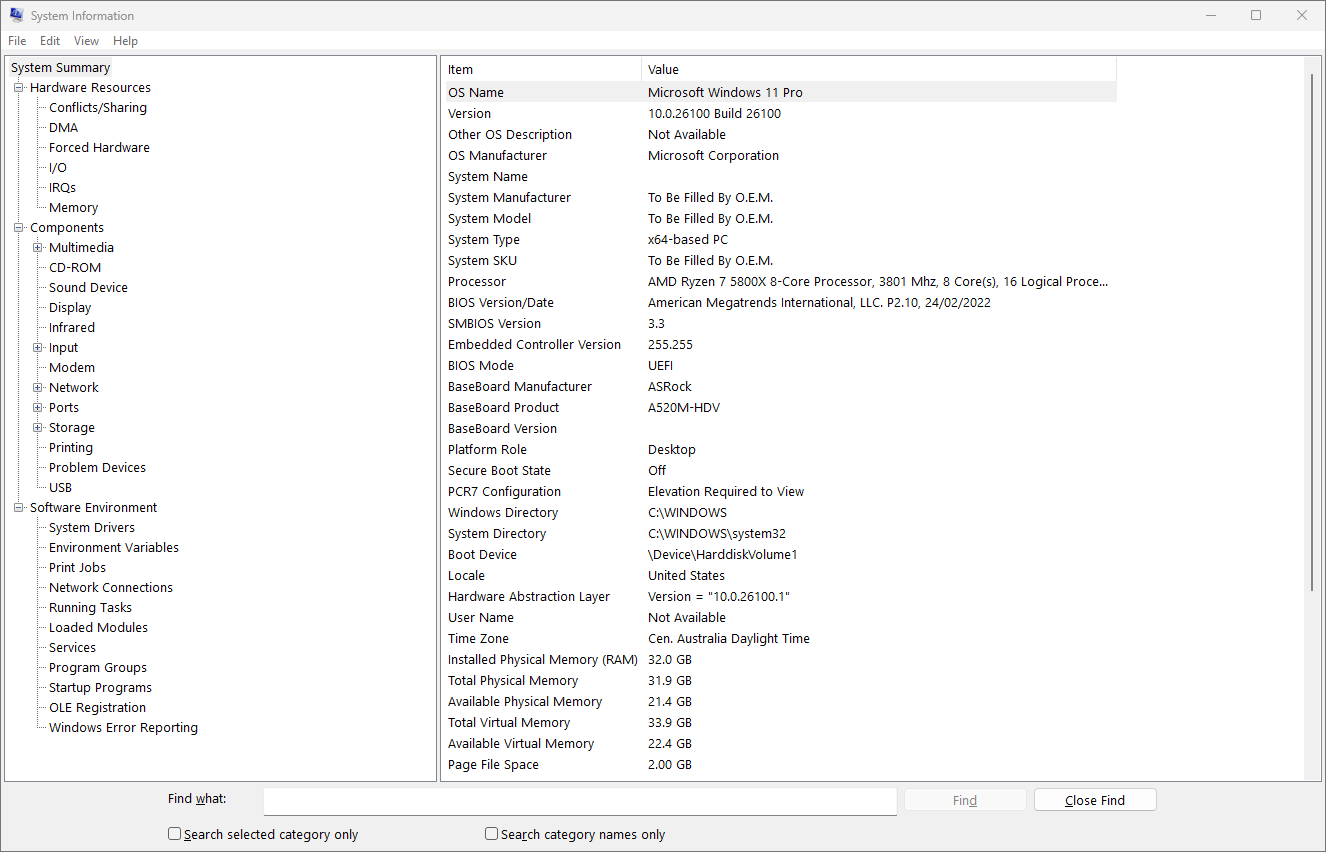
The information in msinfo32 is broken into several sections:
- System Summary: Provides an overview of your system, including the version of Windows, processor information, RAM, and other high-level hardware and software information.
- Hardware Resources: Includes detailed, low-level information about your hardware, including DMA, I/O, memory, and IRQ information.
- Components: Details the hardware installed in your Windows 10 or Windows 11 PC, including CD-ROM, audio hardware, printers, and USB devices.
- Software Environment: This section includes information about drivers, services, startup programs, and other software-related system details.
You can use the Find what search function at the bottom of the msinfo32 screen to search your system’s information, for example searching for “adapter description” will show the name of the current display adapter or GPU.
The system information provided by msinfo32 can be exported or saved to a text file by clicking File > Save… or File > Export… in the menu bar of the msinfo32 window.
Using the Command Prompt or PowerShell to find detailed system information
The systeminfo command can be used to output detailed information about your Windows PC’s hardware and software.
- Open the Command Prompt or PowerShell
- Enter the command systeminfo and press Enter
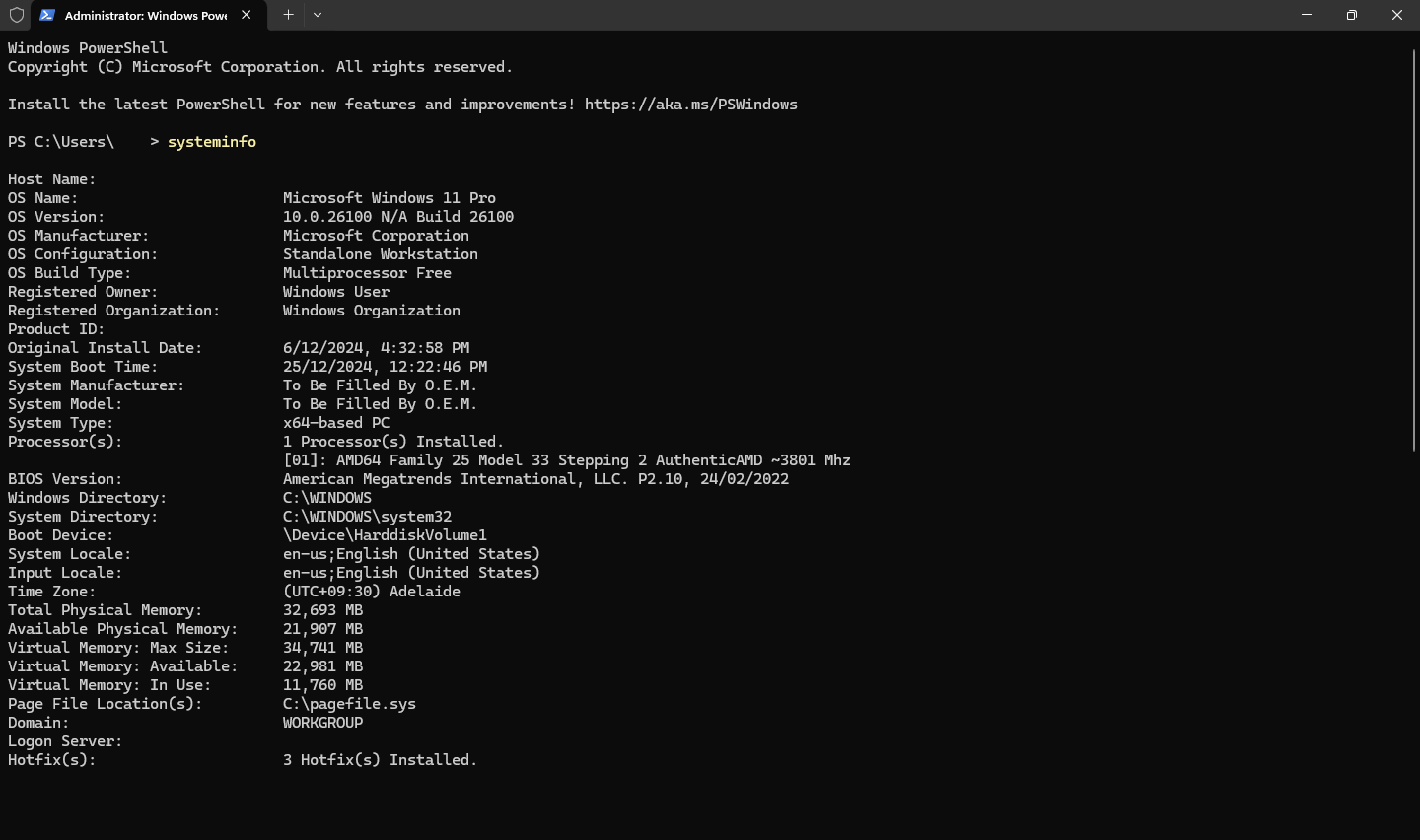
You can also use the Get-ComputerInfo cmdlet in PowerShell to output your system details by running the following command:
Get-ComputerInfo
The below command saves the output of Get-ComputerInfo to a text file in the current directory:
Get-ComputerInfo | Out-File -FilePath “ComputerInfo.txt”
PowerShell is an effective automation tool that allows you to run commands and scripts remotely. For example, you could automate the collection of system information for multiple Windows 10 and Windows 11 PCs and upload them to a central location for review.
Find Windows version and basic specs in the Settings app
Basic information about your Windows 10 or Windows 11 device is displayed in the Windows Settings app:
- Right-click on the Start button
- Select Settings
- Navigate to Settings > System > About
Checking System Properties in the Control Panel
You can view basic information about your Windows 10 or Windows 11 PC using the legacy Control Panel:
- Press Windows Key + R
- Type control and press Enter
- Navigate to System and Security
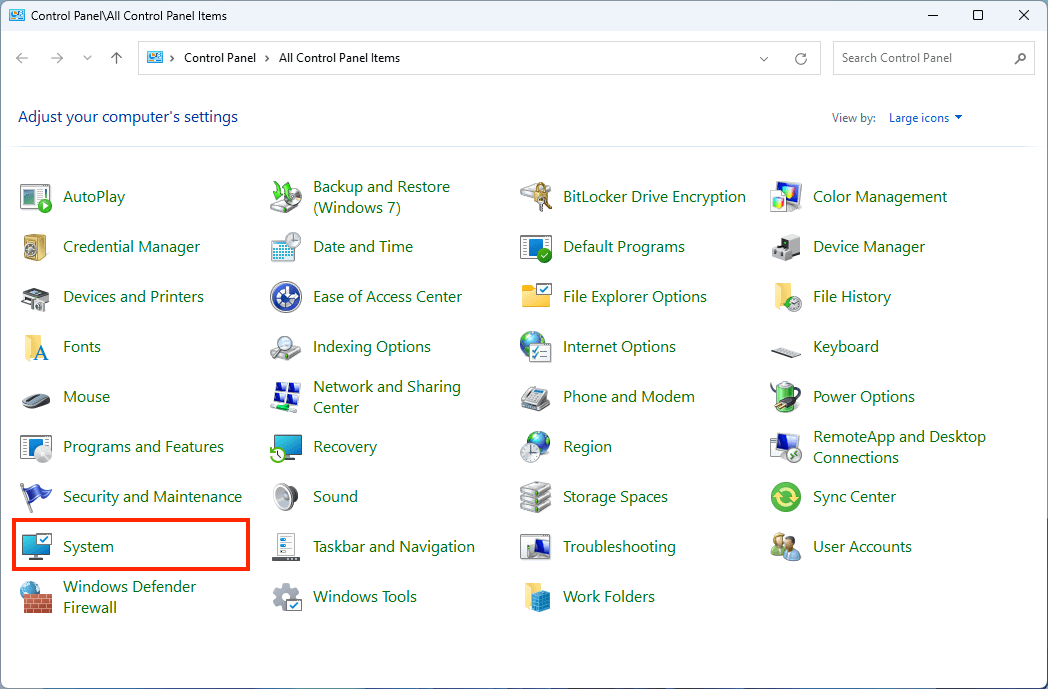
- Select System to view information about your Windows system
Comparing methods for viewing hardware and software details in Windows
Using the Windows System Information tool (msinfo32) or systeminfo via the command-line provide the most detailed information about your Windows 11 device.
Using the System Properties or Windows Settings app only provides basic information. This can be useful as a quick way to check your version of Windows or information like how much RAM your PC has, or what kind of CPU is installed in it.
As of 2026, Windows 11 23H2 and later versions continue to support all methods outlined above, and msinfo32, systeminfo, and PowerShell remain fully supported in enterprise deployments.
Speed up troubleshooting and resolve end-user endpoint issues remotely.
Maintaining inventory and viewing system specs of fleets of Windows Devices
Viewing system information on Windows 10 and Windows 11 devices is a simple process for individual home users — but quickly becomes complex when you need to check the hardware and software information of tens, hundreds, or even thousands of Windows devices.
Remote monitoring and management by NinjaOne gives you full visibility over all of your Windows, Apple, Android, and Linux devices. You can retrieve up-to-date information on every device’s specs, including detailed hardware and software information so that you can troubleshoot issues and assess whether devices need to be updated or upgraded to meet new software or business requirements.


