Key points
Quickly Unlock a BitLocker Drive
- Right‑click the encrypted drive in This PC or My Computer, select Unlock Drive, and enter the BitLocker password or recovery key.
- You can also unlock via Control Panel → BitLocker Drive Encryption → Enter recovery key for drives that require it.
- Alternatively, run Unlock-BitLocker -MountPoint <drive> with the recovery key to remotely unlock drives or deploy in scripts.
BitLocker is a Windows security feature that lets you encrypt your computer’s drive. “Removable” drives like USB sticks and external hard drives can also be BitLocker-secured. Though the process of unlocking them can vary, doing it right keeps your data safe and intact.
This article explains how to unlock a BitLocker drive in Windows and what to do if you lose your password.
If you prefer watching over reading, watch How to Unlock a BitLocker Drive (Fixed or Removable) in Windows.
Methods to unlock a BitLocker drive in Windows
These BitLocker drive encryption unlock methods apply to both fixed and removable drives.
Using a password
- Press Win+E to open File Explorer.
- Go to This PC (Windows 8/10) or My Computer (Windows 7).
- Right-click on the fixed/removable drive you want to unlock.
- Select Unlock Drive.
- Enter your BitLocker password.
- Click Unlock.
Using a BitLocker recovery key
- Press Win+E to open File Explorer
- Go to This PC (Windows 8/10) or My Computer (Windows 7).
- Right-click on the fixed/removable drive you want to unlock.
- Select Unlock Drive.
- Click on More options below the entry field.
- Select Enter recovery key.
- Take note of the Key ID. You’ll need this to select the correct recovery key later.
- Go to where you stored your recovery key’s back-up and select the 48-digit number that corresponds with your Key ID.
- Repeat steps 2-6.
- Enter your recovery key.
- Click Unlock.
Unlocking with the Control Panel
- Open Search using Win + S.
- Type Control Panel in the search box, then press Enter.
- Change the view settings to Large Icons (see screenshot below).
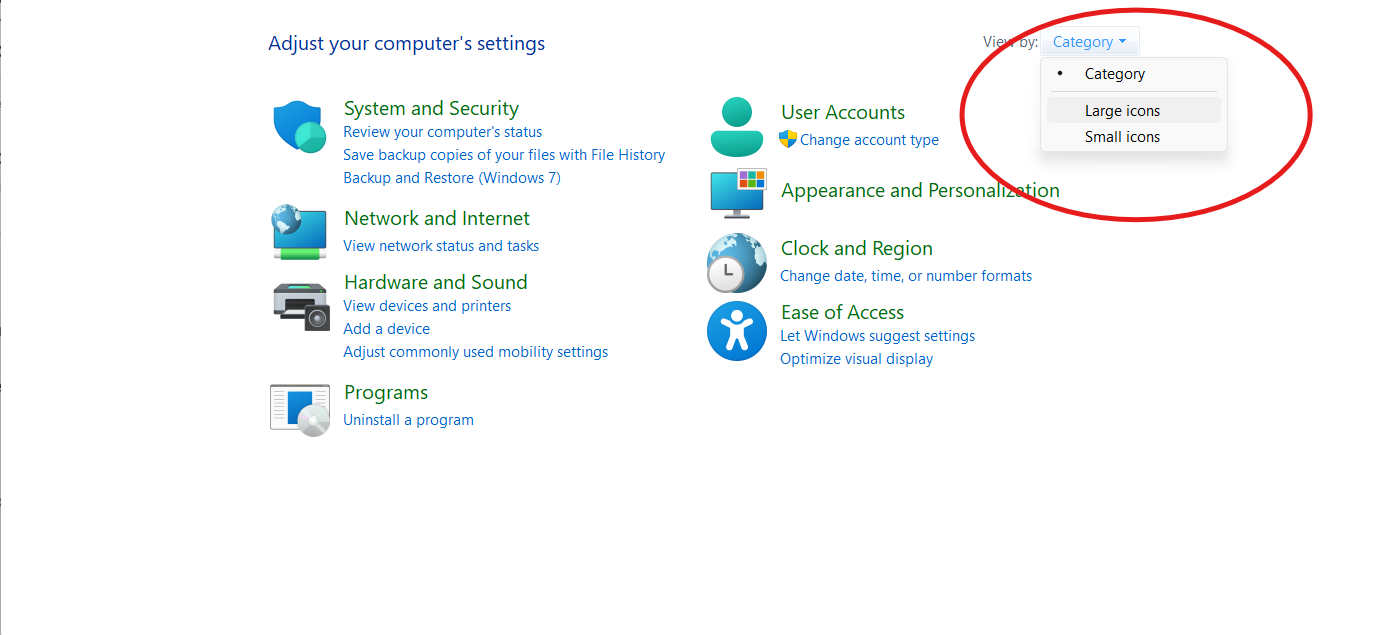
- Click on BitLocker Drive Encryption.
- Search for the drive you want to unlock and click on Unlock drive.
- Use either your password or your recovery key.
Unlocking with an elevated command prompt (CMD)
After securing administrator privileges, do the following:
Using password:
- Press Win+X.
- Click on Command prompt (Admin) (Windows 10) or Terminal (Admin) (Windows 11) to open an elevated command prompt.
- Type the command line below (“drive letter” should be replaced with the encrypted volume letter).
manage-bde -protectors -get <drive letter>: -password
- Hit Enter.
- Enter your BitLocker password.
Using recovery key:
- Press Win+X.
- Click on Command prompt (Admin) (Windows 10) or Terminal (Admin) (Windows 11) to open an elevated command prompt.
- Type the command line below (“drive letter” should be replaced with the encrypted volume letter).
manage-bde -protectors -get <drive letter>:
E.g., manage-bde -protectors -get D:
- Hit Enter.
- Take note of the Key ID. You’ll need this to select the correct recovery key later.
- Go to where you stored your recovery key’s back-up and copy the 48-digit number corresponding to your Key ID.
- Type the command line below (“drive letter” and “recovery key” should be replaced with their respective values) and hit Enter.
manage-bde -unlock <drive letter>: -rp <recovery key>
E.g. manage-bde -unlock D: -rp 4444-4444-4444-4444-…:
Unlocking with PowerShell
- Open Search using Win+S.
- Type Windows Powershell in the search box.
- Click on Run as Administrator.
Unlock BitLocker with password prompt:
- Type the command line below (“drive letter” should be replaced with the encrypted volume letter).
Unlock-BitLocker -MountPoint “<drive letter>:” -Password (Read-Host “Enter Password” -AsSecureString)
E.g., Unlock-BitLocker -MountPoint “D:” -Password (Read-Host “Enter Password” -AsSecureString)
- Hit Enter.
- When prompted, input your BitLocker password.
- Press Enter.
Unlock BitLocker without password prompt:
- Type the command line below (“password” and “drive letter” should be replaced with their respective values).
$SecureString = ConvertTo-SecureString “<password>” -AsPlainText -Force; Unlock-BitLocker -MountPoint “<drive letter>:” -Password $SecureString
With recovery key prompt:
- Type the command line below (“drive letter” should be replaced with the encrypted volume’s letter).
manage-bde -protectors -get <drive letter>:
E.g., manage-bde -protectors -get D:
- Take note of the Key ID. You’ll need this to select the correct recovery key later.
- Go to where you stored your recovery key’s back-up and copy the 48-digit number that corresponds with your Key ID.
- Type the command line below (“drive letter” and “recovery key” should be replaced with their respective values).
Unlock-BitLocker -MountPoint “<drive letter>:” -RecoveryPassword <recovery key>
E.g. manage-bde -unlock D: -rp 4444-4444-4444-4444-…:
- Hit Enter.
Unlocking with Active Directory or Microsoft Endpoint Manager
A user cannot use Active Directory (AD) to decrypt a drive, whether fixed or removable. However, your IT administrators can use AD to store backups of your recovery key in case you ever lose yours.
You can even take it further and automate policies to secure your organization.
For a visual walkthrough, you may view this brief video: ‘How to Unlock a BitLocker Drive (Fixed or Removable) in Windows’.
Understanding BitLocker drive encryption
BitLocker drive encryption is a Windows security feature that protects your entire drive from security risks and reinforces file integrity. BitLocker shrouds your drive with Advanced Encryption Standard (AES-256), an algorithm that uses a 256-bit key to turn your data into unreadable ciphertext.
This military-grade protection comes with fixed and removable BitLocker drives, and you can unlock either one in different ways. Fixed drives can automatically unlock on start-up if your OS is already BitLocker-secured, while removable drives offer more portability and always require a password. But besides that, there are no major differences between opening a fixed drive and a removable drive encrypted with BitLocker.
Troubleshooting BitLocker unlock issues
Unlocking a fixed or removable BitLocker drive can sometimes result in an error message mid-unlock. Here are the most common ones that pop up when you’re trying to access a fixed and removable BitLocker drive on Windows:
- Password is incorrect: This typically happens after entering an incorrect password more than 32 times. Double-check to ensure you’re using the right passkey.
- TPM not found: This occurs when a piece of hardware needed for BitLocker is deactivated or malfunctioning. Check BIOS settings to ensure that TPM is enabled then restart its driver in Device Manager.
- Hardware change detected: This triggers Recovery Mode due to changes made in BIOS/new hard drive.
- Corrupted metadata: This is caused by a faulty encryption process. Run the “chkdsk” line (chkdsk <drive letter>: /r /f) on an elevated command prompt to check for corrupted data.
- Lost recovery key: Reset your system using Windows recovery options. Otherwise, contact your organization’s IT administrator.
Preventive measures and best practices
Back up your BitLocker recovery key often to make sure you’re never locked out. There are plenty of places to save a copy, including:
- Your Microsoft Account
- A USB flash drive
- A .txt file
- Active Directory (for organizational devices)
- A physically-printed copy
Having a spare key means lesser chances of you losing your 48-digit password. But no matter what, NEVER store your recovery key in an encrypted drive!
Beyond the individual level, your IT department can do a lot more so you never lose access. Enforcing and automating strict password policies and requiring physical copies are some examples.
Lastly, heavy firmware updates can cause issues with access involving your recovery key. To avoid this, disable or suspend BitLocker before the patch.
Flawlessly access your encrypted data
You can unlock fixed and removable BitLocker drives via the elevated command prompt, the control panel, File Explorer, and PowerShell using the password/PIN or recovery key.
Certain issues can also occur when unlocking both fixed and removable drives, and these are solvable with the right procedures. Consistently creating in-device and out-of-device recovery key backups should be practiced to avoid getting locked out. In rare cases, BitLocker has to be suspended for heavy updates that impact BIOS/boot components for seamless decryption.
If you need more answers, head on to our tech blog and other official sources to find the best solutions.
Related topics: